You plug in a second screen and Windows duplicates the same image, ignores the display, or leaves the mouse moving the wrong way between screens. Extended display fixes that by turning the monitor, TV, projector, or wireless display into extra desktop space. Start with the fastest Windows 11 controls, then use Settings when you need to arrange screens, connect wirelessly, or use Presenter View in PowerPoint.
1. Turn on Extend with the keyboard
Use this first when the second screen is already connected by HDMI, DisplayPort, USB-C, a dock, or an adapter.
Connect the monitor, TV, projector, dock, or adapter to the PC. Press Windows logo key + P. Select Extend.
The same Project flyout also offers PC screen only, Duplicate, and Second screen only. For a keyboard-only or screen-reader flow, press Windows logo key + P, use Up arrow or Down arrow until Extend is selected, then press Enter.
2. Arrange the monitors in Settings
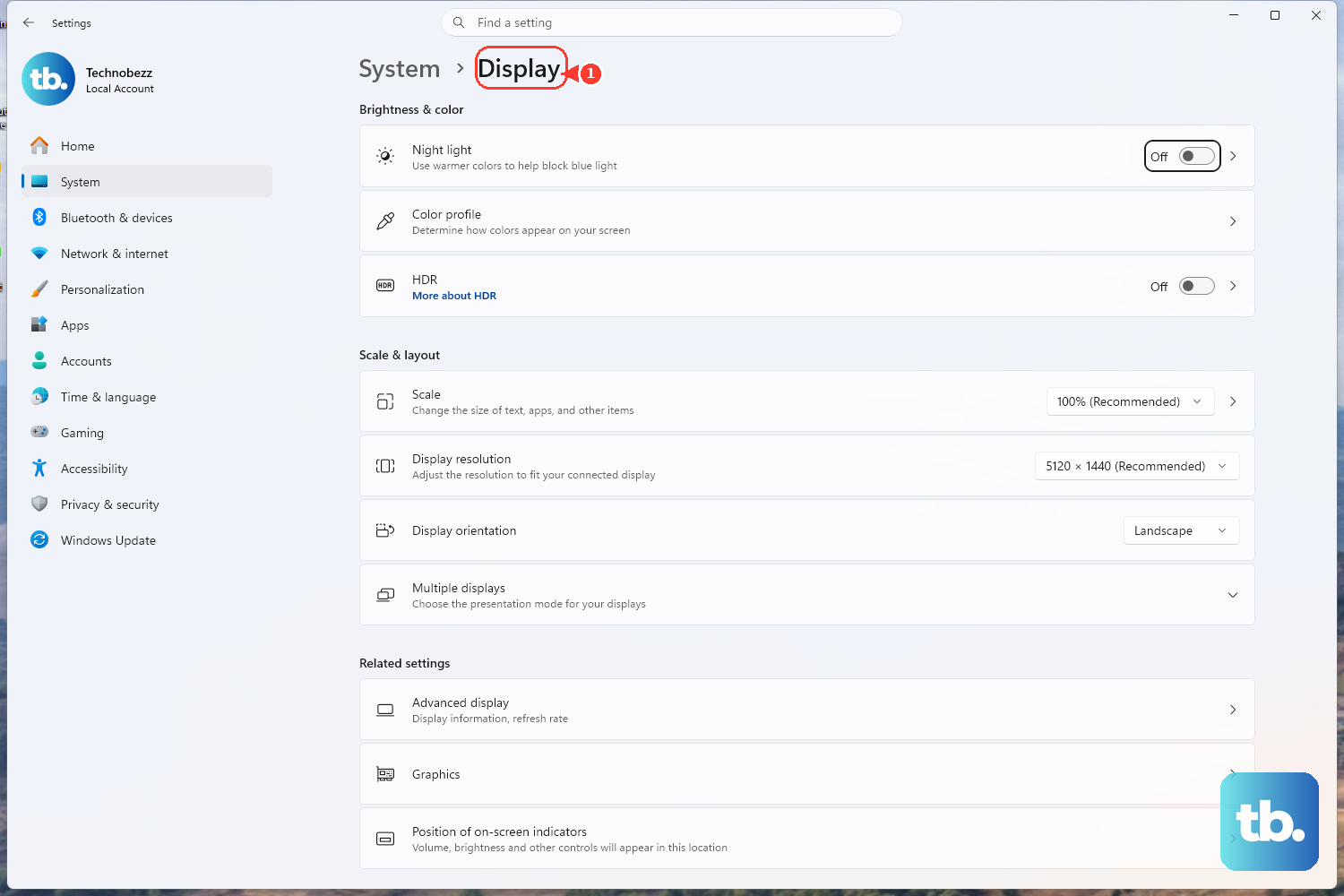
- 1.Select Start.
- 2.Open Settings > System > Display.
- 3.Near the top of the page, open the display-mode dropdown.
- 4.Choose Extend these displays.
- 5.Select Apply if Windows asks you to confirm.
- 6.Select Identify, then drag the display boxes so they match the physical layout on your desk, then select Apply and move the mouse pointer across the displays to test the layout.
Go to Settings when Extend is on but the screens are in the wrong order, or when you prefer changing the mode from the full Display page. That layout controls how the pointer moves from one screen to the other, so put the boxes in the same left, right, higher, or lower position as the actual displays.
3. Open Project from Quick Settings
On a Surface or touch-first Windows 11 device, Quick Settings gives you the same display modes without a keyboard.
Select the Network, Sound, or Battery icons on the far right side of the taskbar. Then select Project. Choose Extend. This is the touch-friendly route to the same choices shown by Windows logo key + P.
4. Connect a wireless display first
Turn on the TV, projector, wireless display, or Miracast adapter. Press Windows logo key + K. Select the display from the list. Follow any on-screen instructions.
After that, press Windows logo key + P. Select Extend.
A wireless TV, projector, display, or Miracast adapter has to be connected before Windows can extend to it. You can also search for Cast in the Windows search bar, select Connect to a wireless display, then connect from Settings > System > Display under Multiple displays. Wireless display requires a PC and target device that support wireless display, or a Miracast adapter.
5. Reconnect a wireless display or dock
Remove the saved device and pair it again when a wireless display, Miracast adapter, or wireless dock used to work and now refuses to connect cleanly. Open Settings. Select Bluetooth & devices > Devices.
Under Wireless displays & docks, select the wireless display or adapter. Select Remove device. Next, press Windows logo key + K and reconnect the display. Press Windows logo key + P and select Extend.
If you use a Microsoft Wireless Display Adapter or Microsoft 4K Wireless Display Adapter, install the Microsoft Wireless Display Adapter app from Microsoft Store for adapter settings and firmware. The app does not replace the Windows Project controls; use Windows logo key + K to connect and Windows logo key + P to choose Extend.
6. Use another Windows PC as a screen
On the receiving PC, open Start > Settings > System > Projecting to this PC. Under Add the Wireless Display optional feature to project to this PC, select Optional features. Next to Add an optional feature, select View features.
Enter wireless display. Select the checkbox next to Wireless Display. Select Next, then select Install.
Return to Projecting to this PC and launch Wireless Display from taskbar search. On the source PC, press Windows logo key + K, select the receiving PC, then press Windows logo key + P and choose Extend.
A second Windows 11 PC can work as the receiving display after the Wireless Display optional feature is installed on that receiving PC. The receiving PC must be running Windows 11 version 22H2 or later for Microsoft’s current Wireless Display app path.
7. Present with PowerPoint Presenter View
PowerPoint can use the extended display setup so the audience sees the slides while you see speaker notes. In PowerPoint, select the Slide Show tab. In the Monitors group, select Use Presenter View.
Then select Slide Show > Set Up Slide Show. Choose the monitor options. Select OK. Select From Beginning or the Slide Show button.
Microsoft says newer PowerPoint versions automatically change the display topology to Extend when Slide Show starts, then revert afterward if Duplicate was the default.
8. Create an Extend shortcut
Right-click the desktop.
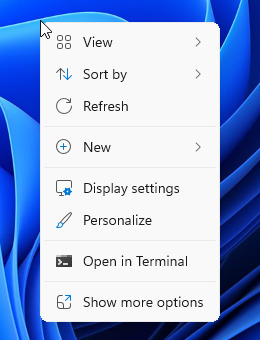
Select New > Shortcut. Enter DisplaySwitch.exe /extend. Name the shortcut. Select Finish.
For a one-click switch, Windows still exposes the global command DisplaySwitch.exe /extend. It changes the overall display mode and cannot target one specific monitor. You can also run DisplaySwitch.exe /extend from Run, Command Prompt, or a scheduled task. Related global modes include /internal, /external, and /clone.
9. Check restrictions on work PCs
Managed Windows devices can block or limit wireless projection, projecting to another PC, or access to display settings. If Project, Connect to a wireless display, or Settings > System > Display is unavailable on a work or school computer, contact the organization that manages the device.
Older Windows 8-era instructions that use Control Panel > Display > Adjust resolution are not the current Windows 11 consumer path. Use Windows logo key + P or Settings > System > Display.
Frequently Asked Questions
Does extended display show the same thing on both screens?
No. Extended display makes the second screen separate desktop space. Use Duplicate if you want both screens to show the same image.
Which Windows 11 shortcut opens the Extend option?
Press Windows logo key + P, then select Extend from the Project flyout.
How do I extend my screen to a wireless TV?
Turn on the TV or Miracast adapter, press Windows logo key + K, select the display, then press Windows logo key + P and choose Extend.
Why does PowerPoint switch my displays when I start a slideshow?
Microsoft says newer PowerPoint versions can automatically switch the display topology to Extend when Slide Show starts, then revert afterward if Duplicate was the default.