Press Delete on a Mac to remove the character before the cursor, or Fn + Delete on a MacBook or compact keyboard to remove the character after it. These shortcuts work in supporting editable text areas, with additional options depending on your app and keyboard.
The short version
- Delete backward: Delete removes the character before the cursor.
- Delete forward: Fn + Delete removes the character after the cursor on a MacBook or compact keyboard.
- Use another shortcut: Supporting text editors accept Control + H for backward deletion and Control + D for forward deletion.
- Remove files: In Finder, Command + Delete moves selected files or folders to Trash.
| Method | Control | Where it applies |
|---|---|---|
| Remove the preceding character | Delete | Supporting editable text areas |
| Remove the following character | Fn + Delete | MacBook and compact keyboards |
| Use a dedicated forward deletion key | Forward Delete (⌦) | Pages with an equipped keyboard |
| Use an alternative backward shortcut | Control + H | Supporting text editors |
| Use an alternative forward shortcut | Control + D | Supporting text editors |
| Remove the preceding word | Option + Delete | Supporting text editors |
| Remove the following word | Option + Forward Delete | Pages with an equipped keyboard |
| Remove text to the next word break | Option + Forward Delete | Espresso |
| Remove text back to the line beginning | Command + Delete | Espresso, including soft-wrapped lines |
| Remove text to the next paragraph break | Control + K | Pages |
| Remove selected text | Delete, Fn + Delete, or Forward Delete | Pages |
| Select a word or line segment before deletion | Selection shortcuts, then Delete | Pages |
| Type with an onscreen keyboard | Accessibility Keyboard | Focused editable text |
| Open the keyboard from the menu bar | Show Keyboard Viewer | Current macOS |
| Enter shortcuts sequentially | Sticky Keys | Supporting text editors |
| Activate an onscreen key by dwelling | Dwell with Left Click | Compatible eye or head tracking |
| Delete selected text by voice | Delete that | Voice Control with compatible text fields and English commands |
| Speak a custom deletion command | Press Keyboard Shortcut | Voice Control in the chosen app scope |
| Activate a key with an adaptive switch | Switch Control and Select Item | A configured adaptive switch |
| Move a file or folder to Trash | Command + Delete, or drag to Trash | Finder |
| Permanently remove trashed items through menus | Delete Immediately or Empty Trash | Finder |
| Permanently empty Trash with the keyboard | Shift + Command + Delete | Finder; adding Option skips confirmation |
Delete backward or forward
Backward deletion removes the character immediately before the insertion point, which is the cursor showing where you are editing. Place the cursor just after the unwanted character, then press Delete (⌫). To remove the last character of a word, position the cursor at the end of that word.
Forward deletion removes the character immediately after the cursor. On a MacBook or compact keyboard without a dedicated forward deletion key, place the cursor before the unwanted character, hold Fn, and press Delete. This removes the next character without moving past it first.
In Pages, a dedicated Forward Delete (⌦) key also removes the following character. If your keyboard has that key, place the cursor before the character and press it. On a compact keyboard without that key, use Fn + Delete.
Use other character deletion shortcuts
Supporting text editors offer alternative shortcuts that remove the preceding or following character. With the cursor after the unwanted character, press Control + H for backward deletion. With the cursor before it, press Control + D for forward deletion.
These alternatives depend on the text editor supporting them. If either shortcut does not perform the intended deletion, use Delete for backward deletion or, on a compact keyboard, Fn + Delete for forward deletion in a supporting editable text area.
Remove words and longer passages
Backward word deletion removes the word preceding the cursor in supporting text editors. Place the cursor after the unwanted word, then press Option + Delete. You can use this instead of removing each character separately.
In Pages, forward word deletion removes the following word using the Forward Delete key, which isn’t available on all keyboards. Place the cursor before the word, hold Option, and press Forward Delete. If your keyboard lacks that key, select the word and delete the selection using the steps below.
In Espresso, forward word deletion removes text from the cursor up to the next word break. Place the cursor before the word, hold Option, and press Forward Delete.
Espresso also lets you remove text from the cursor back to the beginning of the line, respecting soft-wrapped lines. While editing in Espresso, press Command + Delete to remove that text. Keep this shortcut’s app context in mind because it moves selected items to Trash in Finder.
In Pages, paragraph deletion removes text from the cursor to the next paragraph break. Position the cursor at the start of the unwanted passage, then press Control + K.
Select the text you want to delete
In Pages, deleting a selection removes all the selected text. Select the unwanted passage, then press Delete. With text selected, Fn + Delete or a dedicated Forward Delete key also removes that selection.
You can select by word in Pages with Option + Shift + Left Arrow or Option + Shift + Right Arrow. To select to a line boundary, use Shift + Command + Left Arrow or Shift + Command + Right Arrow. Deleting will remove the entire selection. Once the unwanted text is selected, press Delete.
Set up an onscreen keyboard
Open Apple menu > System Settings > Accessibility > Keyboard, then turn on Accessibility Keyboard. It lets you use your Mac without a physical keyboard. Focus the text you want to edit, then click keys on the onscreen keyboard.
You can also open the onscreen keyboard through Keyboard Viewer, which uses the Accessibility Keyboard. Open Apple menu > System Settings > Keyboard, then under Text Input, click Edit. Turn on Show Input menu in menu bar, then open the Input menu and choose Show Keyboard Viewer.
Focus the text you want to edit, then click keys in the Keyboard Viewer to enter them.
Use accessibility controls for deletion
Sticky Keys lets you enter modifier combinations one key at a time. Open Apple menu > System Settings > Accessibility > Keyboard, then turn on Sticky Keys. You can then enter deletion shortcuts sequentially in supporting text editors.
The forward shortcut removes the following character, while the backward shortcut removes the preceding character. For forward deletion, press Control and then D. For backward deletion, press Control and then H.
If you control the pointer with compatible eye or head tracking technology, you can use Dwell to activate the onscreen keyboard. Open Apple menu > System Settings > Accessibility > Keyboard and turn on Accessibility Keyboard. Open its Info button and configure Dwell, choosing Left Click as the dwell action.
With Left Click as the dwell action, dwelling on an item clicks it. Focus the text, then dwell over a key on the Accessibility Keyboard until the click occurs.
With a configured adaptive switch, open Apple menu > System Settings > Accessibility > Switch Control and turn on Switch Control. In the Home Panel, choose Keyboard. This keyboard lets you type text in a document or field. Scan the key groups, open a group, then select a key with Select Item.
Delete text with Voice Control
Open Apple menu > System Settings > Accessibility > Voice Control, then turn on Voice Control. The deletion command removes the selected text in compatible text fields. Select the unwanted text and, when using English commands, say Delete that.
You can also create a voice command that enters a deletion shortcut. Open Apple menu > System Settings > Accessibility > Voice Control > Commands, then click Add. Under When I say, enter a unique phrase of at least two words.
Choose the app scope and the Press Keyboard Shortcut action. Record Delete for backward deletion or Control + D for forward deletion in a supporting text editor, then click Done. Your command will remove the preceding or following character, depending on the shortcut you assigned. Focus the text field and speak your custom phrase.
Move files to Trash
In Finder, removing a file or folder with the keyboard moves it to Trash. Select the item, then press Command + Delete, or drag it to Trash. For a locked item, click Continue.
Moving an item to Trash and permanently removing it are separate actions. Use the permanent deletion controls below only for items you want to remove permanently.
Permanently remove items from Trash
Deleting an individual item from Trash permanently removes that item. Open Trash, Control-click the item, choose Delete Immediately, then click Delete.
Emptying Trash permanently removes everything in it. Choose Finder > Empty Trash, then click Empty Trash.
The keyboard shortcut for emptying Trash also permanently removes its contents. In Finder, press Shift + Command + Delete. The alternative shortcut skips confirmation when permanently emptying Trash. To use it, press Option + Shift + Command + Delete.
Frequently Asked Questions
Which key deletes backward on a Windows keyboard connected to a Mac?
On a Windows-layout keyboard connected to a Mac, Backspace performs backward deletion. Delete performs forward deletion.
Can you hold the Delete key to keep removing text?
Holding Delete continues removing text in text-entry areas that support key repetition. To use it, hold Delete while editing. You can adjust the behavior under Apple menu > System Settings > Keyboard using Key repeat rate and Delay until repeat.
How can you remove text and keep it on the Clipboard?
Cut removes selected text and stores it on the Clipboard. In a Mac app that supports Cut, select the text and press Command + X, or choose Edit > Cut. You can also Control-click the selection and choose Cut.
Can you assign your own shortcut to an app’s removal command?
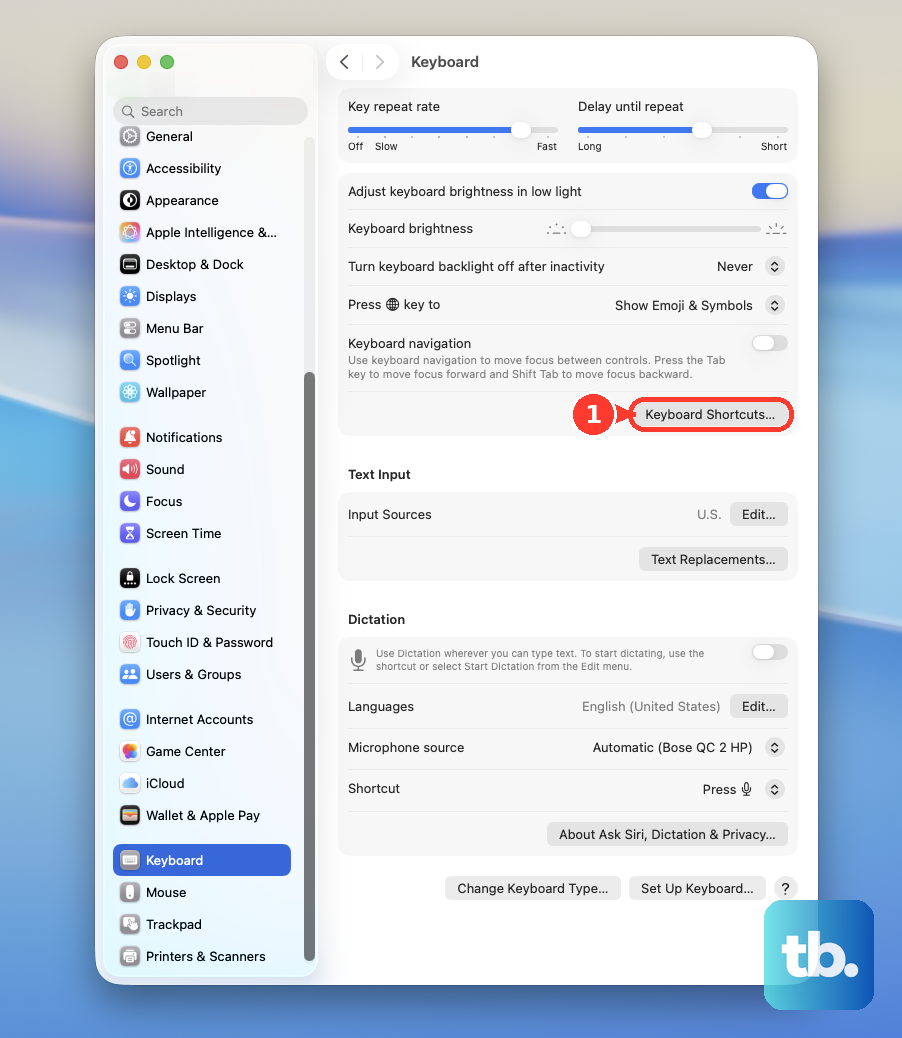
Yes, when the app exposes an applicable menu command, open Apple menu > System Settings > Keyboard > Keyboard Shortcuts > App Shortcuts. Click Add, choose the app under Application, and enter the command’s exact displayed name in Menu title. Enter your combination in Keyboard shortcut, then click Done. This cannot create a general forward deletion action when the app has no corresponding menu command.