The Windows search bar is supposed to open apps, find files, jump to settings, and search the web without menu digging. When it disappears, returns stale results, or stops responding, the fix depends on whether the taskbar control, indexing, privacy settings, or the Search process is failing. Start with the visible controls first, then move into indexing and repair steps only when results stay broken.
1. Open Search from the fastest entry points
- 1.Select Search on the taskbar, or select the visible search box.
- 2.Type the name of an app, setting, file, or web query.
- 3.Press Enter to open Best match, or select a category or result from the list.
Use the taskbar first when the Search box or icon is visible.
The Start menu works the same way without opening a separate search control: press the Windows key, type the app, file, setting, or query name, then choose the result you want.
For keyboard access, press Windows + S.
Windows + Q also opens Search on a standard PC, but on a Copilot+ PC it can open full-screen Click to Do where that feature is enabled.
Pressing Windows + C opens Search only when Copilot is unavailable or disabled; otherwise it opens Copilot.
2. Restore the Search box on the taskbar
If the Windows search bar is missing, put it back from taskbar settings.
Right-click the taskbar.
Select Taskbar settings.
Open Taskbar items.
Open Search.
Choose Search box, Search icon and label, Search icon only, or Hide.
Choose Search box for a full typing field.
Choose Search icon only when you want the taskbar cleaner while keeping one-click access.
3. Search Settings and File Explorer directly
Some searches are cleaner when you start inside the app that owns the result.
In Settings, select the search box at the top, then type a setting name such as Active hours, Dark mode, or an accessibility setting.
For files, open File Explorer, browse to the folder you want to search, then use the search box in the upper-right corner.

After results appear, use Search options on the toolbar to narrow by current folder, all folders, date modified, kind, size, system files, or zipped files.
4. Adjust account results history and web filtering
When a Microsoft, work, or school account supports cloud results, Windows Search includes content from services such as OneDrive, Outlook, SharePoint, and Microsoft Search.
To add an account, go to Start > Settings > Accounts > Email & accounts.
Under Accounts used by other apps, select Add a Microsoft account or Add a work or school account.
To view connected accounts, select the taskbar Search icon, choose Options in the upper-right corner of the window that appears, then review the account name and type under Connected accounts.
To change web filtering, go to Start > Settings > Privacy & security > Search permissions.
Under SafeSearch, choose Strict, Moderate, or Off.
To clear local history, go to Start > Settings > Privacy & security > Search permissions.
Under History, select Clear device search history.
For a Microsoft account, view and delete web search history through the Microsoft privacy dashboard.
For a work or school account, Windows Search saves your Microsoft Search history to that account, so manage it from the Bing Search History page after signing in with the work or school account.
5. Improve file results with indexing
Bad file results usually mean Windows is searching the wrong indexed locations, excluding a folder, or working from an index that needs rebuilding.
Start with the indexing mode.
Go to Start > Settings > Privacy & security > Searching Windows.
Open Find my files.
Select Classic to use indexed locations, or select Enhanced to expand indexing beyond the classic locations.
To add locations in Classic, select Customize search locations, then select Modify.
To keep a folder out of results, select Add an excluded folder.
For granular location control, open Advanced indexing options, then select Modify.
On Copilot+ PCs, improved Windows Search supports natural-language queries for files, photos, and settings from taskbar Search, File Explorer, and Settings.
Check indexing status at Settings > Privacy & security > Searching Windows, and plug in the PC during initial indexing.
6. Restart Search when it will not respond
Install Windows updates from Start > Settings > Windows Update, then select Check for updates (on Windows 10, use Settings > Update & Security > Windows Update).
Press Ctrl + Alt + Delete, open Task Manager, select Details, right-click SearchHost.exe, then select End task.
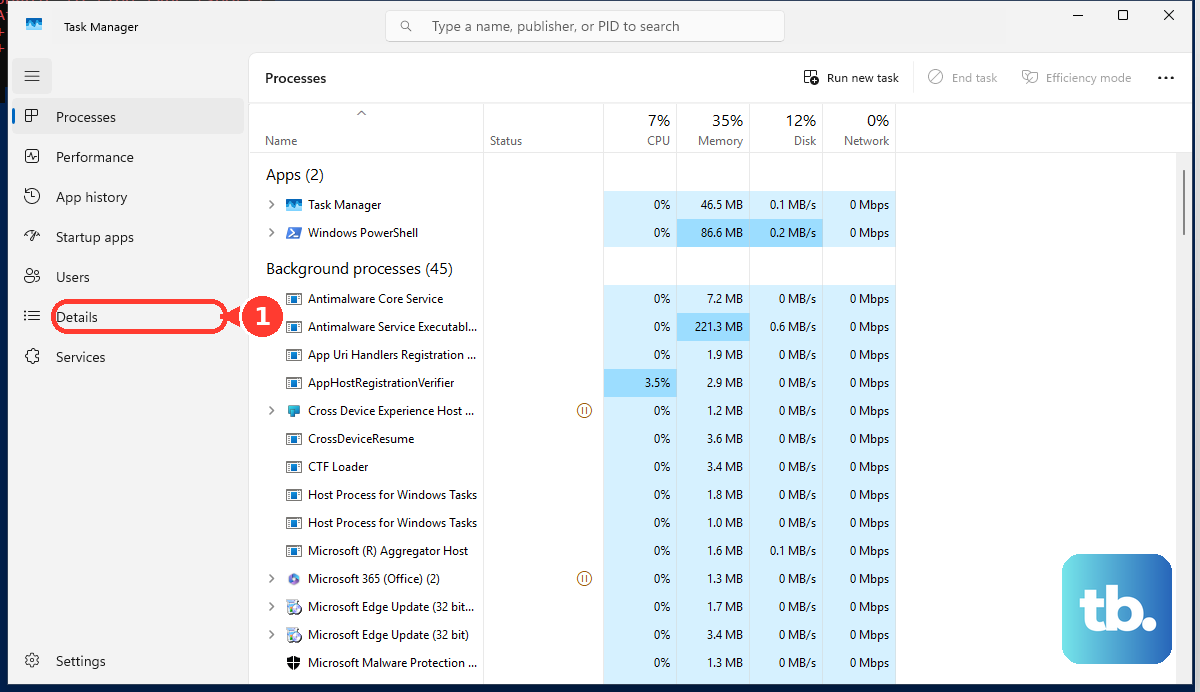
When prompted, select End process.
Search restarts automatically the next time you search.
Open services.msc, open Windows Search > Properties, then confirm Status is Running and Startup Type is Automatic (Delayed Start).
If indexing is paused, restart Windows Search from the Services tab in Task Manager or from Services.
Open Services, right-click Windows Font Cache Service, select Stop, try Search again, then right-click Windows Font Cache Service and select Start.
If the Search panel will not open, freezes, or stops responding, refresh the pieces Microsoft documents before rebuilding anything.
Where the Windows 11 troubleshooter is present, run it from Start > Settings > Privacy & Security > Troubleshoot > Searching Windows > Indexer troubleshooter.
7. Rebuild the index when results stay wrong
Rebuild the index after you have already checked the search locations and exclusions.
This targets stale file results, missing files, and poor results while Search itself still opens.
Go to Start > Settings > Privacy & security > Searching Windows.
Select Advanced indexing options.
Select Advanced.
Select Rebuild.
Leave the PC on while Windows rebuilds the index.
Microsoft says rebuilding can take up to 24 hours.
To change how Windows indexes specific extensions, open Advanced > File Types in Indexing Options, then adjust the file type entries there.
8. Reset Search after standard repairs fail
Confirm the Windows version at Start > Settings > System > About.
Open an elevated PowerShell session.
Run Get-ExecutionPolicy.
If script execution needs to be changed, run Set-ExecutionPolicy -Scope CurrentUser -ExecutionPolicy Unrestricted.
Download Microsoft’s ResetWindowsSearchBox.ps1 script.
Right-click ResetWindowsSearchBox.ps1, select Run with PowerShell, then select Yes if prompted.
When Done appears, restore the previous execution policy if you changed it.
Microsoft provides deeper repair paths for stubborn Windows Search failures.
Use them after updates, process restarts, service checks, location checks, and an index rebuild.
For deeper Windows 11 account-specific damage, Microsoft documents a re-registration repair after confirming Search works in a new Windows account.
That process deletes the current user Search package data, deletes the current user Search registry key, re-registers the Windows Search package with elevated PowerShell, and restarts the computer.
Skip old Windows 10-only fixes such as the taskbar Search context menu and Cortana reset steps.
The msdt.exe SearchDiagnostic troubleshooter is legacy and deprecated rather than Windows 10-only, and it may be absent on newer Windows 11 builds, so use the current repair steps above instead of that command.
Windows 10 support ended on October 14, 2025 except ESU scenarios, and current Windows 11 repair work uses taskbar settings, SearchHost restart, indexing controls, Windows updates, Microsoft’s reset script, and Microsoft’s re-registration steps.
9. Handle touchpad voice and managed PC cases
When Search opens by itself on a laptop, change the gesture that launches it through Start > Settings > Bluetooth & devices > Touchpad (on Windows 10, Settings > Devices > Touchpad).
Change the three-finger or four-finger tap behavior so it no longer launches Windows Search.
If precision touchpad settings are absent, open Related Settings > Additional Settings, then check the manufacturer touchpad tab or software.
For hands-free use, turn on voice access, say Show numbers on taskbar, then say Click with the number shown over Search.
To dictate into the Search box, put the cursor there, press Windows + H, speak after the Listening alert appears, then say Stop listening or press the microphone button to stop.
On managed work or school PCs, your organization controls the Search surface through policy.
IT can configure the taskbar mode, fully disable the Search UI, turn Search highlights on or off, block web results where supported, control Search location use, and turn off recent File Explorer search suggestions.
Frequently Asked Questions
Why is my Windows search bar missing?
On Windows 11, it is hidden when Taskbar items is set to Hide. Right-click the taskbar, open Taskbar settings, then use Taskbar items > Search to show the search box, icon and label, or icon only.
Why does Windows Search not find my files?
The folder is outside indexed locations, excluded from indexing, or waiting on a stale index. Check Settings > Privacy & security > Searching Windows, review Find my files and excluded folders, then rebuild the index if results stay wrong.
Can I remove Windows Search completely?
Microsoft does not document Windows Search as an uninstallable consumer app. You can hide it from the taskbar in Taskbar settings. Full Search UI disabling is a managed-device policy option.
Does Windows Search include web and cloud results?
Yes, when the connected Microsoft, work, or school account and service support those results. Search permissions control SafeSearch and local device search history.