Intel Driver and Support Assistant is supposed to make Intel driver updates simple, but it can stall on the scan page, fail during setup, or throw download errors right when you need a driver. The fix usually comes down to the app, the browser dashboard, Windows services, or a network setting blocking local access. Start with the normal install and scan flow, then move through the fixes in the order below.
Install Intel Driver and Support Assistant
Start at Intel's official Intel Driver and Support Assistant page and choose Download now. Save the Intel Driver and Support Assistant application to your PC.
Open Intel Driver & Support Assistant Installer.exe. Read and accept the license terms, choose Install, then select Launch when setup finishes.
Intel DSA runs on supported Windows PCs. Intel lists Windows 7, Windows 8, Windows 8.1, Windows 10, and Windows 11 across its DSA support pages, with Chrome, Firefox, or Edge for the web dashboard.
If setup fails, repair Intel DSA from Windows first. If that does not work, remove it with Intel's DSA Uninstaller and install the latest copy from Intel again.
Run a scan and install updates
Use this when Intel DSA is already installed and you want it to check your PC for supported Intel updates. The scan opens in a browser, so keep Chrome, Firefox, or Edge ready.
Click the Intel Driver and Support Assistant icon in the system tray and choose Check for new drivers.
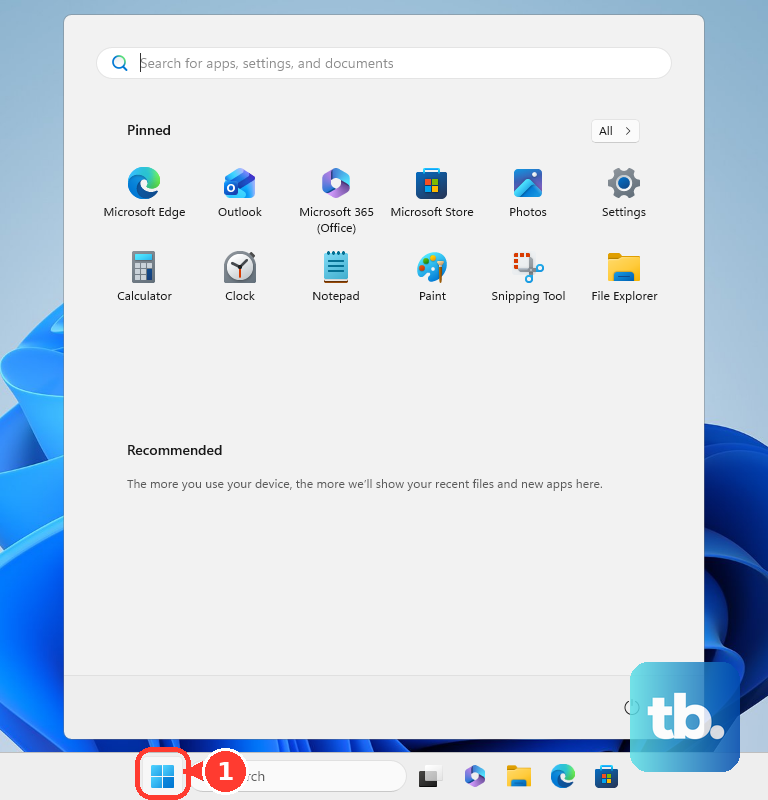
You can also open Start, type Intel Driver & Support Assistant, and click the app icon.
When the dashboard opens, wait for the scan to finish. Under Available Updates, choose Download all or download a single update.
After the download finishes, choose Install all or install the individual update you want. Intel DSA offers only a subset of the drivers and software in Intel Download Center, so use Intel Download Center when a specific Intel download does not appear.
Check details and install history
This fixes the mystery of what Intel DSA found, what changed, and why an update is being offered.
Open the Intel DSA dashboard.
Select a title under Available Updates, Messages, Devices and Drivers, or Intel Software to see more information.
Install at least one update through Intel DSA before checking history.
Go to Available Updates and open the Install History tab.
Click or tap an update title to view its details. Manual driver installs and Windows Update installs do not appear in Intel DSA history.
Tune the DSA settings you actually need
These settings make Intel DSA quieter and easier to manage after the first scan.
- 1.Open the Intel DSA dashboard, go to Settings, then use Notifications to choose weekly, immediate, or never. The default is once per day.
- 2.Use Automatic Downloads to let Intel DSA download updates automatically, leaving only the install button. This applies to Intel DSA 23.2.17 or later.
- 3.Use WHQL Certified Updates to keep Intel Graphics downloads limited to WHQL-certified updates. Clear the checked box to allow non-WHQL Intel Graphics downloads.
- 4.Use Language to switch the dashboard language, including English, Spanish, French, German, Japanese, Korean, Portuguese Brazil, Thai, Vietnamese, Indonesian, Chinese Simplified, and Chinese Traditional.
- 5.After a scan, open Settings, choose Folder Location, select Change location, pick a folder, and choose OK. The folder needs read and write access and cannot contain hard links, junction points, or symbolic links.
Fix endless scanning or a scan error
Open Windows Services from search and find Intel Driver & Support Assistant and Intel DSA Updater. Their status should show Running.
If either service is stopped, right-click it and choose Start. If both are already running, right-click each one and choose Restart.
Finish any pending Windows updates and restart the PC. Then clear your browser cache, close the browser, and run the scan again in Chrome, Firefox, or Edge.
Internet Explorer is not supported for Intel Driver and Support Assistant. If the scan still fails, disable ad-blocking and privacy extensions on the Intel DSA page, then try the local network access and proxy fixes below.
Allow browser and local network access
Newer Chromium browser behavior can block the local connection Intel DSA needs between the browser dashboard and the app running on your PC. In Chrome on the Intel DSA page, click the View Site Information icon at the left side of the address bar, turn on Local Network Access, then refresh the page.
In Microsoft Edge, click View Site Information on the Intel DSA page, open the Local Network Access drop-down, choose Allow, then refresh. To avoid granting that Chromium permission, run Intel DSA with Firefox instead.
For a persistent Chrome setting, open Browser Settings, go to Privacy and Security, Site Settings, Permissions, Additional Permissions, and Local Network Access. Under Customized Behaviors, add intel.com and set it to Allow.
For Edge, open Browser Settings, then Privacy, Search, and Services, Site Permissions, All Permissions, and Local Network Access. Add intel.com under Allowed to connect to any device on your local network.
Clear proxy, firewall, and managed PC blocks
The most common network cause is blocked localhost access, because Intel DSA needs the browser to connect back to the local app on your PC.
Open Internet Options from the Windows Start menu, go to Connections, then choose LAN settings. If Use a proxy server for your LAN is selected, enable Bypass proxy server for local addresses, open Advanced, add 127.0.0.1 under Exceptions, then choose OK.
In Firefox, open the menu and choose Settings. Current Firefox puts the proxy controls under Privacy & Security: open Connection and software security, choose Advanced settings, go to Proxy settings, and select Configure proxy. Older Firefox releases keep the same dialog in the General panel under Network Settings, which is the layout Intel's DSA article still describes as Options and Network Proxy. In the Connection Settings dialog, if Manual proxy configuration is selected, add localhost, 127.0.0.1 to No Proxy for.
Open your security, antivirus, anti-spyware, ad-blocking, or firewall app and allow Intel Driver and Support Assistant network access. On a work or school PC, ask the administrator to allow Intel DSA localhost access and Intel site access.
Repair install, upgrade, and download failures
This fixes broken installs, upgrade loops, missing-file errors, and download messages inside the Intel DSA dashboard.
Open Start.
Search for Add or remove programs.
Select Intel Driver & Support Assistant.
Choose Modify.
Accept the User Account Control prompt.
Choose Repair.
If repair does not solve an upgrade problem, uninstall Intel DSA from Control Panel, restart the PC, download the latest Intel Driver and Support Assistant from Intel, and install it again.
For a more complete removal, download Intel Driver and Support Assistant Uninstaller, run it, accept the terms and conditions, choose Next, then choose Close. Reinstall Intel DSA after the removal finishes.
If the installer says This feature you are trying to use is on a network resource that is unavailable, run the DSA Uninstaller, download the latest DSA, then open Microsoft's latest supported Visual C++ Redistributable page for the current Visual C++ v14 Redistributable. Microsoft supports the current v14 package on Windows 10 and Windows 11 only, so on Windows 7, Windows 8, or Windows 8.1 skip the Visual C++ step and contact Intel Support with your error screenshots and DSAUninstaller.log file instead.
Choose ARM64, X86, or X64 to match the affected app's target architecture, which is what Microsoft requires the package to match. The X64 package also contains ARM64 binaries, so it supplies the Visual C++ ARM64 files on an ARM64 device.
Remove the existing VC runtime entries.
Reinstall the latest supported Visual C++ Redistributable.
Install Intel DSA again.
For dashboard download errors, choose Refresh Results when you see Download Unavailable.
For Download Write Error, check free space and permissions on the Intel DSA download folder.
For Download Timed Out or Download Failed Unexpectedly, check the internet connection and try again.
Handle graphics warnings and failed driver updates
Intel DSA may warn that installing an Intel graphics driver can overwrite customizations from your computer manufacturer. When that appears, check your PC manufacturer's site for a newer graphics driver first and prefer that driver for that PC.
If problems start after installing a generic Intel graphics driver, reinstall the latest graphics driver directly from your OEM. Use Device Manager rollback when it is available.
When an Intel Graphics update fails unexpectedly in Intel DSA, use Intel's direct graphics driver download as the fallback. Save the driver as a .zip, unzip it, open Device Manager, go to Display adapters, select Intel Graphics, choose Update driver, then use Browse my computer for driver software, Let me pick from a list of device drivers on my computer, and Have Disk.
Browse to the extracted driver and select iigd_dch.inf for UHD graphics or iigd_dch_d.inf for Iris Xe. Choose Next, select the populated driver, choose Next again, and reboot when prompted.
If Intel DSA does not support the product or operating system you are checking, use Intel Download Center and search for the Intel product or driver manually.
Remove DSA or send logs to Intel
If you no longer want Intel DSA, remove it from Windows Add or Remove Programs. Search for Intel Driver & Support Assistant, select its program tile, choose Uninstall, and follow the prompts.
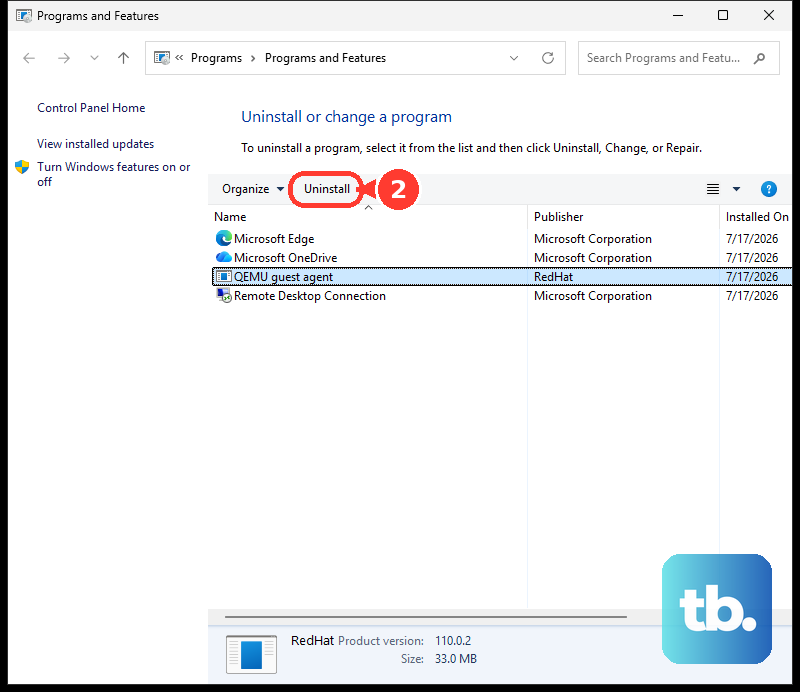
You can also remove it from Control Panel by opening Programs, then Programs and Features, selecting Intel Driver & Support Assistant, and choosing Uninstall or Uninstall/Change.
Skip third-party download portals and Internet Explorer instructions. Use Intel's official DSA page or Intel Download Center instead, and use Chrome, Firefox, or Edge for the DSA dashboard.
If the problem is still unresolved, collect the DSA logs before contacting Intel. Open File Explorer, go to C:/ProgramData/Intel/DSA, show hidden files if ProgramData is hidden (on Windows 11, choose View, then Show, then Hidden items; on Windows 10 and Windows 8, tick Hidden items on the View tab), right-click the DSA folder, choose Send to, then create a Compressed (zipped) folder.
Send Intel the system type, operating system, browser, exact issue details, screenshots, enabled antivirus or malware software, and the zipped DSA folder. If Intel DSA still is not the right tool for your device, use Intel Download Center to search manually.
Frequently Asked Questions
Is Intel Driver and Support Assistant only for Intel drivers?
It scans supported Intel hardware and Intel software updates on Windows PCs. Intel DSA does not show every driver or software package available in Intel Download Center.
Why does Intel DSA open in my browser?
Intel DSA uses a Windows app and a browser dashboard together. Use Chrome, Firefox, or Edge so the dashboard can connect to the local DSA service.
Why is an update missing from Intel DSA?
The product, operating system, or specific download may not be supported by DSA. Search Intel Download Center manually when DSA does not show the driver you need.
Should I install Intel graphics drivers or my PC maker's graphics drivers?
If DSA warns about OEM customizations, check your computer manufacturer's site first and prefer that driver. If a generic Intel driver causes issues, reinstall the OEM driver or use Device Manager rollback when available.