You want your Mac’s screen on the TV, but finding the right AirPlay control depends on what you’re sharing. You can mirror the screen, send a video or music, or turn a compatible Mac into the receiving display. Start with screen mirroring below; the settings paths use macOS Tahoe 26, with the alternate receiver label included where needed.
Mirror your Mac screen to a TV
Connect your Mac and your Apple TV or AirPlay-compatible TV to the same Wi-Fi network for the normal AirPlay setup.
Click Control Center in your Mac’s menu bar.
Open Screen Mirroring.
Select your TV from the destinations shown.
Enter the code displayed on the TV if prompted.
Choose screen mirroring in the connection dialog.
To disconnect, reopen Screen Mirroring.
Click Stop.
Tip: You do not need to enable AirPlay Receiver to send your Mac’s screen to a TV; that switch controls incoming content.
Extend your desktop or share one window
Once your TV is selected through Control Center > Screen Mirroring, choose desktop extension or window sharing in the connection dialog. These let you use a second desktop or share individual windows instead of mirroring the whole screen.
Click Change to switch sharing modes. Use Add Window to share another window. Choose Set as Default to remember your selection.
For display adjustments, open Apple menu > System Settings > Displays. The Use as menu offers mirroring, extension, or a main-display role, with choices depending on your Mac and connected display.
On Apple silicon Macs, When connected to TV lets you choose what to share or have your Mac ask each time.
Send a video without sharing your desktop
Use an app’s AirPlay control when you only want the video on your TV. Both the app and the content must support AirPlay.
Start playing the video in the Apple TV app or another AirPlay-enabled Mac app.
Click AirPlay in the playback controls.
Select your Apple TV or compatible smart TV.
To return playback to your Mac, reopen AirPlay.
Select your Mac.
For a web video, open the video’s page in Safari. This workflow supports compatible videos and an HDTV connected to Apple TV 4K; not every website or video displays the AirPlay icon.
Click AirPlay in the video’s playback controls.
Select your Apple TV.
For a local video, open QuickTime Player.
Choose File > Open File.
Select the file.
Click Open.
Move your pointer over the video to reveal its playback controls.
Use the External Playback menu in those controls to select your AirPlay-enabled device. QuickTime supports AirPlay playback, but not every file or codec.
Use your Mac as the receiving screen
To mirror a compatible iPhone or iPad to a supported Mac, enable receiving on the Mac first.
- 1.On your Mac, open Apple menu > System Settings > General > AirDrop & Continuity. On releases displaying the alternate label, choose AirDrop & Handoff.
- 2.Turn on AirPlay Receiver.
- 3.Set Allow AirPlay for to Current User for devices using the same Apple Account, or Anyone on the Same Network for other senders on your network.
- 4.On your iPhone or iPad, open Control Center > Screen Mirroring and select your Mac.
- 5.Enter the displayed passcode if requested.
- 6.To disconnect, open Control Center > Screen Mirroring on the sending device and tap Stop Mirroring.
Play music and other Mac audio through speakers
In Music, use AirPlay in the playback controls to select one or multiple compatible speakers on the same network. Supported destinations include HomePod, Apple TV, and other AirPlay audio receivers.
For an app without its own AirPlay selector, start playing your audio. Then use Control Center > Sound > AirPlay to select the output speaker. This system-audio route supports one AirPlay speaker at a time.
Another route is Apple menu > System Settings > Sound > Output, where you can select an available AirPlay device. To restore local playback, select your Mac’s internal speakers there.
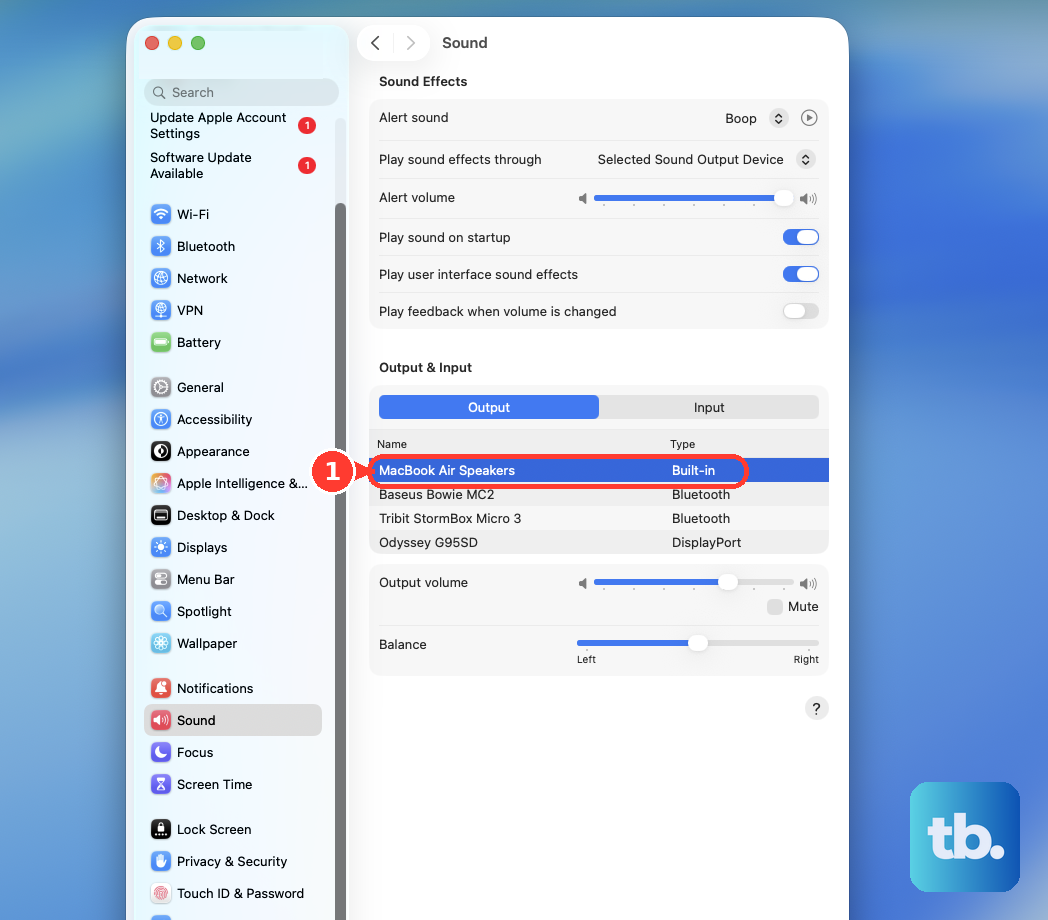
Find a missing AirPlay destination
A Wi-Fi network mismatch is the first connection problem to rule out in the normal same-network setup.
Connect the sending and receiving devices to the same Wi-Fi network. Compatible Apple TVs also support peer-to-peer AirPlay, but that exception does not apply to every smart TV or receiver.
On an Apple TV, open Settings > AirPlay and Apple Home.
Turn on AirPlay.
Set Allow Access to permit your sender. Choose Anyone on the Same Network for devices on that network, Only People Sharing This Home for home members, or Everyone for broader access.
For a destination configured in Home, open the Home app on your Mac.
Go to More (…) > Home Settings > Speakers & TV.
Adjust the access restrictions to permit your sending device.
If the missing destination is another Mac, check its receiver compatibility. Apple requires macOS Monterey 12 or later and an iMac Pro, a Mac mini introduced in 2020 or later, or another Mac model introduced in 2018 or later.
On a compatible receiving Mac running Tahoe, open System Settings > General > AirDrop & Continuity.
Turn on AirPlay Receiver.
Set Allow AirPlay for to match your sender. Current User requires the same Apple Account; Anyone on the Same Network permits other senders on your network.
If your work or school Mac restricts receiver settings, ask your administrator to review its AirPlay restrictions. An administrator-imposed restriction prevents you from enabling receiving locally.
Frequently Asked Questions
Do I need to download AirPlay on my Mac?
No. AirPlay is built into macOS, so Apple's built-in sharing methods require no separate download.
Can an older iPhone send AirPlay content to my Mac?
Apple permits older sending devices to stream at lower video resolutions. On the supported receiving Mac, set Allow AirPlay for to Everyone or Anyone on the Same Network. This exception does not make an unsupported older Mac a compatible receiver.
Can I put Screen Mirroring directly in the menu bar?
Yes. On macOS Tahoe 26, open Apple menu > System Settings > Menu Bar. Enable Screen Mirroring, then select Always Show. You can also add Sound for access to audio destinations.
Is there a keyboard shortcut to start AirPlay?
Press Fn-C to open Control Center, then select Screen Mirroring or Sound. The shortcut opens the controls; you still select the receiver yourself. Availability depends on your keyboard layout and function-key configuration.