

To upgrade Windows 7 to Windows 10, run Microsoft’s Media Creation Tool, select Upgrade this PC now, and activate with a valid Windows 10 product key or a digital license already established for that PC. Your computer must be compatible with Windows 10, and the installed edition must match your license. A valid Windows 7 license alone does not give you a new Windows 10 entitlement.
The short version
- License first: You need a valid Windows 10 key or an eligible digital license previously established for the same PC.
- Main upgrade route: Run Microsoft’s Media Creation Tool and select Upgrade this PC now.
- Keep your files: Review Change what to keep before installation because retention depends on your installation and media.
- Alternative route: Prepare installation media on another computer and open
setup.exewhile Windows 7 is running. - Security updates: Eligible personal Windows 10 devices can enroll in Consumer Extended Security Updates after installation.
| Option | When to use it | Requirement or catch |
|---|---|---|
| Official tool download | Get Windows 10 installation software | A separate valid license is required |
| Direct tool upgrade | Upgrade the existing Windows 7 installation | Compatible PC with Windows 10 licensing |
| Create USB or DVD media | Prepare media on this or another computer | USB contents are erased |
| Setup from within Windows 7 | Upgrade using installation media | Retention depends on the installation and media |
| Boot from installation media | Perform a clean installation | Data can be erased and applications need reinstalling |
| Browser ISO download | Get Home or Pro media through the ISO interface | Windows browsers may receive the tool page |
| Windows 10 product key | Activate a matching edition | Key must permit use on the device |
| Existing digital license | Reactivate the same eligible PC | Install the previously licensed edition |
| Assisted activation portal | Activate using installation and confirmation IDs | Valid licensing and portal internet access |
| Command line activation | Obtain an Installation ID through another interface | Activates Windows 10 after installation |
| Organization or subscription portals | Get downloads covered by existing rights | An entitled organizational or subscription account |
| Consumer Extended Security Updates | Enroll an eligible personal device after installation | Does not provide the underlying Windows license |
Confirm your Windows 10 license first
You can use an existing valid Windows 10 product key when it matches the edition you install and permits use on your device. Alternatively, if this same eligible PC previously activated Windows 10, you can reuse its existing digital license. Install the edition that was previously licensed.
Microsoft removed the installation path that granted a new free Windows 10 upgrade using only a Windows 7 or Windows 8 license. Downloading installation media does not supply a Windows 10 entitlement. If you have only a Windows 7 key, obtain a valid Windows 10 entitlement before proceeding.
Download the Windows 10 installation tool
Open Microsoft’s Windows 10 download page. Under Create Windows 10 installation media, select Download Now to get the Media Creation Tool. The download provides Windows 10 version 22H2 installation media.
Microsoft describes this upgrade route for compatible Windows 7 computers with Windows 10 licensing. If the tool fails to run on your Windows 7 computer, prepare a USB drive or DVD on another computer using the media creation steps below. You can then start Setup from that media while Windows 7 is running.
Upgrade the existing Windows 7 installation
Run the Media Creation Tool as administrator and select Accept. Choose Upgrade this PC now, then select Next. When Setup reaches the retention choice, select Change what to keep.
Choosing Keep personal files only removes applications, while choosing Nothing removes personal files and applications; back up your files before proceeding. Choose Keep personal files and apps if you want to retain both and that option is available for your installation. The other choices are Keep personal files only and Nothing.
Retention depends on the source installation and target media, so do not assume every application will survive the upgrade. If the option you need is missing, stop before installation instead of accepting a choice that removes something you intend to keep. Once the retention choice matches what you intend to keep, select Install.
Create installation media and run Setup
On the computer you are using to prepare the media, run the Media Creation Tool and select Accept. Choose Create installation media for another PC, then select Next. Choose the language, edition and architecture for the target computer, matching the edition to your Windows 10 license.
Creating USB installation media erases the USB drive’s contents. For USB media, select USB flash drive and use an empty drive with at least 8GB of capacity. For a DVD, choose ISO file, then select Open DVD burner.
To upgrade from within Windows 7, connect the installation USB or DVD while Windows 7 is running. Open the drive’s root directory in Windows Explorer, open setup.exe, then select Yes. Select Change what to keep.
A retention choice that excludes applications or personal files removes those items; back up your files before proceeding. Choose the available retention option you need, then select Next. Review what Setup will keep, then select Install. If the option you need is missing, stop before installation rather than proceeding with an unwanted removal.
Choose ISO or organization downloads when applicable
You can also open Microsoft’s Windows 10 Disc Image page from a device where Microsoft presents the ISO download interface. Under Select edition, choose the offered Windows 10 edition, then select Confirm. This route provides Home and Pro ISO media to use with Windows Setup.
Microsoft routes operating systems that cannot run the Media Creation Tool to the ISO interface. If your Windows browser receives the tool page instead, use the Media Creation Tool to create installation media. Follow the USB or DVD steps above to prepare media for the target computer.
If you have organizational or subscription download rights, open the official ISO page and select Microsoft 365 admin center for Enterprise downloads or Visual Studio Subscriptions for downloads included in your subscription. Sign in with the entitled account. Enterprise media is separate from the consumer upgrade tool, and these portals do not grant ordinary consumers a Windows 10 license.
Start a clean installation when intended
A clean installation can erase data and requires reinstalling applications, so back up your files before starting. Boot the computer from the installation USB or DVD using the manufacturer’s boot menu. Possible keys include F2, F12, Delete or Esc, depending on the computer.
The startup key depends on your manufacturer; instructions for accessing your PC’s startup settings can help you locate that entry point. Once Windows Setup starts, choose the language, time and keyboard settings, then select Next. Microsoft’s download instructions next direct you to select Install Windows.
Use this route when you intend to perform a clean installation and reinstall your applications. If you want to retain the existing installation’s files and applications, start Setup from inside Windows 7 and review the available retention options before installing.
Activate Windows 10 with your license
For a valid Windows 10 product key, enter it when Setup requests it. You can also enter it after installation: on Windows 10, open Start > Settings > Update & Security > Activation. Select Change product key and enter the key that matches your installed edition and permitted device use.
For an existing digital license on the same eligible hardware, install the previously licensed Windows 10 edition. When Setup requests a key, select I don't have a product key. Connect to the internet and sign in with the linked Microsoft account if applicable.
On Windows 10, open Start > Settings > Update & Security > Activation to check the activation status. If activation remains incomplete, confirm that the installed edition matches your license before moving to assisted activation. Sign in only through Microsoft’s own app or website, and never share a code, password, or remote access with someone who contacts you.
Fix incomplete activation
For a licensed installation that needs assisted activation, on Windows 10 open Settings > Update & Security > Activation. If the page offers Activate by Phone, select it, choose your Country or Region, then select Next. Record the Installation ID.
Open Microsoft’s online and offline activation instructions and follow its Product Activation Portal link. Complete the CAPTCHA and sign in, then select Activate a Microsoft Product > Windows > Windows 10. Enter the Installation ID and select Submit. The portal requires internet access, which can be on another device.
Return to Windows and select Enter Confirmation ID. Enter the returned ID, then select Activate Windows. This procedure completes activation for a licensed installation; it does not supply a Windows 10 license.
You can also obtain the Installation ID through the regional activation dialog from Command Prompt. Open Command Prompt using Run as administrator, then run this command:
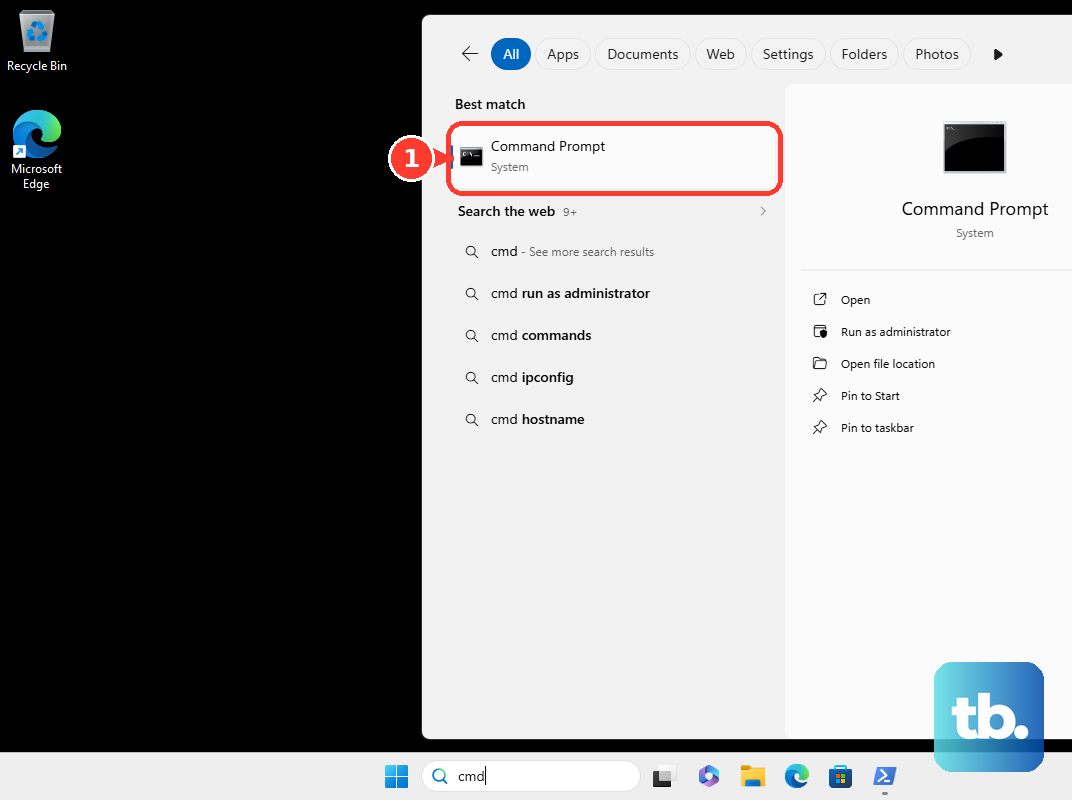
SLUI 4Choose your Country or Region, select Next, and record the Installation ID for the portal procedure above. If that interface is unavailable, obtain the Installation ID with this command instead:
SLMGR /dtiUse the same portal procedure to obtain a Confirmation ID. For the command line route, run the following command after replacing the placeholder with the returned ID without spaces or hyphens:
SLMGR /atp CONFIRMATION_IDThese commands apply to Windows 10 after installation and do not perform the Windows 7 upgrade or create a license. Inspect activation with this command:
SLMGR /dliEnroll in extended security updates
Eligible personal-use Windows 10 22H2 devices can enroll in Consumer Extended Security Updates. The eligible editions are Home, Professional, Pro Education and Workstations, and the program ends October 12, 2027. Enrollment does not provide the underlying Windows license.
Install current Windows updates and the required ESU Licensing Preparation Package, KB5126256. On Windows 10, open Settings > Update & Security > Windows Update, then select Enroll now. Sign in with an administrator Microsoft account and choose an available enrollment route: settings synchronization, Microsoft Rewards points or the listed one-time purchase.
Frequently Asked Questions
Can you buy a new Windows 10 download directly from Microsoft’s website?
Microsoft ended direct Windows 10 sales on January 31, 2023. You can still download installation media separately, but that download does not include a license.
What happened to the Get Windows 10 taskbar upgrade offer?
Microsoft removed the Get Windows 10 app and related offer software through update KB3184143 after the free offer expired. If you are following old reservation or taskbar notification instructions, use the installation tool or installation media with a valid Windows 10 entitlement instead.
Can you reuse a digital license after returning the PC to Windows 7?
If your device has a Windows 10 digital license, Microsoft says you can reinstall the same edition of Windows 10 on that device without entering a product key. Microsoft’s activation guidance does not specifically address a PC that was returned to Windows 7, so after installing the previously licensed edition, open Start > Settings > Update & Security > Activation to confirm that Windows 10 is activated.
How many Microsoft Rewards points does ESU enrollment require?
The Microsoft Rewards enrollment route requires 1,000 points. You must still meet the Consumer Extended Security Updates eligibility requirements and have the underlying Windows 10 license.