

To upgrade to Windows 11 Pro, open Settings > System > Activation on Windows 11, then enter a valid Pro product key or buy the upgrade through Microsoft Store. Microsoft recommends activating Windows 11 Home before changing editions. If your device already has a Pro digital license but Home is unactivated, use the Activation troubleshooter to recover the licensed edition.
The short version
- Buying the upgrade: Open Microsoft Store from the Windows 11 Activation page.
- Already have a key: Select Change beside Change product key and enter your valid Windows 11 Pro key.
- Previously licensed for Pro: On an unactivated Home installation, run the Activation troubleshooter to look for your existing Pro digital license.
- Starting with Windows 10: An eligible Windows 10 Pro PC keeps its edition when upgrading to Windows 11.
| Route or option | When it fits | What to know |
|---|---|---|
| Store purchase through Settings | Activated Windows 11 Home | Buy and install the Pro upgrade |
| Existing Pro product key | Activated Windows 11 Home with a valid Pro license | Enter the key in Activation |
| Microsoft upgrade webpage | Windows 11 Home | Opens the Store upgrade page |
| Store shortcut through Run | Windows 11 Home | Opens the same Store purchase |
| Activation shortcut through Run | Windows 11 Home with a licensed Pro key | Opens Activation directly |
| Activation troubleshooter | Unactivated Windows 11 Home with an existing Pro digital license | Offers the upgrade when it detects the license |
| Windows 11 Pro product page | Compatible PC needing a license | Supplies a new Windows license |
| Windows Update | Eligible Windows 10 Pro PC | Preserves the Pro edition |
| Installation Assistant | Eligible Windows 10 Pro x64 PC | Requires version 2004 or later |
| USB media opened within Windows | Eligible Windows 10 installation, version 2004 or later | Use a valid Windows 11 Pro key |
| Mounted ISO | Eligible Windows 10 installation, version 2004 or later | Runs Setup and requires Pro entitlement |
| Clean installation | Compatible PC with Pro entitlement | Deletes files, apps, and settings |
| Windows 11 download page | x64 installation tools and media | Offers Assistant, media creation, and ISO |
| Windows 11 Arm64 download page | Supported Arm64 hardware | Provides architecture-specific media |
| Switching out of S mode | Windows 11 Home or Windows 10 Pro in S mode | Permanent change that does not buy Pro |
Check activation before choosing your upgrade
On Windows 11, open Start > Settings > System > Activation and check Activation state. The standard Store and product-key routes apply to activated Windows 11 Home. Use the Store purchase if you need a Pro license, or enter your existing Windows 11 Pro key if you have one.
If your device already has a Pro digital license but Home is installed and unactivated, start with the Activation troubleshooter before purchasing another license. Its upgrade option depends on detecting that device's Windows 11 Pro digital license. If you're starting with Windows 10 Pro, use the Windows Update or Installation Assistant route below.
Leave S mode before continuing when required
Windows 11 Home can run in S mode, but Windows 11 Pro has no S-mode edition. Windows 10 Pro in S mode must also leave S mode before Windows Update can offer Windows 11. Switching out does not purchase a Pro license.
Open Microsoft's Switching out of S mode page and select Switch out of S Mode. Leaving S mode is permanent. On the Store page named Switch out of S mode, select Get and wait for confirmation before continuing with your upgrade.
Buy the upgrade through Microsoft Store
On Windows 11, open Settings > System > Activation, then expand Upgrade your edition of Windows. Beside Upgrade in the Microsoft app, select Open Store. Sign in with your Microsoft account and purchase the upgrade, then follow the prompts to complete installation and restart when prompted.
You can also open Microsoft's Upgrade Windows Home to Windows Pro support page and select Upgrade to Windows 11 Pro. This opens the upgrade page in Microsoft Store, which checks activation and guides you through purchase and installation.
For a direct shortcut on Windows 11 Home, right-click Start and select Run. Enter the following address in Open, then select OK and complete the Store purchase and installation.
ms-windows-store://windowsupgrade/Upgrade with a Pro product key
With activated Windows 11 Home and a valid Pro license, open Settings > System > Activation on Windows 11. Beside Change product key, select Change. If administrator approval appears, provide administrator credentials if requested and select Yes.
Enter your 25-character Windows 11 Pro product key, then select Next. Complete the upgrade prompts to use your existing Pro license.
You can also open Activation directly on Windows 11 Home by right-clicking Start and selecting Run. Enter the following address in Open and select OK, then use Change product key to enter your licensed Pro key.
ms-settings:activationRecover an existing Pro digital license
If your device has a Windows 11 Pro digital license but its Windows 11 Home installation is unactivated, connect to the internet and sign in as an administrator. On Windows 11, open Start > Settings > System and select Troubleshoot to run the Activation troubleshooter. The Troubleshoot option is available only while Windows is not activated.
When the troubleshooter detects a Windows 11 Pro digital license, save your work and close your applications. Select Upgrade to Windows 11 Pro, then select Start upgrade. If Home is already activated, use the Store or valid-product-key route instead of looking for the troubleshooter.
Purchase a new Pro license from Microsoft
Microsoft's US Windows 11 Pro product page supplies a new Windows license, so compare it with the Home-to-Pro offer inside Microsoft Store before purchasing. On the product page, under Choose your configuration, select Download or USB - English. Select Add to cart and complete checkout, then use the purchased license through Activation or Windows Setup on a compatible PC.
Upgrade an eligible Windows 10 Pro PC
An eligible Windows 10 Pro PC keeps the Pro edition during the ordinary upgrade to Windows 11. On Windows 10, open Start > Settings > Update & Security > Windows Update, then select Check for updates. When Windows 11 is offered, select Download and install, followed by Accept and install.
Once installation reaches Restart required, select Restart now. Sign in after setup finishes. Starting from Windows 10 Home requires a separate Pro edition upgrade, so installing Windows 11 alone does not change Home into Pro.
If Windows Update hasn't offered the upgrade, another route for an eligible x64 PC is the Windows 11 Installation Assistant. It requires Windows 10 version 2004 or later, a Windows license, and sufficient storage. Open Microsoft's Windows 11 download page and select Download Now under Windows 11 Installation Assistant.
Run the downloaded tool as an administrator. After it confirms compatibility, select Accept and Install, then select Restart Now when offered. The Installation Assistant does not run on Arm PCs; use the Arm64 download route below for supported Arm hardware.
Use installation media for an eligible Windows 10 installation
For a compatible PC upgrading from Windows 10 with a valid Windows 11 Pro key, update the existing Windows installation first. Microsoft's direct upgrade to Windows 11 requires Windows 10, version 2004 or later, with the September 14, 2021 security update or later installed. Microsoft's Windows 11 download page provides Create Windows 11 Installation Media and Download Windows 11 Disk Image (ISO) for x64 devices. Create official Windows 11 USB installation media, insert the drive while Windows is running, and select Run setup.exe.
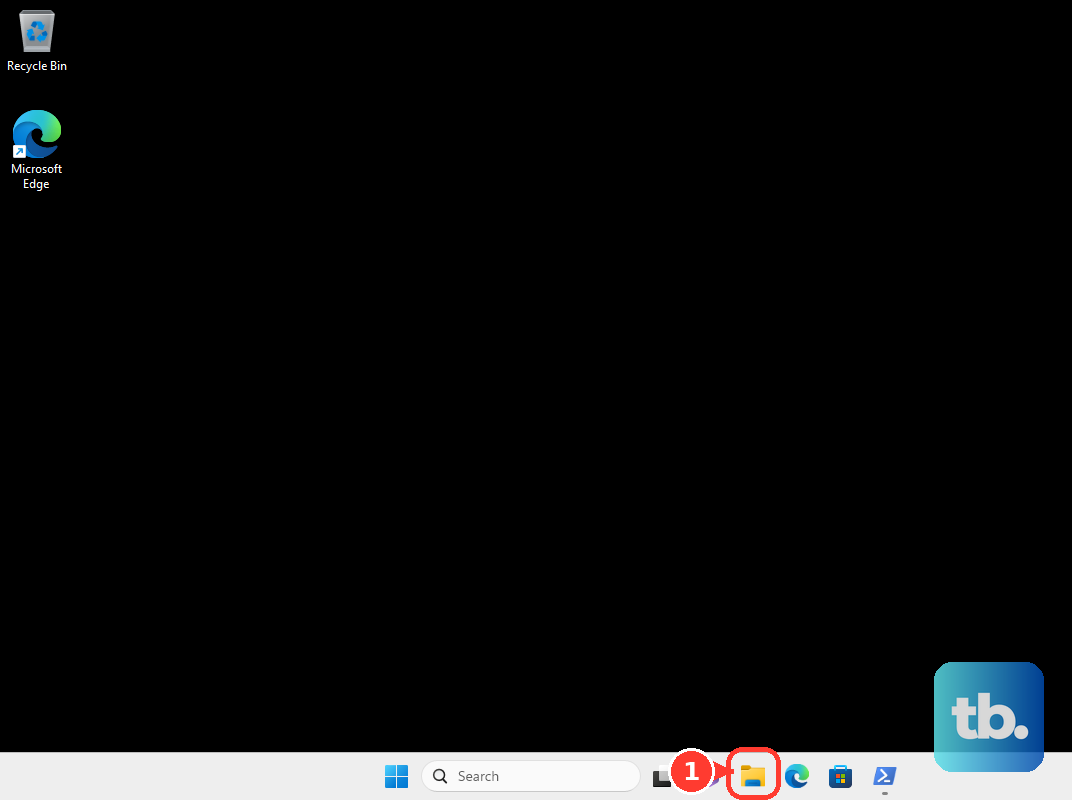
Alternatively, open File Explorer > This PC, right-click the installation drive, and select Install or run program from your media. Select Yes if administrator approval is requested. At Product key, enter your Windows 11 Pro key in Enter Product key and complete Windows 11 Setup. Available options for keeping content depend on your starting edition, language, and architecture.
A downloaded ISO can also start Setup from within an eligible Windows 10 installation. Download the official ISO for your PC's architecture, right-click it, and select Mount. Open the mounted drive and run setup.exe, using your licensed Pro edition during Setup. If Setup retains Home, finish Setup and use the Windows 11 Activation upgrade route with your valid Pro license.
For supported Arm64 hardware, open Microsoft's Windows 11 Arm64 download page and check device-specific compatibility before installing. Under Download Windows 11 Disk Image (ISO) for Arm-based PCs, choose Windows 11 (multi-edition ISO for Arm64) and select Download Now. Choose the product language, select Confirm, and download the ISO.
Mount the Arm64 ISO to run setup.exe on a compatible installation, or prepare compatible installation media. Downloading an ISO alone does not grant a Pro license. Check your device's compatibility rather than treating the Arm64 download as permission to move a 26H1 device to 26H2.
Clean install Pro for a full replacement
A clean installation deletes files, apps, and settings, so back up your files before starting. To reinstall Windows 11 on a compatible PC with a valid Pro entitlement, create installation media for the correct architecture. Boot from it using your manufacturer's boot-menu instructions.
In Select language settings, choose the required options and select Next, then do the same in Select keyboard settings. In Select setup option, select Install Windows 11. Continuing with the clean installation deletes files, apps, and settings. Turn on the setting that reads "I agree everything will be deleted including files, apps, and settings", then select Next.
Supply your valid Pro product key when Setup requests it. If the device already has a Pro digital license linked to your Microsoft account, select I don't have a product key, then select Windows 11 Pro in Select Image. If you have neither a Pro product key nor a Pro digital license linked to your Microsoft account, don't proceed: close Windows Setup and link your digital license to your Microsoft account before reinstalling. Select Next, then select Accept at Applicable notices and license terms.
Deleting partitions removes their contents, so back up your files before continuing. Choose the intended installation disk, delete its partitions using Delete Partition, and select the resulting unallocated space. Select Next.
Installing replaces the existing installation and deletes files, apps, and settings. At Ready to install, select Install. A firmware Home key can cause Setup to select Home automatically; in that case, finish Setup and change editions through Activation on Windows 11.
Frequently Asked Questions
Does the Windows 11 ISO include Pro?
The official x64 Windows 11 ISO contains multiple editions, including Pro. Your license determines your eligibility to use Pro.
Does Arm64 bootable installation media need extra drivers?
Arm64 bootable media may require manufacturer drivers. Check device-specific compatibility before preparing an installation.
Do you have to pay to leave S mode?
Switching out of S mode is free. You still need a valid Pro entitlement to upgrade to Windows 11 Pro.
Can you still upgrade through Microsoft Store for Business?
Microsoft says edition upgrades through Microsoft Store for Business are no longer available following its retirement. For activated Windows 11 Home, use the consumer Microsoft Store upgrade or enter a valid Windows 11 Pro product key.