

To update Windows Security protection definitions, open Windows Security, select Virus & threat protection > Protection updates, then select Check for updates. This checks for security intelligence, also called protection definitions. The same path works on Windows 11 and Windows 10 when Microsoft Defender Antivirus is available.
Windows Security is the interface, while Microsoft Defender Antivirus has separate intelligence, engine, and platform updates. Start with the definition check, then use Windows Update for other applicable packages. Sign in only through Microsoft’s own app or website, and never share a code, password, or remote access with someone who contacts you.
The short version
- Update definitions: In Windows Security, open Virus & threat protection > Protection updates and select Check for updates.
- Keep updates automatic: Stay connected to the internet and allow Windows Update to operate.
- Update the interface: Windows Update delivers the Windows Security app and service update on eligible Windows 11 installations.
- Use a manual fallback: Microsoft provides standalone definition downloads and a separate Windows 11 app installer.
| Method or option | Purpose | When to use it |
|---|---|---|
| Windows Security definition check | Request security intelligence | First manual check |
| Automatic definition updates | Download intelligence automatically | Routine updates with internet access |
| Windows Update check | Get applicable Windows and security packages | Check for available updates |
| Automatic Windows Security app update | Update the interface and service | Eligible Windows 11 installations |
| Manual Windows Security app installer | Install the interface and service package | Manual Windows 11 app update |
| Standalone definition download | Install security intelligence | Manual definition installation |
| PowerShell update | Request definitions immediately | Administrator command session |
| Command Prompt update | Request definitions with MpCmdRun | Alternative administrator command |
| Dynamic signature removal | Clear dynamic signatures and retry | Definition update troubleshooting |
| Microsoft Update Catalog package | Update the antivirus platform | Applicable KB4052623 deployment |
| Cloud protection | Enable additional cloud protection | Supplement regular definition updates |
| PowerShell or WMI scheduling | Configure definition check timing | Administrative scheduling |
| Group Policy scheduling | Configure an update interval | Eligible Windows editions |
| Update source configuration | Set source order or file shares | Administratively managed devices |
| Scan and startup triggers | Request updates around events | Administrative trigger configuration |
| WSUS or Configuration Manager | Distribute managed update packages | Organizations with server infrastructure |
| Microsoft Intune action | Request a remote definition update | Eligible enrolled or co-managed devices |
Check protection definitions in Windows Security
Open Windows Security and select Virus & threat protection. Choose Protection updates, then select Check for updates to request security intelligence. This updates protection definitions, while the interface uses a separate update package.
For ongoing updates, keep your PC connected to the internet and allow Windows Update to operate. Windows automatically downloads Defender security intelligence. If the manual check fails, continue with Windows Update, a standalone download, or the administrator troubleshooting steps below.
For additional cloud protection on Windows 11 and Windows 10 with Defender Antivirus, open Windows Security > Virus & threat protection > Manage settings. Turn on Cloud-delivered protection and maintain an internet connection; regular definition updates are still needed. If organization policy controls this setting, ask your administrator to manage it.
Check Windows Update for available packages
On Windows 11, open Start > Settings > Windows Update, then select Check for Windows updates. On Windows 10, open Start > Settings > Update & Security > Windows Update, then select Check for Windows updates. When the button reads Check for updates instead, select that button.
Select Download & install when offered, and restart the PC when requested. Operating system update availability depends on your Windows release and its servicing eligibility. Defender definitions have a separate lifecycle, so receiving them does not establish that your Windows release still receives operating system updates.
Update the app and antivirus platform
On eligible Windows 11 installations, allow Windows Update to install KB5007651 to update the Windows Security interface and its underlying service. Microsoft categorizes this package under Definition Updates in the Microsoft Security platform category. The package applies to Windows 11 build 22000 or later, but that minimum does not mean every older Windows 11 release remains supported.
To install the app update manually, open Microsoft’s Windows Security app download page. Under Manually download the update, select 64-Bit or ARM64 to match your PC, then run the downloaded installer as an administrator.
For the separate Microsoft Defender Antivirus platform update, open the KB4052623 results in Microsoft Update Catalog and obtain the applicable package. On very old antivirus installations, Microsoft requires platform version 4.18.2001.10 before deploying the newer platform package. Deploy the applicable package with administrator rights; KB4052623 updates the antivirus platform, while KB5007651 updates the Windows Security interface and service.
Install protection definitions manually
For a standalone definition update, open Microsoft’s security intelligence download page. Find the Microsoft Defender Antivirus row and select the 32-bit, 64-bit, or ARM download that matches the target PC. Run the downloaded executable to install the definitions.
This method applies to Windows 11 and Windows 10 using a package that matches the target architecture. Select the version that matches your Windows operating system or the environment where you will apply the update.
Request definitions with administrator commands
On Windows 11 or Windows 10 with Microsoft Defender Antivirus and the Defender PowerShell module, open Windows PowerShell as an administrator. Run this command to request a definition update immediately:
Update-MpSignatureTo explicitly request definitions from Microsoft Update, use the following command instead. The source choice applies to this update request.
Update-MpSignature -UpdateSource MicrosoftUpdateServerOther documented source values are MMPC, InternalDefinitionUpdateServer, and FileShares. The internal server and file share options require configured infrastructure. If you administer a configured remote CIM session, you can target it with -CimSession.
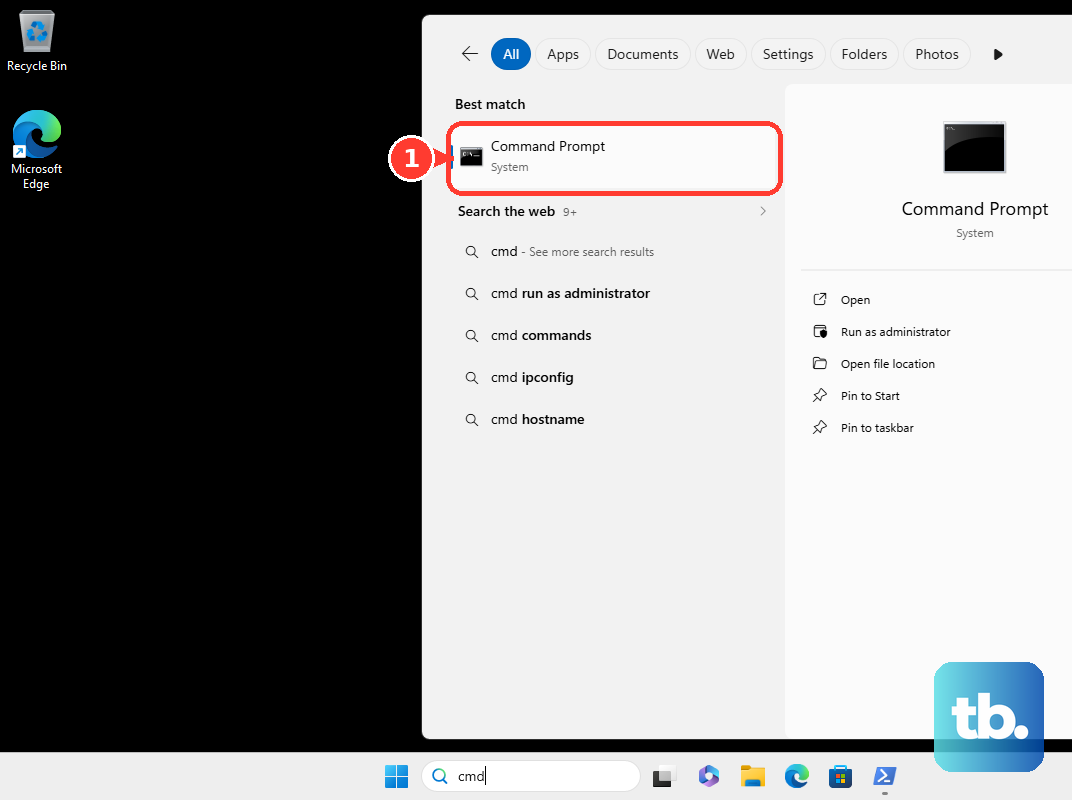
For Command Prompt on Windows 11 or Windows 10 x64 devices with Defender Antivirus, search Start for cmd, right-click Command Prompt, and select Run as administrator. Change to the newest installed folder under C:\ProgramData\Microsoft\Windows Defender\Platform\. Microsoft also documents C:\Program Files\Windows Defender as a fallback, which you can enter with this command:
cd /d "%ProgramFiles%\Windows Defender"Once Command Prompt is in the Defender folder, run the following command. It requests a security intelligence update through the Defender command-line tool.
MpCmdRun.exe -SignatureUpdateFor Microsoft’s direct security intelligence source, use the following command instead. This also updates protection definitions.
MpCmdRun.exe -SignatureUpdate -MMPCIf your administrator maintains an update share, you can request definitions from that share. Replace the example server and share names with the configured location when using this command:
MpCmdRun.exe -SignatureUpdate -UNC \\FileServer\ShareNameRetry a failed update after clearing dynamic signatures
If definition updates still fail, Microsoft provides this administrator procedure for Defender Antivirus installations with MpCmdRun. It removes dynamic signatures before requesting fresh updates; it does not uninstall Windows Security. In an administrator Command Prompt, execute each of the following commands separately, in this order:
cd /d "%ProgramFiles%\Windows Defender"MpCmdRun.exe -removedefinitions -dynamicsignaturesMpCmdRun.exe -SignatureUpdateAfter the last command, return to Windows Security > Virus & threat protection > Protection updates and select Check for updates. If updating still fails, use Microsoft’s security intelligence download page linked above for its official update troubleshooting instructions.
Schedule definition checks
If you administer Windows 11 or Windows 10 with Defender Antivirus, you can configure an update interval in an elevated Windows PowerShell session. The following command requests definition checks every four hours:
Set-MpPreference -SignatureUpdateInterval 4For day and time scheduling, use the -SignatureScheduleDay and -SignatureScheduleTime parameters. If you manage settings through WMI, use the corresponding SignatureUpdateInterval, SignatureScheduleDay, and SignatureScheduleTime properties through the Set method of MSFT_MpPreference.
On Windows Pro, Enterprise, or Education with Group Policy Editor, open gpedit.msc. Navigate to Computer configuration > Administrative templates > Windows components > Microsoft Defender Antivirus > Security Intelligence Updates.
Open Specify the interval to check for security intelligence updates and select Enabled. Enter an interval from 1 to 24 hours, then select OK. Domain administrators can configure the equivalent GPO. Home does not include Group Policy Editor, so use the PowerShell scheduling option if you administer a Home installation with Defender Antivirus.
Configure update sources and automatic triggers
For administratively managed Defender Antivirus devices with an eligible Windows edition, open the Security Intelligence Updates policy folder described above. Open Define the order of sources for downloading security intelligence updates and select Enabled. Enter a pipe-separated source order, such as MicrosoftUpdateServer|MMPC, then select OK.
If you manage sources through PowerShell, the relevant settings are SignatureFallbackOrder and SignatureDefinitionUpdateFileSharesSources. WMI and the Defender MDM policy CSP provide corresponding source configuration options. File shares and internal update servers require configured infrastructure.
On Windows 11 and Windows 10 with Defender Antivirus, administrators can also request updates before scheduled scans. Run this command in an elevated Windows PowerShell session to configure that trigger:
Set-MpPreference -CheckForSignaturesBeforeRunningScan $trueTo permit startup downloads when the antivirus engine is not running, use the following command. This configures startup behavior rather than immediately requesting an update.
Set-MpPreference -SignatureDisableUpdateOnStartupWithoutEngine $falseIf you manage these settings through WMI, use their corresponding WMI settings. Group Policy also supports startup update checks.
Update devices managed by your organization
If you administer organization-managed Windows devices, you can distribute Defender intelligence, engine, and platform updates through WSUS or a Configuration Manager Software Update Point. Configure the applicable packages and deploy them to the managed device collection. This requires server infrastructure and administrative access, and the Windows Security app package KB5007651 is also available to WSUS.
For an eligible Intune-enrolled or co-managed Windows device, sign in to the Microsoft Intune admin center with an authorized administrator account. Select Endpoint security > All devices, select the PC, and open its Overview page. Select Update Windows Defender security intelligence from the action bar or its ellipsis menu.
The action is delivered when the device checks in, and it does not start a scan. Devices managed only through Defender security settings management do not support these remote actions, so use an applicable update method above. Microsoft warns that Intune functionality on Windows 10 is no longer guaranteed.
Frequently Asked Questions
How long will Windows 10 receive Defender definition updates?
Windows 10 continues receiving Microsoft Defender Antivirus security intelligence through October 2028. That timeline is separate from operating system servicing and does not extend support for the operating system itself.
Do automatic protection updates require a separate subscription?
You do not need a separate subscription for automatic Defender security intelligence updates. You also do not need to download each definition package manually to receive those automatic updates.
Can you uninstall Windows Security and reinstall it to update it?
Microsoft says Windows Security cannot be uninstalled. Use its definition update controls or the applicable Windows Security app update package for the component you need to update.
Does an older product listed on the download page still have operating system support?
An older product’s presence on Microsoft’s definition download page does not establish current operating system support. When downloading definitions for Microsoft Defender Antivirus, choose its own row and the package that matches your target PC.