

A slow, missing, or unreliable Wi-Fi connection on Windows 10 often points to the wireless adapter driver. Start with Windows Update, then use Device Manager or your PC maker's driver tools when Windows does not offer the driver you need. After October 14, 2025, Microsoft no longer provides free software updates from Windows Update, technical assistance, or security fixes for Windows 10. Devices enrolled in the consumer Extended Security Updates program still receive critical and important security updates through Windows Update, at no extra cost if you sync your PC settings, but that program covers security updates only and does not deliver driver updates.
Start with Windows Update
Use this first when Wi-Fi still works enough to get online. Windows Update handles recommended network and Wi-Fi driver updates that Microsoft or your device maker has published for your PC.
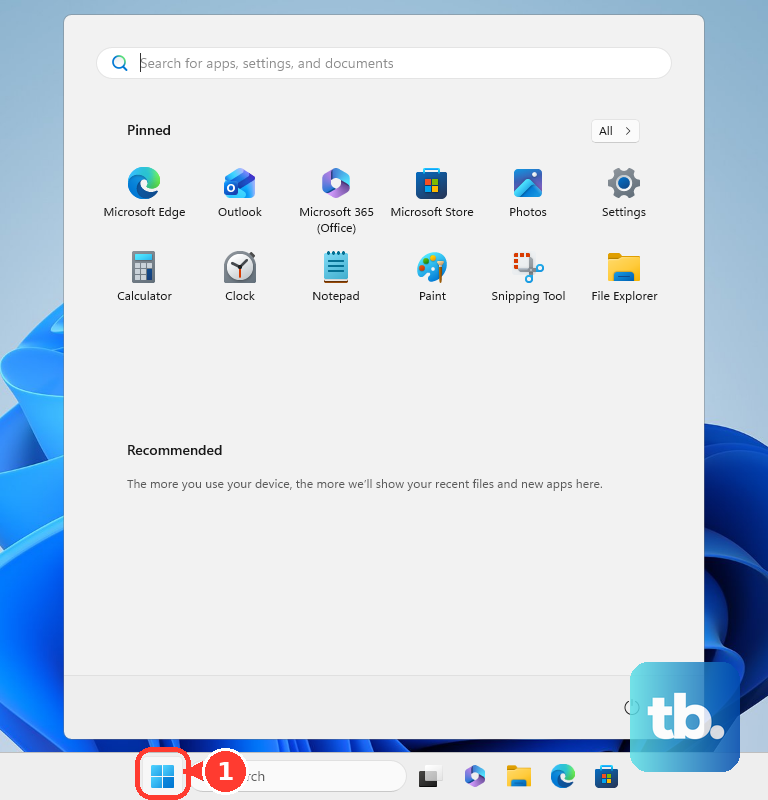
Open Start, then go to Settings, Update & Security, and Windows Update.
Select Check for Windows updates.
When updates are available, select Download & install.
Restart the PC if Windows prompts you, then reconnect to Wi-Fi and test the connection.
Check optional driver updates
This fixes driver updates that Windows does not install automatically.
Open Start, then go to Settings, Update & Security, and Windows Update.
Select Advanced options.
Turn Receive updates for other Microsoft products when you update Windows on.
Return to Windows Update.
Select Check for updates.
When View optional updates appears, open it and select the Wi-Fi or network driver updates you want.
Choose Download and install.
Restart from Start, Shut down or sign out, and Restart.
Use Device Manager for a quick driver check
Device Manager is the right shortcut when you want Windows to check the wireless adapter directly.
- 1.Right-click Start and open Device Manager.
- 2.Expand Network adapters.
- 3.Right-click your wireless or Wi-Fi adapter and choose Update driver.
- 4.Select Search automatically for updated driver software.
- 5.When Windows does not find one, select Search for updated drivers on Windows update and continue through Windows Update or optional updates.
Get the driver from your PC maker
For many laptops and desktops, the best Wi-Fi driver comes from the company that built the computer. Dell, HP, Lenovo, and Microsoft Surface all provide model-specific driver downloads, and those packages include hardware-specific driver support for the exact PC model.
On a Dell or Alienware PC, open Dell Drivers & Downloads, enter the Service Tag or model, find the Networking or Wireless driver for Windows 10, download it, run the installer, and restart if prompted. For Dell's automatic tool, open SupportAssist from Start, go to Home, select Update software, then choose Start.
On an HP PC, open HP Software and Drivers, identify your product, choose Windows 10 when prompted, download the Wireless, LAN, or Wi-Fi driver, run the installer, and restart if prompted. If HP Support Assistant is installed, open it from Windows search, go to My Dashboard, find your computer, select Updates, choose the available updates, and install them.
On a Lenovo PC, open Lenovo Support, select your product, go to Drivers & Software, choose Manual Update, then Select Drivers. Download the Wireless LAN or Wi-Fi driver, run it, and restart if prompted. Lenovo also offers System Update through the same support area and recommends running Windows Update before using it.
On a Microsoft Surface, use the taskbar search box to type View optional updates, open View optional updates, and install available Surface-named items under Driver updates. If Windows Update does not provide the driver you need, open Microsoft's Surface drivers and firmware download page, choose your Surface model, download the matching package, run it, and restart if prompted.
If the maker's installer does not solve it, use Device Manager to install the downloaded driver folder manually.
Update an Intel wireless adapter
Use this when your PC has a supported Intel wireless adapter. Intel recommends checking your computer maker first because OEM drivers include customizations, while Intel's own tools cover supported Intel wireless adapters.
For the automatic route, download and install Intel Driver & Support Assistant.
Run Intel Driver & Support Assistant, let it identify the Intel wireless adapter, and follow the prompts when it offers a newer driver.
For the manual route, open Intel's Wireless Wi-Fi Drivers for Windows 10 and Windows 11 page.
Download the Windows 10 64-bit package for your supported Intel adapter, save it to a folder, then double-click the installer to start installation.
Intel also maintains a PROSet/Wireless Software and Wi-Fi Drivers page. Select your operating system from the drop-down menu, choose the Windows 10 driver version, download it, and install it manually.
Install a downloaded driver folder manually
Download the Wi-Fi driver from your PC, adapter, or chipset manufacturer, then extract it when the download is compressed.
Right-click Start and open Device Manager.
Expand Network adapters.
Right-click the wireless or Wi-Fi adapter and select Update driver.
Choose Browse my computer for drivers.
Select Browse....
Choose the extracted driver folder and select OK.
Select Next.
Select Close when Windows finishes.
Keep the downloaded driver folder until Wi-Fi works after a restart.
Undo or repair a bad Wi-Fi driver
This fixes a Wi-Fi driver update that made the connection worse or left the adapter unstable.
Right-click Start and open Device Manager.
Expand Network adapters.
Right-click your wireless or Wi-Fi adapter and select Properties.
Open the Driver tab.
Select Roll Back Driver.
Choose a reason and select Yes. This requires administrator permission and works only when Windows still has a previous driver available.
Restart if prompted.
When rollback is not available, right-click the wireless adapter in Device Manager and choose Uninstall device.
Select Uninstall.
Restart from Start, Shut down or sign out, and Restart. Windows then attempts to reinstall the adapter driver. If the driver does not reinstall, update it from Windows Update or install the manufacturer's driver manually.
Use a network reset after driver fixes fail
Network reset is a repair step, not a guaranteed way to get the newest Wi-Fi driver. It removes and reinstalls network adapters and resets networking components, so save it for a Windows 10 PC that still has Wi-Fi problems after normal driver updates.
Open Start, go to Settings, choose Network & Internet, then open Status. Select Network reset, choose Reset now, then select Yes.
Wait for the PC to restart. After Windows comes back, reconnect to Wi-Fi and check whether the adapter works normally.
If network reset does not help, use your PC maker's support page or a downloaded manufacturer driver package instead of repeating the reset.
Skip older command line advice
Older guides mention devcon update for driver work. Microsoft's DevCon replacement table maps devcon update and devcon updateni to pnputil /add-driver <INF name> /install, which is the command that matters for a manual driver update. devcon install is a different scenario that creates a test device, and Microsoft maps it to devgen /add /bus ROOT followed by that same PnPUtil command.
PnPUtil is an advanced option after you have downloaded a Wi-Fi driver INF package. From an elevated Command Prompt, run pnputil /add-driver <filename.inf | *.inf> /install /reboot. The command adds drivers to the driver store and installs or updates matching devices, but it does not force a lower-ranked driver.
For a work or school PC, driver updates are often controlled by your organization. Contact your administrator when Windows Update and Device Manager do not offer driver updates, because managed policy controls whether driver-classification updates appear through Windows Update.
Frequently Asked Questions
Why does Windows say the best Wi-Fi driver is already installed?
On Windows 10 version 2004 and later, Device Manager checks the local computer first. If Microsoft or your PC maker has an optional driver available, Windows points you toward Windows Update optional updates instead.
Should I use the laptop maker's driver or Intel's driver?
Start with the laptop or desktop maker when one is available. Intel says computer manufacturers provide customized wireless drivers, while Intel Driver & Support Assistant checks supported Intel adapters automatically.
Can uninstalling the Wi-Fi adapter update the driver?
Uninstalling the adapter and restarting makes Windows attempt to reinstall the driver. If it does not reinstall, install a driver from Windows Update or from the manufacturer. It fetches a newer driver only when Windows Update or the Windows driver store already has that driver.
What changed now that Windows 10 is out of support?
Windows 10 reached end of support on October 14, 2025. After that date Microsoft no longer provides free software updates from Windows Update, technical assistance, or security fixes for Windows 10. Microsoft still documents the Windows 10 driver-update paths, and devices enrolled in the consumer Extended Security Updates program keep receiving critical and important security updates through Windows Update, with a no-cost enrollment option if you sync your PC settings. That program does not cover driver updates, so use Device Manager or your PC maker's downloads for Wi-Fi drivers.