


To update the Wi-Fi password saved on Apple TV, open Settings > Network > Wi-Fi, select your network, choose Forget Network, then reconnect with the new password. This procedure applies to Apple TV 4K and Apple TV HD running tvOS. Disconnect any Ethernet cable first, because Apple TV hides Wi-Fi connection options while Ethernet is connected.
The short version
- Replace the saved password: Forget your Wi-Fi network, then select it again and enter the new password.
- Disconnect Ethernet: Apple TV hides Wi-Fi connection options while an Ethernet cable is connected.
- Keep a remote ready: The iPhone or iPad remote requires the same Wi-Fi network and can lose control when you forget the connection.
- Change the whole network: Use your router’s app or configuration webpage to change its Wi-Fi password.
| Option | When to use it | Requirement or limitation |
|---|---|---|
| Forget and rejoin | Replace an outdated saved password | Apple TV 4K or Apple TV HD running tvOS |
| Choose another network | Switch Wi-Fi connections | Disconnect Ethernet first |
| Control Center shortcut | Open network selection from your remote | Apple TV 4K |
| Onscreen keyboard | Enter the password with a physical remote | Apple TV 4K and a supported remote |
| Password dictation | Speak letters, numbers, and symbols | Apple TV 4K with Siri Remote and enabled dictation |
| iPhone or iPad keyboard | Type through a keyboard notification | Compatible device using the same Apple Account |
| iPhone or iPad remote | Navigate network settings | Both devices on the same Wi-Fi network |
| Bluetooth keyboard | Type with a paired keyboard | Apple TV 4K and a compatible keyboard |
| Other compatible remotes | Use TV, receiver, infrared, or network controls | Apple TV 4K and compatible hardware |
| iPhone setup transfer | Transfer Wi-Fi settings during setup | Apple TV 4K or Apple TV HD and an iPhone |
| Manual setup | Enter credentials during setup | Apple TV 4K or Apple TV HD |
| Captive network login | Complete a hotel or other network portal login | Apple TV 4K and a compatible iPhone or iPad |
| Factory reset | Recover as a last resort | Erases all information and settings |
| Administrator configuration | Update managed Wi-Fi credentials | Apple TV enrolled in device management |
| Apple Business configuration | Edit an organization’s existing configuration | Configuration-editing permissions |
| Apple Configurator profile | Install updated Wi-Fi credentials | Supported Apple TV with Ethernet |
| Apple Configurator download | Get the Mac application for profile deployment | Apple’s Mac App Store listing |
| Router configuration | Change the home network’s actual password | Access to your router’s app or configuration webpage |
Forget the network and enter the new password
Disconnect any Ethernet cable from Apple TV before opening the wireless settings. On Apple TV 4K or Apple TV HD, open Settings, select Network, then choose Wi-Fi. Select the current network to open its connection options.
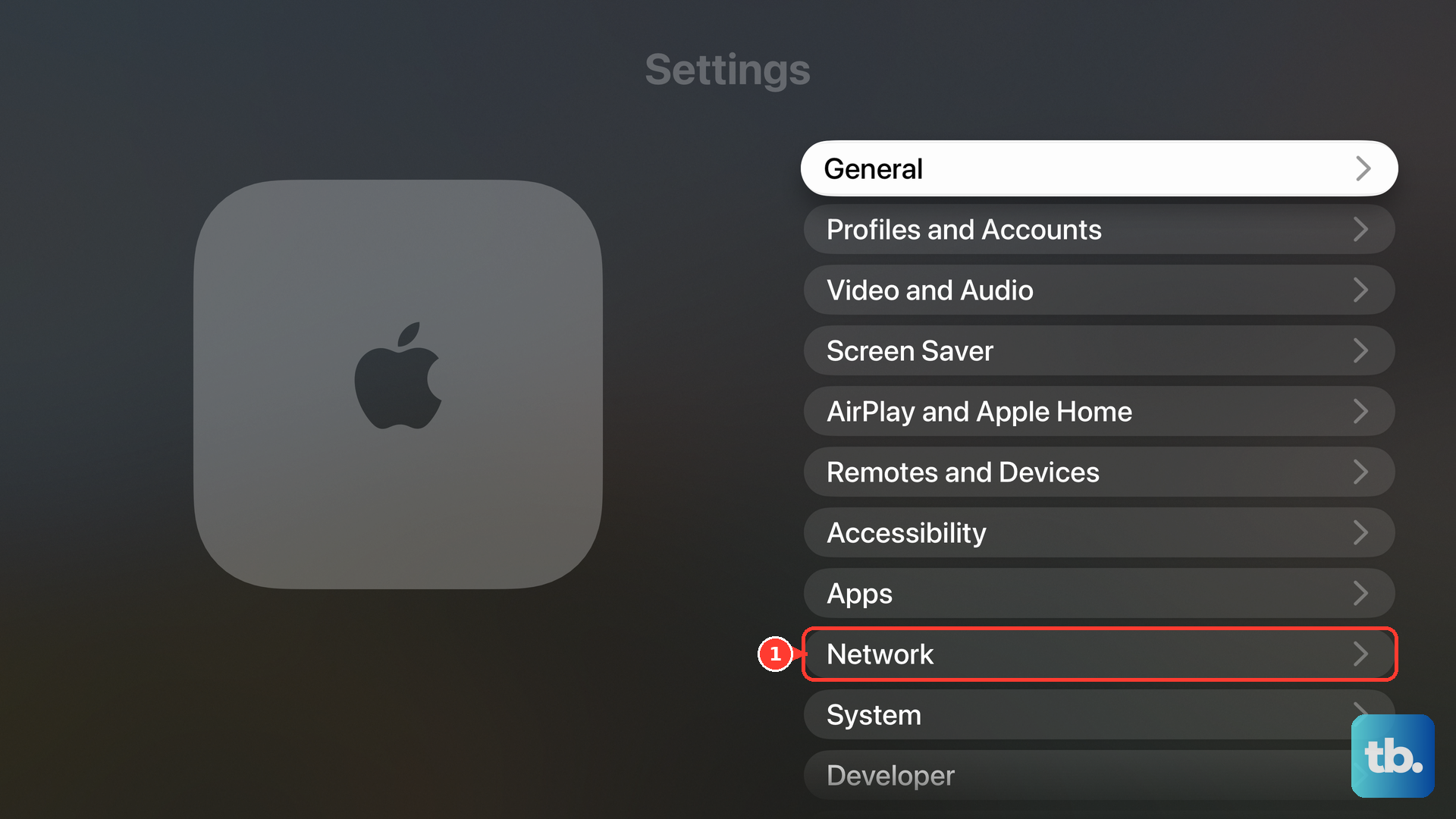
Forgetting the network removes its saved connection, so you will need to join it again with the new password. Select Forget Network, then press Menu or Back on your remote. Return to Network, select your Wi-Fi network again, and enter its new password when prompted.
Enter the password with a remote or keyboard
On Apple TV 4K, use the onscreen keyboard to select each character of the replacement password. Press Play/Pause to switch between lowercase, uppercase, and symbol keyboards. For an alternate character, highlight its base character, hold the clickpad center or touch surface, then select the required variant.
Dictation is another option on Apple TV 4K when you have a Siri Remote and dictation is available and enabled for your language and region. Highlight the password field, hold Siri/Search, speak the password’s letters, numbers, and symbols, then release the button. Say uppercase to capitalize a letter, or say Clear to delete characters entered during the current dictation.
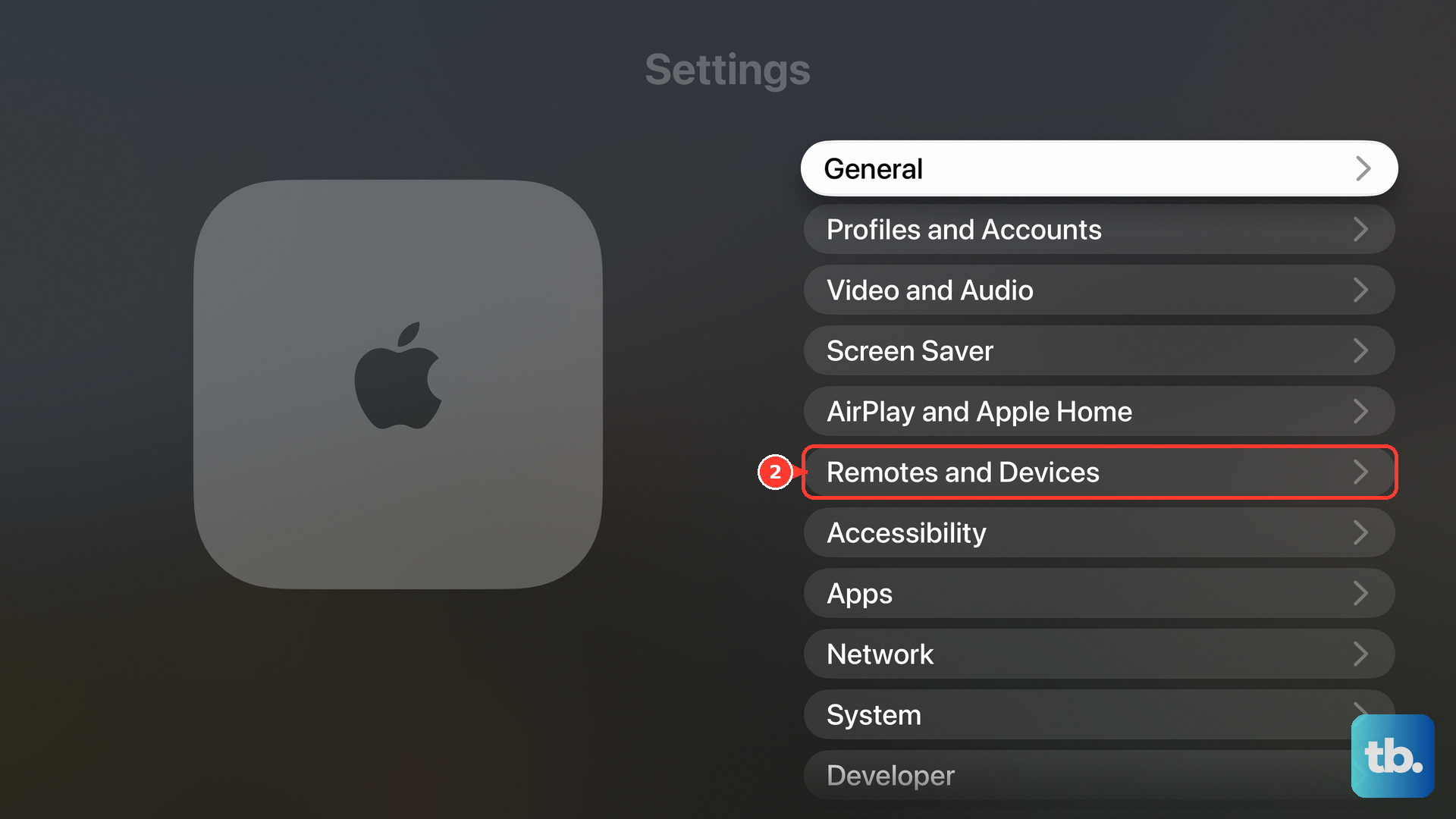
If you have a compatible Bluetooth keyboard, put it in discoverable mode using its instructions. On Apple TV 4K, open Settings > Remotes and Devices > Bluetooth and select the keyboard under Other Devices. Complete pairing, then use the keyboard at the Wi-Fi password field during reconnection.
Use your iPhone or iPad for typing or navigation
A compatible nearby iPhone or iPad that meets Apple’s Continuity requirements can provide a keyboard for text entry on Apple TV 4K. Sign both devices into the same Apple Account, then enable Bluetooth and Wi-Fi on the iPhone or iPad. Open the password field on Apple TV, and when the keyboard notification appears on your mobile device, tap it and type the new password.
The keyboard notification is not guaranteed during recovery from a disconnected network. If you do not receive it, enter the password with the physical remote and onscreen keyboard instead.
For navigation, Apple TV Remote in iPhone or iPad Control Center works with Apple TV HD and Apple TV 4K when both devices are on the same Wi-Fi network. Open Control Center, tap Apple TV Remote, select your Apple TV, and enter the four-digit passcode if requested. If the remote control is missing, open Control Center, tap Add Controls, tap Add a Control, and select Remote.
While the connection is working, use those remote controls to open Settings > Network > Wi-Fi. Forgetting the network can interrupt mobile remote control, so have a physical remote ready before selecting Forget Network. Once Apple TV has lost its Wi-Fi connection, use the physical remote to finish reconnecting.
Use another compatible remote when needed
On Apple TV 4K, a supported HDMI-CEC TV or receiver remote can control Apple TV through HDMI. An already configured infrared remote is another option when Wi-Fi is unavailable. Use either compatible remote to open Settings > Network > Wi-Fi and complete the forget-and-rejoin procedure.
If you can still navigate Apple TV and want to configure an infrared remote, open Settings > Remotes and Devices > Learn Remote. Complete the learning prompts before using that remote to change the saved Wi-Fi connection.
For a supported network remote, open Home on your iPhone or iPad, tap the Add button, then tap Add Accessory and complete accessory setup. Use the configured remote to navigate the same network settings. Network remotes depend on connectivity, so use a compatible HDMI-CEC or already configured infrared remote if Wi-Fi is unavailable.
Connect to a different or hotel network
To join a different network on Apple TV 4K or Apple TV HD running tvOS, disconnect Ethernet first if you are switching from a wired connection. Open Settings > Network > Wi-Fi and select the network you want. Follow the connection prompts and enter that network’s password when requested.
On Apple TV 4K, you can also press and hold TV to open Control Center, then select the Wi-Fi button. Choose the desired network and follow its connection prompts. If you are reconnecting to an existing network whose saved password is outdated, complete the forget-and-rejoin procedure above.
For a hotel or other captive network on Apple TV 4K, open Settings > Network and select the network. When Apple TV offers the handoff, select Continue on iPhone or iPad and complete the network’s login on a compatible device using the required credentials. This completes the portal login session rather than changing the router’s Wi-Fi password.
Change the password for your home network
Changing the router’s Wi-Fi password affects every device using that network. To make that change, open your router manufacturer’s app or configuration webpage and follow the instructions for your router model. The menu path depends on the router.
After changing the network password, return to Apple TV and open Settings > Network > Wi-Fi. Complete the forget-and-rejoin procedure above with the replacement password.
Enter the current password during setup
During initial setup, or setup after a reset, Apple TV 4K and Apple TV HD can receive Wi-Fi settings from an iPhone. Connect your iPhone to the intended Wi-Fi network using its new password, and make sure Bluetooth, iCloud Keychain, and two-factor authentication are enabled. On Apple TV, choose Set Up with iPhone, unlock the iPhone, hold it beside Apple TV, and complete the prompts on both devices.
To enter the credentials yourself during setup, choose Set Up Manually. Follow the onscreen network-selection prompts and enter the current Wi-Fi password.
Update a managed Apple TV connection
If your Apple TV is enrolled in device management at a business, school, or hospitality property, ask the network administrator to update and redeploy its Wi-Fi configuration. That configuration contains the network name and authentication credentials. The exact console menus depend on the device-management vendor.
If you administer configurations through Apple Business, sign in with configuration-editing permissions. Sign in only through Apple’s own app or website, and never share a code, password, or remote access with someone who contacts you. Choose Devices > Configurations, select the Wi-Fi configuration, then select Configuration. Update its network credentials and select Save; Apple pushes the changes to devices with that configuration applied.
For profile installation through Apple Configurator for Mac, have the administrator supply a configuration profile containing the updated Wi-Fi credentials. Connect the supported Apple TV over Ethernet and select it in Apple Configurator. Choose Actions > Add > Profiles, select the profile, click Add Profiles, and complete any onscreen installation prompts.
This Ethernet workflow applies to supported Apple TV HD and Ethernet-equipped Apple TV 4K models. If you have the Wi-Fi-only Apple TV 4K, ask your administrator to update and redeploy the managed Wi-Fi configuration instead.
Reset Apple TV only as a last resort
A factory reset is not necessary for an ordinary Wi-Fi password change on Apple TV 4K or Apple TV HD. If you need this last-resort recovery option, open Settings > System > Reset.
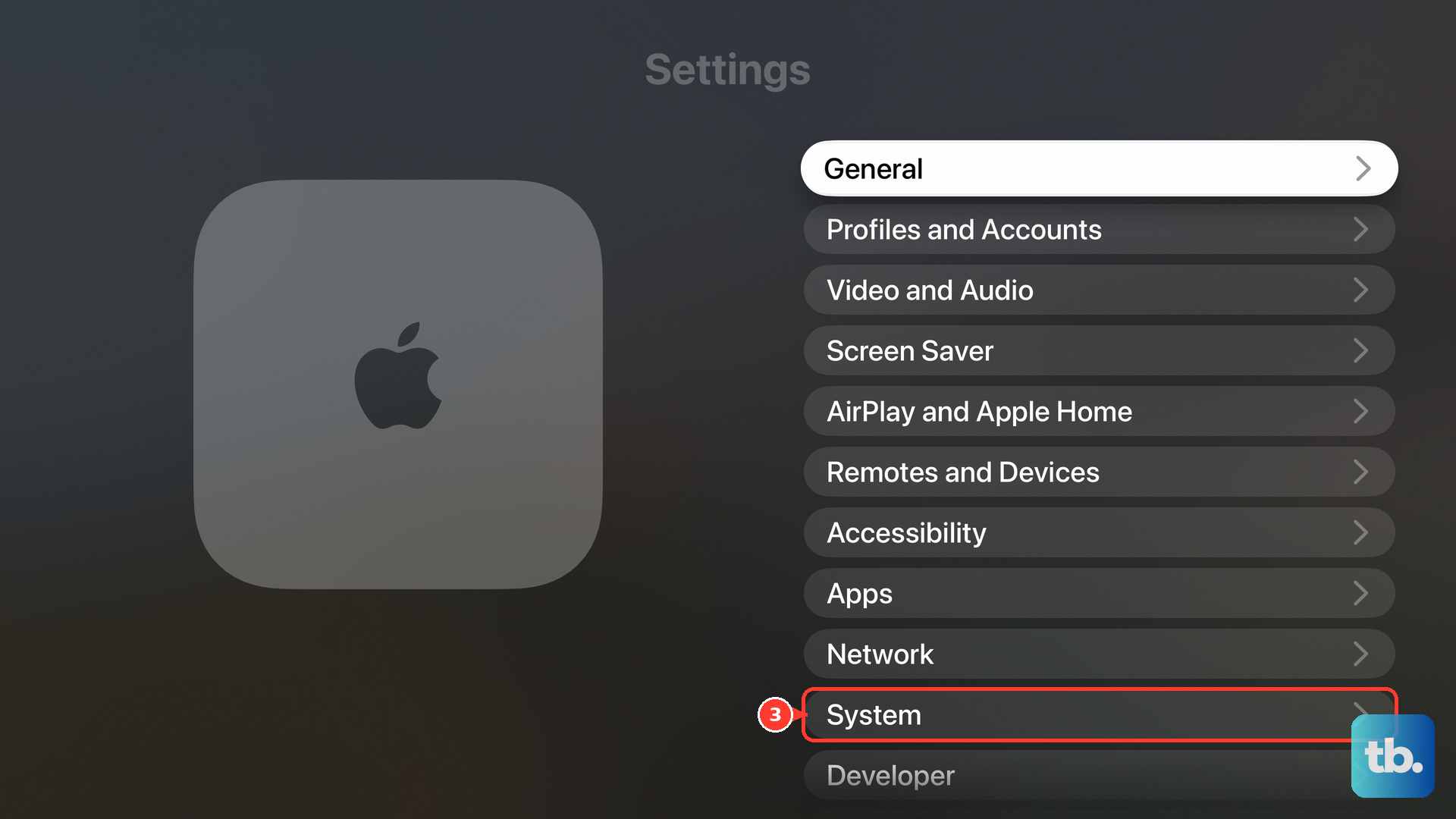
Resetting Apple TV erases all information and settings. Select Reset and keep Apple TV connected to power until it finishes. Then choose manual setup or Set Up with iPhone to configure Wi-Fi again.
Frequently Asked Questions
Can you reset Apple TV while it is offline?
Yes, the Reset option on Apple TV 4K and Apple TV HD does not require internet access. It still erases all information and settings, so losing Wi-Fi does not make a reset necessary for a routine password update.
What should you do when a hotel network login expires?
Repeat the captive-network login on your compatible iPhone or iPad when the network session expires. On Apple TV 4K, select the network under Settings > Network, then select Continue on iPhone or iPad when offered and complete the login again.
Where can an administrator get Apple Configurator for Mac?
Get Apple Configurator from Apple’s official Mac App Store listing. The listing requires macOS 15.7 or later.
Can you dictate the new Wi-Fi password with a Siri Remote?
Yes, on Apple TV 4K with a Siri Remote when dictation is available and enabled. Highlight the password field, hold Siri/Search, and speak the password’s letters, numbers, and symbols. To replace a saved password, use dictation at the password prompt during the forget-and-rejoin procedure.