
Getting the One UI 8 update on your Galaxy A16 is a straightforward process, but knowing the right steps can save you some hassle. I'd always recommend starting with the over-the-air method, as it's the easiest for most people.
Update Over Wi-Fi
Open your Settings app and scroll down to Software update. Tap on Download and install. Your phone will check Samsung's servers for any available updates. If One UI 8 is ready for your device, you'll see a prompt to download it.
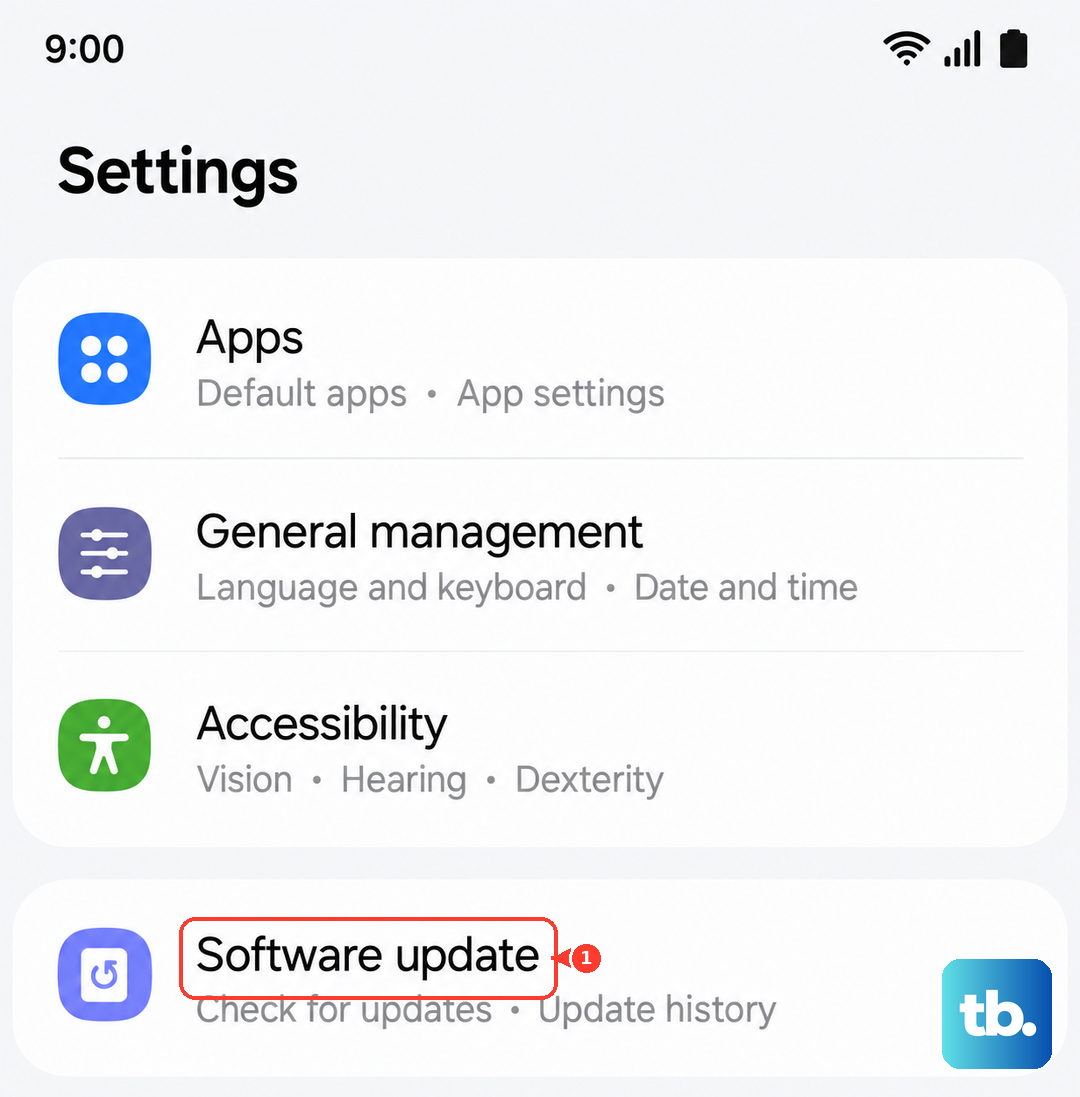
Make sure your phone is connected to a stable Wi-Fi network and has more than 50% battery life, or better yet, is plugged into your 25W charger. Major updates like this can be several gigabytes in size, so a good connection is key.
Enable Automatic Downloads
To make sure you never miss a security patch, you can set your phone to handle the downloads for you. Go back into Settings > Software update and tap the three-dot menu in the top right. Here, you can turn on Auto download over Wi-Fi.
This setting will automatically download updates when you're on Wi-Fi, but you'll still need to manually tap 'Install' to start the process. It's a good balance between convenience and control.
Use Samsung Smart Switch on a PC
If your phone is low on storage or the over-the-air update keeps failing, using a computer is a reliable alternative. Download and install the Samsung Smart Switch application on your Windows PC or Mac. Connect your Galaxy A16 using a USB-C cable.
Open Smart Switch, and if an update is available, you'll see a notification. The app will guide you through downloading and installing the update directly through your computer, which can sometimes bypass issues with the phone's own update process.
Clear the Update Cache if Stuck
Sometimes the update process can hang or give an error. If that happens, a good first step is to clear the cache for the update service itself. Go to Settings > Apps, then tap the filter icon and select Show system apps.
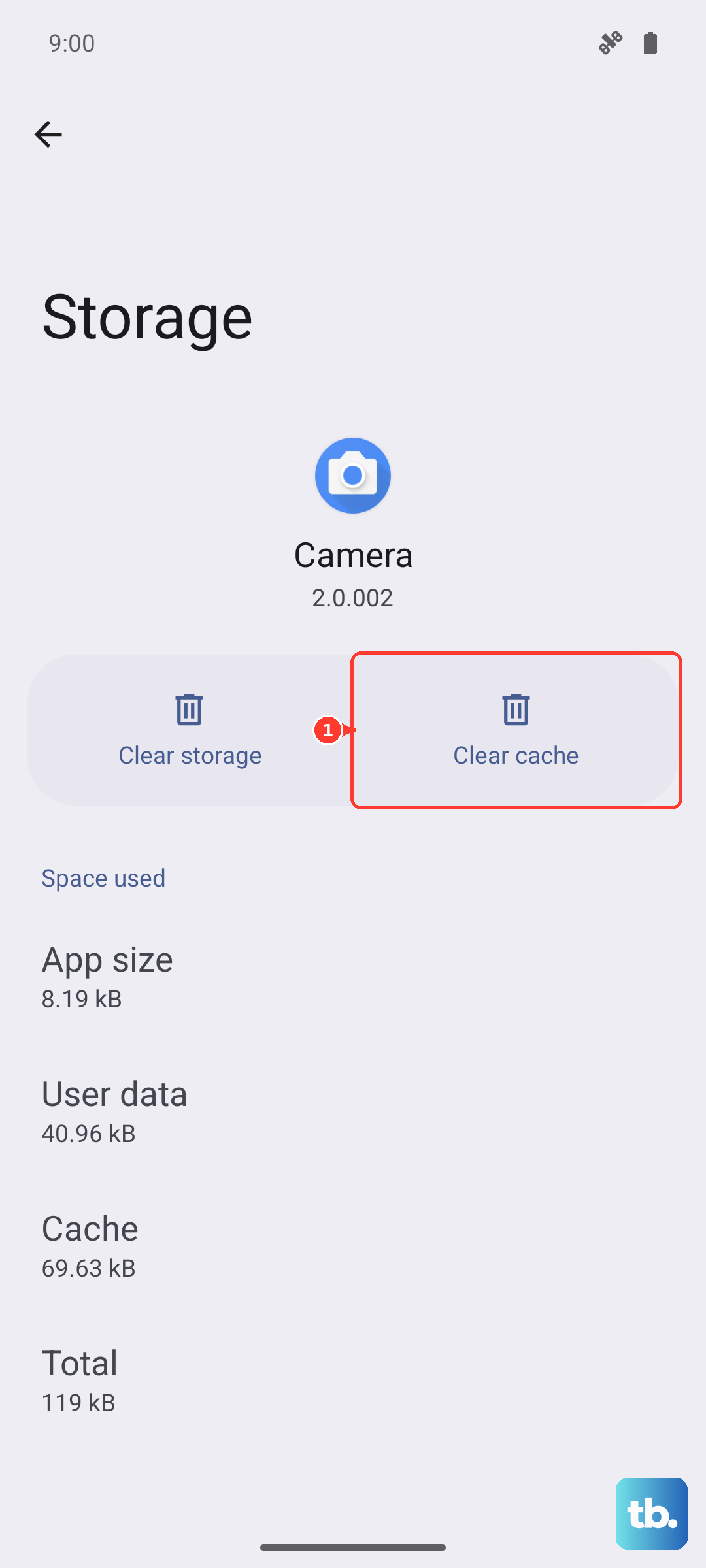
Find and tap on Software update. Go into Storage and tap Clear cache. This doesn't delete any personal data, it just clears temporary files that might be causing a conflict. After doing this, try checking for the update again.
Check Your Current Software Version
It's useful to know exactly what version you're running before you start. You can find this by going to Settings > About phone > Software information.
Here you'll see your Android version, One UI version, and the security patch level. This confirms whether you're moving from One UI 6.1 to 8 and helps you verify the update was successful once it's done.
Prepare Your Phone Before the Big Update
Before installing a major OS upgrade like One UI 8, take a minute to back up your important stuff. You can use Samsung Cloud by going to Settings > Accounts and backup > Samsung Cloud.
Also, ensure you have plenty of free storage. A major update can require 5GB or more of free space. If you're tight on storage, clearing your app cache regularly can help free up room and is a good habit for maintaining performance on the A16 anyway.
Once the update is downloading, your phone will handle the rest. It will reboot into the update screen, install the new software, and boot back up. The whole process can take 20 to 40 minutes, so plan for a time when you don't need your phone for a bit.