
When a photo or video message gets stuck on "Downloading" on your Samsung Galaxy A16, it's usually a quick fix. MMS requires both a cellular signal and mobile data to work, and a simple setting or app glitch is often the culprit.
Let's start with the most common solutions that usually get things moving again.
Restart Your Galaxy A16
A quick restart clears out temporary software bugs that can block MMS downloads. Just press and hold the Volume Down and Power button together for about 10 seconds until you see the Samsung logo.
Wait for the phone to fully boot up, then check your Messages app. I've found this resolves the issue more often than not on One UI devices.
Check Your Mobile Data and Signal
Unlike regular texts, MMS messages need an active mobile data connection to download. First, make sure Mobile Data is turned on. You can swipe down from the top of your screen twice to open the Quick Settings panel and tap the "Mobile data" icon.
Also, take a look at your signal bars. If you're in a weak coverage area, try moving to a different spot or near a window. The A16's modem can sometimes struggle with low signal, which directly affects MMS.
Enable MMS Auto-Retrieve
Your phone might be set to wait for your permission before downloading MMS, which can look like a failure. Open your Samsung Messages app and tap the three-dot menu in the top-right corner. Go to Settings > Multimedia messages.
Here, make sure "Auto download" is toggled on. While you're here, also check "Roaming auto download" if you're traveling, though the A16 doesn't support 5G roaming on all networks.
Clear the Messages App Cache
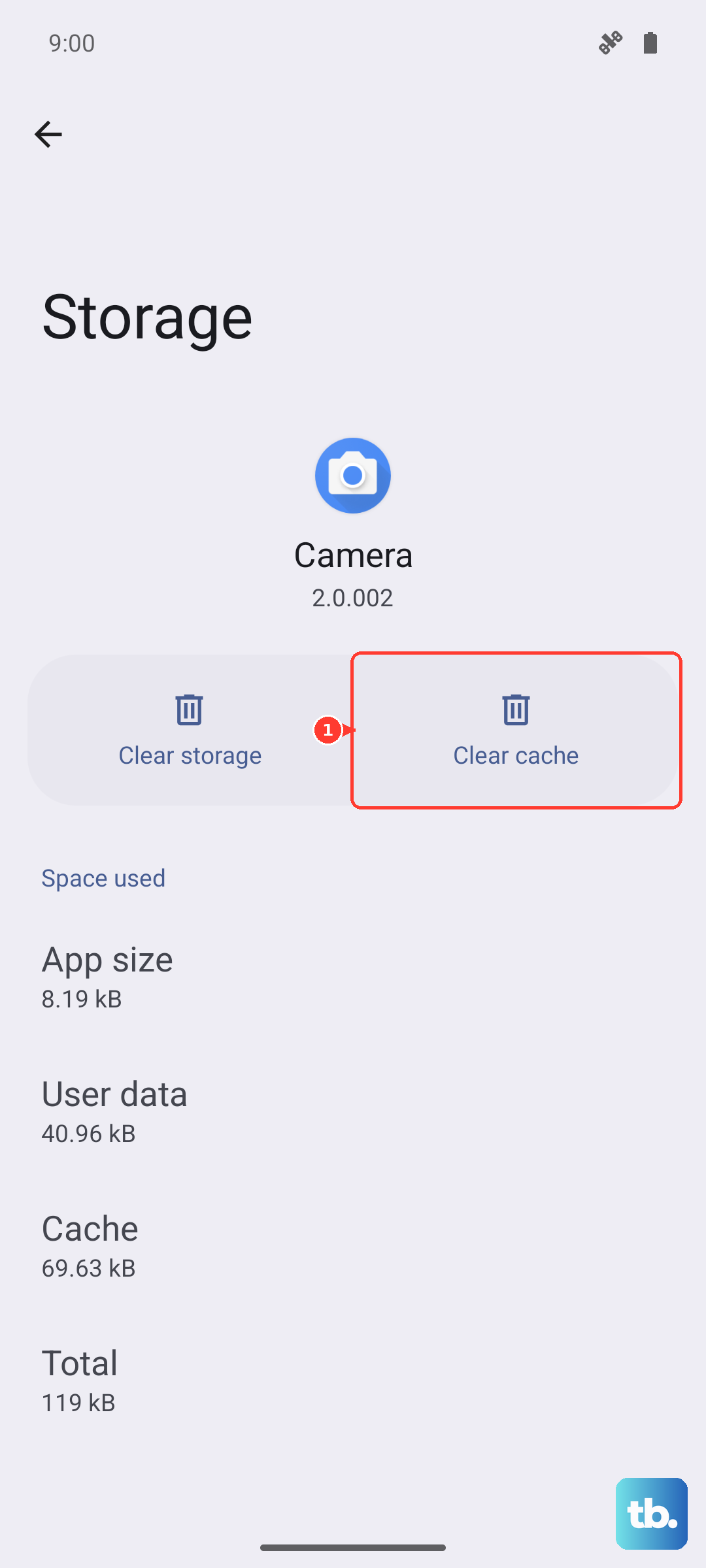
Over time, the app's temporary cache files can become corrupted. Clearing them is safe and won't delete your texts. Go to your phone's Settings, then tap Apps. Find and select "Messages" from the list.
Tap on Storage and then hit "Clear cache." This takes just a second. For good measure, you can also force stop the app from the same menu before reopening it, which gives it a completely fresh start.
Verify Your APN Settings
Incorrect Access Point Name (APN) settings are a common cause of persistent MMS problems. These settings tell your phone how to connect to your carrier's multimedia service.
Go to Settings > Connections > Mobile networks > Access Point Names. You should see an APN selected for your carrier. The safest fix is to contact your carrier's support (or visit their website) and ask for the correct MMS APN settings for the Galaxy A16 on Android 14.
You can also try tapping the three-dot menu here and selecting "Reset to default" to see if that helps.
Reset Your Network Settings
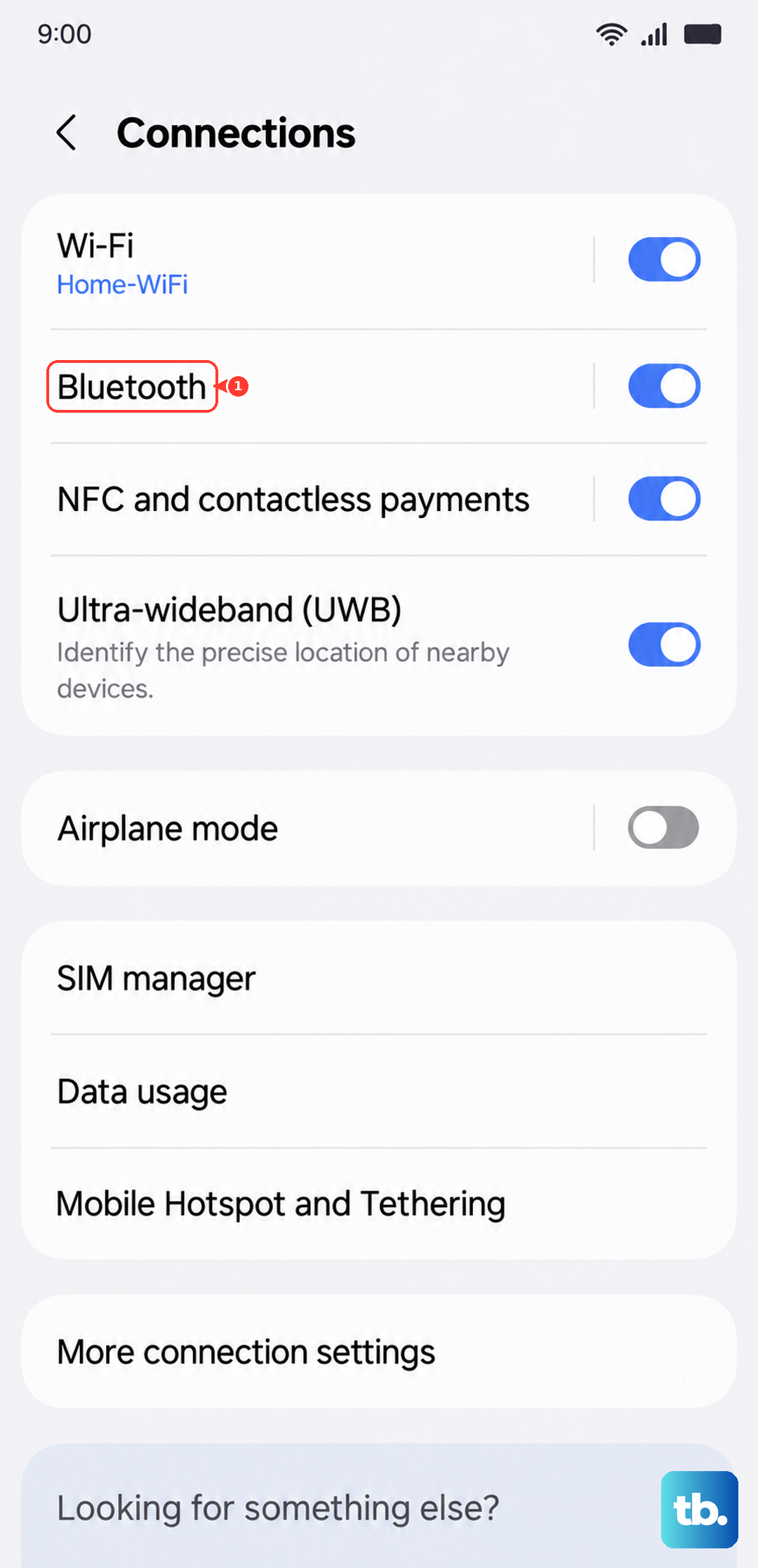
This will wipe all your network connections, including WiFi passwords and Bluetooth pairings, but it often resolves deep-seated MMS and data issues. To do this, navigate to Settings > General management > Reset.
Select "Reset network settings." You'll need to confirm your PIN or password. After the reset, your phone will reboot, and you'll have to reconnect to WiFi networks, but it's a very effective step.
Check for Software Updates
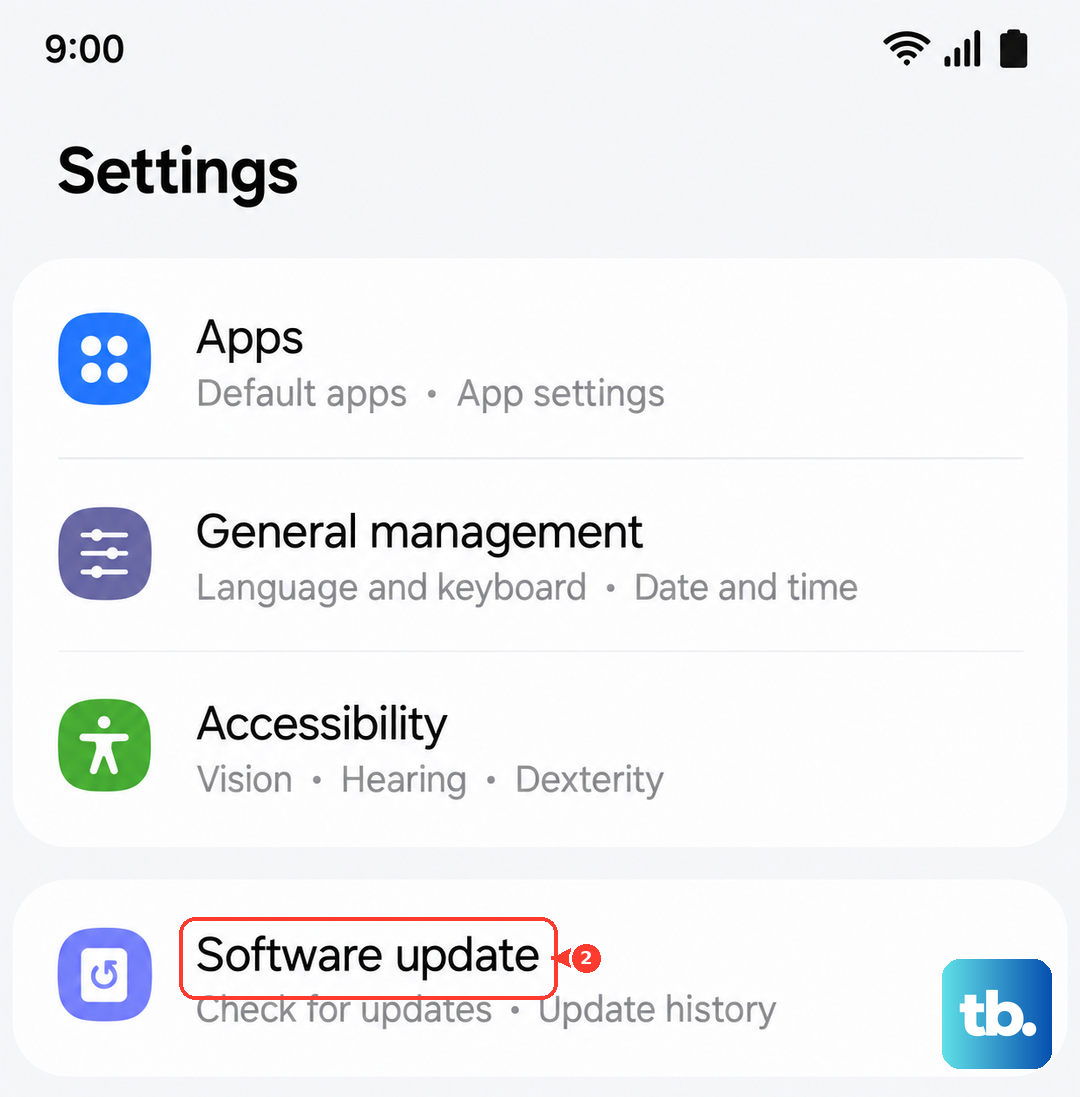
Samsung regularly releases updates that fix bugs affecting messaging and connectivity. Keeping your A16 updated is one of the best ways to prevent issues. Go to Settings > Software update and tap "Download and install."
If an update is available, make sure you're on WiFi and have at least a 50% charge before proceeding. The 25W charging on the A16 is decent, but it's still good practice.
Try a Different Messaging App
This is a great way to figure out if the problem is with the Samsung Messages app itself or with your phone's system. Download a popular alternative like Google Messages from the Play Store and set it as your default.
See if MMS downloads work in the new app. If they do, the issue is likely with your original app's data, which leads us to the next step.
Clear the Messages App Data
Warning: This will erase all of your text messages and restore the app to its original, just-installed state. Only do this if you've backed up important conversations or are comfortable losing them.
In Settings > Apps > Messages, tap Storage and then select "Clear data" instead of just "Clear cache." After doing this, you'll need to reconfigure your messaging settings, but it can eliminate stubborn corruption.
Contact Your Mobile Carrier
If you've worked through all these steps and MMS still won't download, the problem might be on your carrier's end. There could be a service outage in your area, or there might be a provisioning issue with your specific line.
Give their technical support a call. They can check your account, resend the MMS, and verify that all the necessary data features are correctly enabled for your Galaxy A16 plan. Sometimes, they just need to refresh your connection on their network.