
Getting your new Samsung Galaxy S25 FE set up with all your old stuff is the first step to enjoying it. Whether you're upgrading from an older Samsung, switching from another Android brand, or making the jump from an iPhone, the process is pretty straightforward. I'd start with Samsung's own tool, as it's designed to handle the heavy lifting for you.
Start with Samsung Smart Switch
The absolute easiest way to move your life over is using the Samsung Smart Switch app. It comes pre-installed on your Galaxy S25 FE. You can find it by going to Settings > Accounts and backup > Bring data from old device. This will launch Smart Switch and walk you through the connection options.
You have three main choices: a wireless transfer over Wi-Fi, a direct cable connection for speed, or restoring from an external storage device like a microSD card. For most people, wireless is the most convenient, but if you have a lot of photos and videos, the cable method is much faster.
Connect Your Phones Wirelessly
If you choose wireless, you'll need the Smart Switch app on your old phone too. If it's not already there, you can download it for free from the Google Play Store or the Galaxy Store. On your old phone, open the app and select Send data, then choose Wireless.
On your new S25 FE, select Receive data and then Wireless. The two phones will search for each other. Once they connect, you'll get to pick exactly what you want to bring over, contacts, messages, call logs, apps, photos, music, and even your home screen layout. Just keep the phones near each other until the transfer is complete.
Use a Cable for a Faster Transfer
For a really fast transfer, especially if you have tens of gigabytes of photos, connect the phones directly with a cable. You'll need a USB-C to USB-C cable, and if your old phone has a different port (like Micro-USB), you might need a USB-OTG adapter. The S25 FE supports fast data transfer through its USB-C port.
Connect the cable between the two phones, and Smart Switch should detect the connection automatically. Select everything you want to move and tap Transfer. This method doesn't rely on your Wi-Fi network speed, so it's often the most reliable and quickest option.
Moving Data from an iPhone
Smart Switch works great for bringing your data over from an iPhone. On your new S25 FE, in the Smart Switch app, select iPhone/iPad as your source device. You then have two paths: you can use a cable or pull data from an iCloud backup.
For the cable method, you'll need a Lightning to USB-C cable. Connect your iPhone to the Samsung, grant the necessary permissions on the iPhone, and follow the prompts. To use iCloud, just sign into your Apple ID directly within Smart Switch on the Samsung, choose your backup, and select what to transfer. Your contacts, calendar, photos, and even some message history will come across.
Restore from a Samsung Cloud Backup
If you were using a previous Samsung phone and backed it up to Samsung Cloud, you can restore that backup directly. During the initial setup of your S25 FE, or later in Settings > Accounts and backup, sign into your Samsung account. You should see an option to Restore data from Samsung Cloud.
Choose the backup you want and select the content types. This is a clean way to get your old settings, home screen, and app data back. Just note that you'll still need to download your apps fresh from the Play Store after the restore.
Let Google Sync Your Essentials
A lot of your core information is probably already tied to your Google account. When you sign into your Google account on the new S25 FE, things like your contacts, calendar events, Chrome bookmarks and history, and some app data will sync automatically in the background.
You can check what's syncing by going to Settings > Accounts and backup > Manage accounts, tapping on your Google account, and reviewing the sync settings. This is a good safety net to ensure your most important data is covered, even if you use other transfer methods.
Transferring WhatsApp Chats
WhatsApp requires its own transfer process. On your old phone, open WhatsApp and go to Settings > Chats > Chat transfer. Tap Start and then use your new S25 FE to scan the QR code that appears on the old phone. Make sure both phones are on the same Wi-Fi network.
For other apps, like social media or games, your progress is often saved to the cloud if you were logged in. For games, check if they use Google Play Games for saving. You'll typically just need to install the app on your new phone and log in to find all your data waiting for you.
Finishing Up on Your Old Phone
Once you've confirmed that everything looks good on your new Galaxy S25 FE, your photos are in the gallery, your messages are there, and your key apps are working, it's a good idea to wipe your old device. On most Android phones, you can do this by going to Settings > General management > Reset > Factory data reset.
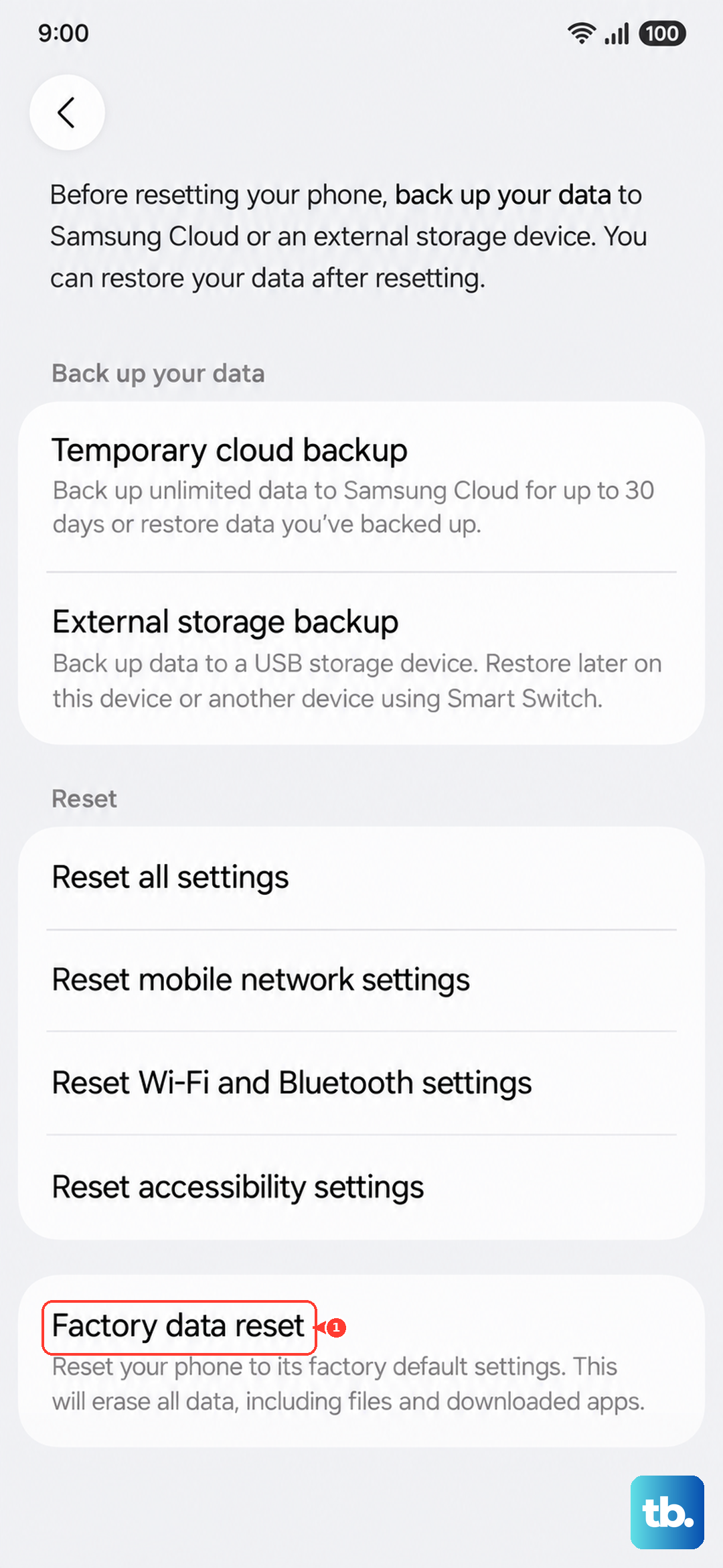
This protects your personal information before you sell, trade in, or recycle the old phone. With your data securely transferred, you're all set to explore everything your new S25 FE has to offer, like its fast 45W charging and the latest One UI features.