
A broken mouse driver can freeze the pointer, kill scrolling, stop extra buttons, or keep a wireless mouse from reconnecting. Start with Windows Update, then use Device Manager for update, reinstall, or rollback jobs. For brand-specific features and firmware, use the official app from your PC or mouse maker.
1. Start With Windows Update
Windows Update is the first stop on Windows 11 because Microsoft delivers recommended hardware drivers there.
- 1.Open Start.
- 2.Go to Settings > Windows Update.
- 3.Select Check for updates.
- 4.Install available updates.
- 5.Restart from Start > Power > Restart.
Windows 10 uses Start > Settings > Update & Security > Windows Update, but Windows 10 is legacy for general consumers after October 14, 2025.
2. Pull Optional Driver Updates
Open Start > Settings > Windows Update. After that, select Advanced options, open Optional updates, then select Driver updates.
Choose the mouse, USB, Bluetooth, or related driver update. Select Download and install, then restart: right-click Start, then select Shutdown or sign out > Restart. From the regular Start menu, use Start > Power > Restart.
Use optional updates when the mouse still works but Windows has a driver waiting outside the main update flow.
3. Update Through Device Manager
Device Manager targets the specific mouse, receiver, Bluetooth, USB, or HID entry. Right-click Start, then open Device Manager.
Expand Mice and other pointing devices, Bluetooth, or Human Interface Devices. Right-click the mouse, receiver, Bluetooth entry, or HID device, then select Update driver. Choose Search automatically for updated driver software, select Close, and restart when Windows prompts you.
Already downloaded the correct driver from the mouse, PC, or accessory maker? Use the manual route instead: right-click Start, open Device Manager, expand Mice and other pointing devices, Bluetooth, or Human Interface Devices, right-click the target device, then select Update driver > Browse my computer for drivers. Select Browse..., choose the downloaded driver folder, then select OK > Next > Close.
4. Reinstall a Corrupted Driver
Save your work and close open apps. Next, right-click Start, open Device Manager, then expand Mice and other pointing devices, Bluetooth, or Human Interface Devices.
Right-click the target mouse or receiver. Select Uninstall device, then select Uninstall. Restart: right-click Start, then select Shut down or sign out > Restart. From the regular Start menu, use Start > Power > Restart.
Use reinstall when the driver instance is corrupted or the same mouse keeps reconnecting incorrectly. Windows attempts to reinstall the driver after restart.
You can also reinstall from Device Manager without restarting right away: open Device Manager, right-click the device, select Uninstall, open Action, then select Scan for hardware changes.
5. Reset USB and Bluetooth Connections
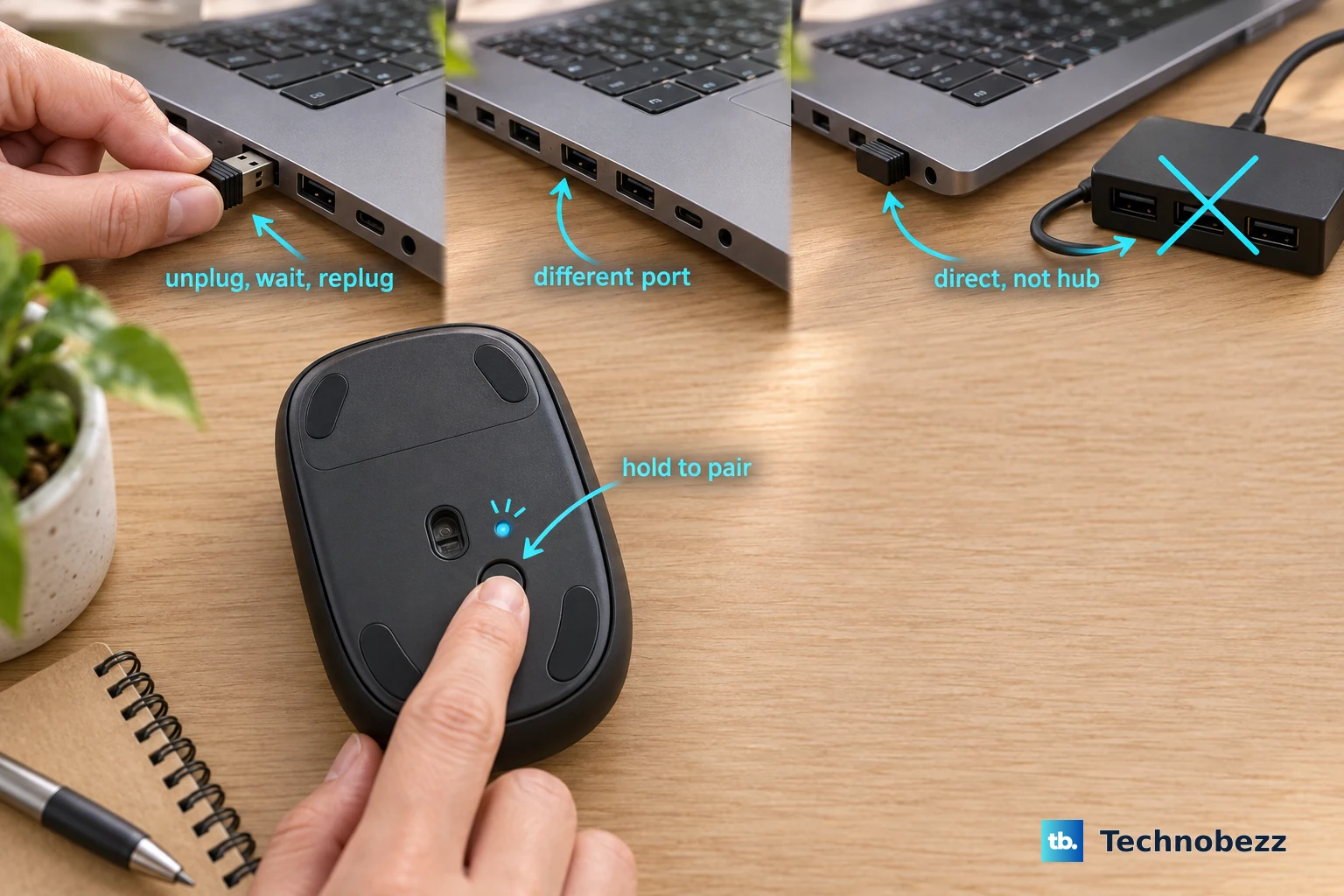
Connection resets reload the driver path for wired USB mice, wireless USB receivers, and Bluetooth mice. USB mouse or receiver Unplug it, wait for Windows to unload the device driver, then plug it back in.
Different USB port Move the mouse or receiver to another USB port. Direct connection Connect the mouse or receiver directly to the PC instead of a USB hub.
Bluetooth mouse Remove the mouse from Bluetooth devices, put it back in pairing mode. On most mice you press and hold the hardware pair button until the LED flashes, but the way to make a mouse discoverable depends on the device, so check the maker's documentation, then pair it again from Start > Settings > Bluetooth & devices > Devices > Add device.
For a Bluetooth mouse, run the Windows Bluetooth troubleshooter in the Get Help app so Windows checks the Bluetooth stack and adapter driver too.
6. Use Official Maker Apps
Dell Open SupportAssist > Home > Update software > Start > View updates > Install. You can also use Dell Drivers & Downloads with Detect PC or a Service Tag.
HP Open HP Support Assistant > My Dashboard, choose your computer, then select Updates. You can also use HP Software and Drivers.
Lenovo Open Lenovo Vantage > System Update > Check for Updates. You can also use Lenovo Drivers & Software.
Surface Connect Surface accessories, plug in power, connect to the internet, reach at least 40% battery, then use the Surface app or the Surface drivers and firmware download page.
Logitech Use Logi Options+ for supported productivity mice. Use Logitech G HUB for supported Logitech G gaming mice.
Razer Install or open Razer Synapse 4. Synapse installs updates in the background and shows a dashboard prompt when an update is available.
CORSAIR Install or open iCUE. Open the Software Updates tab for iCUE updates, or open the mouse device settings area and select Check for Updates for supported firmware updates.
When Windows does not provide the driver you need, use the official support site or app from the PC maker or mouse maker. Microsoft says to avoid non-manufacturer driver sites.
Skip old Logitech utilities as the default path. Logitech now directs supported devices to Logi Options+ instead of Firmware Update Tool, SetPoint, Unifying Software, Connection Utility, Logitech Control Center, or Logitech Preference Manager.
7. Roll Back a Bad Update
Use rollback when the mouse started failing right after a driver update and Windows still has the previous driver. Right-click Start, now open Device Manager, and expand the relevant device category.
Right-click the device, open Properties, then select the Driver tab. Select Roll Back Driver, choose a reason, select Yes, and restart when Windows prompts you.
Roll Back Driver appears only when Windows has a previous driver to restore. The action requires administrator permission.
8. Fix Blocked Drivers and Work PCs
When Windows shows A driver can't load on this device, update through Windows Update and the manufacturer first. Windows Security blocks incompatible older drivers through Device security > Core isolation > Core isolation details > Memory integrity, and Microsoft warns against turning Memory integrity off unless necessary. On a work or school PC, the organization controls driver updates through tools such as Intune or Group Policy. Contact your IT admin when Windows Update does not offer the mouse, USB, or Bluetooth driver your device needs.
9. Update Mac Mouse Support
On a current Mac, Apple mouse support comes through macOS system software rather than a separate Magic Mouse driver installer. Open System Settings, go to General > Software Update, then install available updates.
For automatic updates, open System Settings. Go to General > Software Update, then select the Info button next to Automatic Updates. Turn on the update options you want, then select Done.
For automatic updates, use the same System Settings > General > Software Update area. On Intel-based Macs running Windows through Boot Camp, install Apple Windows support software when an Apple mouse, trackpad, or keyboard does not work in Windows. Apple Wireless Mouse Software Update 1.0 is only for Mac OS X 10.5.8, so it is not the current macOS mouse driver update path.
10. Update mouse support on Chromebook or Linux
Turn on the Chromebook, then connect to Wi-Fi. Select the time at the bottom right, open Settings > About ChromeOS, then select Check for updates.
On a Chromebook, update ChromeOS instead of looking for a mouse-driver installer. Mouse speed, touchpad speed, primary button, acceleration, and scrolling settings live under Settings > Device > Touchpad or Touchpad and mouse. That page changes behavior; it does not install drivers.
Open Terminal. Run sudo apt update, then run sudo apt upgrade. Reboot when a kernel or hardware stack update was installed.
On Ubuntu, update the packages that carry kernel, libinput, BlueZ, USB HID, and Bluetooth HID fixes.
Frequently Asked Questions
Do I need a separate mouse driver for every mouse?
No. Many mice work through Windows HID, USB, or Bluetooth drivers. Brand software is for advanced features, firmware updates, and supported gaming or productivity devices.
Is a third-party driver updater safe for mouse drivers?
No. Use Windows Update, Device Manager, or the official support site from the mouse or PC maker. Microsoft advises avoiding non-manufacturer driver sites.
Why does Device Manager list my mouse under Human Interface Devices?
Windows exposes some mice as HID, Bluetooth, USB receiver, or vendor-specific devices. Check Mice and other pointing devices, Bluetooth, and Human Interface Devices.
What if my Razer mouse still is not detected after reinstalling Synapse?
Use Razer’s official Driver Clean-up Tool after uninstalling Synapse, reboot the PC, reinstall Razer Synapse, then log in to your Razer account.
How do I update an Apple mouse in Windows on a Mac?
On an Intel-based Mac using Boot Camp, download and install Apple Windows support software from Boot Camp Assistant, then run Setup or setup.exe from the WindowsSupport or BootCamp folder in Windows.