
Keeping your iPhone Air updated is one of the easiest ways to get new features, fix bugs, and patch security vulnerabilities. Apple releases major iOS updates once a year and smaller updates every few weeks. iOS 26 is a solid platform, but those minor releases bring important fixes too.
Update Over Wi‑Fi
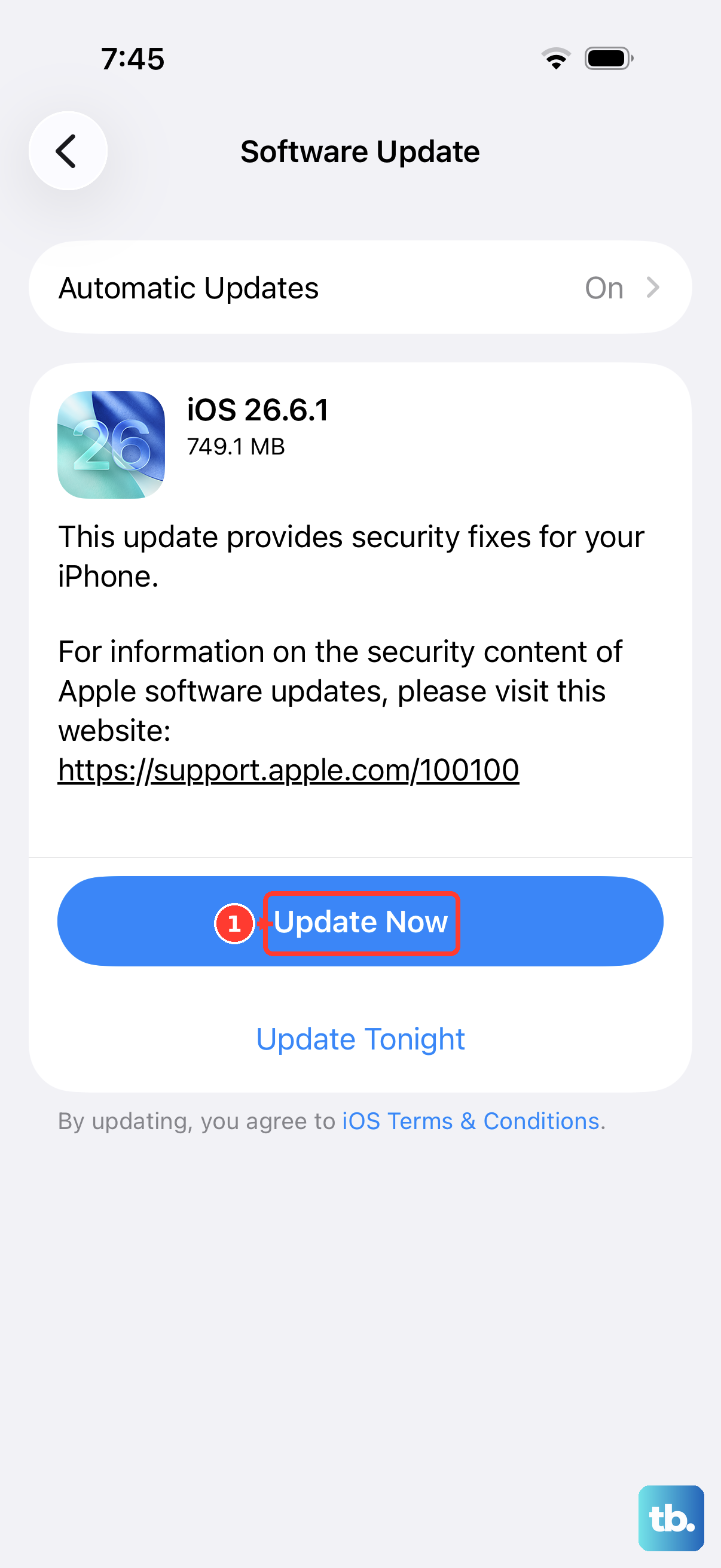
This is the simplest method. Open Settings > General > Software Update. Your iPhone Air will check for available updates automatically. If one shows up, tap Download and Install.
Make sure your phone has at least 50% battery or is plugged into a charger. The download size ranges from a few hundred megabytes for minor patches to several gigabytes for major iOS releases. Your phone will restart during the installation.
Turn On Automatic Updates
If you'd rather not think about it, go to Settings > General > Software Update > Automatic Updates. Toggle on both Download iOS Updates and Install iOS Updates. Your iPhone Air will download updates in the background and install them overnight when it's charging and connected to Wi‑Fi.
You'll still get a notification before the update installs, so you can postpone it if the timing doesn't work for you.
Use a Computer for Stubborn Updates
Over‑the‑air updates usually work fine, but sometimes they get stuck or your phone doesn't have enough free storage. In that case, use a computer. Connect your iPhone Air to a Mac or PC with the USB‑C cable that came with it. Open Finder on a Mac or iTunes on Windows. Select your device, then click Check for Update. If one is available, click Download and Update.
The iPhone Air uses USB‑C, so any standard USB‑C to USB‑C cable works, but stick with Apple‑certified cables for reliability. The computer handles the download and streams the installation to your phone, which avoids storage‑space issues.
Fix a Stuck or Failed Update
If the update gets stuck on the Apple logo or the progress bar stops moving, force restart your iPhone Air. Quickly press and release the Volume Up button, then quickly press and release the Volume Down button, then press and hold the Side button until the Apple logo appears. That usually kicks the update back into gear.
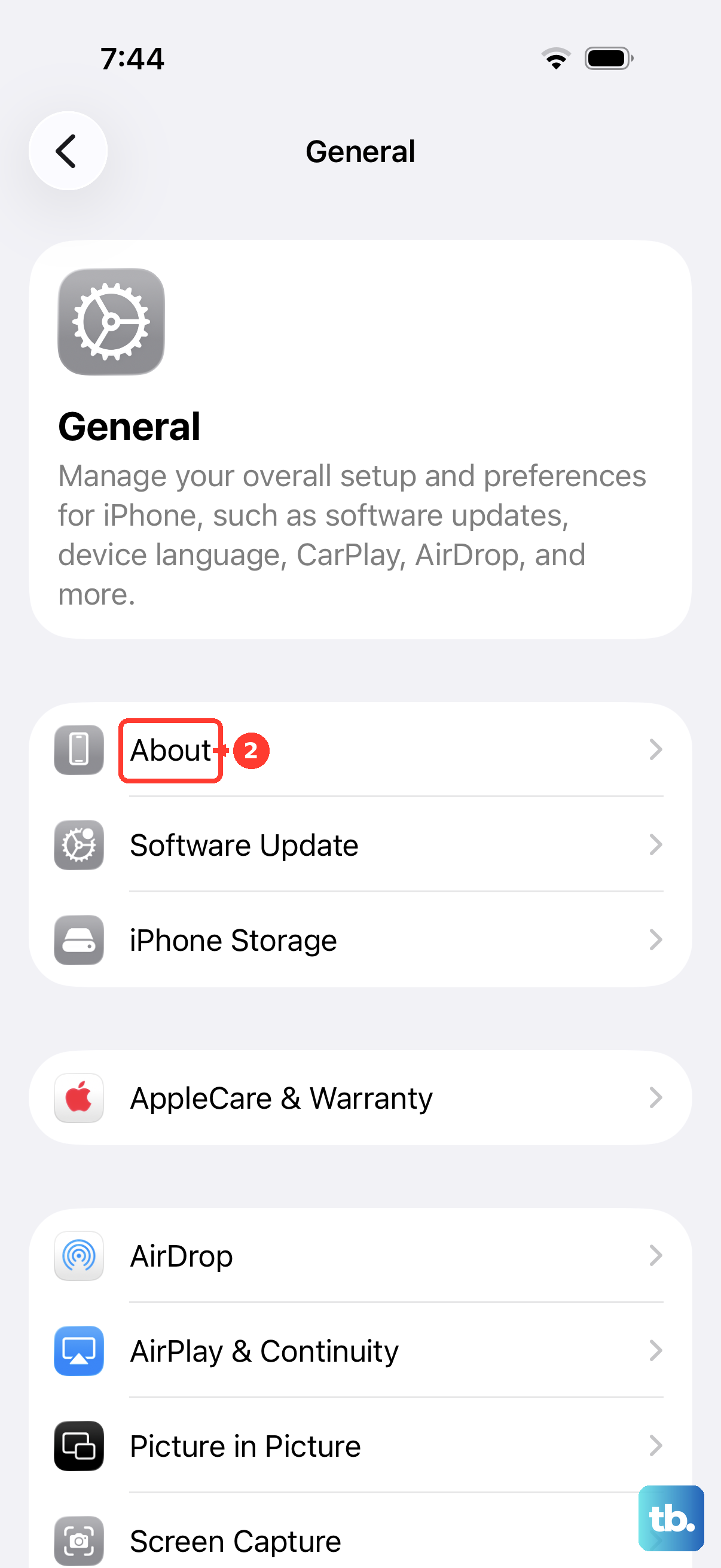
After the force restart, the update should resume. If your phone shows Unable to Check for Update or Unable to Verify Update, check your internet connection and try again. Switching to a different Wi‑Fi network often fixes this. You can also go to Settings > General > iPhone Storage, find the downloaded update file, delete it, and then re‑download it from Software Update.
What Version of iOS 26 Are You Running?
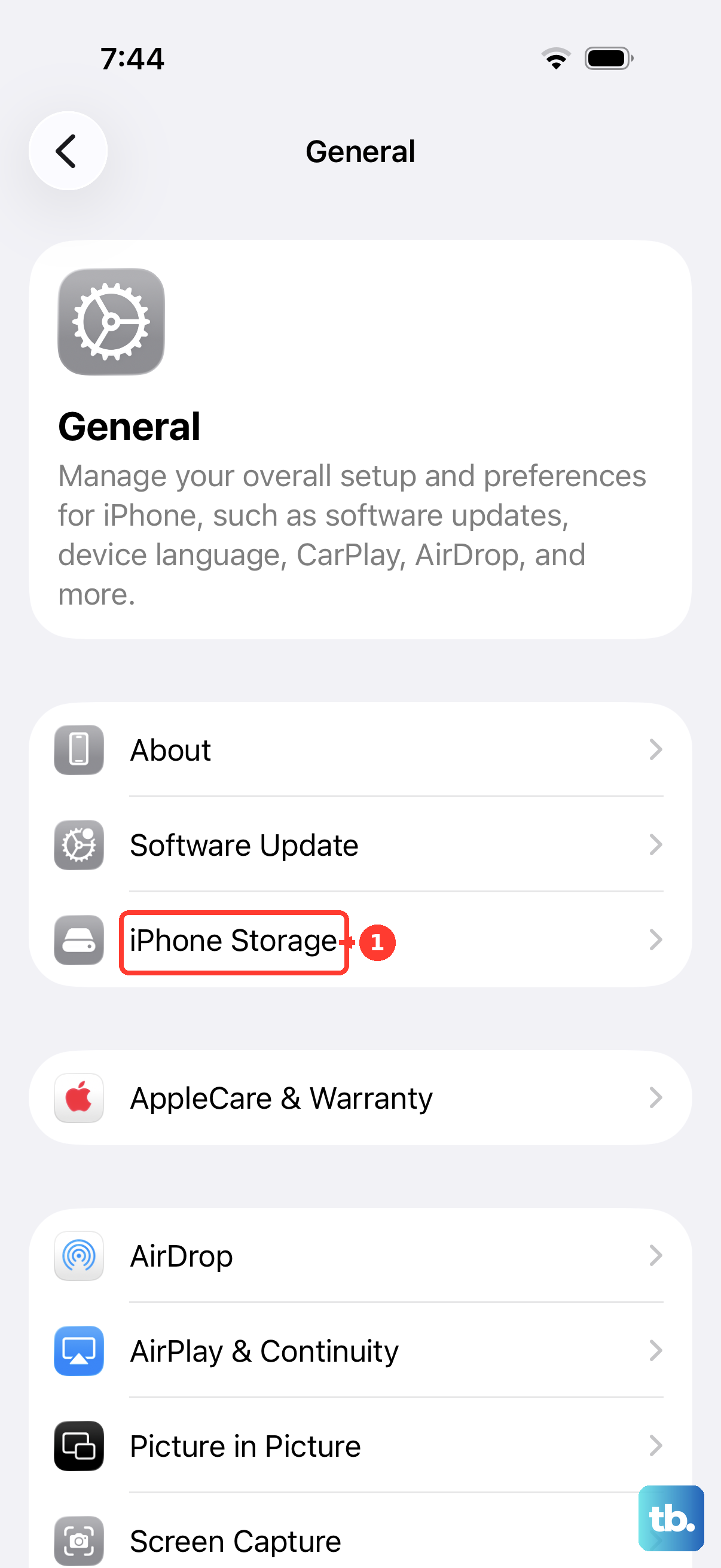
To see the exact build you're on, go to Settings > General > About. The iOS version is listed right at the top. Knowing your current version helps when troubleshooting specific issues, there's a known firmware bug in iOS 26.4.2 that affects intermittent charging, for example. If you're on that build, an update to a newer release may resolve it.
Before You Update: Backup and Storage
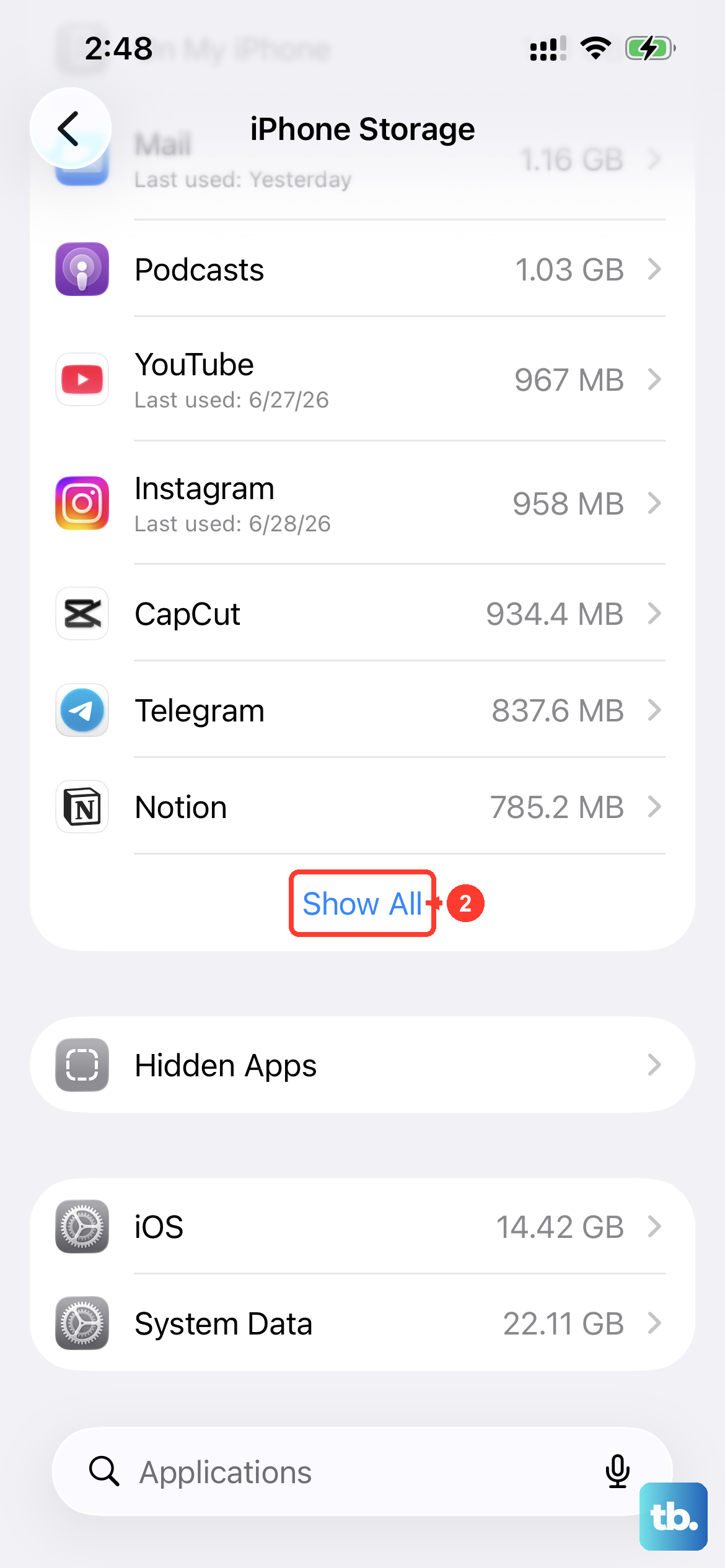
Back up your iPhone Air before any update, especially a major one. Go to Settings > [Your Name] > iCloud > iCloud Backup > Back Up Now. If something goes wrong (it's rare, but it happens), you can restore your phone to its previous state.
Also make sure you have enough free space. iOS updates need room to download and extract. If storage is tight, offload unused apps or delete old photos. The iPhone Air has plenty of base storage, but cached data can eat into it over time.
Why Updates Matter for the iPhone Air
Every iOS update includes security patches that protect your device from newly discovered vulnerabilities. Skipping updates leaves you exposed. Beyond security, updates often include performance improvements, battery optimizations, and new features.
There's a practical angle too: iOS 26.4.2 has a reported firmware issue that can cause intermittent charging failures. Later updates may address that. Keeping your phone current is the best way to avoid running into known bugs.
One more thing: if your iPhone Air ever becomes unresponsive after the battery drains completely, don't panic. Attach a magnetic battery pack (Qi2 or MagSafe) to the back to wake it up. Once it shows signs of life, you can plug in a USB‑C cable and then run the update. A force restart after that usually clears any lingering software glitches.