Switching to a new iPhone Air should feel seamless, and Apple gives you several ways to bring everything over. Whether you're coming from an older iPhone or an Android phone, here's how to get your apps, photos, messages, settings, and passwords onto your new device.
Use Quick Start (Wireless Transfer)
This is the smoothest method when you have both phones next to each other. Power on your new iPhone Air and place it close to your old iPhone. A prompt appears on your old phone asking if you want to set up the new device. Tap Continue, then hold your old iPhone over the swirling animation on the new one to complete the pairing.
Enter your old phone's passcode on the new device when asked, then follow the steps to set up Face ID. Choose Transfer from iPhone when you reach the Apps & Data screen. Keep both phones connected to power and close together during the transfer. The process can take 15 minutes to over an hour depending on how much data you’re moving.
Restore from iCloud Backup
If your old phone isn’t available or has already been wiped, you can pull a fresh iCloud backup. First, confirm your old phone was backed up by checking Settings > [Your Name] > iCloud > iCloud Backup. You can also see the date and size of the last backup there.
During setup on your new iPhone Air, reach the Apps & Data screen and pick Restore from iCloud Backup. Sign in with your Apple ID and select the most recent backup. Your apps, photos, messages, and settings download over Wi-Fi. Keep the phone plugged into a charger (USB-C or Qi2/MagSafe) and connected to Wi-Fi until it finishes.
Transfer via Mac or PC
For the fastest and most complete transfer, use a computer cable. Connect your old iPhone to a Mac or PC using an Apple-certified USB-C cable. Open Finder (macOS) or iTunes (Windows). Select your device and click Back Up Now. Make sure to check Encrypt local backup so passwords and Health data are saved.
Once the backup completes, disconnect the old phone and connect your new iPhone Air. Select Restore Backup and choose the backup you just created. This method is much faster than iCloud because it transfers over a cable instead of Wi-Fi.
Move Data from Android
Coming from an Android phone? Download the Move to iOS app from the Google Play Store on your Android device. On your new iPhone Air, during setup, select Move Data from Android on the Apps & Data screen. A code appears on the iPhone. Enter it on the Android phone, then choose what to transfer: contacts, messages, photos, videos, calendar, and more.
Keep both devices on the same Wi-Fi network and plugged into power. The transfer can take a while if you have a lot of data. Your new iPhone Air supports USB-C charging and Qi2/MagSafe wireless charging, so you can keep it powered up any way you like during the process.
Manual Transfer Options
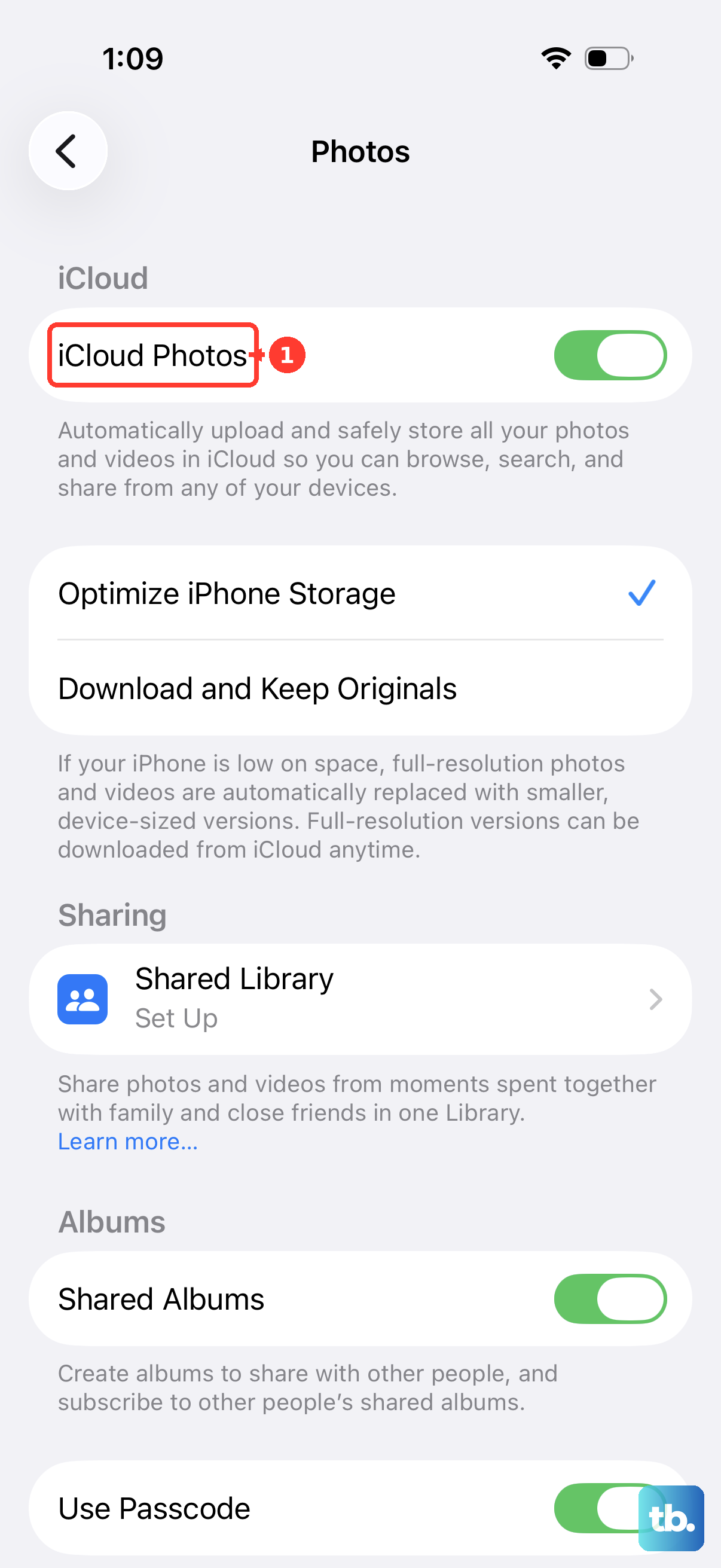
If you only need certain data, you can skip the full backup. For contacts, make sure they’re synced to iCloud or your Google account and sign into that account on both devices. For photos, enable iCloud Photos or use Google Photos to sync across devices. For WhatsApp, use the app’s built-in chat transfer feature.
What You'll Need to Set Up Again
A few things won’t transfer automatically. Apps that are no longer on the App Store may not restore. Some app-specific data, like offline game progress that wasn’t backed up to the cloud, might be lost. Downloaded music from Spotify or Apple Music needs to be re-downloaded on the new device, though your playlists and library sync through your account.
Banking apps and two-factor authentication apps often require a fresh login on a new device. Have your passwords ready. Also, if your iPhone Air becomes unresponsive after the battery drains during transfer (a known issue), attach a magnetic battery pack to the back to wake it up, then try cable charging. You can also perform a force restart: quickly press and release the Volume Up button, then quickly press and release the Volume Down button, then press and hold the Side button until the Apple logo appears.
After the Transfer
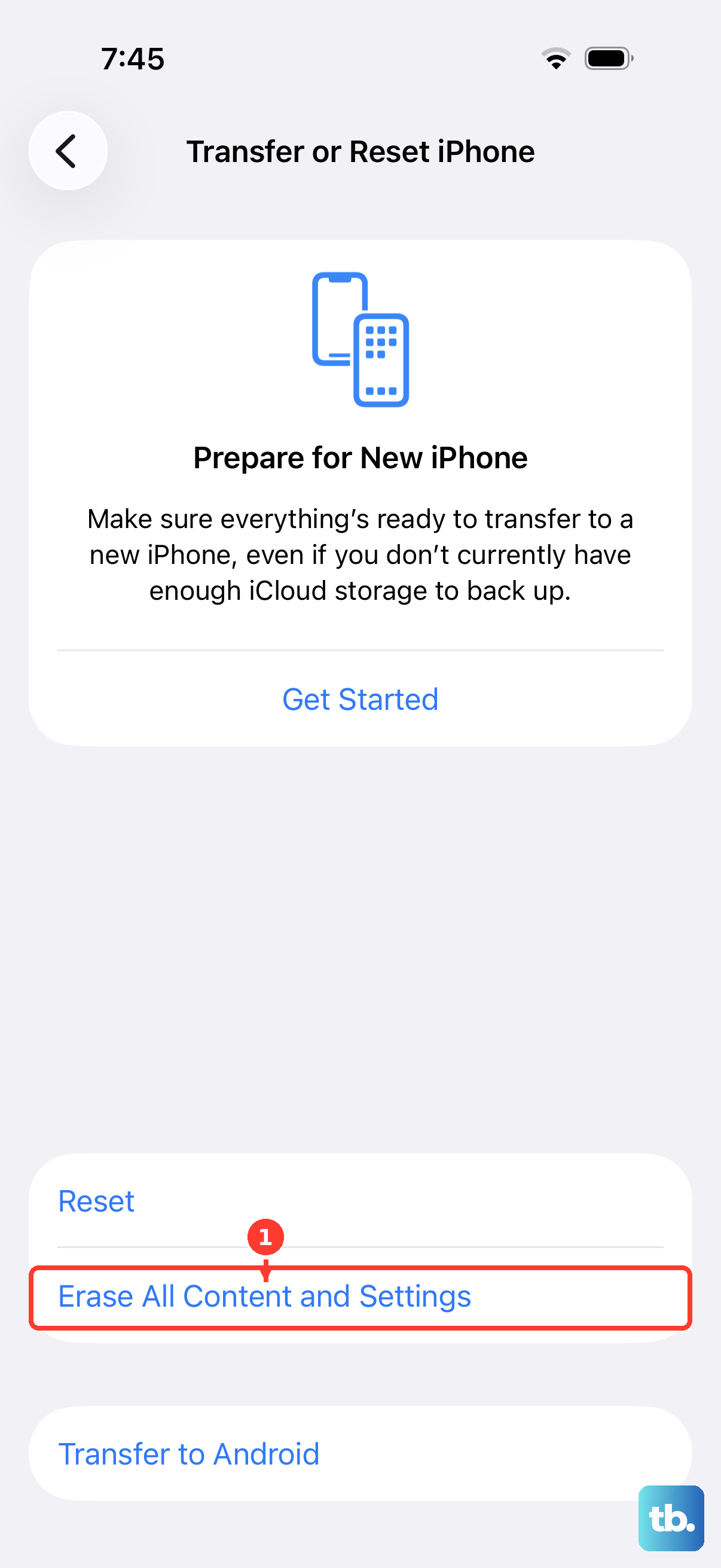
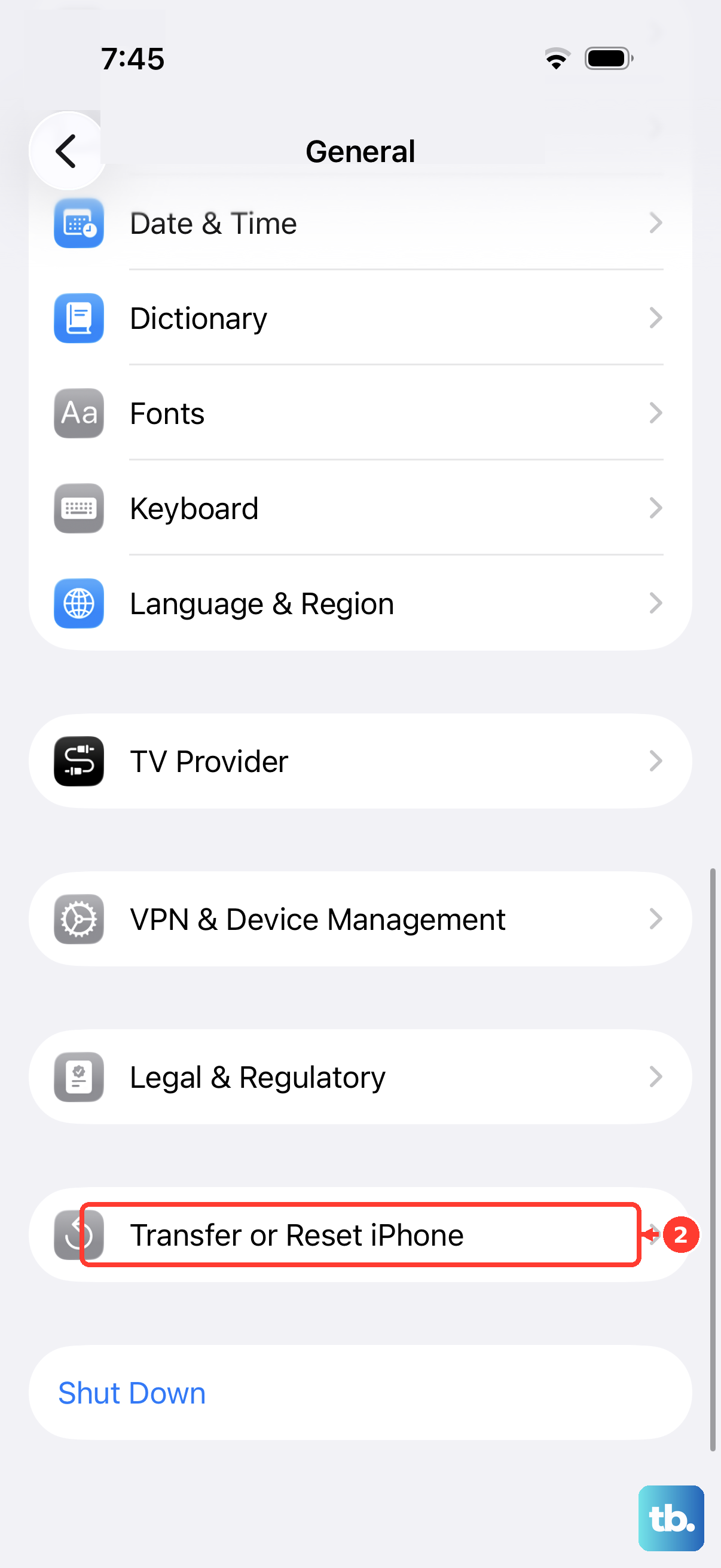
Once everything is moved over, open your apps to make sure they’re all working. Re-enter passwords for any apps that ask for them. When you're confident your new iPhone Air has everything, wipe the old phone: Settings > General > Transfer or Reset iPhone > Erase All Content and Settings. That clears your data and prepares the old device for its next owner or trade-in.