
If your iPhone Air is taking forever to charge, you're not getting the full 40W fast charging it supports. That's a big drop from the 0% to 50% in about 20 minutes that the phone is capable of. Let's narrow down what's slowing things down.
Use a 40W or Higher USB-C Charger
The iPhone Air supports fast charging up to 40W over USB-C. That requires a USB-C Power Delivery (PD) adapter rated at 40W or higher. Using a lower wattage adapter, like an old 20W one, will charge the phone but at a much slower speed. Check the wattage printed on your adapter. Apple's own 40W or higher USB-C adapters work, and so do third-party PD adapters as long as they deliver enough power.
Your USB-C Cable Matters
Not all USB-C cables are built the same. Some are only rated for 15W or 20W charging. The cable that came in the box with your iPhone Air supports full 40W charging. If you're using a third-party cable, make sure it's Apple-certified (MFi) and supports USB-C PD at 40W or higher. A cable that's too thin or cheaply made will bottleneck the power delivery.
Check for the iOS 26.4.2 Firmware Issue
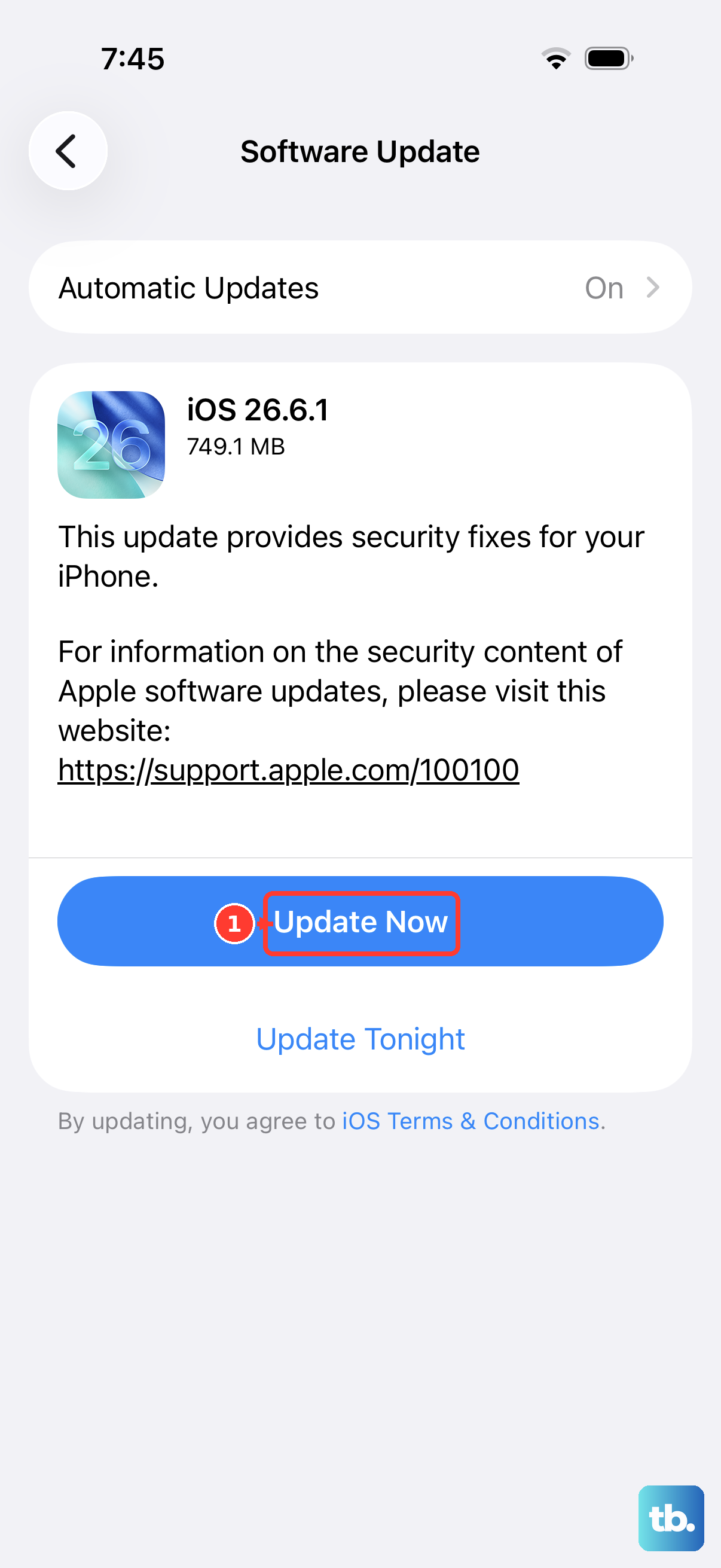
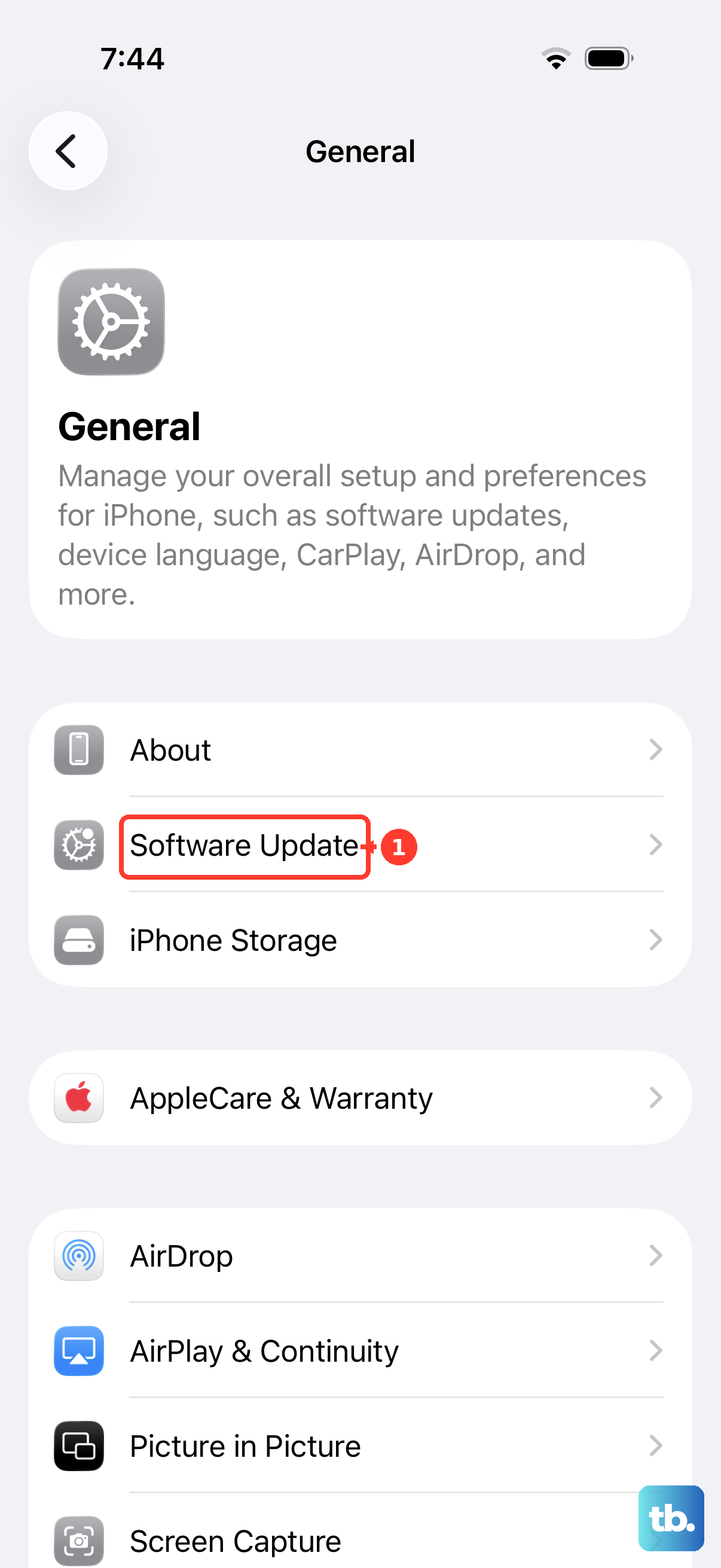
There's a reported firmware bug in iOS 26.4.2 that causes intermittent charging failures. If your phone charges fine sometimes and then won't charge at all or charges slowly, this could be the culprit. Go to Settings > General > Software Update to see if Apple has pushed a fix. Even if you're not seeing a new update, a force restart can clear the glitch temporarily and get charging working again. To force restart: quickly press and release the Volume Up button, then quickly press and release the Volume Down button, then press and hold the Side button until you see the Apple logo.
Don't Use Your Phone While It Charges
Using the iPhone Air for gaming, video streaming, or GPS while charging generates extra heat. iOS 26 throttles the charging speed when the battery gets warm to protect it. That 40W fast charging speed drops fast. For the quickest top-up, leave the phone alone or put it in Airplane Mode.
Remove the Case
Thick cases trap heat, and heat is the enemy of fast charging. The iPhone Air's thermal management will slow down charging to keep the battery safe. Pop the case off when you need the fastest charge, especially if you're using MagSafe or Qi2 wireless charging, which generates more heat than wired charging anyway.
If the Battery Is Completely Dead
There's a known issue with the iPhone Air where the phone becomes unresponsive after the battery drains completely. Plugging in a USB-C cable does nothing, the screen stays black. If this happens, grab a magnetic battery pack and attach it to the back of the phone. The MagSafe or Qi2 connection can wake the battery management system. After a minute or two, try plugging in the USB-C cable again. This has been the most reliable way to revive a completely drained iPhone Air.
Keep It Cool
The iPhone Air charges fastest between 32°F and 95°F (0°C to 35°C). Charging in direct sunlight, a hot car, or on a soft surface like a bed that traps heat will slow things down. Move the phone to a cool, hard surface like a table or desk. This is especially important for wireless charging, which runs warmer than wired.
Disable Optimized Battery Charging Temporarily
Go to Settings > Battery > Charging > Optimized Battery Charging. This feature learns your daily charging routine and slows down charging past 80% to preserve battery lifespan. If you need a full charge right now, toggle it off. Just remember to turn it back on later for battery health.
Clean the USB-C Port
Lint and pocket debris can build up inside the USB-C port and cause a poor connection, which limits charging speed. Use a wooden toothpick or a soft brush to gently clean it out. Don't use anything metal. Compressed air can also help. A clean port ensures maximum power delivery at the full 40W.
Test with a Different Cable and Adapter
USB-C cables wear out, especially near the connectors. Try a different Apple-certified USB-C cable and a 40W+ adapter. If fast charging works with the replacement, the old cable or adapter was the problem. Frayed, bent, or loose cables can't handle the higher power delivery.
Restart the Phone
A simple restart can clear minor software glitches that interfere with charging speed. Press and hold the Side button and either Volume button until you see the power slider. Slide to power off, wait 30 seconds, then turn it back on. If that doesn't help, use the force restart method described above, it's more thorough and can reset the charging controller.