
When your iPhone Air volume buttons suddenly stop responding, it's hard to ignore. You push them, but nothing changes - no volume movement, no clicking feedback, no reaction at all. The good news is most button issues on the iPhone Air are software-related and fairly easy to fix before you even think about a repair appointment.
Try these fixes in order - start with the simplest, then work your way through.
Remove any case or screen protector
This is the quickest thing to check. A tight case or a poorly fitted screen protector can press against the volume buttons and keep them from making a clean click. Take off the case entirely and test the buttons. If they start working, you've found the culprit. Look for any debris stuck between the case and the phone.
Force restart the iPhone Air
A force restart clears out temporary software glitches without deleting any data. This is especially useful on the iPhone Air because sometimes a charging anomaly or battery-drain event can leave the system in a weird state that freezes button responses.
The sequence is specific to this model: quickly press and release the Volume Up button, then quickly press and release the Volume Down button, then press and hold the Side button until the Apple logo appears. Hold the Side button for about 10 seconds or so - the logo should pop up and the phone will reboot.
After the restart, test the volume buttons in a few different apps. If they work now, you're all set.
Check the volume button toggle in Settings
iOS 26 lets you disable the physical volume buttons from changing ringer volume. If that toggle got turned off, pressing the buttons won't do anything for ringtone and alert volumes (though media volume might still respond).
Go to Settings > Sounds & Haptics and make sure Change with Buttons is toggled on. If it's off, turn it on and test the buttons again.
Use the on-screen volume slider while you troubleshoot
Even if the physical buttons are stuck, you can still control volume. Swipe down from the top-right corner to open Control Center and drag the volume slider. Or go to Settings > Sounds & Haptics and use the ringer and alert slider. This keeps your phone usable while you work through the fixes.
Clean the volume buttons
Dust and pocket lint can work their way into the button crevices and prevent the internal switches from making contact. The iPhone Air's buttons are recessed slightly, so debris can get trapped.
Use a can of compressed air to blow around each button. If you see visible gunk, dip a cotton swab in a tiny amount of isopropyl alcohol (90% or higher) and gently wipe around the buttons. Be careful not to push anything deeper into the phone. Let it dry completely before testing the buttons.
Check Silent Mode with the Action Button
The iPhone Air uses an Action button instead of a Ring/Silent switch. Press and hold the Action button if it is assigned to Silent mode, or open Settings > Sounds & Haptics and toggle Silent mode off and back on. Then try the volume buttons again.
Test the buttons in different apps
If the volume buttons work in some apps but not others, the issue isn't hardware - it's app-specific. Open a few different apps that play sound: Music, a video player, a game. If they respond in one app but not another, try force-closing the glitchy app and reopening it. You can also restart the phone to clear any app-level bugs.
Enable AssistiveTouch for virtual volume controls
AssistiveTouch gives you an on-screen button that can simulate the physical volume controls, and it can also help reset the underlying button driver.
Go to Settings > Accessibility > Touch > AssistiveTouch and turn it on. A floating button appears. Tap it, then tap Device and you'll see Volume Up and Volume Down buttons. Use these virtual buttons a few times, then try your physical volume buttons again. Sometimes the software driver for the physical buttons needs a little nudge to reinitialize.
Update iOS to the latest version
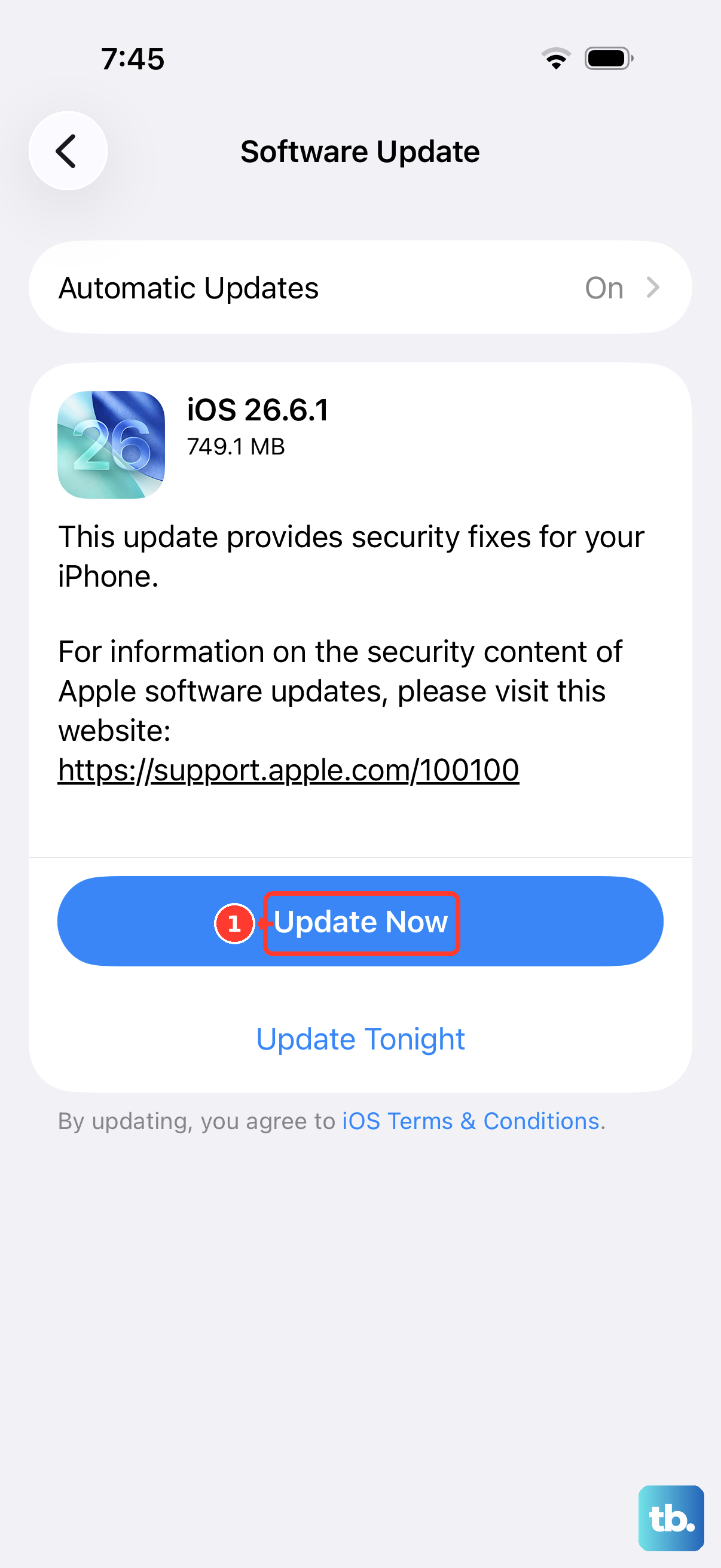
Apple has acknowledged a firmware issue affecting the iPhone Air that could cause intermittent problems with hardware buttons. This issue wasn't fully resolved in iOS 26.4.2, so if you're on an earlier build, updating might patch the bug.
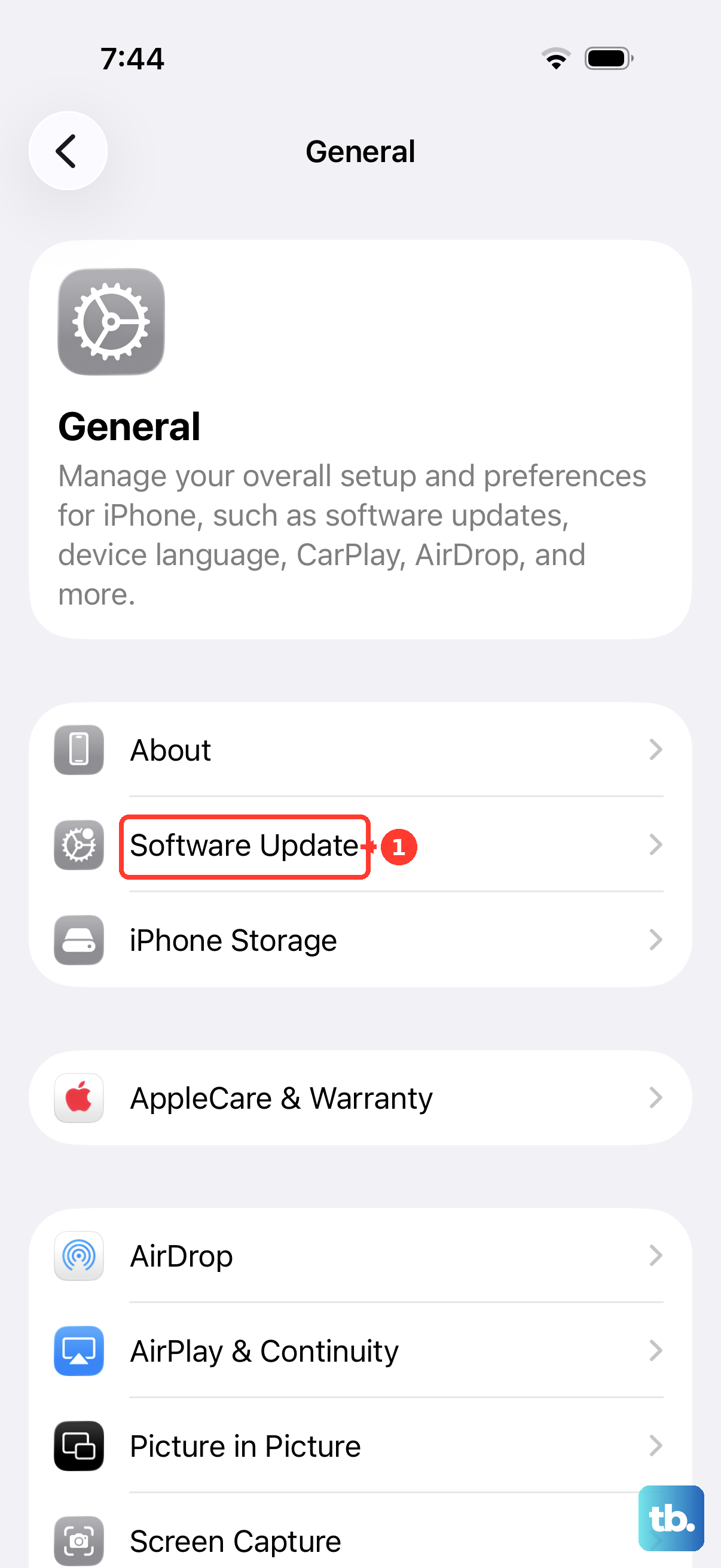
Connect to Wi-Fi and go to Settings > General > Software Update. If an update shows up, tap Download and Install. Make sure your battery is above 50% or plug in to a power source before starting.
Restore your iPhone using a computer (last resort)
If none of the above works, a full restore can wipe out any deep software corruption that's preventing the volume buttons from functioning. This will erase all data on the phone, so back up first. Connect your iPhone Air to a computer, open Finder (Mac) or iTunes (Windows), select your device, and click Restore iPhone. Follow the on-screen prompts. After the restore, set up as new or restore from backup.
Most of the time, the volume button issue on the iPhone Air turns out to be a minor software hiccup that a force restart or a quick settings check can fix. Start with the simplest step and move through the list - you'll probably find the fix before you reach the end.