

To update AMD graphics drivers, open AMD Software: Adrenalin Edition, search for System, select System Settings, then select Manage Updates and install the available graphics update. If you need an installer, use AMD’s Auto-Detect and Install Tool or select your exact graphics product on AMD’s download page. These AMD Software routes cover supported Windows 10 and Windows 11 PCs, with compatibility depending on your hardware and the individual driver package.
The short version
- Already have AMD Software: Select Manage Updates under System Settings to open AMD Install Manager.
- Need an installer: Run AMD’s Auto-Detect tool on the PC you want to update.
- Need a specific package: Match your graphics product and operating system in AMD’s product selector.
- Have a manufacturer package: Your computer maker’s updater can supply a graphics driver for your supported model.
- Installation trouble: Use removal or cleanup as an installation repair route.
| Update route | When to use it | Requirement |
|---|---|---|
| AMD Software | Update through AMD Install Manager | Supported Adrenalin installation |
| AMD Auto-Detect | Automatically identify a compatible package | Compatible Radeon hardware and Windows version |
| AMD product selector | Download a specific graphics package | Exact graphics product and operating system |
| Dell SupportAssist | Install a Dell graphics update | Supported Dell Windows PC |
| Open MyASUS | Install an ASUS graphics update | Supported model with System Update |
| Armoury Crate SE | Update a supported Ally handheld | Offered graphics package for your model |
| Lenovo Vantage | Install a Lenovo graphics update | Supported Lenovo Windows PC |
| HP Support Assistant | Install an HP graphics update | Supported HP PC outside Windows S mode |
| Windows Update | Install an offered optional driver | Windows 11 and an applicable AMD entry |
| Device Manager | Search automatically for a driver | Windows 10 or Windows 11 |
| AMD Software removal | Repair an installation before reinstalling | Compatible replacement installer |
| AMD Cleanup Utility | Clean up graphics and audio software before reinstalling | Windows and a compatible replacement package |
| macOS Software Update | Update drivers with macOS | Compatible AMD-equipped Mac or supported AMD eGPU |
| AMD Boot Camp package | Update graphics in Windows on a Mac | Listed Intel Mac running Windows 10 |
| Ubuntu Software Updater | Update distribution-provided AMD drivers | Ubuntu using its distribution graphics stack |
| AMD Software PRO Edition | Install a compatible professional graphics package | Supported Radeon PRO hardware and operating system |
Choose the update route for your PC
Start with AMD Software if you already have Adrenalin Edition installed. For a download, open AMD’s Drivers and Support page and select Download Windows Drivers for automatic detection. To choose a package yourself, use Search or Browse Drivers and Support by Product.
When you find and update your graphics driver, match the download to your exact graphics product and operating system. For integrated AMD graphics, identify the processor or APU accurately. Some computer-specific features may require your computer manufacturer’s package, so use its updater when that applies.
Update through AMD Software
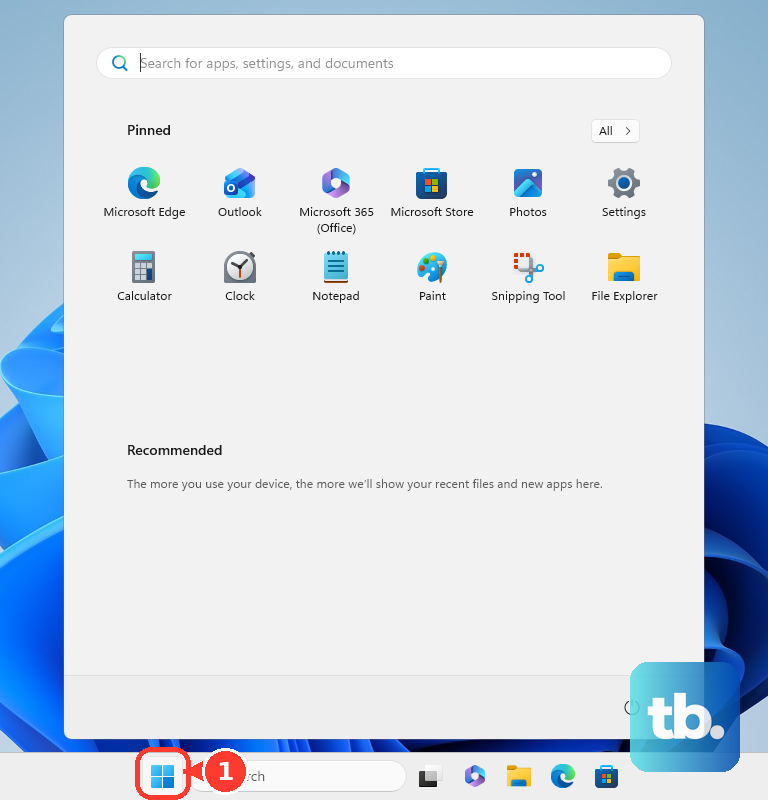
Open Start, search for AMD Software, and open AMD Software: Adrenalin Edition. In the app’s search box, enter System, then select System Settings. Select Manage Updates to open AMD Install Manager.
Find the available graphics-software update and install it using the controls displayed for that item. The download and installation controls depend on the package. To obtain a compatible package directly, use Auto-Detect or the product selector.
Use AMD Auto Detect to download a compatible driver
Download AMD’s Auto-Detect and Install Tool from the official driver page, then run it on the PC you want to update. Click Install and let the tool detect compatible hardware. Choose the offered Recommended or Optional graphics package.
Review the components offered for installation, choose the ones you want, then click Accept & Install. When installation finishes, click Close. Selecting Manage Downloads opens AMD Install Manager.
The tool requires compatible Radeon graphics and Windows 11 version 21H2 or later, or Windows 10 64-bit version 1809 or later. Individual driver releases can have additional compatibility requirements. If your hardware or operating system is unsuitable for Auto-Detect, use AMD’s product selector to find a package for your exact product and operating system.
Select and install a driver manually
On AMD’s driver page, use the product search or selector to identify your exact graphics product. Select Submit, expand your operating system, and download its compatible graphics package. For integrated graphics, identify the correct processor or APU.
Run the downloaded AMD package and click Yes when prompted. After the compatibility checks, review the license terms and click Accept & Express Install for a standard installation. Click Close when installation finishes.
For customization, click Additional Options, choose Default, Minimal, or Driver Only under Software Type, then click Accept & Install. Select Custom Install there only if you want to choose individual components. Select Close when finished. Choosing Driver Only installs the driver without the AMD Software feature interface, so you can use a downloaded compatible package for subsequent updates.
Choose which updates AMD offers
In AMD Software, open System Settings and select Manage Updates. In AMD Install Manager, open More options, represented by three vertical dots, then select Preferences. Choose Recommended or Recommended + Optional; the latter also offers Optional driver packages.
For automatic updates on supported installations, enable the automatic-update option on the installer’s final screen when driver installation finishes. Available packages and options depend on your hardware and installation.
Get a driver from your computer manufacturer
On supported Dell Windows PCs, open SupportAssist from Start. Select Home > Update software > Start, then install the offered AMD graphics update. Restart if prompted.
On supported ASUS notebooks, desktops, all-in-one PCs, and gaming handhelds with the update feature, open MyASUS and select System Update. Select the available graphics-driver package, then select Update selected items. Completed installations appear under Update History.
On supported ROG Ally, Ally X, ROG Xbox Ally, and Xbox Ally X handhelds, open Armoury Crate SE. Select Settings > Update Center > Check for Updates. Install the graphics-driver update if one is offered, using its displayed controls.
For a supported Lenovo Windows 10 or Windows 11 PC, open Start, search for Lenovo Vantage, and open it. Select System Update > Check for Updates. Install the applicable graphics update offered for your device.
On supported HP Windows PCs using HP Support Assistant 8 or later, open HP Support Assistant, then open My Dashboard. Locate your computer, select Updates, and install the applicable graphics update after analysis. HP Support Assistant is unavailable in Windows S mode, where HP directs you to Windows Update.
Check Windows Update for an offered driver
Windows installs recommended drivers automatically through Windows Update. For optional drivers on Windows 11, open Start > Settings > Windows Update > Advanced options. Turn on Receive updates for other Microsoft products, then under Additional options, open Optional updates.
Select the applicable AMD driver entry, select Download and install, and restart. The entry’s exact name depends on your device and the release offered. If you need to select a specific compatible AMD package, use AMD’s product selector.
Search for a driver through Device Manager
On Windows 10 or Windows 11, right-click Start and open Device Manager. Expand Display adapters, right-click your AMD adapter, and select Update driver. Choose the automatic search option, which Microsoft calls Search automatically for updated driver software in its instructions.
If Device Manager finds no update, use its Windows Update search option. An automatic search does not guarantee that it will find the newest package available from AMD. You can also use AMD’s product selector to obtain a compatible download.
Repair an installation that will not update
Use removal or cleanup when you are troubleshooting an installation. Uninstalling AMD Software is not required for a routine update. Download the compatible replacement AMD package before removing the existing software.
Uninstalling removes the existing AMD Software installation. Search Start for Installed Apps, open Installed apps, find AMD Software, and select Uninstall. In AMD’s removal interface, click Uninstall, then click Restart when removal finishes. Run the newly downloaded compatible installer afterward.
For cleanup and installation troubleshooting, download AMD Cleanup Utility. It removes AMD graphics and audio software but leaves AMD chipset drivers in place.
Running the cleanup removes your installed AMD graphics and audio software. Run amdcleanuputility.exe, click Yes at the safe-mode prompt, then click OK at the cleanup prompt. After cleanup, click Finish, then click Yes at the restart prompt. Install the compatible AMD graphics package after Windows restarts.
Frequently Asked Questions
How do you update AMD graphics drivers on macOS?
On compatible AMD-equipped Intel Macs and supported AMD eGPU configurations, you receive graphics drivers through macOS updates. Open the Apple menu > System Settings > General > Software Update, install the compatible update offered, and authenticate when requested. You can also use Spotlight to open Software Update.
Which AMD driver should you use for Windows in Boot Camp?
For a listed Intel Mac running Windows 10, use the package for your exact model from AMD’s Apple Boot Camp Software Graphics Drivers page. Start your Mac in Windows, open AMD Radeon Settings > System > Software, and inspect Driver Packaging Version. Download a newer package that supports your exact Mac, extract the ZIP completely, and run Setup.
How do you update AMD graphics drivers on Ubuntu?
On Ubuntu using distribution-provided AMD drivers, open Software Updater, install available updates, and restart if requested. If you use AMD’s separately packaged Linux graphics stack, choose the package matching your supported GPU, distribution, and release on AMD’s Linux driver page. Review its Release Notes and Radeon Software for Linux Driver installation instructions before downloading.
How do you install a Radeon PRO graphics update?
For compatible Radeon PRO graphics on supported Windows 10, Windows 11, or Windows Server editions, obtain the matching PRO package through AMD’s product selector or Auto-Detect where supported. Run it, review the license, and select Install. Under Additional Options, you can choose Full Install, Minimal Install, or Driver Only. Select Restart when installation finishes.