AMD driver updates handle display fixes, newer software support, and Ryzen chipset updates that Windows depends on. Start with AMD’s own download page, then use the route that matches your hardware, operating system, and PC maker. The steps below use current AMD and Microsoft supported paths.
Start with AMD Auto Detect on Windows
Open AMD’s driver download page at amd.com/en/support/download/drivers.html.
Choose Windows® 10/11 Drivers, then click Download Windows Drivers.
Open the folder where the file was saved, then double-click the downloaded file.
Click Install when AMD Software Installer opens.
Wait for AMD Software Installer to check hardware compatibility and obtain the latest compatible driver versions.
Choose Recommended or Optional when a newer driver package appears.
Select Default, Minimal, or Driver Only.
Click Accept & Install, then click Close when installation finishes.
Use AMD Auto-Detect on Windows 11 version 21H2 and later, or Windows 10 64-bit version 1809 and later.
Update through AMD Software
The most common cause is that AMD Software: Adrenalin Edition is already installed, so the update check is inside the app.
Open AMD Software: Adrenalin Edition.
Go to System, then open Manage Updates.
Wait for AMD Install Manager to open.
Find updates under Available Software.
Click the down arrow to download the available software, then follow the installer prompts.
To stop app-level automatic updates, return to Manage Updates and uncheck Automatically keep AMD Software up to date.
Choose your AMD product manually
Manual selection fits systems where Auto-Detect is unsupported, non-Windows downloads, and users who need the exact AMD product page.
Open AMD’s Drivers and Support page and use Product Selector. Choose the product category, such as Graphics, Processors, Accelerators, Chipsets, Cloud Graphics, or Ethernet Adapters.
Select your product, click Submit, choose your operating system, and download the current driver. For older packages on the same product page, use Previous Drivers near the bottom of a graphics product page, or Previous Versions on an AMD Ryzen chipset page.
If this method fails, use the PC maker’s support page for your exact model, especially on laptops, prebuilt PCs, and handheld gaming devices.
Update AMD Ryzen chipset drivers
Open AMD’s Drivers and Support page.
Use Product Selector to choose your AMD chipset.
Click Submit, then select your operating system.
Click Driver Details to review release notes and system requirements.
Click Download.
Double-click the AMD Chipset Software executable file.
Leave the default checked components selected in AMD Chipset Software Installer.
Review AMD Chipset Driver End User License Agreement, then click Install.
Click Close when the installer completes so the PC reboots.
Administrator rights are required for the AMD Ryzen chipset driver package on Windows.
Use Windows Update for routine driver delivery
This fixes recommended and optional driver delivery through Windows, not a forced install of the newest AMD graphics package.
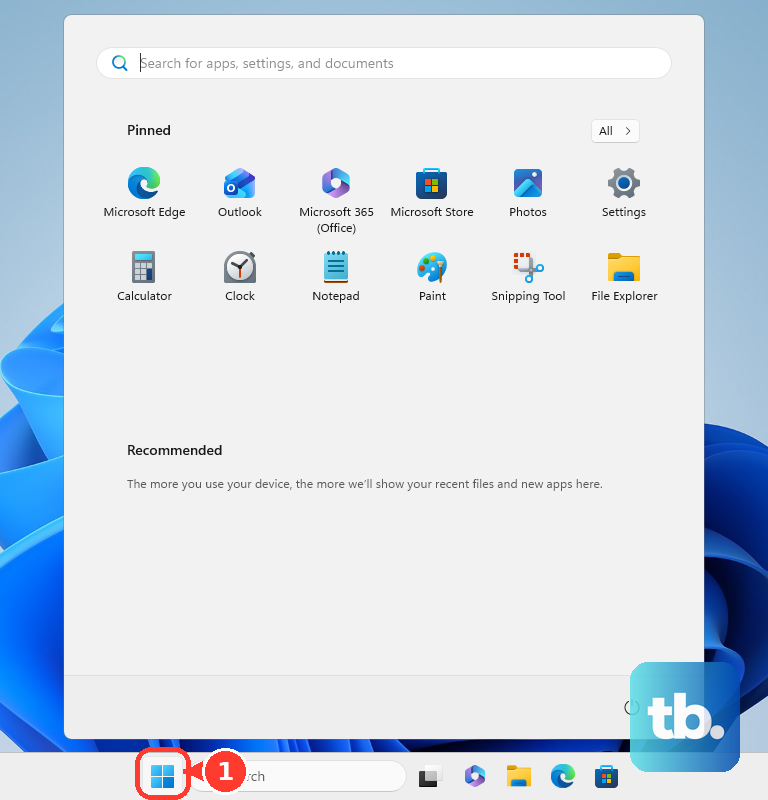
On Windows 11, open Start, then Settings.
Go to Windows Update, then open Advanced options.
Turn on Receive updates for other Microsoft products.
Open Optional updates under Additional options.
Select the listed driver updates, then click Download and install.
Restart from Start, Shutdown or sign out, then Restart.
On Windows 10, open Start, Settings, Update & Security, Windows Update, and Advanced options.
Turn on Receive updates for other Microsoft products when you update Windows.
Return to Windows Update, choose Check for updates, open View optional updates, select driver updates, choose Download and install, and restart.
Use your PC maker’s driver tools
The most common cause is that the PC maker packages a custom AMD driver for your exact model, especially when vendor-specific features are involved.
For a Dell PC, open SupportAssist.
Use the Home tab, choose Update software, select Start, open View updates, choose Install, and restart when prompted.
For a Lenovo PC, open Lenovo Vantage.
Go to System Update, choose Check for Updates, then install all updates or selected updates.
For an HP PC, use HP’s support driver page.
Identify the HP product or model, then download the latest drivers, software, or firmware listed for that device.
For handheld gaming devices, use the OEM driver path because AMD Software: Adrenalin Edition does not include support for those devices.
Clean up a broken AMD graphics install
Open Start and search for Installed Apps.
Open Installed apps, then find AMD Software in App list.
Click Uninstall.
Select all available AMD Radeon Series Graphics or software versions when multiple entries appear.
Click Uninstall.
Restart the PC after removal completes.
Install the newer AMD driver package again from AMD’s download page.
When Windows removal does not clear the problem, download AMD Cleanup Utility for Windows.
Open the save location, double-click amdcleanuputility.exe, choose Yes to reboot and run in safe mode or No to run in normal mode, then click OK.
After cleanup, click View Report or Finish, click Yes to reboot or No to reboot later, then install the new AMD driver package.
AMD Cleanup Utility removes AMD graphics and audio drivers and software, but it does not remove or modify AMD chipset drivers.
Handle Linux and managed devices
For Linux graphics drivers, AMD’s download page points to Linux Drivers and lists Ubuntu, RHEL/CentOS, and SLED/SLES. The AMDGPU installer path uses amdgpu-install -y --usecase=graphics, followed by a reboot.
To remove the AMDGPU installer stack before reinstalling or updating, run amdgpu-uninstall or amdgpu-install --uninstall, then reboot the target system.
On a work or school device, Windows Update driver availability is controlled by the organization through policy such as Do not include drivers with Windows Updates or ExcludeWUDriversInQualityUpdate. Contact the administrator when AMD drivers do not appear through Windows Update.
On a current Adrenalin install, use AMD Software: Adrenalin Edition, AMD Install Manager, Installed apps, and AMD Cleanup Utility instead of the older Radeon Settings route. Two exceptions still stand in AMD’s current docs. On a system that runs AMD Radeon Settings, AMD still documents Updates, then Check for Updates, inside that app. And for AMD Ryzen chipset drivers, AMD directs you to Control Panel, then Programs and Features, and warns against pulling chipset components with Device Manager or third-party removal software.
Frequently Asked Questions
Should I choose Recommended or Optional AMD drivers?
Use Recommended for AMD’s standard suggested package. Use Optional only when AMD offers that package through the installer and you specifically want that available build.
Can I install only the AMD driver without the AMD Software app?
Yes. In AMD Software Installer, open Additional Options, set Software Type to Driver Only, then choose Accept & Install. Driver Only provides no AMD Software user interface.
Will AMD Factory Reset let me roll back later?
No. AMD says Factory Reset removes all prior versions of the AMD Software Package, so rollback to previously installed drivers is unavailable afterward.
Should I update AMD drivers through Device Manager?
Use Device Manager for a device with a Windows driver error. For AMD graphics and chipset packages, use AMD’s installer, AMD Cleanup Utility, or the PC maker’s support tool.