

To update a saved Wi-Fi password on your iPad, open Settings > Wi-Fi, forget the network, then reconnect with its current password. Apple recommends forgetting and rejoining when a network’s password changes. Changing the wireless network’s actual password is a separate task.
The short version
- Main method: Forget the saved network, then select it again and enter its current password.
- Previously joined networks: Open Settings > Wi-Fi > Edit to find saved networks.
- Alternative ways to join: Receive the current password from a nearby Apple device or scan its Wi-Fi QR code.
- Last resort: Use Reset Network Settings only after other solutions fail because it removes saved Wi-Fi networks and passwords.
| Option | When to use it | Main consideration |
|---|---|---|
| Forget and rejoin | Your connected network has a new password | Enter the current password when reconnecting |
| Saved network list | You previously joined the network | Reconnect when within range |
| Hidden network entry | You need to rejoin a hidden network | Requires its name, security type, and password |
| Nearby password sharing | A compatible Apple device has the current password | Requires account, contact, and wireless setup |
| Wi-Fi QR code | Another iPad has the current credentials | Forget the stale network before scanning |
| iCloud Keychain synchronization | Your approved devices use the same Apple Account | Synchronizes Wi-Fi network information |
| Forget through a Mac | Your Mac and iPad use the same account’s iCloud Keychain | Forgetting propagates to the other devices |
| Reset Network Settings | Other solutions have failed | Removes saved networks and passwords |
| Reset All Settings | You are considering a broader settings reset | Also resets unrelated settings and removes Apple Pay cards |
| Remove a configuration | Removal of the managed configuration is permitted | Also removes other settings it supplies |
| Administrator update | Your school or workplace manages Wi-Fi | The administrator corrects the configuration |
| Router password change | You administer the wireless network | Changes the network’s actual password |
| Personal Hotspot password change | Your supported cellular iPad provides the hotspot | Devices that ask for a password need the new one |
Forget the saved network and reconnect
Forgetting the network removes its saved connection information. Open Settings > Wi-Fi, then tap the Info button beside the network. Tap Forget This Network, then tap Forget.
Return to Wi-Fi and select the network again. Enter its current password to reconnect. These steps use current iPadOS menus.
If you are not connected to the saved network, open Settings > Wi-Fi > Edit, then tap the More Info button beside it. Forgetting this entry removes the saved network information. Tap Forget This Network, then tap Forget. When you are within range, return to Settings > Wi-Fi, select the network, and enter its current password.
For a hidden network, have its name, security type, and current password ready. Forgetting the old entry removes its saved connection information. Forget it using the saved network steps above, then open Settings > Wi-Fi and turn on Wi-Fi. Tap Other and enter the network name, security type, and current password.
Some supervised or managed networks cannot be forgotten. If your school or workplace controls the network configuration, ask its administrator to update the credentials using the managed network options below.
Receive the password from a nearby Apple device
You can receive the current password from a compatible nearby iPhone or iPad that is already connected to the network. Keep the sharing device unlocked and connected using the current password.
Sign in only through Apple’s own app or website, and never share a code, password, or remote access with someone who contacts you. On both devices, turn on Wi-Fi and Bluetooth, turn off Personal Hotspot, and sign in to an Apple Account. Each person must have the other person’s Apple Account email address or phone number in Contacts. Keep the devices nearby.
Forgetting the stale network removes its saved connection information. Forget it on the receiving iPad using the steps above, then open Settings > Wi-Fi and select the network. On the sharing device, tap Share Password, then tap Done.
If sharing does not complete, check the account, contact, and wireless settings on both devices. You can also select the network in Settings > Wi-Fi and enter the current password yourself.
Join with a WiFi QR code
Another iPad with the current network credentials can display a Wi-Fi QR code for you to scan. On that iPad, open Passwords > Wi-Fi, select the network, and tap Show Network QR Code.
Forgetting the stale network removes its saved connection information. Forget that network on the receiving iPad before scanning the code. Open Camera in Photo mode, frame the QR code, and tap the link displayed.
Alternatively, open Control Center and tap Scan Code, adding that control to Control Center first if you don’t see it, then frame the code. If you cannot complete the QR connection, select the network in Settings > Wi-Fi and enter the current password manually.
Sync WiFi information across your Apple devices
iCloud Keychain synchronizes Wi-Fi network information between approved Apple devices using the same Apple Account. You can use it when another approved device connects with the current network password.
On the iPad, open Settings, tap your name, then open iCloud > See All > Passwords & Keychain. Turn on Sync this iPad. Use iCloud Keychain on the other approved Apple device as well, and connect that device using the current network password. If your iPad still cannot join, forget the network and reconnect manually using the earlier steps.
You can also remove the saved network through a Mac using the same Apple Account and iCloud Keychain. Forgetting it on the Mac also removes it from other devices using that account’s iCloud Keychain. On the Mac, open the Apple menu > System Settings > Wi-Fi > Advanced, then click the More Options button beside the network.
Choose Remove From List, then click Forget. On the iPad, open Settings > Wi-Fi, select the network, and reconnect with its current password.
Fix a managed network through its administrator
If your school or workplace manages Wi-Fi, ask its administrator to correct the network configuration. Apple supports a Password setting in managed Wi-Fi configurations, but the administrator’s deployment steps depend on the management provider. Ordinary network resets do not remove these managed settings.
If removal is permitted, you can remove the configuration before obtaining a corrected one. Removing a profile also removes other settings supplied by that configuration. Open Settings > General > VPN & Device Management, select the profile, and tap Remove Profile.
Removing a management configuration also removes other settings it supplies. For removable management, select the management entry under Settings > General > VPN & Device Management and tap Remove Management. Obtain the corrected configuration from the administrator, or manually rejoin with the current password if permitted. If removal is restricted, have the administrator update the configuration.
Reset network settings if other fixes fail
Apple recommends a network settings reset only after other solutions fail. For a school or business configuration, consult the administrator before proceeding.
Resetting network settings removes saved Wi-Fi networks and passwords and resets other network settings. Open Settings > General > Transfer or Reset iPad > Reset, then tap Reset Network Settings.
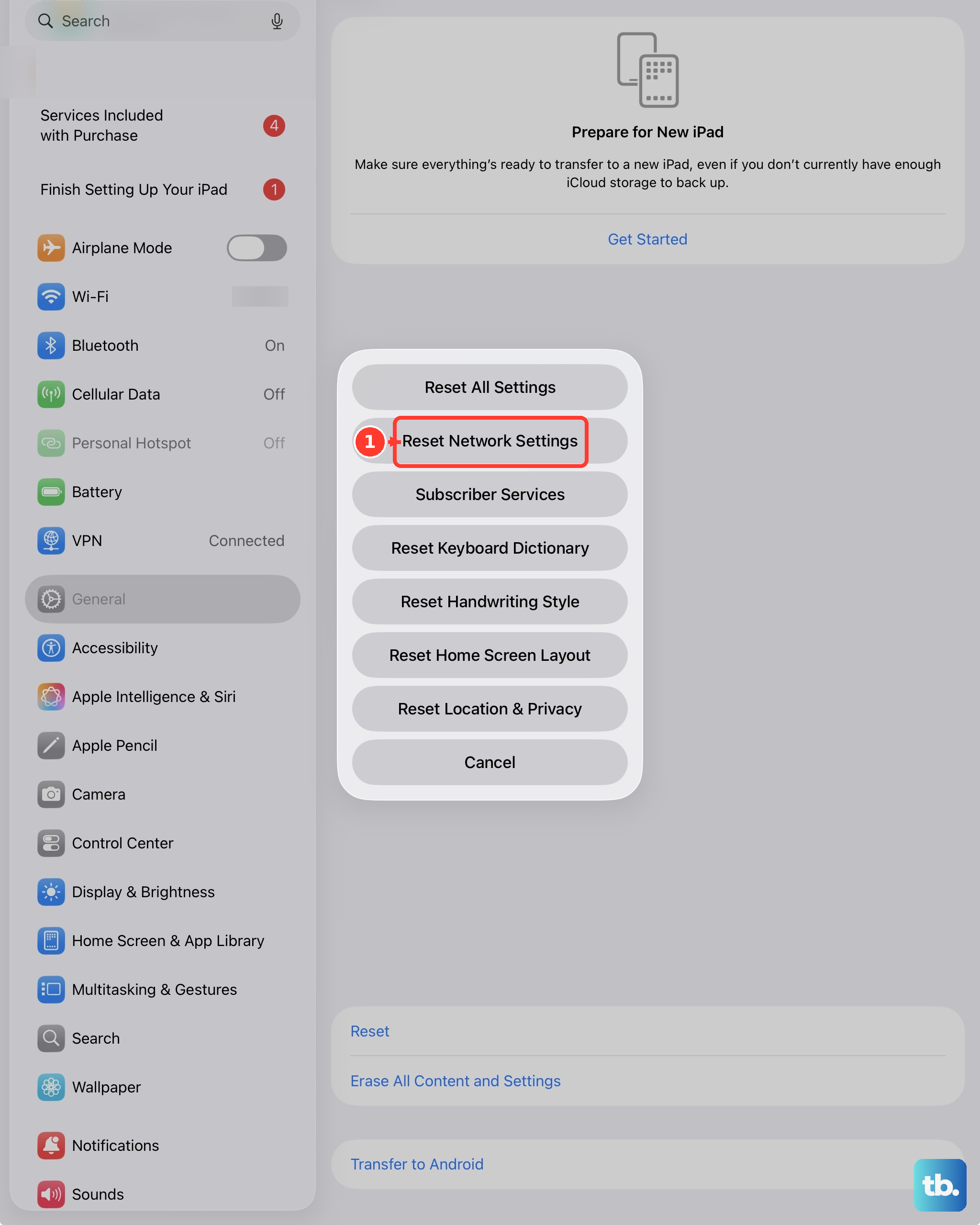
After the reset, open Settings > Wi-Fi and select your network. Enter its current password to reconnect.
Consider the effects of resetting all settings
A full settings reset is substantially broader than necessary for a single changed Wi-Fi password. Start with forgetting and rejoining the network, and reserve a network settings reset for when other solutions fail.
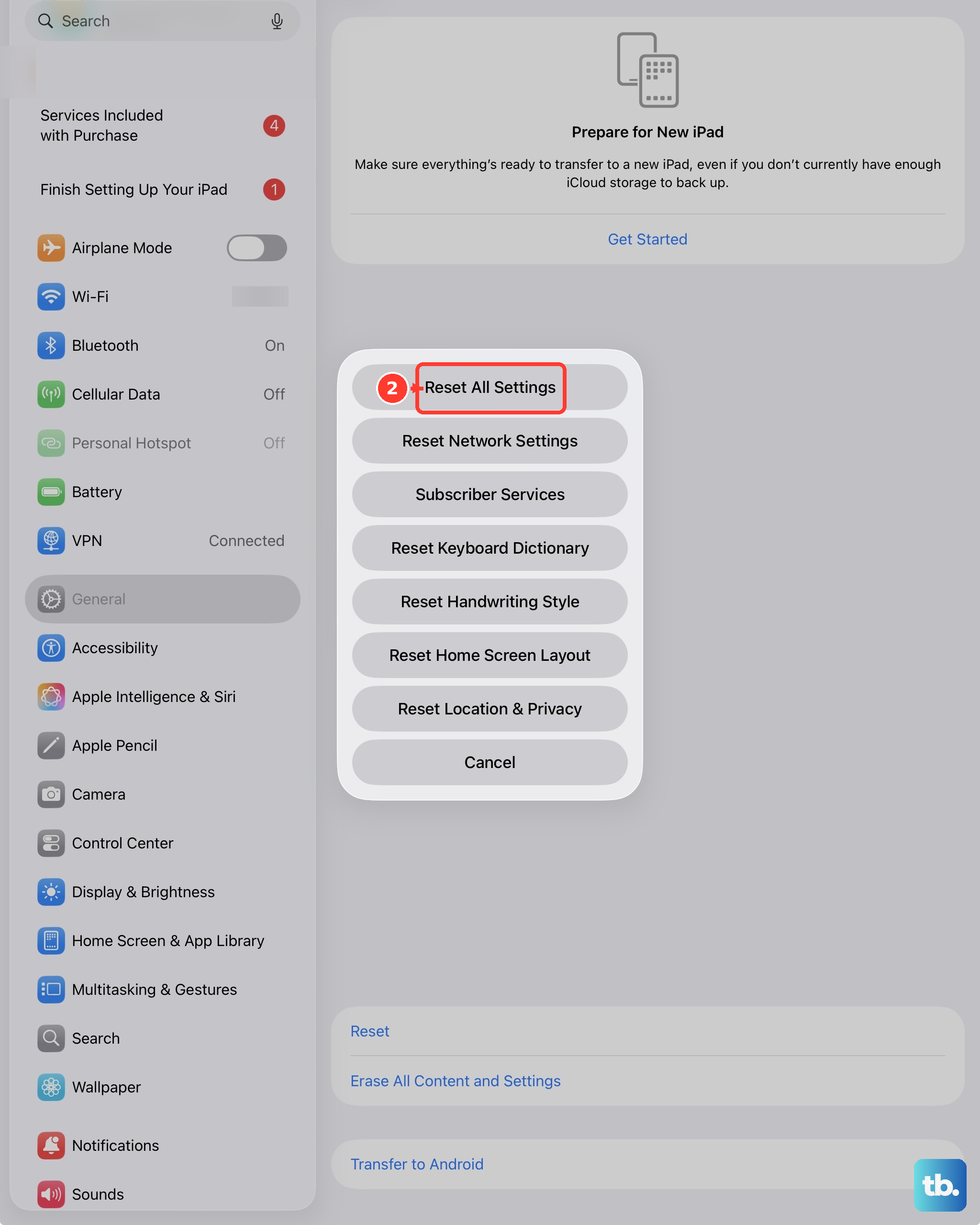
Resetting all settings also resets unrelated settings and removes Apple Pay cards. If you choose this broader reset, open Settings > General > Transfer or Reset iPad > Reset, then tap Reset All Settings. Afterward, open Settings > Wi-Fi, select the network, and enter its current password.
Change the password on your router
Changing the router’s wireless password changes the network itself, rather than only the saved credential on your iPad. If you administer the router and its administration interface permits password changes, sign in to its administration webpage or companion app and change the wireless network password. The exact menus and save confirmations depend on the router or internet provider.
Forgetting the old network on your iPad removes its saved connection information. Open Settings > Wi-Fi, tap the Info button beside the network, and tap Forget This Network, then Forget. Select the network again and enter the new password.
Change your iPad hotspot password
These steps apply to a Wi-Fi + Cellular iPad with a carrier plan that supports Personal Hotspot. Changing this password replaces the iPad’s own hotspot credentials, not the password saved for an external router. On the iPad providing the hotspot, open Settings > Personal Hotspot, tap Wi-Fi password, and enter the new password. Devices that ask for a password need the new one to connect; another Apple device signed in to the same Apple Account doesn’t need to enter it.
Frequently Asked Questions
Can you update a saved network password on a Wi-Fi-only iPad?
Yes, forgetting and rejoining works on both Wi-Fi and Wi-Fi + Cellular iPads running current iPadOS. You do not need a cellular model to update the password saved for an external wireless network.
Which operating system version should you use for nearby password sharing?
Apple recommends current operating system versions for password sharing. That recommendation applies to the receiving iPad and the compatible Apple device sharing the password.
Does Reset All Settings erase your data and media?
No, Reset All Settings retains your data and media. Its effects extend to settings and Apple Pay cards, which makes it a broader change than updating one saved network.
What if your workplace network uses enterprise authentication?
Your organization may require a specific credential or certificate workflow. Ask its administrator to provide the appropriate configuration and connection steps for that network.