


To uninstall OpenClaw on Windows, remove OpenClaw Companion through Windows Settings, or run the built-in CLI uninstaller and then remove its command-line package. Companion, CLI, WSL, and Docker installations have separate removal steps, so use the route that matches your installation.
Removing the app, removing the Gateway service, and deleting saved data are separate tasks. Choose what you want to keep before confirming removal. The Settings steps use Windows 11 menus; Windows 10 users can use the Control Panel route.
The short version
- Companion app: Uninstall through Windows Settings and choose whether to remove its app-owned WSL gateway.
- Command-line installation: Run the built-in uninstaller before removing the CLI package.
- Keep your work: Create a CLI backup or choose removal options that preserve workspaces.
- WSL and Docker: Remove OpenClaw within the environment where you installed it.
| Method or component | When to use it | Removal scope |
|---|---|---|
| Companion through Settings | Installed Windows app | App and optional owned WSL gateway |
| Control Panel | Registered desktop installer | Companion removal flow |
| Start menu | Desktop app with an uninstall entry | Companion removal flow |
| Companion settings folder | After app removal | Retained settings and identities |
| Native Gateway package | Installed MSIX package | Agent data through clawctl teardown --force, then the package |
| Interactive CLI uninstaller | Choose components individually | Selected service, state, and workspaces |
| Unattended CLI cleanup | Complete CLI data cleanup | Service, state, configuration, and workspaces |
| Selective CLI cleanup | Keep configured workspaces | Service and state |
| npx uninstaller | CLI missing from PATH | Full cleanup, with possible package download |
| Gateway service commands | Remove only the service | CLI and configuration remain |
| Scheduled Task cleanup | Native service with unavailable CLI | Task and service launch scripts |
| Global package manager | After service removal | CLI package |
| Source or dedicated prefix | Git or dedicated-prefix installation | Verified installation files |
| Manual state cleanup | Unwanted data remains | Selected state, configuration, and workspaces |
| Removal inside WSL | Keep the Linux distribution | OpenClaw components inside Linux |
| WSL distribution removal | Disposable dedicated distribution | All distribution software and data |
| Headless node commands | Separately installed node service | Node service |
| Docker Compose | Compose deployment | Deployment and optional volumes and images |
| Browser native-host cleanup | Before CLI package removal | Native host and optional Store request |
| Chrome extension removal | Installed browser extension | Extension only |
| Development cleanup script | Demo or development cleanup | Reviewed script scope |
| Official installation page | Identify your installation or obtain a recovery installer | Preparation rather than removal |
Remove OpenClaw Companion from Windows
Uninstalling Companion removes the Windows app. On Windows 11, open Settings > Apps > Installed apps, find OpenClaw Companion, and select Uninstall. Removing its local WSL gateway also deletes the app-owned distribution and generated state. When asked about that gateway, select Yes to delete it or select No to retain it.
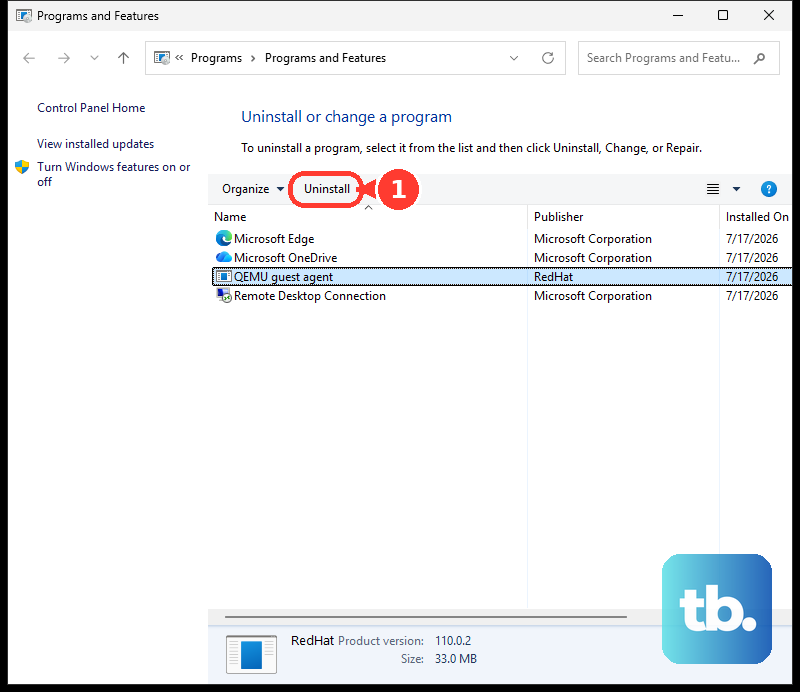
For a registered desktop installation on Windows 10 or Windows 11, the Control Panel route removes the same Companion app. Search for and open Control Panel, then open Programs > Programs and Features. Right-click OpenClaw Companion, select Uninstall or Uninstall/Change, and complete the removal flow with the same gateway choice.
The Start menu route also removes the desktop app, when its installer provides that entry. Open Start > All apps, right-click OpenClaw Companion, and select Uninstall. Complete the resulting uninstaller, choosing whether to retain the owned gateway.
If you separately installed the native Gateway MSIX package, its agent data needs a separate teardown before you remove the package. Back up any data you need, then run clawctl teardown --force to stop the Gateway and remove its owned agent profile, workspace, and setup state; the MSIX remains installed after teardown. On Windows 11, open Settings > Apps > Installed apps, locate your installed Gateway package, and select Uninstall. This is a separate removal from Companion.
Uninstall the Gateway and choose what data to keep
Use the terminal belonging to your CLI installation: its Windows terminal for a native installation or its Linux distribution for WSL. Before deleting data, you can create a backup with:
openclaw backup createThe interactive uninstaller can delete the Gateway service, configuration and state, and workspace files, so create a backup first if you want to retain that data. Start it with:
openclaw uninstallOnly Gateway service is selected initially. For complete cleanup, leave it selected, select State + config and Workspace, then confirm Proceed with uninstall?. Remove the CLI package separately afterward.
For unattended cleanup, preview the removal scope first. The following command shows what would be removed without applying the cleanup:
openclaw uninstall --dry-run --all --yesFull cleanup deletes the service, configuration and state, and workspaces; create a backup first to retain that data. Apply it with:
openclaw uninstall --all --yes --non-interactiveThe selective command removes the service and state while preserving configured workspaces, so back up any state you want to keep first. Use it instead of full cleanup:
openclaw uninstall --service --state --yes --non-interactiveWith openclaw uninstall, using --service alone limits removal to the service. Adding --workspace deletes agent workspace files, so back them up before choosing that option. A failed service teardown blocks data deletion. If ownership checks block cleanup because an external supervisor is running the Gateway, stop those externally supervised Gateway processes before trying again.
Handle a missing CLI or remove only the service
If openclaw is missing from PATH but npm and npx are available, npx can run the uninstaller and may download the package. The following command deletes the service, state and configuration, and workspaces:
npx -y openclaw uninstall --all --yes --non-interactiveFor service-only removal, use the Gateway service commands instead. First stop the Gateway:
openclaw gateway stopThe next command removes the Gateway service while retaining the CLI and configuration. Run it after stopping the Gateway:
openclaw gateway uninstallCheck the service status afterward. Package and data cleanup remain separate choices:
openclaw gateway statusFor a native Windows Scheduled Task installation with an unavailable CLI, manual cleanup removes the Gateway's scheduled task. Delete the default task with:
schtasks /Delete /F /TN "OpenClaw Gateway"Deleting the launcher files removes the remaining service launch scripts. Delete gateway.cmd and gateway.vbs from %USERPROFILE%\.openclaw. For named profiles, target the task named OpenClaw Gateway (<profile>) and its matching state directory instead.
Remove browser integration and separate node services
Complete browser native-host cleanup before removing the CLI package. The following command removes the OpenClaw browser native host, leaving the browser extension for separate removal:
openclaw browser extension uninstall-hostThe alternative below also removes the Windows Store request. Use it when you want both the native host and that request removed:
openclaw browser extension uninstall-host --remove-storeThe next step removes the OpenClaw extension from Chrome. Open Chrome, then select More > Extensions > Manage extensions. Find the OpenClaw extension, select Remove, and select Remove again to confirm. Alternatively, right-click its toolbar icon and select Remove from Chrome.
A headless node installed separately with openclaw node install has its own service removal commands. On the Windows node host, stop it with:
openclaw node stopThe following command removes that headless node service. Run it before removing the node host's CLI package if you no longer need the CLI:
openclaw node uninstallRemove the command line package
After service removal and any browser native-host cleanup, use the package manager that installed your CLI. The npm command removes the npm-managed global OpenClaw package:
npm rm -g openclawIf pnpm owns your installation, use its command instead. This removes the pnpm-managed global package:
pnpm remove -g openclawFor a Bun installation, use the following alternative. It removes the Bun-managed global package:
bun remove -g openclawDeleting a leftover Bun launcher removes that launcher file. Remove it only after verifying that it belongs to this installation. Package removal does not replace the earlier service and data cleanup.
For a Git or source installation, deleting the launcher and checkout removes those installation files. After service removal, inspect %USERPROFILE%\.local\bin\openclaw.cmd, then delete the verified launcher and its checkout. Deleting a dedicated installation prefix also deletes data stored within it. For a dedicated-prefix installation inside WSL, preserve wanted data before deleting that prefix, and never delete a shared prefix wholesale.
Remove an installation inside WSL
To retain Linux, open the distribution that owns your manual OpenClaw installation. Run the CLI cleanup and matching package-removal commands there. For a Companion-managed WSL installation, use Companion's owned-gateway removal choice.
For a manual WSL installation using a systemd user service, this fallback stops and disables the Gateway when its CLI is missing. Adjust the unit for a named profile:
systemctl --user disable --now openclaw-gateway.serviceDeleting the service unit and its backup removes those service definitions. Remove ~/.config/systemd/user/openclaw-gateway.service and its .bak file, then reload systemd's user configuration:
systemctl --user daemon-reloadIf OpenClaw occupies a disposable, dedicated Linux distribution, you can remove that entire distribution. In PowerShell, list your distributions and identify the dedicated one:
wsl --list --verboseYou can export the distribution before deleting it. Replace <DistributionName> with its listed name and <BackupFile> with your backup file path:
wsl --export <DistributionName> <BackupFile>Unregistering permanently removes all software and data inside the distribution, so export it first if you want to retain a copy. After confirming the distribution name, run:
wsl --unregister <DistributionName>Remove a Docker Compose deployment
For a Docker Compose deployment on Windows with Docker Desktop or inside WSL, work from the OpenClaw Compose project directory. The following command removes the deployment's containers and networks; use the same Compose files and options that you used during installation:
docker compose downThe expanded command also deletes project volumes and images, and volume deletion destroys stored data. Run it only when you intend to remove that data:
docker compose down --volumes --rmi allBind-mounted host folders and external volumes require separate cleanup. The volume-removal option does not include those locations.
Delete retained settings and unwanted files
Companion preserves settings and identities belonging to unrelated gateways. Deleting %APPDATA%\OpenClawTray\ removes its retained settings and identities. After uninstalling Companion, delete that folder only if you want those items removed.
Manual state cleanup deletes the state directory, custom external configuration, and unwanted external workspaces, so preserve wanted nested workspaces first. After confirming service shutdown or removal, delete the actual state directory and those unwanted external files. The default state location is ~/.openclaw. Repeat cleanup for each profile you intend to remove.
Clean up a development installation
For demo or development installations, OpenClaw provides an administrative cleanup script in its Windows repository. In Windows PowerShell 5.1, preview its scope with:
.\scripts\clean-uninstall.ps1Applying the script removes the items included in its cleanup scope. Review the preview before applying it with:
.\scripts\clean-uninstall.ps1 -ConfirmDestructiveThe script also has broader cleanup switches, including -All and -ExcludeCachedModels. Isolated-profile removal requires explicitly verified paths and elevation. Keep this tooling for development cleanup or advanced recovery.
Frequently Asked Questions
Which package manager should you use after installing with install.ps1?
The install.ps1 installer defaults to npm. If you used that default, choose the npm package-removal command after removing the service.
Can you remove the Gateway service when its configuration is invalid?
Yes, the Gateway stop and uninstall commands support service removal with an invalid configuration. You can use that service-removal route even when the configuration is invalid.
Does removing a saved Gateway connection in Companion uninstall the native Gateway package?
No, removing a saved connection does not uninstall the native Gateway MSIX package. You need to remove that package through Windows separately.
Does browser native-host removal delete development copies or relay keys?
No, native-host removal leaves development copies and existing relay keys in place.
Does the macOS app option remove Windows Companion?
No, the interactive uninstaller's macOS app option does not remove Windows Companion. The --app flag is also inapplicable on Windows.
Do you need to download an installer before uninstalling?
Downloading an installer is not normally necessary to uninstall OpenClaw. If you need to identify your installation family or obtain the vendor installer for recovery, use OpenClaw's official installation page.
Is a headless node service the same as Companion node mode?
No, a separately installed headless node service is distinct from Companion's node-mode toggle. It is also separate from the Gateway service.