


To uninstall Microsoft Store apps, open Start > All apps, right-click the app, and select Uninstall. Complete any app-specific uninstaller that opens. You can also remove apps through Windows Settings.
The Settings instructions below cover Windows 11 and the older Windows 10 menu. Start and Control Panel removal also apply to Windows 10, while command options have their own requirements. Some built-in apps cannot be uninstalled.
The short version
- Start here: Right-click an app in Start > All apps and select Uninstall.
- Settings alternative: On Windows 11, open Settings > Apps > Installed apps, find the app, and select More > Uninstall.
- Different app types: Store downloads can include packaged apps, desktop programs, games, and web apps with different removal controls.
- Removal limits: Commands do not guarantee that you can remove a protected Windows component.
| Method | When to use it | Main limit |
|---|---|---|
| Start | Quick removal of one app | Only removable apps |
| Windows Settings | Find an installed app by name | Some built-in apps cannot be removed |
| Windows Search | Find Installed apps directly | Opens the Windows 11 removal interface |
| Advanced options | Remove an app from its individual settings page | Availability varies by app |
| Keyboard navigation | Operate removal controls without a mouse | Uses the same Windows 11 controls |
| Run shortcut | Open app management with a command | Does not bypass removal restrictions |
| Control Panel | Remove Store-delivered desktop programs | Program must be listed there |
| Xbox app game removal | Remove a supported PC game | Supported installed games only |
| Xbox app add-on removal | Remove an add-on while keeping the game | Add-on must be separately manageable |
| Microsoft Edge | Remove an Edge-managed web app | Does not manage native Store apps |
| WinGet | Remove an app by its identifier | Requires WinGet and App Installer |
| Windows PowerShell | Remove a packaged app for your account | Does not remove ordinary desktop programs |
| Microsoft Store Library | Remove an installed Store-managed app | Microsoft announced this for Windows Insiders with Store version 22510.1401.x.x or later |
Uninstall an app from Start
Open Start, select All apps, and locate the app you want to remove. Right-click its entry, or press and hold it on a touchscreen, then select Uninstall. Complete any publisher-specific uninstaller that opens.
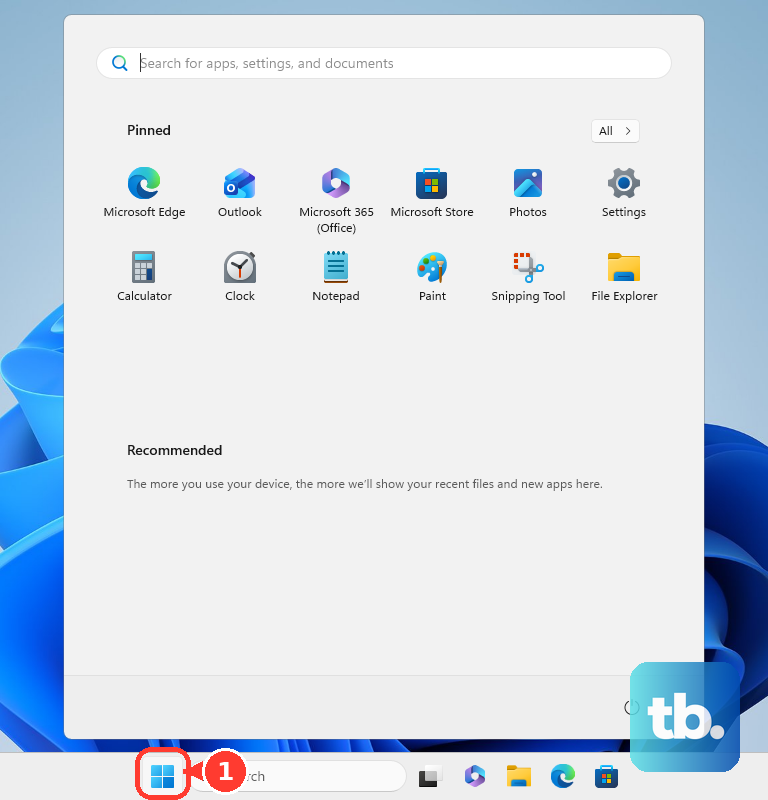
Store-delivered desktop programs can use their own removal process. If you cannot remove the app from Start, find it in Windows Settings next.
Find and remove apps in Windows Settings
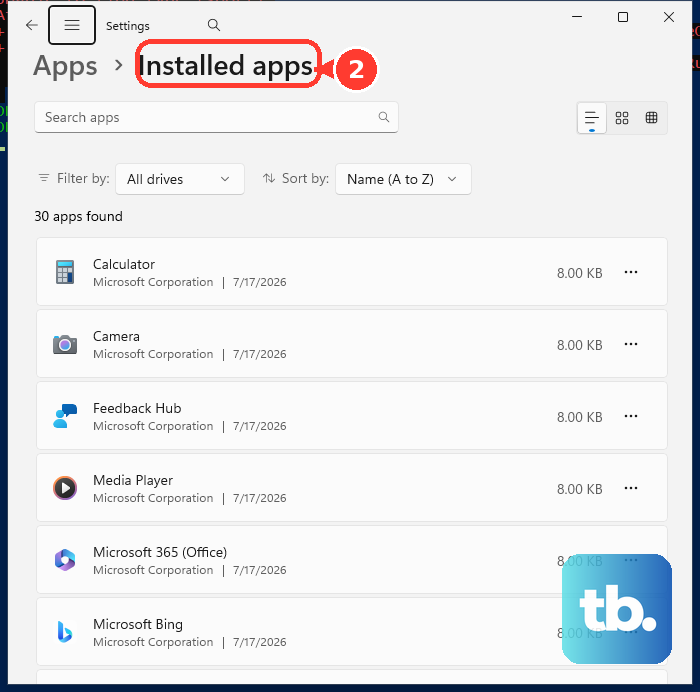
On Windows 11, open Start > Settings > Apps > Installed apps. Find the app, open its More menu, and select Uninstall.
On Windows 10, search Windows for Apps & features, select Open, find the app with Search this list, select it, and then select Uninstall. On Windows 11, you can also search Windows for Installed apps, select Open, and enter the app's name in Search apps. Open the matching app's More menu and select Uninstall. This reaches the same removal controls through search.
Some packaged apps also provide removal controls on their individual settings page. On Windows 11, open Settings > Apps > Installed apps, then select the app's More options > Advanced options. If that page includes an Uninstall section, select Uninstall there.
Use the keyboard to reach uninstall controls
On Windows 11, press Windows + I to open Settings. Use Tab and the arrow keys to select Apps > Installed apps, then focus the search field and enter the app's name. Focus More options, press Enter, select Uninstall with the arrow keys, and press Enter again.
A Run shortcut provides another way to open app management. Press Windows + R, enter the following command, and press Enter.
ms-settings:appsfeaturesOn Windows 11, this opens Installed apps, where you can find the app and select More > Uninstall. The shortcut opens Settings; it does not bypass an app's removal restrictions.
Remove Store downloads through their app controls
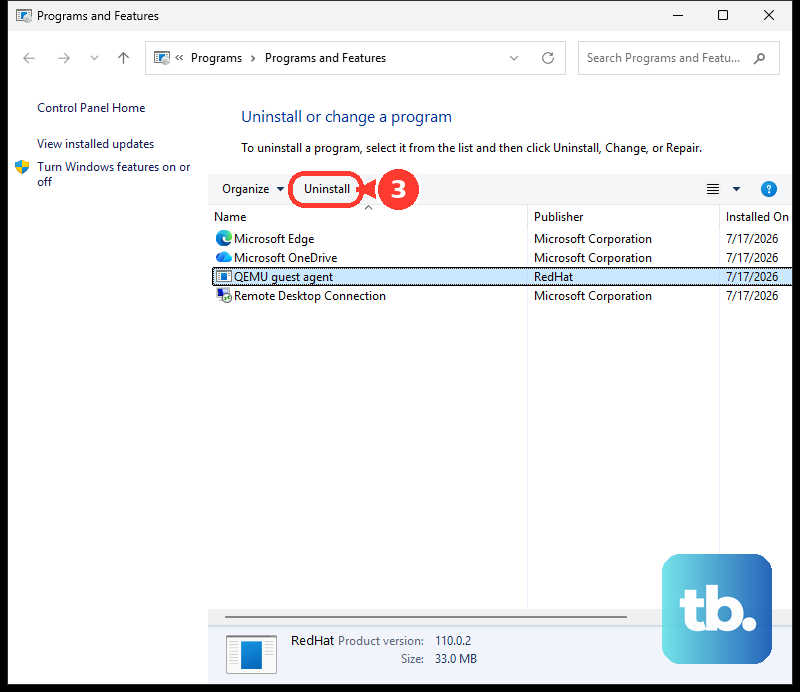
For a Store-delivered desktop program, search Windows for Control Panel and open it. Select Programs > Programs and Features, right-click the listed program, and select Uninstall or Uninstall/Change. Complete the publisher's uninstaller. This method applies only to desktop programs listed there.
To remove a supported PC game through the Xbox app, open Xbox and select My Library. Right-click the game, select Manage, open General, and select Uninstall.
To remove only a separately manageable add-on, open Xbox and select My Library, then right-click the game and select Manage > Add-ons. Deselect the add-on and select Apply Changes. The base game stays installed.
For an Edge-managed web app, use Microsoft Edge's app manager. This includes applicable Store-distributed web apps, but it does not remove native Store apps. Open Microsoft Edge and enter this address in the address bar.
edge://appsSelect Details on the app's card, then select Uninstall. Select Uninstall again in the removal dialog.
Uninstall an app with WinGet
WinGet lets you identify an installed app and remove it by its package identifier. You can use it on Windows 11 or Windows 10 version 1809 or later with WinGet and App Installer available. The app does not need to have been installed through WinGet originally.
If App Installer is missing, get it from the official App Installer product page before using WinGet. Normal removal through Start or Settings does not require this download.
Open Command Prompt, PowerShell, or Windows Terminal. Run this command to identify the installed app and its identifier.
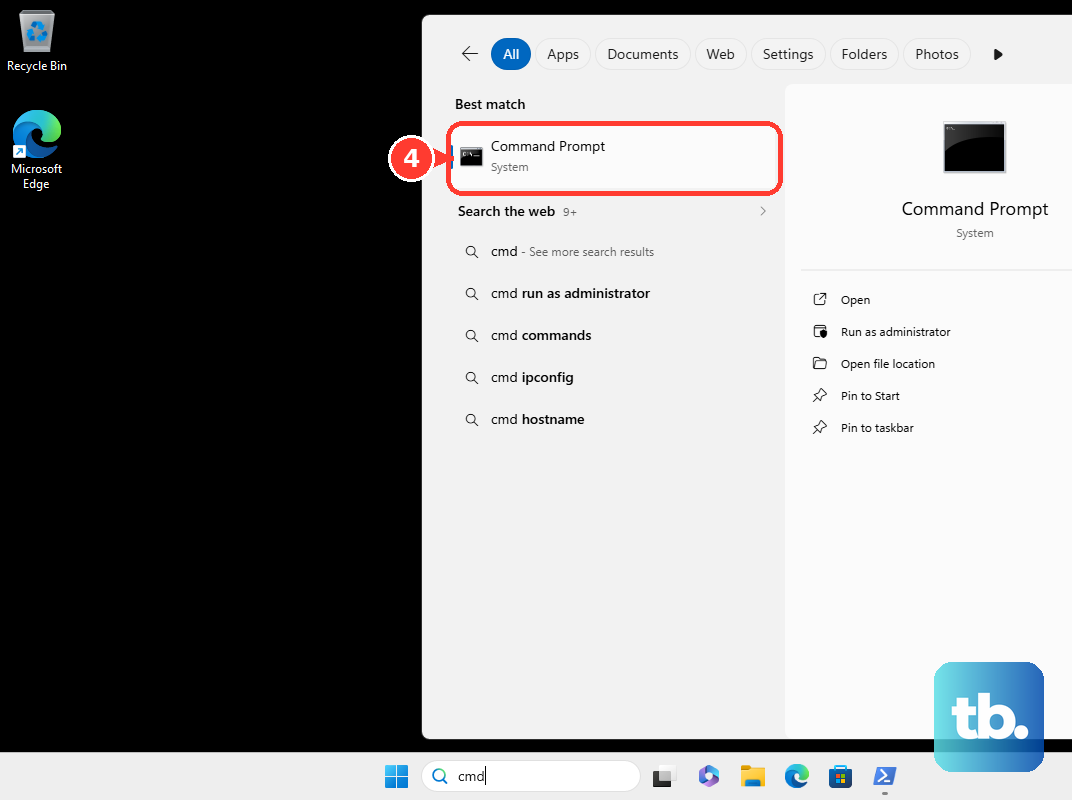
winget listFind the intended app in the results and copy its identifier. Run the following command, replacing PACKAGE_ID with that identifier.
winget uninstall --id "PACKAGE_ID"Remove a packaged app with PowerShell
You can use Windows PowerShell to remove a removable MSIX or AppX package registered to your current Windows account. This method applies to packaged apps on Windows 11 and Windows 10. It does not uninstall ordinary unpackaged desktop programs.
Open Windows PowerShell to inspect your installed packages. Run the following command.
Get-AppxPackageLocate the intended package in the results and copy its PackageFullName. Replace PACKAGE_FULL_NAME in the next command with the full name you copied, then run it.
Remove-AppxPackage -Package 'PACKAGE_FULL_NAME'This removes the package for your current user account. It does not guarantee removal of protected system components. If Windows refuses to remove a protected component, do not assume another uninstall command will make it removable.
Check your options when removal is unavailable
Check the app's type when the usual uninstall route does not work. You can use Control Panel for a listed desktop program, the Xbox app for a supported PC game, and Edge for an Edge-managed web app. Some built-in Windows apps cannot be uninstalled through these alternatives either.
Microsoft offers removal from the Store's Library to Windows Insiders using Store version 22510.1401.x.x or later. Open Microsoft Store > Library, find the installed Store-managed app, open its three-dot menu, and select Uninstall. If that option is missing on your PC, use Start or Settings.
Frequently Asked Questions
Does unpinning an app uninstall it?
No, unpinning an app does not uninstall it. Disabling its startup or background activity and clearing the Store cache also leave the app installed.
Can Windows suggest unused apps to remove?
Yes, Windows 11 can suggest apps through storage cleanup. On Windows 11, open Settings > System > Storage > Cleanup recommendations. Open Unused apps, select the apps offered there that you want to remove, and select Clean up.
Can resetting Windows remove all your installed apps?
A Windows reset removes installed apps and settings broadly, rather than removing one selected app. Apps are still removed when you select Keep my files. A reset is not a dependable way to remove Windows default apps and may restore preinstalled components.
Can you uninstall Microsoft Store itself?
On eligible Windows 10 and Windows 11 retail PCs in the European Economic Area, you can remove Microsoft Store through its normal Uninstall option in Start. Microsoft does not support removing the storefront on every PC. Removing it is separate from removing downloaded apps, which continue receiving updates.