


To uninstall AVG antivirus, open Windows’ installed apps list, select your AVG product, choose Uninstall, and finish the AVG removal wizard before restarting your PC. Follow the Windows 11 or Windows 10 steps for your computer.
The ordinary uninstall steps cover AVG AntiVirus FREE and AVG Internet Security. If removal fails, use the official AVG Uninstall Tool. For AVG Business Antivirus, use the business removal procedures below.
The short version
- Windows 11: On Windows 11, open Settings > Apps > Installed apps and uninstall your AVG product.
- Windows 10: On Windows 10, right-click Start, select Apps and Features, and uninstall AVG from Apps & features.
- Finish removal: Complete the AVG wizard and select Restart now.
- Failed uninstall: Run the official AVG Uninstall Tool and use Remove only in Safe Mode.
| Method or option | When to use it | What follows |
|---|---|---|
| Windows 11 Settings | Normal consumer antivirus removal on Windows 11 | AVG uninstall wizard |
| Windows 10 Apps & features | Normal consumer antivirus removal on Windows 10 | AVG uninstall wizard |
| Start menu | Another way to begin consumer antivirus removal | Windows may open Programs and Features |
| Control Panel | Alternative on Windows 11 or Windows 10 | AVG uninstall wizard |
| AVG uninstall wizard | Complete consumer removal started through Windows | Restart your PC |
| AVG Uninstall Tool | Failed consumer removal or an installation left behind | Safe Mode removal and restart |
| Remove & Reinstall | Remove consumer AVG and install it again | Installation prompts after restarting |
| Official AVG Clear download page | Get the current removal tool | Select Download under Remover tool |
| Forgotten AVG application password | A password prevents ordinary consumer removal | Use the removal tool in Safe Mode |
| AVG Business Cloud Console | Remove antivirus from devices managed through the cloud console | Removal when the device next contacts the console |
| AVG Business On-Premise Console | Remove antivirus from devices managed through the on-premise console | Device must communicate with the console |
| Local AVG Business uninstall | Remove a business installation through Windows | Confirm removal and restart |
| AVG Business removal fallback | Ordinary business antivirus removal fails | Agent removal if managed, AVG Clear, and cleanup |
Start removal on Windows 11
On Windows 11, open Start > Settings > Apps > Installed apps. Find AVG AntiVirus FREE or AVG Internet Security, matching the product installed on your PC.
Open the product’s More (⋯) menu and select Uninstall. Select Uninstall again if Windows asks for confirmation, then complete the AVG wizard below.
Start removal on Windows 10
On Windows 10, right-click Start and select Apps and Features, then select Apps & features. Find and select AVG AntiVirus FREE or AVG Internet Security in the app list.
Select Uninstall, then select Uninstall again to confirm. Continue through the AVG wizard to finish removing the antivirus.
Complete the AVG uninstall wizard
At the User Account Control prompt, select Yes. In AVG AntiVirus Setup or AVG Internet Security Setup, select Uninstall.
Next, select Skip and uninstall, then select Uninstall at the confirmation. Wait for removal to finish and select Restart now.
Use this completion sequence after starting removal through Windows’ app list, the Start menu, or Control Panel. AVG identifies AntiVirus FREE 24.x and Internet Security 23.x as the versions covered by these wizard instructions.
Use the Start menu or Control Panel instead
Open Start > All apps, locate AVG, right-click its entry, and select Uninstall. The Start menu’s presentation can vary by Windows release.
If Windows opens Programs and Features, select your installed AVG product there and select Uninstall. Follow the AVG wizard above, including the restart at the end.
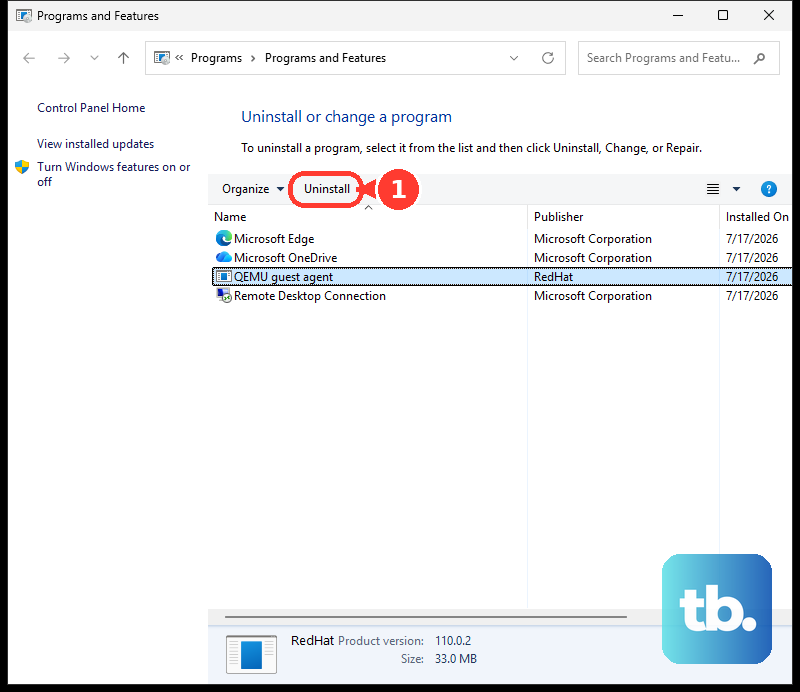
On Windows 11 or Windows 10, you can also search Windows for Control Panel and open it. Select Programs > Programs and Features. Right-click AVG AntiVirus FREE or AVG Internet Security, select Uninstall, and complete the same wizard.
These entry points lead into AVG’s ordinary uninstall process. If that process fails, continue with the dedicated removal tool.
Use AVG Clear when ordinary removal fails
AVG recommends its Uninstall Tool when ordinary removal fails or setup is already running. You can also use it for an AVG installation left behind after an unsuccessful uninstall.
Open the official AVG Clear download page. Under Remover tool, select Download to get the current AVG Uninstall Tool.
Right-click avg_av_clear.exe and select Run as administrator. At the User Account Control prompt, select Yes.
On Reboot to safe mode, select Reboot, then select Restart now. Let the computer restart and the tool open in Safe Mode before continuing.
Under Remove only, select Remove. At the confirmation, select Uninstall, wait for removal to finish, and select Restart now.
If you want to reinstall AVG, follow the same tool procedure through restarting into Safe Mode. Under Remove & Reinstall, select Reinstall, then select Uninstall at the confirmation. After removal, select Restart now and continue through the installation prompts. Choose Remove only instead when you want AVG to stay uninstalled.
If the tool cannot complete removal, go to AVG’s official removal help for further assistance. Sign in only through AVG’s own app or website, and never share a code, password, or remote access with someone who contacts you.
Remove AVG when you forgot its application password
You can remove password-protected AVG AntiVirus FREE or AVG Internet Security with the AVG Uninstall Tool if you forget its application password. This procedure concerns the password protecting AVG, rather than your Windows administrator credentials.
Download the tool before running it, then follow the Safe Mode removal procedure above. Remove AVG and restart Windows normally when the tool finishes.
AVG also uses removal followed by reinstallation to restore access without the old application password. If your goal is simply to uninstall AVG, stop after removal and the final restart.
Remove managed AVG through a business console
For managed AVG Business Antivirus installations, AVG prefers removal through the management console. You need access to the organization’s AVG Business Cloud Console or AVG Business On-Premise Console to use the corresponding procedure.
In AVG Business Cloud Console, open Devices. For one device, open its three-dot menu. For multiple devices, select their checkboxes and hover over More. Select Remove and Uninstall, then confirm removal when prompted.
Removal runs when the device next contacts the cloud console. A restart may be needed to finish.
In AVG Business On-Premise Console, open Devices. For one device, open its three-dot menu; for multiple devices, select their checkboxes and select Actions. Select Remove and uninstall, then confirm removal when prompted. The device must communicate with the console to receive the removal instructions.
Uninstall AVG Business locally
You can uninstall managed or unmanaged AVG Business Antivirus through Control Panel. For a managed installation, AVG prefers the console procedure above.
Open Control Panel > Programs > Uninstall a program. Right-click the installed AVG Business product and select Uninstall. In its uninstaller, select Uninstall, confirm removal, and restart afterward.
Fix failed AVG Business removal
Use this fallback only for AVG Business Antivirus when ordinary uninstallation fails. AVG’s business cleanup procedure includes agent removal for managed installations, followed by AVG Clear and residual file and registry cleanup.
For a managed installation, first open Control Panel > Programs > Uninstall a program and uninstall AVG Business Agent to prevent antivirus reinstallation. Run AVG Clear as administrator and reboot. AVG says Safe Mode is not required for this business cleanup procedure.
Check that C:\Program Files\AVG, C:\Program Files (x86)\AVG, and C:\ProgramData\AVG have been removed. Back up the registry, then remove Computer\HKEY_LOCAL_MACHINE\SOFTWARE\AVG and Computer\HKEY_LOCAL_MACHINE\SOFTWARE\WOW6432Node\AVG. Perform Windows disk cleanup afterward.
Frequently Asked Questions
Does uninstalling AVG Internet Security cancel its subscription?
Uninstalling AVG Internet Security does not cancel its subscription. You need to handle cancellation separately.
Will uninstalling AVG antivirus remove AVG Secure Browser or AVG VPN?
Removing the antivirus is separate from removing AVG Secure Browser, AVG VPN, AVG TuneUp, or browser extensions. Treat those as separate removals if you also want them off your computer.
Can I uninstall AVG by turning off its protection?
Turning off protection through AVG’s notification-area controls leaves AVG installed, and protection returns after a reboot. Individual component toggles also leave the antivirus installed.
Should I follow older instructions that use AVG_Remover.exe?
Use the current AVG Uninstall Tool instead. AVG limits the old AVG Remover to versions from 2016 or earlier. The current download page’s name does not mean you should use that older executable.