


To remove Avast antivirus, uninstall your Avast app through Windows Settings, complete its uninstall prompts, and restart your computer. Start with the Windows 11 or Windows 10 route below, then follow the instructions for your installed Avast product. If ordinary removal fails, use the official Avast Uninstall Tool, also called Avast Clear.
The short version
- Start in Windows: Select your installed Avast product in the Windows app list and choose Uninstall.
- Finish in Avast: Follow the removal prompts for Avast Free Antivirus, Avast Premium Security, or Avast One.
- Complete the restart: Click Restart computer when removal finishes.
- Handle failed removal: Use Avast Clear in Safe Mode if the normal uninstaller fails.
| Method or option | When to use it | Scope |
|---|---|---|
| Windows 11 Settings | Start normal removal | Free Antivirus, Premium Security, Avast One |
| Windows 10 app list | Start normal removal | Free Antivirus, Premium Security, Avast One |
| Start menu shortcut | Open removal from the app shortcut | Avast desktop apps listed in Start |
| Control Panel | Use another Windows removal route | Windows 10 and Windows 11 desktop installations |
| Free Antivirus uninstaller | Finish removal started in Windows | Standalone Avast Free Antivirus |
| Premium Security uninstaller | Finish removal started in Windows | Standalone Avast Premium Security |
| New Avast One uninstaller | Remove the suite and associated apps | New Avast One for Windows |
| Avast Clear download | Get the official removal utility | Choose the tool for your Avast product |
| Avast Clear in Safe Mode | Remove Avast when ordinary removal fails | Free Antivirus, Premium Security, old and new Avast One |
| Self-Defense workaround | Prepare for Avast Clear when setup is already running | Avast Antivirus with Enable Self-Defense |
| Command Prompt fallback | Try removal after Avast Clear fails | Windows 10 Avast Antivirus with the specified setup files |
| Avast Business Hub | Send a remote removal command | Administrators of Hub-managed Windows devices |
| Avast Business On-Premise Console | Send a remote removal command | Administrators of console-managed Windows endpoints |
| Avast Business CloudCare | Remove remotely or locally | CloudCare-managed Windows PCs |
Start removal through Windows Settings
On Windows 11, open Start > Settings > Apps > Installed apps. Find Avast Free Antivirus, Avast Premium Security, or Avast One, depending on what you installed. Open More (⋮) beside that entry, select Uninstall, then select Uninstall again.
On Windows 10, right-click Start and select Apps and Features. Under Apps & features, select your installed Avast product, then select Uninstall twice. Continue with the matching Avast uninstaller below to finish removal.
Finish removing Avast Free Antivirus or Premium Security
For standalone Avast Free Antivirus, approve the User Account Control prompt by clicking Yes if it appears. In Avast Free Antivirus Setup, click Uninstall, select Skip and uninstall, then select Yes. Wait for removal to finish and click Restart computer.
For standalone Avast Premium Security, approve the User Account Control prompt with Yes if it appears. Click Uninstall in Avast Premium Security Setup, select Skip and uninstall, then select Yes. Wait for removal to finish before clicking Restart computer.
If the uninstaller fails, continue to Avast Clear below. If Avast reports that setup is already running, follow the preparation steps under the setup block fix before running the tool.
Remove the new Avast One and its associated apps
After starting Avast One removal in Windows, select Yes at the User Account Control prompt. In setup, click Uninstall, then click Skip and uninstall. The new Avast One flow includes an app-selection screen before removal proceeds.
To remove the suite and its associated apps, proceed with the option to uninstall everything, then click Continue with selected option. Click Uninstall and wait for the process to finish. Select Restart computer to complete removal, or use Avast Clear below if the uninstaller fails.
Use Start or Control Panel as another entry point
On Windows 10 and Windows 11, open Start > All apps, find your Avast app, right-click it, and select Uninstall. If Windows opens Programs and Features, select the Avast entry and choose Uninstall or Uninstall/Change. Complete the matching Avast uninstaller prompts above.
To start through Control Panel on Windows 10 or Windows 11, search for Control Panel on the taskbar and open it. Select Programs > Programs and Features, right-click your installed Avast product, and select Uninstall or Uninstall/Change. Complete the matching Avast prompts and restart when prompted.
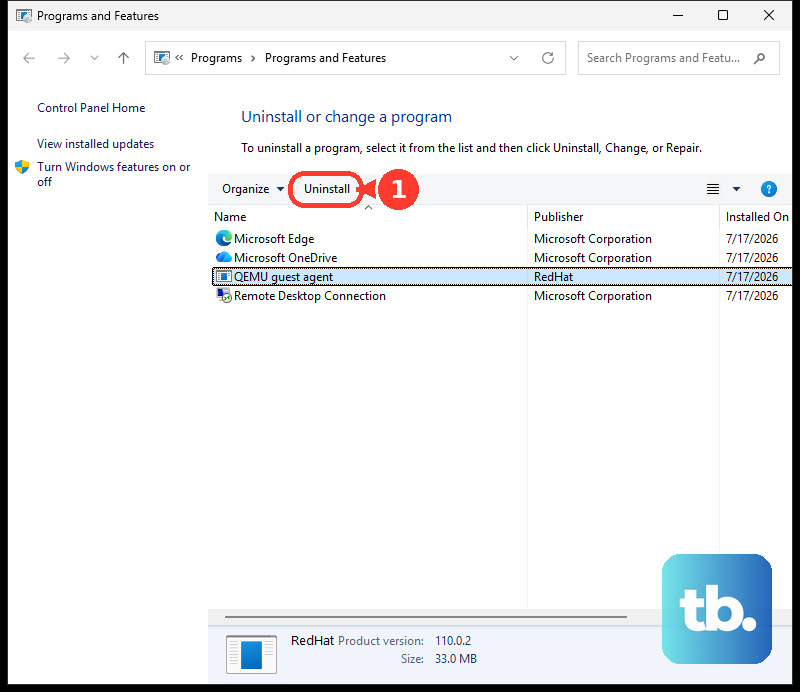
Both routes open the product's uninstaller. If that uninstaller has already failed, move to Avast Clear instead of repeating removal through each Windows entry point.
Use Avast Clear when normal removal fails
Avast recommends its removal utility when ordinary uninstalling fails or setup is already running. Get the tool for your product from Avast's official Uninstall Tool instructions. Avast also offers Avast Clear through its official removal-tool download page, but the new Avast One requires its product-specific tool variant.
For the standard tool, right-click avastclear.exe and select Run as administrator. Click Yes, then follow the tool's prompts to restart your computer in Safe Mode.
Once the tool is running in Safe Mode, choose to remove your Avast product and click Uninstall. Wait until removal finishes, then restart your computer.
For the new Avast One, right-click avast_clear.exe, select Run as administrator, and click Yes. Under Reboot to Safe mode, click Reboot, then click Restart Computer. In Safe Mode, click Remove under Remove only, then click Uninstall. Wait for removal to finish and click Restart computer.
Clear a setup already running block
If Avast Antivirus reports that setup is already running and has the Enable Self-Defense setting, Avast provides a preparation step before using Avast Clear. In Avast Antivirus, open Menu > Settings and go to Troubleshooting. Uncheck Enable Self-Defense. Click OK, disable to confirm.
Press Ctrl + Shift + Esc to open Task Manager. Select Avast Antivirus and click End task, then run Avast Clear using the steps above. Ending the task prepares for removal; it does not uninstall Avast by itself.
Try the Windows 10 command fallback only if Avast Clear fails
Avast provides a Command Prompt fallback for Windows 10 Avast Antivirus installations with the setup folder and instup.exe file shown below. Use it only after Avast Clear fails. Keep this procedure to that Windows 10 installation type.
Open C:\Program Files\Avast Software\Avast\setup\Stats.ini. Under Common, add the following line, then save the file.
SilentUninstallEnabled=1Search for cmd and select Run as administrator. Run this command to switch to Avast's setup folder.
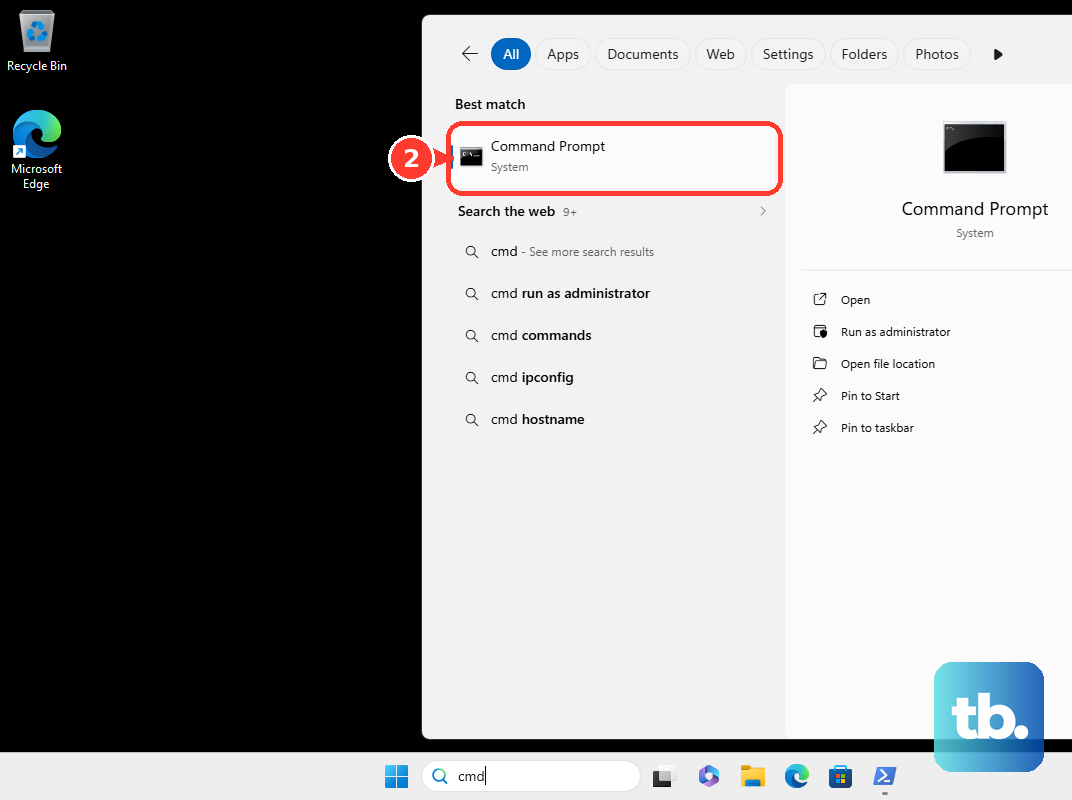
cd c:\Program Files\Avast Software\Avast\setup\Next, run the removal command below. It starts Avast's silent uninstall for that installation.
instup.exe /instop:uninstall /silentIf those files are missing or removal still fails, go to Avast's official support website for help with your product. Sign in only through Avast's own app or website, and never share a code, password, or remote access with someone who contacts you.
Remove Avast Business from managed computers
If you administer Windows devices through Avast Business Hub, Remove and Uninstall remotely uninstalls the managed Antivirus client and removes the device from the Hub when the process completes. If the device used Cloud Backup, all backup data for that device is removed; download any data you need before proceeding. In the Hub, open Devices, open the device's three-dot menu, and select Remove and Uninstall. In the confirmation dialog, click Remove and uninstall. The device receives the command when it next communicates with the Hub, and a restart may be required.
For Windows endpoints managed through Avast Business On-Premise Console, open Devices and open the device's three-dot menu. Select Remove and uninstall, then confirm the action. Removal runs when the device communicates with the console, and a restart may be required.
For remote removal through Avast Business CloudCare, open Devices and expand the target device using its arrow. Select Other Actions > Uninstall CloudCare. The device must communicate with the service to receive the command.
For local CloudCare removal, open Control Panel > Programs > Programs and Features. Right-click Avast Business CloudCare, select Uninstall, then click Uninstall and restart when prompted. Local removal can require a password set by your administrator's policy.
Frequently Asked Questions
Does uninstalling paid Avast cancel its subscription?
No, uninstalling Avast Premium Security or Avast One does not cancel its subscription. Handle cancellation separately through Avast's official subscription help.
Can I remove Avast by disabling it at startup or turning off its shields?
No, disabling startup or turning off shields does not remove the installed antivirus. You still need to complete an uninstall procedure.
Can I choose individual associated apps when uninstalling the new Avast One?
Yes, the new Avast One uninstaller allows you to choose individual associated apps on its app-selection screen. You can make that selection instead of proceeding with removal of everything.
Why does my older Avast One uninstaller look different?
Avast distinguishes an older version, called legacy Avast One, from the new Avast One suite. Their uninstall screens differ, so match your version when opening Avast's official removal instructions.