You deleted a document, photo, folder, or desktop file and now need it back. Windows still gives you several clean recovery routes, but the right one depends on where the file lived and how it was deleted. Start with the quickest local fixes, then move through OneDrive, backups, app recovery, and Microsoft's command-line recovery tool.
1. Reverse the deletion immediately
Use this when the delete just happened in File Explorer or on the desktop.
Stay in the same Windows session and location where the deletion happened.
Press Ctrl + Z.
Check the original folder or desktop location for the restored file or folder.
Ctrl + Z only undoes the previous action while that delete is still undoable. After later actions, an emptied Recycle Bin, or a permanent deletion, move to the next recovery path.
2. Restore it from Recycle Bin
Open Recycle Bin.
Select the files or folders you want back.
Right-click the selection.
Choose Restore.
For most recently deleted local files on Windows 11, Recycle Bin is the fastest full recovery path. Windows restores each item to its original folder.
This does not cover files deleted with Shift + Delete, some items deleted from removable media, or OneDrive online-only files that never entered the local Recycle Bin.
3. Recover OneDrive files online
If the file was stored in OneDrive, check the OneDrive web Recycle Bin even when the Windows Recycle Bin is empty.
Go to OneDrive on the web and sign in.
Open Recycle bin from the navigation pane.
Select each file or folder with the circle checkbox.
Choose Restore.
Personal OneDrive Recycle Bin items are automatically deleted after 30 days, and if the recycle bin is full, the oldest items can go after three days. Work or school OneDrive items are deleted after 93 days unless an administrator changed that setting. For deleted Personal Vault files, unlock Personal Vault or use Show Personal Vault items before searching the bin.
You can do the same from the mobile app. On Android, open OneDrive, tap the Me icon, select the account, open Recycle Bin, select the files, and tap Restore. On iOS, tap the Me icon in the upper left, select the account, open Recycle Bin, select the files, and tap Restore.
4. Roll back a backed-up folder with File History
Open File Explorer.

Go to the folder that used to contain the file or folder.
Right-click the folder name.
Choose Restore previous versions.
Select a previous version.
Expand Open and select Open in File History to preview it.
Select Restore to recover the item, or expand Restore and select Restore to... to send it somewhere else instead of overwriting the current version.
Use File History when the file is gone from Recycle Bin but the folder was backed up before the deletion. This works only when File History was configured before deletion and the folder was included in the File History or library backup.
5. Sign back into Windows Backup files
Use this route when your Desktop, Documents, Pictures, Videos, or Music folders were protected through Windows Backup and OneDrive folder backup. Microsoft describes that folder backup as syncing the folders you pick to your OneDrive account, so it is built to get files back onto a PC that lost them rather than to snapshot a file you deleted.
To restore those backed-up files, sign in to OneDrive with the same personal Microsoft account used for the original backup. On a new PC or after reinstalling Windows, sign in during setup and choose the offered restore. If the file was deleted rather than left behind on an old PC, that deletion synced to OneDrive too, so recover it from the OneDrive Recycle bin in step 3 first.
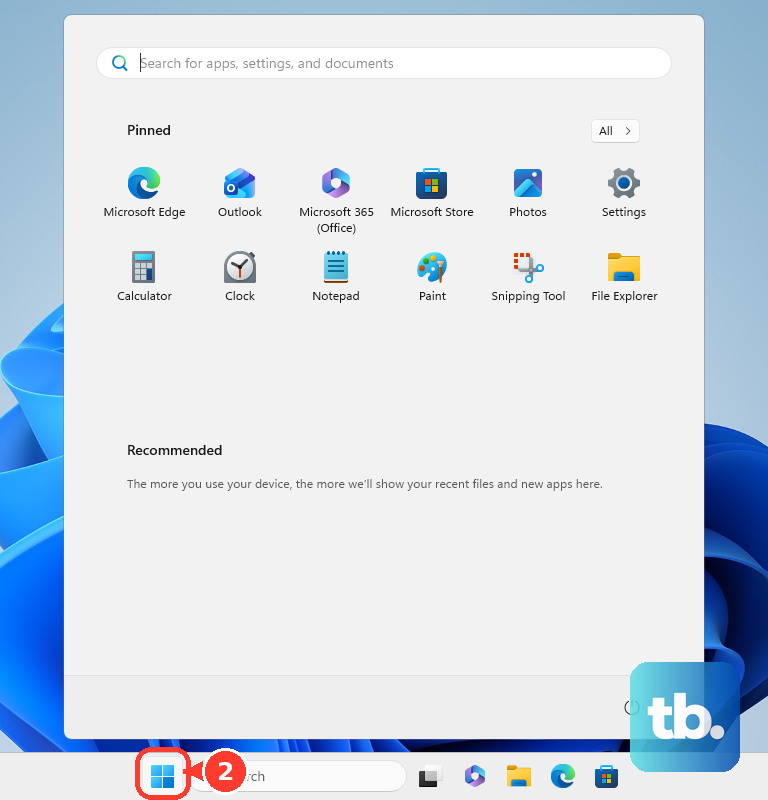
To sync and protect those folders going forward in Windows 11, open Start, type backup, open Windows Backup, expand Folders, turn on the folders you want, and choose Back up. Anything you delete from a synced folder later is recovered from the OneDrive Recycle bin, File History, or another backup source rather than from Windows Backup itself. Windows Backup is aimed at consumer devices using a personal Microsoft account; Microsoft says work and school accounts do not work with the Windows Backup app.
6. Rescue app files from their recovery tools
Microsoft 365 apps: After Excel, PowerPoint, or another supported Microsoft 365 app closes unexpectedly, reopen the app. The Document Recovery pane opens automatically. Select each recovered file, choose Open or View, then use Save As.
OneNote deleted notes: In OneNote desktop, open History, choose Notebook Recycle Bin, right-click the page or section, choose Move or Copy, pick a destination, and choose Move.
OneNote local backups: In OneNote, open File, choose Info, select Open Backups, open the notebook folder, select the notebook section backup file, choose Open, then copy the restored pages or sections into the notebook you want.
When the missing item was created inside a Microsoft app, the app's own recovery area can be the right place to look. OneNote pages or sections can be recovered for up to 60 days after deletion unless the Notebook Recycle Bin was emptied.
These tools recover app files, notes, or unsaved AutoRecovered work; they do not undelete every Windows file type.
7. Run Windows File Recovery for permanent deletions
Use Microsoft's Windows File Recovery app when a file was permanently deleted from a local drive, external drive, or USB device. It is command-line only, and the source and destination drives must be different.
Open the Microsoft Store product page for Windows File Recovery.
Choose Get or Install.
Press the Windows key.
Type Windows File Recovery.
Select Windows File Recovery.
Approve User Account Control with Yes.
Run winfr source-drive: destination-drive: [/mode] [/switches].
Enter Y to start recovery.
For a Documents recovery from C: to E:, use winfr C: E: /regular /n \Users\<username>\Documents\. For JPEG files in Pictures, use winfr C: E: /extensive /n \Users\<username>\Pictures\*.JPEG. Windows File Recovery supports local storage, external drives, and USB devices; it does not support cloud storage or network file shares.
8. Open the right work or school recycle bin
Microsoft Teams and SharePoint files are recovered from the storage service behind the file, not from a special Teams-only recovery tool.
For a Teams OneDrive file, open Teams, choose OneDrive, open Recycle bin, find the file, right-click it, and choose Restore. For a Teams channel file, open Teams, go to Chat, choose Channels, select the channel, open the Shared tab, choose More options, select Open in SharePoint, open Recycle bin, select the file with the circled check mark, and choose Restore.
In SharePoint, open the site that contained the item, choose Recycle bin from Quick Launch, or open Settings, choose Site contents, then Recycle bin. Select the box to the left of the item and choose Restore. SharePoint in Microsoft 365 keeps deleted items for up to 93 days from the time they were deleted from their original location, though second-stage items can go sooner if the site collection Recycle Bin exceeds its quota and starts purging the oldest items, or if a site collection administrator deletes them manually. Second-stage recovery can require a site owner, site collection administrator, SharePoint admin, or the right permissions.
9. Skip System Restore for personal files
System Restore is not a deleted-document or deleted-photo fix. Microsoft describes System Restore as a way to revert system files, registry settings, installed programs, and settings without affecting personal files.
Windows 10 methods may still appear in old recovery posts, but Microsoft support for Windows 10 ended on October 14, 2025. For current Windows 11 file recovery, use Ctrl + Z, Recycle Bin, OneDrive recovery, File History, Windows Backup, app recovery, or Windows File Recovery based on where the file was stored.
Frequently Asked Questions
Can I undelete files after emptying the Recycle Bin?
Yes, if another recovery source exists. Use File History when the folder was backed up before deletion, sign in to OneDrive for synced files, or run Windows File Recovery for a local drive, external drive, or USB device.
Does Ctrl+Z recover permanently deleted files?
No. Ctrl+Z only undoes the previous action while that delete action is still undoable in the current Windows session or context.
How long do deleted OneDrive files stay recoverable?
Personal OneDrive Recycle Bin items are automatically deleted after 30 days, but Microsoft also says that if the recycle bin is full, the oldest items are automatically deleted after three days. Work or school OneDrive items are deleted after 93 days unless an administrator changed the setting.
Can I recover deleted Teams files?
Yes. Teams personal or chat files are restored through OneDrive, while Teams channel files are restored through SharePoint.
Can System Restore bring back deleted documents or photos?
No. System Restore is for system recovery. Microsoft says it reverts system files, registry settings, installed programs, and settings without affecting personal files.