

Arrow keys should move through cells or text, not drag the whole Excel sheet across the screen. When that happens, Scroll Lock is usually on.
The fastest fix is one press of Scroll Lock or ScrLk. If your keyboard hides that key, use the exact Windows, Mac, Excel, or laptop-brand method below.
Press the Scroll Lock key
Look for a key labeled Scroll Lock or ScrLk. Press it once to turn Scroll Lock off.
In Excel, check the status bar at the bottom of the window. When Scroll Lock is off, the Scroll Lock indicator disappears.
If your keyboard has no visible Scroll Lock or ScrLk key, use the Windows On-Screen Keyboard. It gives you a clickable ScrLk key without a dedicated physical key.
Open the Windows 11 On-Screen Keyboard
Open Start.
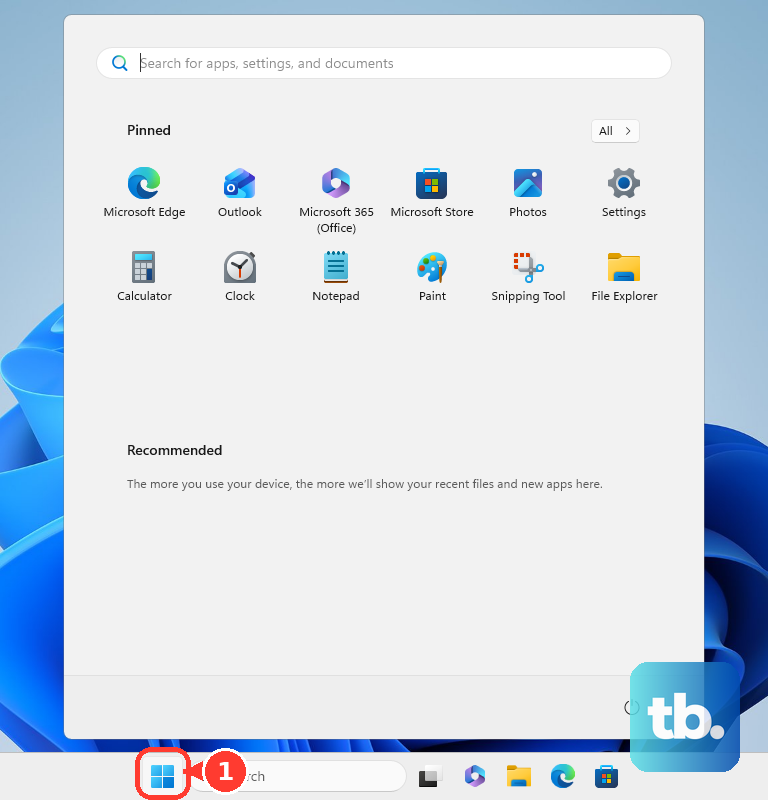
Choose Settings, then go to Accessibility. Select Keyboard and turn on On-Screen keyboard. When the keyboard appears, click ScrLk.
If you do not see ScrLk, the keyboard opened in its Nav layout, which shows navigation keys only. Click General to switch to the full layout, then click ScrLk.
For the quicker route, open Start, type On-Screen Keyboard, select On-Screen Keyboard, then click ScrLk.
Fix Excel arrow keys that scroll
This fixes the Excel problem where arrow keys scroll the worksheet instead of moving between cells.
Open Excel and look at the status bar along the bottom of the window. Right-click the status bar and find the checkbox beside Scroll Lock. Check Scroll Lock to show its status in the bar.
Press Scroll Lock or ScrLk on your keyboard. If your keyboard does not have that key, open the Windows On-Screen Keyboard and click ScrLk.
Use the Mac shortcut or Boot Camp keyboard
On a Mac keyboard, press Control-F14. Apple documents this as the Scroll Lock equivalent for apps that recognize Apple’s Windows-key equivalents.
If the shortcut does not register, hold Fn, then press Control-F14. Apple says Scroll Lock controls arrow-key pointer or scroll behavior in some apps.
When you are running Windows on a Mac through Boot Camp, open the Windows On-Screen Keyboard and click its Scroll Lock key.
If this method fails, use the Windows On-Screen Keyboard route inside Windows or try a documented keyboard shortcut for your exact model.
Try documented laptop shortcuts
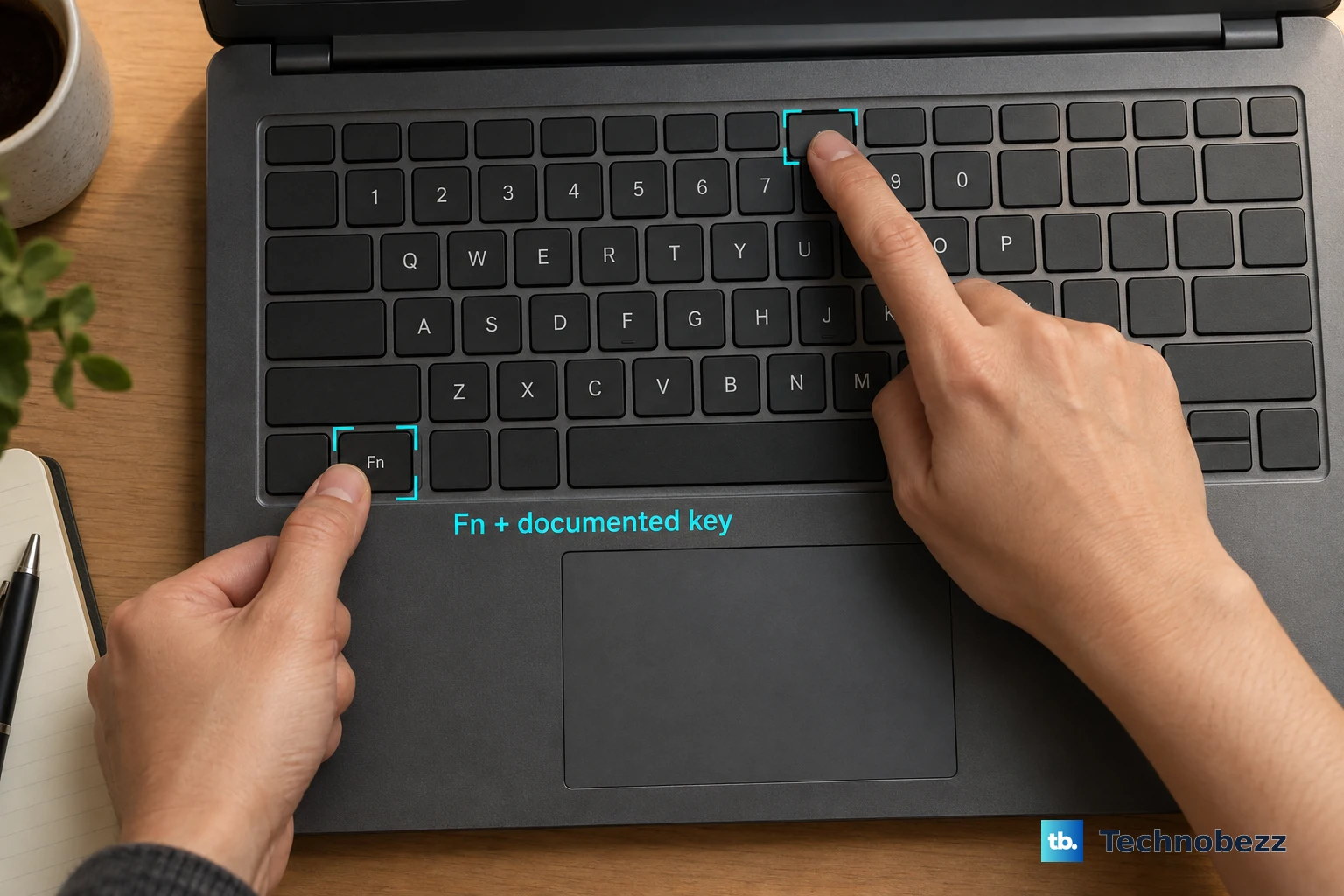
Use the shortcut listed for your brand or exact keyboard model.
- 1.On Lenovo ThinkPad models that document it, press Fn+K.
- 2.On Dell Inspiron models that document it, press Fn+S.
- 3.On Dell Latitude Rugged models that document it, press Fn+F6.
- 4.On Dell Rugged and similar platforms with unprinted traditional functions, press Fn+S.
- 5.On select HP notebook models that document it, press Fn+C.
- 6.On Logitech K251 for Windows, use the key whose Windows secondary function is Scroll Lock.
Check ChromeOS and Logitech limits
ChromeOS has keyboard settings under Settings, Device, and Keyboard and inputs, but Google does not document a current built-in Scroll Lock toggle. Use a keyboard-specific method only when the vendor documents one.
For the Logitech K251, Logitech lists a Windows secondary function for Scroll Lock. Logitech also says Scroll Lock does not work on ChromeOS or macOS for that model.
If this method fails, switch to a supported Windows setup or use another keyboard and operating system combination with a vendor-documented Scroll Lock method.
Remap a key with PowerToys
This fixes keyboards where Scroll Lock is missing, inconvenient, or buried behind a shortcut you do not want to use.
Install Microsoft PowerToys from an official Microsoft source. Open PowerToys Settings and go to Keyboard Manager. Select Remap a key, then choose Add key remapping.
In Select, choose the physical key you want to repurpose. In To send, choose Scroll Lock. Confirm the remap, then press your new Scroll Lock key once to toggle Scroll Lock off.
Keep PowerToys running in the background with Keyboard Manager enabled. Microsoft states the remap stops applying if PowerToys is not running.
Skip legacy Windows paths on current PCs
Older instructions often point to Windows 10, Windows 8.1, or Windows 7 On-Screen Keyboard paths. Those paths are legacy, so use the Windows 11 Settings or Search route on a current consumer PC.
On a work or school device, PowerToys Keyboard Manager may need permission. It also does not work on password screens and may not affect elevated apps unless PowerToys is elevated.
Use the physical Scroll Lock key, the built-in Windows On-Screen Keyboard, or your organization’s approved option. With the Scroll Lock status-bar option checked, its indicator disappears once Scroll Lock is off and the arrow keys return to normal cell movement. If you never see the indicator at all, right-click the status bar and check Scroll Lock first, because a hidden status item is not the same as Scroll Lock being off.
Frequently Asked Questions
Why do my arrow keys scroll in Excel instead of moving cells?
Scroll Lock is turned on. Turn it off with the physical Scroll Lock key, the Windows On-Screen Keyboard, or a documented laptop shortcut.
What should I do if my keyboard has no Scroll Lock key?
On Windows 11, open the On-Screen Keyboard from Settings or Search and click ScrLk. You can also create a replacement key with PowerToys Keyboard Manager.
What is the Mac shortcut for Scroll Lock?
Use Control-F14. If that does not register, hold Fn first, then press Control-F14.
Can I turn off Scroll Lock on ChromeOS?
Google does not document a built-in ChromeOS Scroll Lock toggle. Use a vendor-documented keyboard method only if your keyboard supports one.