Your fan is spinning, the PC feels sluggish, and Task Manager points the finger at something called Antimalware Service Executable eating CPU, memory, or disk. Before you assume the worst, know that this process is part of your built-in security, and most of the time you can calm it down with a handful of safe, ordered steps. Work through the fixes below from the top; the easiest and least risky ones come first, and the diagnostic tools toward the end tell you exactly what is wrong so you stop guessing.
What Antimalware Service Executable Actually Is
Antimalware Service Executable is the friendly name for MsMpEng.exe, the Microsoft Defender Antivirus service. Microsoft's own documentation refers to it as "Antimalware Service Executable, Microsoft Defender Antivirus service, or MsMpEng.exe," so when you see any of those names, they all point to the same component doing real-time and scheduled scanning.
Because it is your antivirus, brief bursts of activity are normal, especially right after a big file download, an update, or a scheduled scan. The goal is not to kill it but to figure out why it is working harder than it should and to ease that load.
Confirm the Real Culprit in Task Manager First
Do not change anything until you are sure Defender is genuinely the cause. Sometimes another process, such as Windows Search (the search indexer), is the heavy one and the fix is completely different.
Press Ctrl+Shift+Esc to open Task Manager.
On the Processes tab, select the CPU, Memory, or Disk column header to sort highest to lowest.
Confirm whether Antimalware Service Executable is at the top, or whether something else (like Windows Search) is the real load.
Match what you find here to the matching section below. If a non-Defender process is the offender, jump to the indexer or startup sections later in this guide.
Install Pending Windows Updates and Restart
Many performance and reliability fixes ship through Windows Update, and a simple restart clears lingering background activity. On Windows 11, go to Start > Settings > Windows Update > Check for updates. On Windows 10, go to Start > Settings > Update & Security > Windows Update > Check for Windows updates.
Select Download & install for anything that appears, then restart when prompted. Microsoft lists installing updates and restarting among its primary tips for improving PC performance, so this is worth doing before deeper troubleshooting.
Bring Defender's Protection Definitions Current
Outdated definitions can make Defender re-scan files it should already trust, which keeps the process busy. Refresh them inside the Windows Security app under Virus & threat protection > Protection updates > Check for updates.
While you are there, Microsoft recommends confirming that Cloud-delivered protection and Automatic sample submission are On. You will find both under Virus & threat protection settings > Manage settings. Doing this before any scan helps Defender work efficiently.
Scan for Malware That May Be Driving the Load
High Defender activity is frequently Defender reacting to suspicious files, so it makes sense to rule out an actual infection. In the Windows Security app, open Virus & threat protection > Quick scan for a fast check.
For something more thorough, select Scan options and choose Full scan, which scans every file and program on your device. Microsoft documents Quick scan, Full scan, Custom scan, and the Microsoft Defender Antivirus (offline) scan, and these paths apply to both Windows 10 and Windows 11.
Catch Hidden Malware With an Offline Scan
If something stubborn keeps coming back, a Microsoft Defender Offline scan runs before Windows fully loads, so persistent malware cannot hide from it. Save your open work first, because your PC will restart.
Open the Windows Security app.
Then go to Virus & threat protection > Scan options.
Choose Microsoft Defender Antivirus (offline scan), then Scan now.
The PC reboots into a special environment, scans, and then returns to Windows. This applies to Windows 10 and Windows 11.
Pinpoint the Exact Cause With Defender's Performance Analyzer
This is Microsoft's documented tool for diagnosing high CPU from Antimalware Service Executable. The Performance Analyzer records what Defender is scanning and then names the exact files, file extensions, and processes responsible. You need Defender platform 4.18.2108.7 or later and PowerShell 5.1 or later on Windows 10 or 11.
Open PowerShell as an administrator.
Start a recording with New-MpPerformanceRecording -RecordTo <recording.etl>.
Reproduce the slowdown, then press ENTER to stop and save (or Ctrl+C to cancel).
Analyze it with Get-MpPerformanceReport -Path <recording.etl> -TopFiles 3 -TopScansPerFile 10.
The report shows the top files, extensions, and processes driving scan impact. That often reveals something practical, such as a folder a backup app constantly writes to. If recording fails because a trace is already running, clear it with wpr -cancel -instancename MSFT_MpPerformanceRecording and try again.
Move Scheduled Scans to a Time You Are Not Working
If the slowdown happens at predictable moments, a scheduled scan may be running while you use the PC. You can shift it to a quieter time using Task Scheduler.
Search for Task Scheduler on the taskbar and open it.
Next, expand Task Scheduler Library > Microsoft > Windows and select the Windows Defender folder.
Double-click Windows Defender Scheduled Scan.
On the Triggers tab, select New, then set how often and when scans start.
When Windows Search Is the Real Offender
If Task Manager showed Windows Search (the search indexer) rather than Defender, tune that instead. Microsoft documents the indexer as a common cause of high CPU, memory, or disk, especially once you pass roughly 400,000 indexed items.
To reduce the load, exclude folders you do not need indexed. On Windows 11, go to Settings > Privacy & security > Searching Windows > Add an excluded folder. On Windows 10, go to Settings > Search > Searching Windows > Add an excluded folder.
If the index itself is corrupted, rebuild it. On Windows 11, use Settings > Privacy & security > Searching Windows > Advanced indexing options > Advanced > Rebuild. On Windows 10, use Settings > Search > Searching Windows > Advanced Search Indexer Settings > Advanced > Rebuild. Allow up to 24 hours for the rebuild to finish.
For a stuck indexer, restart the Windows Search service (short name wsearch) from the Services tab of Task Manager or from Services.msc. If you prefer the command line, Microsoft documents this exact defrag sequence in an administrative Command Prompt, run in this order:
- 1.
Sc config wsearch start=disabled - 2.
Net stop wsearch - 3.
EsentUtl.exe /d %AllUsersProfile%\Microsoft\Search\Data\Applications\Windows\Windows.edb - 4.
Sc config wsearch start=delayed-auto - 5.
Net start wsearch
One important warning: Microsoft cautions against "Optimize your PC" utilities that disable Windows Search. The intended state for this service is Running with a startup type of Automatic (Delayed Start), so do not turn it off permanently.
Trim Startup Apps and Free Up Drive Space
Background and startup apps pile onto CPU and disk activity, and a nearly full drive slows everything down. Both are quick to address.
Open Task Manager with Ctrl+Shift+Esc and select Startup apps.
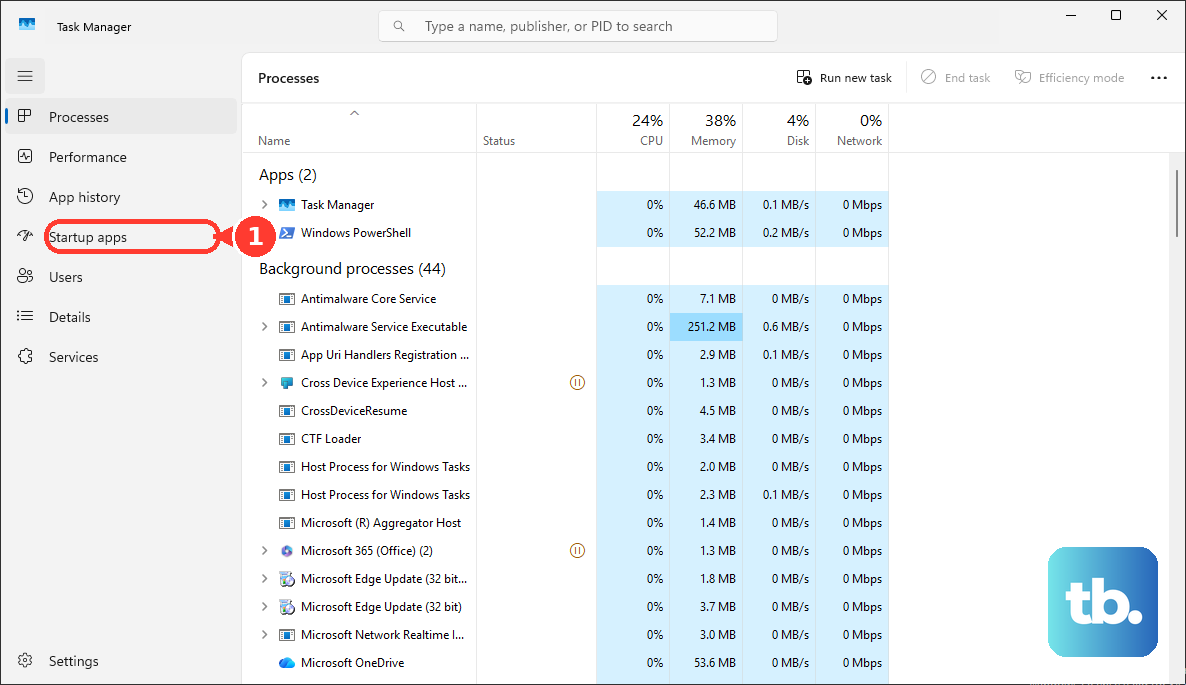
After that, right-click items you do not need at boot and select Disable.
Free disk space by running Storage Sense at Start > Settings > System > Storage, or open Disk Cleanup (search for "Disk Cleanup" on the taskbar) and clean the system drive.
This applies to Windows 10 and Windows 11.
Update Your Device Drivers
Outdated drivers can cause freezing, stuttering, and overheating that look like a CPU problem. On Windows 11, get driver updates via Start > Settings > Windows Update > Advanced options > Optional updates, select driver updates, then Download and install. On Windows 10, go to Settings > Update & Security > Windows Update > Advanced options > View optional updates.
To update one specific device, right-click Start > Device Manager, expand the category, right-click the device, select Update driver, then Search automatically for drivers.
Adjust Power Mode if the PC Runs Hot or Throttles
If your machine freezes, runs warm, or throttles under load, the power mode can help. On Windows 11, go to Start > Settings > System > Power & battery and choose a Power mode. Balanced balances performance and battery, while Best performance maximizes performance but increases power use and can make a laptop run warmer.
For overheating specifically, Microsoft's guidance is to turn the PC off and let it cool for at least five minutes, close apps you do not need to lower CPU use, and keep the device out of direct sunlight and hot environments. On a Surface, a Recommended power mode limits fan speed for quieter, cooler operation.
Review Overall Device Health
The Windows Security app includes a quick checkup that can surface the underlying issue. Open the app and select Device performance & health to view the Health report.
The report flags problems in Storage capacity, Battery life, Apps and software, and the Windows Time service. A green check means no issues, while a yellow mark means attention is needed; select it to see the recommended fix. This applies to Windows 10 and Windows 11.
Frequently Asked Questions
Is it safe to disable Antimalware Service Executable?
It is your Microsoft Defender Antivirus service (MsMpEng.exe), so it is doing real protection work. Rather than disabling it, identify the cause with the Defender Performance Analyzer and ease the load through scheduling, updates, and the other steps above.
How do I confirm Defender is the process using my CPU?
Press Ctrl+Shift+Esc to open Task Manager, then on the Processes tab select the CPU, Memory, or Disk column header to sort highest to lowest. If Antimalware Service Executable is not at the top, another process such as Windows Search may be the real cause.
What tool tells me exactly which files Defender is scanning?
The Microsoft Defender Antivirus Performance Analyzer. Run New-MpPerformanceRecording -RecordTo <recording.etl> in an administrator PowerShell window, reproduce the slowdown, press ENTER, then run Get-MpPerformanceReport -Path <recording.etl> -TopFiles 3 -TopScansPerFile 10 to see the top files, extensions, and processes.
Can I just turn off Windows Search to stop the high disk usage?
Microsoft does not recommend permanently disabling it and warns against utilities that do. The documented approach is to exclude folders, rebuild the index, or restart the wsearch service; the intended state is Running with Automatic (Delayed Start).
Will keeping Windows updated really help with performance?
Yes. Microsoft lists installing the latest Windows updates and restarting among its primary performance tips, since many reliability and performance fixes ship through Windows Update and a restart clears background activity.











