You click the shield icon, type its name into search, and nothing happens. The Windows Security app flashes and closes, hangs on a blank panel, or refuses to launch at all, leaving you unsure whether your PC is even being protected.
The good news is that this is usually fixable with built-in tools, and most of the causes are mundane rather than malware. Work through the fixes below in order, starting with the quickest and safest, and stop as soon as the app opens normally again.
Open It the Supported Way and Install Pending Updates
Before assuming the app is broken, make sure you are launching it the way Microsoft recommends.
Search for Windows Security in the Start menu rather than relying on the system tray icon, which can be stale or hidden.
If the app still refuses to open, a pending Windows update can refresh both the app and its underlying components.
Installing updates resolves a surprising number of these failures because the security app ships and gets patched through Windows Update itself.
In Windows 11, open the updates screen and check for new ones:
Go to Start > Settings > Windows Update.
Select Check for Windows updates.
Select Download & install for anything found.
If prompted, restart your device to apply the updates.
In Windows 10, the path is slightly different:
Go to Start > Settings > Update & Security > Windows Update.
Select Check for Windows updates.
Select Download & install.
Restart if prompted to finish applying the updates.
One note worth knowing: Microsoft states that Windows 10 support ended on October 14, 2025, and recommends upgrading to Windows 11. If you are still on Windows 10, updates may be limited, which is another reason to consider moving up.
Rule Out a Third-Party Antivirus Taking Over
If parts of the Windows Security screen look disabled or real-time protection appears greyed out, this may not be a bug at all. Microsoft documents that when you install a compatible non-Microsoft antivirus program, Microsoft Defender Antivirus automatically turns itself off. This is by design, so two real-time engines are never fighting each other at once.
Check whether you have a separate security product installed, such as one that came bundled with a new PC or a free trial you forgot about. That program, not Windows Security, is the active protection in that scenario.
If you would rather have Microsoft Defender run the show again, uninstall the third-party antivirus.
Microsoft documents that Defender turns back on automatically once the other program is removed.
Treat this as the documented behavior rather than an absolute guarantee, and confirm Defender is active afterward in the Windows Security app.
Switch Real-Time Protection Back On
Sometimes the app opens fine but the core protection toggle is off, which is what makes people think it is broken. You can flip it back on directly inside the app.
In the Windows Security app, select Virus & threat protection.
Under Virus & threat protection settings, select Manage settings.
Switch Real-time protection to On.
Microsoft also notes that if you ever turn real-time protection off only temporarily, it turns back on automatically after a short while, so a brief lapse usually corrects itself without any action from you.
Check Tamper Protection If Settings Keep Reverting
If you toggle a setting and it snaps back, or another app seems to be changing your protection, Tamper Protection is likely doing its job. It is a feature that helps prevent malicious apps from changing important Microsoft Defender Antivirus settings such as real-time protection and cloud-delivered protection.
As an administrator you can still change settings yourself in the Windows Security app, while other apps cannot.
To find the toggle, open Windows Security > Virus & threat protection > Manage settings.
Scroll down to Tamper protection.
One important sequencing detail: if Tamper protection is on, you must turn it off before you can turn Real-time protection off. If a real-time protection switch seems stuck, this is usually why.
Repair the App, Then Reset It From Settings
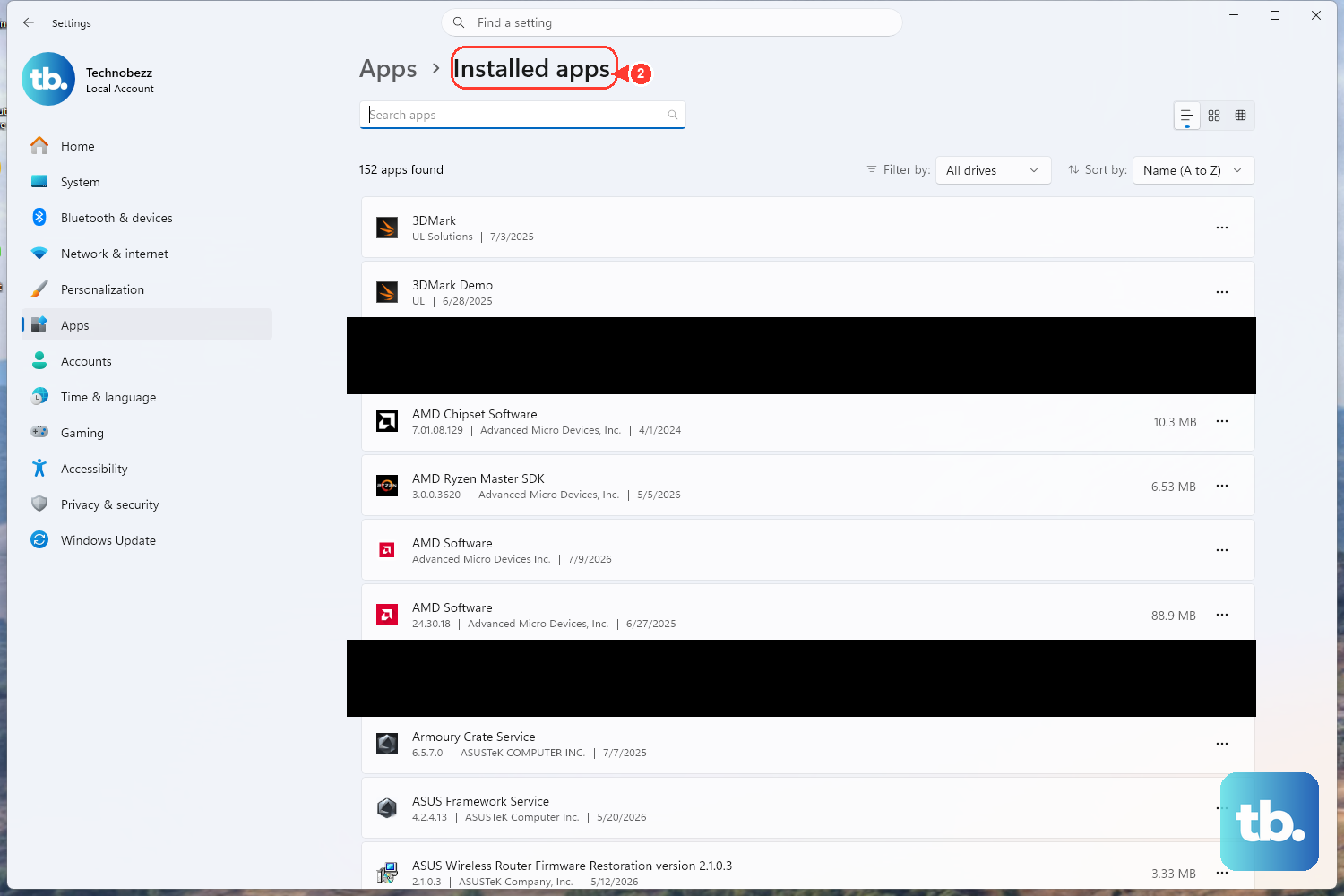
If the app itself is the problem, Windows includes a built-in repair option that fixes the installation without touching your data, and a reset option as a stronger fallback. Always try Repair first; Reset is the more aggressive step.
In Windows 11:
Go to Start > Settings > Apps > Installed apps.
Select the More icon (three dots) next to the app.
Choose Advanced options (some apps do not have this option).
Select Repair if it is available.
If Repair is unavailable or does not help, select Reset.
In Windows 10:
Go to Start > Settings > Apps > Apps & features.
Select the app.
Choose Advanced options.
Select Repair.
Select Reset if needed.
Keep in mind that Microsoft states some apps do not expose Advanced options, Repair, or Reset, so these controls may not appear for every app on every system. If they are missing, move on to the next fix.
If the trouble is broader app instability tied to the Microsoft Store, you can also reset the Store cache.
Press Windows + R.
Type wsreset.exe.
Let it run; this clears the Microsoft Store cache and can clear up app glitches that ripple into other built-in apps.
Repair the Underlying System Files With DISM and SFC
When repairing the app alone is not enough, the deeper cause may be missing or corrupted system files. Windows ships two command-line tools for exactly this, and the order you run them in matters.
First open an elevated Command Prompt.
Type cmd in Search.
Right-click Command Prompt.
Select Run as administrator.
Run the image repair first. Microsoft advises running this before the System File Checker because it provides the files needed to repair corrupted files.
Type DISM.exe /Online /Cleanup-image /Restorehealth and press Enter.
Wait for it to reach 100 percent.
Then run the file checker.
Type sfc /scannow and press Enter.
Let it scan and repair protected system files.
Important: do not close the Command Prompt window until verification is 100 percent complete for either command. Interrupting the process partway through can leave repairs unfinished.
Run a Full Scan and an Offline Scan Once the App Opens
If the app now opens but you suspect malware was interfering with it in the first place, run a deeper scan to be sure nothing is still hiding. A standard quick scan may miss threats that only surface during a thorough sweep.
Open Windows Security > Virus & threat protection > Scan options.
Select Full scan.
Select Scan now.
For threats that actively hide while Windows is running, use the offline scan instead.
In the same Scan options list, select Microsoft Defender Antivirus (offline scan).
Select Scan now.
This option restarts your device and runs before Windows loads, so save your work first.
If you prefer to jump straight to a scan, you can launch one with a URI.
Press Windows + R.
Enter windowsdefender://quickscan/ for a quick scan.
Enter windowsdefender://fullscan/ for a full scan.
Enter windowsdefender://wdoscan/ for the offline scan that restarts the PC.
Let the Get Help App or Microsoft Support Step In
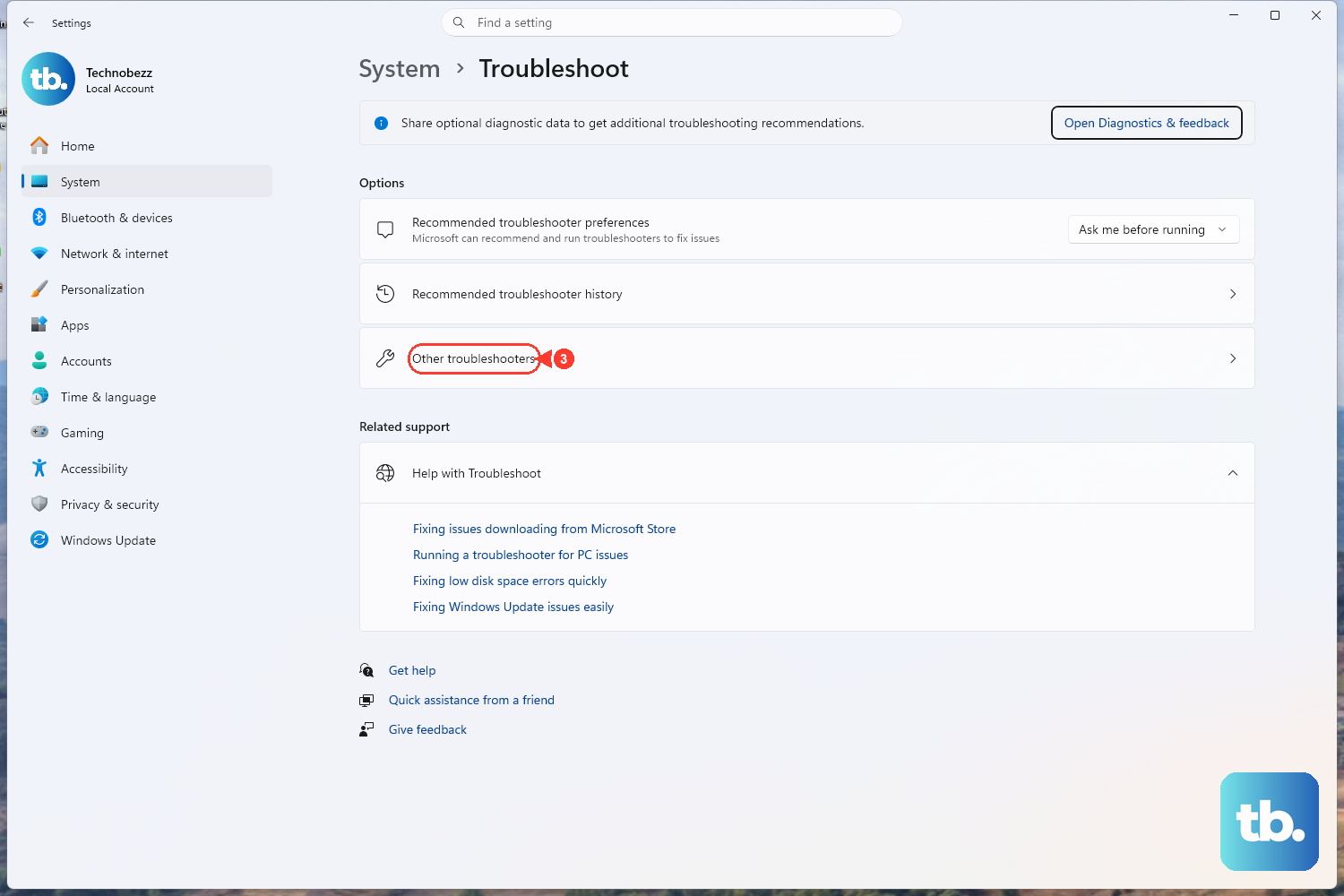
If the app still will not open after all of the above, hand the problem to Microsoft's own diagnostic tool. The Get Help app is built into Windows and can run troubleshooters and connect you to support.
Search for Get Help in the Start menu.
Open the app.
If a troubleshooter is available for your issue, select Start to run it.
Review the findings and suggested remedies it reports.
If Get Help cannot solve the problem on its own, you can contact Microsoft Support directly from inside the app, which routes your case to people who can dig deeper than the automated checks.
Frequently Asked Questions
Why does Windows Security show real-time protection as off?
Most often it is because a compatible third-party antivirus is installed, which causes Microsoft Defender Antivirus to automatically turn itself off so two engines are not running at once. Uninstalling that program lets Defender turn back on. If no other antivirus is present, re-enable the toggle under Virus & threat protection > Manage settings.
Why won't my protection toggle stay on or off?
Tamper protection is likely on. It blocks apps from changing key Defender settings such as real-time protection and cloud-delivered protection. If you need to change a setting and it keeps reverting, open Windows Security > Virus & threat protection > Manage settings, and remember that Tamper protection must be off before you can turn Real-time protection off.
Should I run SFC or DISM first?
Run DISM first. Microsoft advises this order because DISM.exe /Online /Cleanup-image /Restorehealth provides the files needed to repair corrupted files, and only then should you run sfc /scannow. Do not close the Command Prompt window until either command reaches 100 percent.
Is it safe to reset the Windows Security app?
Try Repair before Reset, since Repair attempts to fix the installation as the gentler option. Reset is the stronger fallback if Repair is unavailable or does not work. Note that some apps do not expose Advanced options, Repair, or Reset at all, so these controls may simply not appear on your system.
What if none of these fixes work?
Open the built-in Get Help app from the Start menu and run any available troubleshooter, which reports its findings and suggested remedies. If that still does not resolve it, you can contact Microsoft Support from within Get Help.











