Smart App Control blocks apps Windows does not trust. That protection becomes a problem when it stops an app you have decided to run. The supported consumer fix is to turn Smart App Control off from Windows Security, then return to the same page later if your device offers the switch again.
1. Turn Smart App Control Off in Windows Security
This fixes Smart App Control blocking apps on a Windows 11 PC. Open Windows Security, then select App & browser control. Open Smart App Control settings, and select Off.
2. Reach the Same Switch From Windows Settings
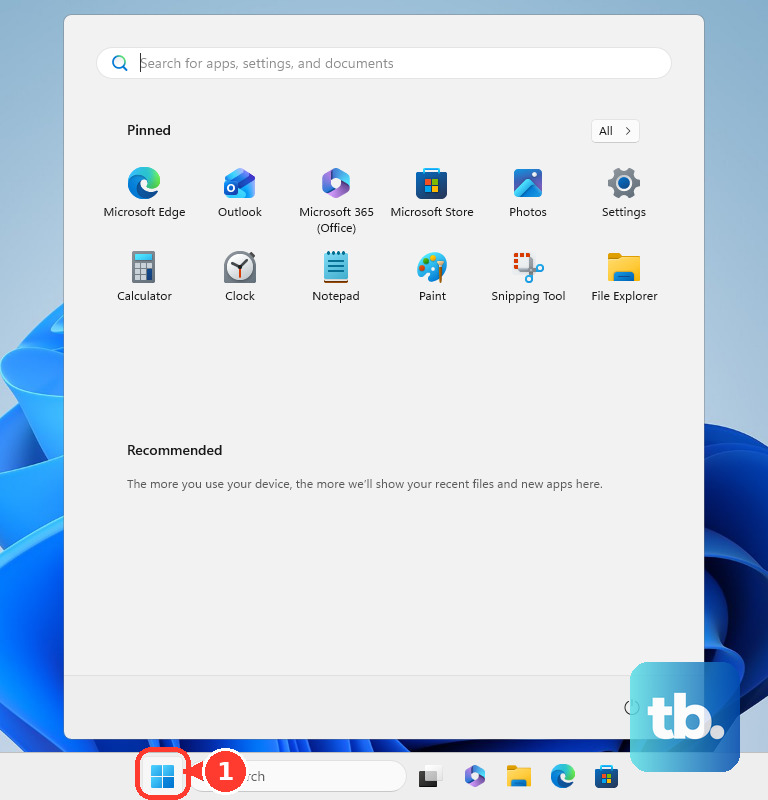
Select Start, then open Settings. Go to Privacy & security, and select Windows Security. Choose App & browser control, open Smart App Control settings, and select Off.
3. Jump There With the Keyboard Shortcut
Press Windows logo key + I to open Settings. Select Privacy & security, and open Windows Security. Choose App & browser control, open Smart App Control settings, and select Off. Use this route when you want the Settings path without opening the Start menu first.
4. Deal With a Blocked App Without an Allow Button
This fixes the dead end where you are looking for a one-app bypass. Review the blocked app against your own trust requirements. Stop looking for a Smart App Control allowlist, because Microsoft says there is no bypass for one specific app.
After that, open Windows Security, then select App & browser control. Open Smart App Control settings, and select Off when you decide to run the app anyway.
5. Turn Smart App Control Back On Later
Open Windows Security, then go to App & browser control. Open Smart App Control settings, and use the Smart App Control control on that page to re-enable it when your device shows the option.
Microsoft’s current FAQ says recent Windows updates let supported devices turn Smart App Control off and re-enable it from Windows Security without a clean install.
6. Avoid Registry Fixes on a Home PC
This prevents an unsupported workaround from replacing the normal consumer setting. Skip registry-edit walkthroughs that claim to disable Smart App Control for everyday use. Use Windows Security or Settings instead.
Treat Microsoft’s offline registry procedure as developer and testing guidance only. Do not edit Smart App Control through the registry for a regular home fix because Microsoft warns that doing so could compromise protection.
7. Skip Developer Mode Unless You Need It
Use Smart App Control settings first when your only goal is to turn Smart App Control off. Leave Developer Mode off unless you need Developer Mode and administrator access is allowed.
On Windows 11 25H2 and later, go to Settings > System > Advanced > For developers > Developer Mode > Yes. Before Windows 11 25H2, go to Settings > For developers > Developer Mode > Yes. Developer Mode is listed by Microsoft as a reason Smart App Control turns off, but it is not the normal consumer route.
8. Use the Admin Route Only for Managed Devices
This applies to work or school PCs managed by an organization. Use Windows Security first when you are allowed to manage your own security settings.
Contact your organization’s IT team when Smart App Control settings are controlled for you. Do not use consumer registry instructions to work around organization management.
Frequently Asked Questions
Can I turn off Smart App Control for only one app?
No. Microsoft says there is no way to bypass Smart App Control for one specific app. The supported consumer option is to turn Smart App Control off.
Why do I not see Smart App Control settings?
Smart App Control availability varies by device and update state. Microsoft does not provide a separate consumer download or install page for it.
Can I turn Smart App Control back on after turning it off?
Yes, on supported devices with recent Windows updates. Microsoft says it can be turned off and re-enabled in Windows Security without requiring a clean install.
Is the registry method a good way to disable Smart App Control?
No for regular consumers. Microsoft documents registry methods for developer, testing, or organizational scenarios, and warns that editing Smart App Control that way could compromise protection.