Microsoft Edge does not need an inbound firewall exception for ordinary web browsing. When Edge is blocked, the cause is a custom firewall rule, a third-party security app, or a work or school policy. Use the current Windows 11 and Windows 10 paths below to allow Microsoft Edge through Microsoft Defender Firewall without switching the firewall off.
1. Start with Windows Security
Best first move on a personal PC: keep Microsoft Defender Firewall on and add Edge to the allowed apps list. Open Start, then select Settings.
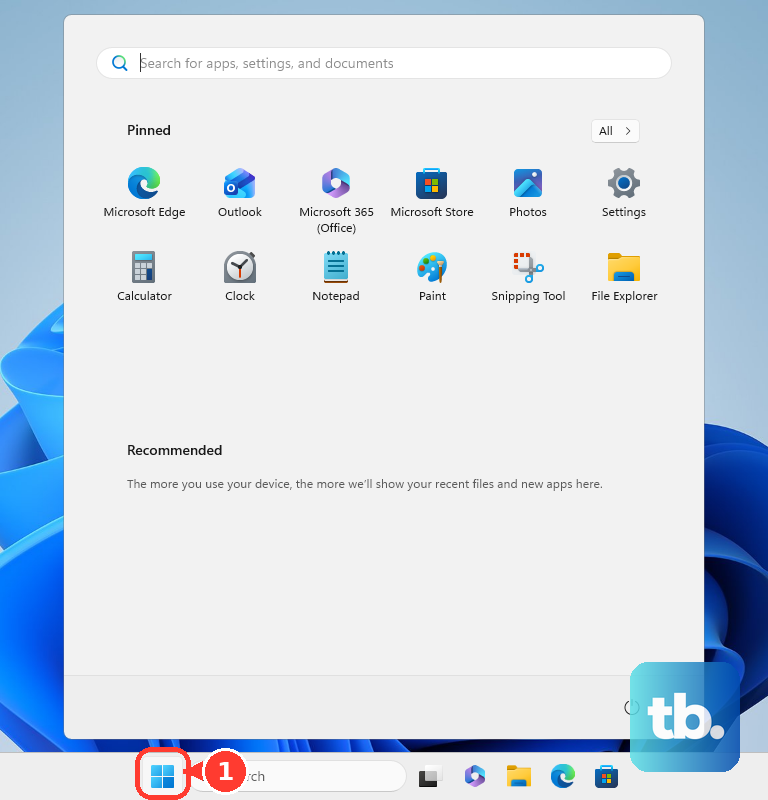
On Windows 11, select Privacy & security, then Windows Security. On Windows 10, select Update & Security, then Windows Security. Next, select Firewall & network protection, then select Allow an app through firewall.
Select Change settings and approve the administrator prompt. Find Microsoft Edge and check the box beside it. Check Private, Public, or both for the networks where Edge needs access, then select OK.
If Microsoft Edge is missing from the list, select Allow another app. Choose Browse, open the Edge program file, then select Add. The Edge executable is commonly at C:\Program Files (x86)\Microsoft\Edge\Application\msedge.exe, but choose the actual msedge.exe file on your PC.
2. Open the same list from Control Panel
Open Start, type Control Panel, then open Control Panel. Select System and Security, then select Windows Defender Firewall.
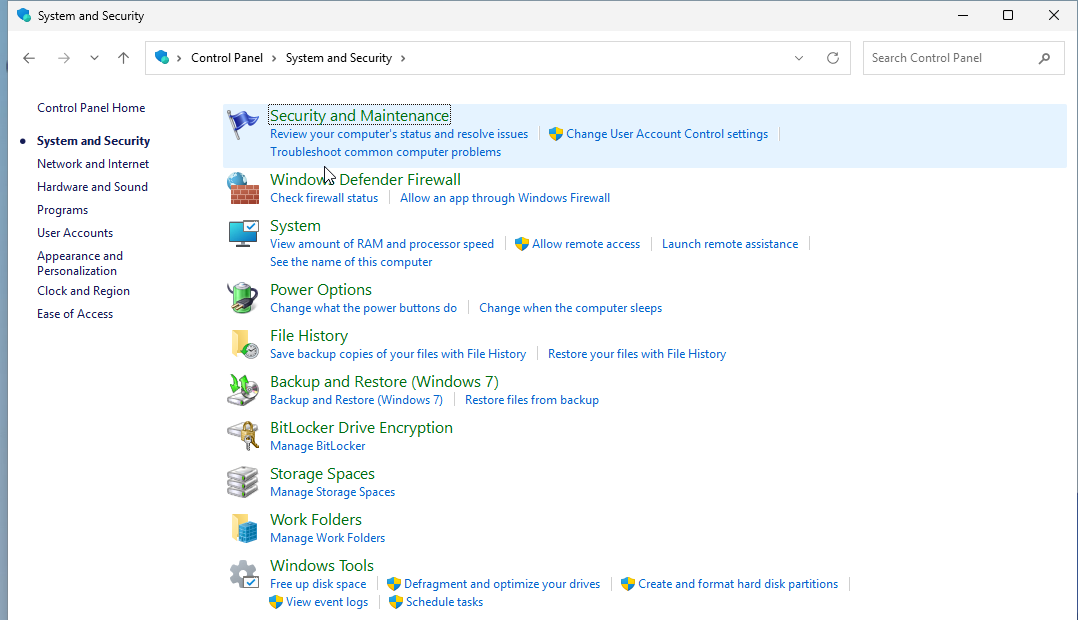
Select Allow an app or feature through Windows Defender Firewall. Select Change settings and approve the administrator prompt. Check Microsoft Edge, then choose Private, Public, or both. Select OK.
Control Panel reaches the same allowed-apps screen, which helps when Windows Security opens the classic firewall window or when you want the shorter route. There is also a direct shortcut: press Windows key + R.
Type firewall.cpl, then select OK. Select Allow an app or feature through Windows Defender Firewall.
3. Pick the right network profile
The profile boxes decide where the firewall exception applies. Private covers trusted networks such as your home network. Public covers less trusted networks such as shared Wi-Fi outside your home.
Domain applies automatically when a domain-joined device detects an Active Directory domain controller, and it cannot be set manually; some Microsoft Entra joined devices can be configured for domain detection by policy. Other work or school devices may still use Private or Public.
For most personal PCs, check Private first. Add Public only when Edge must work through that firewall allowance while you are connected to public networks.
Microsoft says allowing an app is generally safer than opening a port. Do not create a port rule unless a specific Edge or local web workflow gives you an exact port to allow.
4. Disable a blocking Edge rule
When the allowed-app list looks correct but Edge still fails, remove the rule that blocks msedge.exe. Open Windows Security, select Firewall & network protection, then select Advanced settings.
Open Inbound Rules. Check for rules whose program points to msedge.exe and whose action is Block. Open Outbound Rules. Check for the same kind of Edge block.
Select the matching rule, then select Disable Rule. Use Delete only when you are sure the rule is no longer needed.
5. Create a dedicated Edge rule
Open Windows Security, select Firewall & network protection, then select Advanced settings. You can also open Start, type wf.msc, and press Enter.
Select Inbound Rules for incoming connections or Outbound Rules for outgoing connections. Select New Rule. Select Program or Custom, then select Next.
Select This program path, browse to msedge.exe, then select Next. Select Allow the connection, then select Next. Choose Domain, Private, and Public as needed, then select Next. Name the rule, then select Finish.
Use Windows Firewall with Advanced Security when the simple allowed-apps list is not enough, when a specific inbound rule is required, or when outbound firewall behavior has been changed from the Windows default. Outbound rules belong here only when an outbound block exists for Edge or your firewall has been changed from the default outbound behavior.
6. Use a command when you manage rules from Terminal
Open the tool as administrator first. PowerShell and Command Prompt create the same kind of firewall rule without clicking through the interface.
For PowerShell, open Start, type Windows Terminal or PowerShell, choose Run as administrator, then run: New-NetFirewallRule -DisplayName "Allow Microsoft Edge" -Direction Outbound -Program "C:\Program Files (x86)\Microsoft\Edge\Application\msedge.exe" -Action Allow -Profile Domain,Private,Public
For Command Prompt, open Start, type Command Prompt, choose Run as administrator, then run: netsh advfirewall firewall add rule name="Allow Microsoft Edge" dir=out action=allow program="C:\Program Files (x86)\Microsoft\Edge\Application\msedge.exe" enable=yes profile=domain,private,public
Use the actual msedge.exe path on your PC. For an inbound Edge rule, change Outbound to Inbound in PowerShell or change dir=out to dir=in in Command Prompt.
7. Fix local network access inside Edge
In Edge, go to edge://flags/#local-network-access-check. Set Local Network Access Checks to Enabled or Enabled (Blocking), then select Restart.
Open Settings and more. Select Settings, then select Privacy, search, and services. Select Site permissions, then All permissions.
Select Local network access. Turn on Ask before accessing (recommended), then allow the site when Edge prompts you.
A website permission inside Edge can look like a Windows firewall block. Use this path when a site opened in Edge cannot reach devices or services on your local network.
8. Reset firewall settings last
A firewall reset clears custom rules, including rules added by you or by apps. Use it after targeted Edge rules do not solve the problem.
- 1.Open Windows Security.
- 2.Select Firewall & network protection.
- 3.Select Restore firewalls to default.
- 4.Select Restore defaults.
- 5.After the reset, return to Allow an app through firewall and add Microsoft Edge again when Edge still needs an allowance.
Do not turn off Microsoft Defender Firewall to make Edge work. Microsoft recommends allowing the app through the firewall instead.
Do not stop or disable the Windows Defender Firewall service, and do not use the old netsh firewall add allowedprogram command; current command-line rules use netsh advfirewall firewall add rule.
Frequently Asked Questions
Why is Microsoft Edge missing from allowed apps?
Add it manually with Allow another app, then browse to the actual msedge.exe file on your PC. A common location is C:\Program Files (x86)\Microsoft\Edge\Application\msedge.exe.
Should I allow Microsoft Edge on Private or Public networks?
Use Private for trusted networks such as your home network. Add Public only when Edge needs that firewall allowance while you are connected to public networks.
Does Microsoft Edge need an inbound firewall rule for normal browsing?
No. Ordinary browsing does not require inbound Edge access. If Edge is blocked, check for a custom outbound rule, third-party security software, or managed-device policy.
Is opening a port the same as allowing Edge through the firewall?
No. Microsoft says allowing an app is generally safer than opening a port. Open a port only when a specific Edge or local web workflow requires a known port.
What should I do on a work or school PC?
Ask your IT administrator to allow msedge.exe for the needed network profile. Managed firewall rules can come from Intune or Group Policy and can replace local changes.