You opened Windows Security expecting that green checkmark, and instead real-time protection is switched off again. Maybe it flips back off minutes after you toggle it on, or the switch is greyed out entirely and you cannot touch it.
Before you assume your PC is broken or infected, know this: Microsoft Defender Antivirus is built to step aside under certain conditions, and most cases of it "turning off" are predictable and fixable. The fixes below are ordered easiest and safest first, so start at the top and stop as soon as protection holds.
Why Defender Steps Aside on Its Own
The single most common reason Defender turns off is not a bug at all. If you install a compatible non-Microsoft antivirus program, Microsoft Defender Antivirus automatically turns itself off. If you recently installed another security app, or one came preinstalled, or a trial activated quietly in the background, that is the expected behavior rather than a fault.
Windows does this on purpose because running two antivirus products at the same time causes conflicts. Having two different antimalware products installed and running at the same time can cause problems on your computer. So before you change a single setting, ask yourself whether another security tool is present. If it is, the real fix lives further down in this guide, and Defender will return on its own once that product is gone.
There is also a normal, temporary case to rule out. If you turned real-time protection off manually, the setting will turn back on automatically after a short while to resume protecting your device. That brief pause is by design. If no other antivirus is active and protection stays off or refuses to enable, continue with the checks below.
Open the Windows Security App First
Start inside the Windows Security app, which is built into both Windows 10 and Windows 11. The quickest way in is to search for Windows Security in the Start menu and open it.
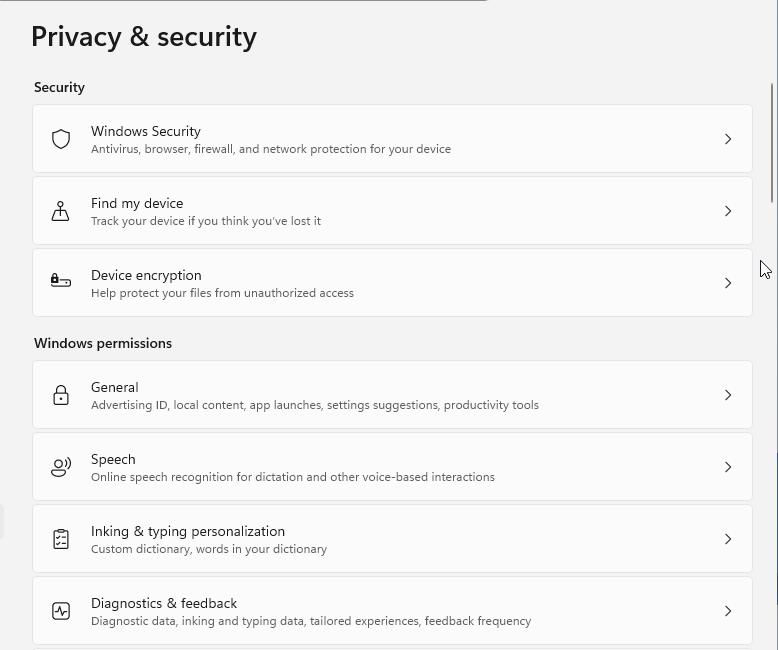
If you prefer the Settings route, the path differs by version. On Windows 11, go to Start > Settings > Privacy & security > Windows Security and select Open Windows Security. On Windows 10, the path is Start > Settings > Update & Security > Windows Security. Once the app is open, select Virus & threat protection to reach the screen where you manage protection and run scans.
Switch Real-Time Protection Back On
This is the most direct fix when the toggle is simply off and reachable. Inside Windows Security, head to the protection settings and flip the switch on.
- 1.Open Windows Security and select Virus & threat protection.
- 2.Under Virus & threat protection settings, select Manage settings.
- 3.Switch Real-time protection to On.
If you want to jump straight to this area, the shortcut windowsdefender://threatsettings/ opens the Manage settings screen directly. Keep an eye on the toggle after you set it. If it holds, you are done. If it flips off again on its own, check for a third-party antivirus or a policy, which the next steps address. Normal recovery behavior turns real-time protection back on after it has been temporarily switched off.
Turn On Tamper Protection So Nothing Flips It Back Off
Tamper Protection is your insurance against settings being changed behind your back. It helps prevent malicious apps from changing important Microsoft Defender Antivirus settings, including real-time protection and cloud-delivered protection.
To enable it, go to Windows Security > Virus & threat protection > Manage settings and set Tamper protection to On. With this active, malware and rogue apps can no longer silently disable your antivirus.
One thing worth knowing so you do not mistake protection for a malfunction: when Tamper Protection is on, you'll need to turn it off before you can turn Real-time protection off. If you cannot turn real-time protection off while Tamper Protection is on, that may be Tamper Protection doing exactly its job.
Remove a Conflicting Third-Party Antivirus
If the earlier check revealed another security product, and you want Defender to be your main protection, the supported fix is to uninstall that other product. Defender automatically disables itself when another compatible antivirus is installed and turned on, so uninstall the other product if you want to use Defender instead.
Use Windows' normal app-uninstall process, or the vendor's own removal tool if they provide one, to remove the other antivirus completely. After it is gone, Defender turns back on automatically. There is no need to manually re-enable it; Windows handles the handoff once the field is clear.
Resist the urge to keep both for "extra safety." Two antimalware products running together do not double your protection; they interfere with each other and can cause the very instability you are trying to fix.
When the Toggle Is Greyed Out and Managed
Sometimes the real-time protection switch is not just off, it is unavailable, and you may see a note that the setting is managed. On a work or school device, this usually means an organization controls it.
Certain pages or features of the Windows Security app might not be available if your device is managed by an organization. In that case, contact your IT administrator.
Scan for Malware That May Be Disabling Protection
Malware frequently tries to shut down antivirus software so it can operate undetected. If nothing above explains the behavior, run a thorough scan to rule out an active infection.
Start with a Full scan. In Windows Security, go to Virus & threat protection > Scan options, choose Full scan, and select Scan now. This scans every file and program on your device, so it is slower than a quick scan but far more thorough. You can also launch it with the shortcut windowsdefender://fullscan/.
If a Full scan comes back clean but protection still drops off, escalate to a Microsoft Defender Offline scan. This is the official offline scanner, and it is built to catch threats that hide while Windows is loaded. It runs after a restart without loading Windows, making it harder for persistent malware to hide or defend itself. Save and close anything you are working on first, because the scan restarts your PC.
- 1.Save and close any open files, because your PC will restart.
- 2.In Windows Security, go to Virus & threat protection > Scan options.
- 3.Select Microsoft Defender Antivirus (offline scan), then select Scan now.
The scan runs inside the Windows Recovery Environment, and your PC restarts again when it finishes. Afterward, check what it found in Windows Security > Protection history. You can also trigger this scan with the shortcut windowsdefender://wdoscan/.
Keep Windows Updated to Keep Security Healthy
An out-of-date system can leave Defender's components or definitions in a degraded state, which sometimes looks like protection dropping off. Keeping Windows current is part of keeping Windows Security itself healthy, and Windows is set to download and install available updates automatically unless you are on a metered connection.
Installing pending updates keeps Defender's parts and its security intelligence working as intended. If your protection seems to fade because of stale definitions, applying any waiting updates is a simple and low-risk way to restore it. Make this a habit rather than a one-time fix.
Frequently Asked Questions
Why does Microsoft Defender keep turning itself off after I turn it on?
The most common cause is a compatible non-Microsoft antivirus installed on your PC. When such a program is installed and turned on, Defender will automatically turn itself off. Remove the other antivirus and Defender should return to active mode automatically.
Is it normal for real-time protection to turn back on by itself?
Yes. Real-time protection can only be turned off temporarily, and it turns back on automatically after a short while to resume protecting your device. That automatic recovery is expected. If no other antivirus is active and protection stays off or will not enable, follow the troubleshooting steps above.
The real-time protection toggle is greyed out. How do I fix that?
If the toggle is unavailable and shows that the setting is managed, your device may be controlled by an organization. A system administrator may control that setting, so contact your IT administrator. No consumer override is provided for this case.
Should I run two antivirus programs for extra protection?
No. Microsoft warns that having two different antimalware products installed and running at the same time can cause problems on your computer. Choose one. If you want Defender as your main protection, uninstall the other product so Defender can return to active mode.
What is the difference between a Full scan and a Microsoft Defender Offline scan?
A Full scan "Scans every file and program on your device" while Windows is running. A Microsoft Defender Offline scan instead restarts your PC and runs without loading Windows, making it harder for malware to hide during the scan. Use the offline scan when a Full scan comes back clean but protection still misbehaves.