Your Windows 10 screen is blank, the desktop keeps flickering, or everything suddenly looks too big. Start with the quick connection and reset checks, then jump to the section that matches what you see. If you cannot reach the desktop at all, the recovery steps near the end cover that too.
Start with the screen connection and a quick reset
For a blank external monitor, confirm that both the PC and monitor have power.
Reseat the video cable at both ends.
Disconnect docks, adapters, and unnecessary peripherals to isolate the connection.
Test another video cable or output port if the screen stays blank.
Press Windows+Ctrl+Shift+B to reset the graphics driver. Listen for a beep or watch for a brief flicker as a sign of the reset.
With a usable desktop, select Start > Power > Restart.
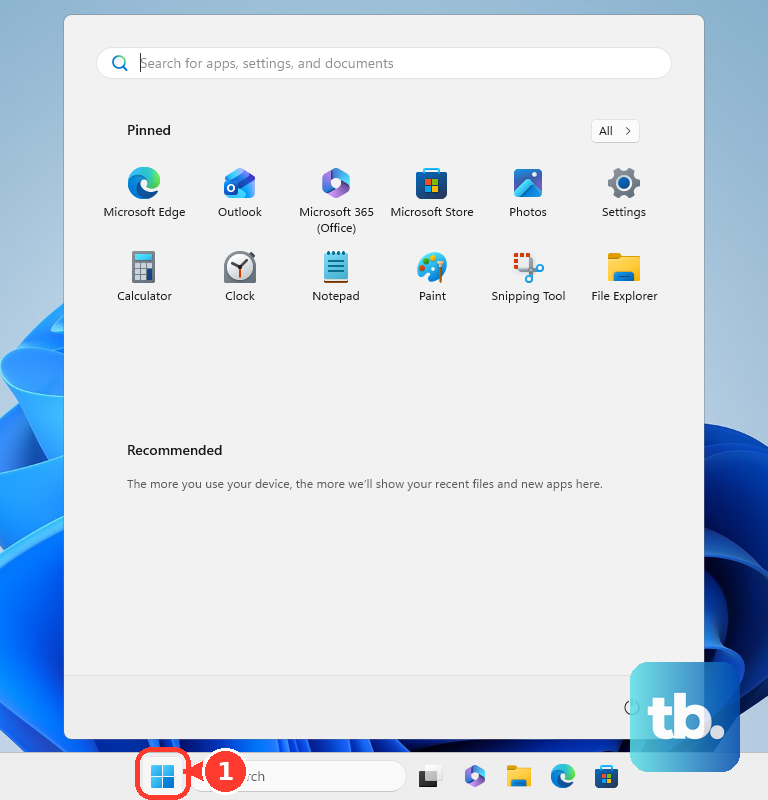
If restarting does not help, select Start > Power > Shut down.
Turn the computer on again.
When normal controls are inaccessible, hold the power button for 20 seconds, following Microsoft's blank-screen procedure. Use your device manufacturer's procedure if it differs. A forced restart puts unsaved work at risk.
If these checks fail, test the monitor with another computer or connect a different monitor to your PC. For a missing second screen, continue below; for a desktop that remains unusable, jump to Recover a desktop that remains blank or unusable.
Get Windows to detect your second monitor
With the display connected and powered on, check these settings in order.
- 1.Press Windows+P and choose Extend for separate desktop space or Duplicate for the same picture on both screens. PC screen only and Second screen only limit output to one screen. For a blank screen, press Windows+P, then P and Enter to change modes without selecting an onscreen option.
- 2.Open Start > Settings > System > Display. Under Multiple displays, select Detect.
- 3.For detected screens in the wrong order, select Identify under Rearrange your displays. Drag the numbered displays to match their physical positions, then select Apply.
- 4.If you are connecting several monitors, test one external display first. Check the graphics card and dock specifications for supported display counts. A splitter duplicates a signal; it cannot create independent extended desktops.
Restore readable text and the right desktop size
These controls correct resolution, interface size, and desktop orientation.
Press Windows+Esc to close Magnifier if the desktop has accidentally become magnified.
Open Settings > System > Display.
Select the affected monitor.
Under Scale and layout > Display resolution, choose the value marked (Recommended). Available resolutions depend on the display, connection, and driver.
For text and apps that remain too large, too small, or blurry, set Change the size of text, apps, and other items to its (Recommended) value for the selected monitor.
Repeat the scaling adjustment for each affected monitor.
For a sideways or upside-down desktop, choose the orientation matching the monitor's physical position under Scale and layout > Display orientation, also called Orientation.
To change only text size, adjust Make text bigger under Settings > Ease of Access > Display.
Correct brightness and unexpected color changes
For brightness, adjust Change brightness for the built-in display under Settings > System > Display on a compatible laptop or tablet, or use an external monitor's physical buttons or joystick. External monitors do not always expose a Windows brightness slider, and their hardware menu labels vary by model.
To stop ambient-light adjustments, clear Change brightness automatically when lighting changes under Settings > System > Display > Brightness and color. This control requires a supported light sensor.
For an unwanted warm tint, select Turn off now under Settings > System > Display > Night light settings. The Schedule night light switch controls whether that tint returns on a schedule; leave it off to prevent scheduled activation.
For accidental grayscale or inverted colors, switch off Turn on color filters under Settings > Ease of Access > Color filters. If the unwanted appearance comes from high contrast instead, the corresponding switch is Turn on high contrast under Settings > Ease of Access > High contrast.
Track down flickering before changing drivers
A display driver problem or an incompatible application is the usual cause of Windows screen flickering.
Press Ctrl+Shift+Esc to open Task Manager. If it flickers with the rest of the screen, follow the driver steps below. If it stays steady while other content flickers, start with the application.
Check Microsoft Store or the app vendor for updates to the suspect application.
If updating does not help, uninstall the suspect app through Settings > Apps > Apps & features > the app's name > Uninstall.
Restart the PC.
Check whether the flickering has stopped.
For a driver problem that began immediately after an update, open Device Manager from a search in Start.
Expand Display adapters.
Right-click your graphics adapter and select Properties > Driver > Roll Back Driver. This requires administrator access and an available earlier driver. If the button is unavailable, skip to reinstallation below.
For other driver problems, select Check for updates under Settings > Update & Security > Windows Update. Update availability depends on your hardware and Windows 10 support entitlement.
Open View optional updates if it appears.
Select the applicable graphics driver.
Choose Download and install.
Restart after installation.
Another update route is Update driver, available by right-clicking your graphics adapter under Device Manager > Display adapters.
Follow the update wizard.
If Windows finds no driver, install a compatible package from the PC or graphics-card manufacturer that explicitly supports your hardware and Windows 10.
Before reinstalling a driver, download a compatible replacement package. If flickering prevents desktop use, follow the recovery section below to enter Safe Mode.
To remove the driver, select Uninstall Device in the graphics adapter's Properties > Driver tab in Device Manager.
Restart the PC. Windows then attempts to reinstall the driver.
Fine-tune text rendering and HDR brightness
For blurry text, open Adjust ClearType Text by searching Start for ClearType. Its visual comparisons let you tune text rendering.
Complete the wizard with Turn on ClearType selected, using Next to move through the comparisons and Finish to save your choices.
On Windows 10 version 2004 or later, check the affected display's Display capabilities under Settings > System > Display > Windows HD Color settings for HDR problems; earlier Windows 10 releases can expose different HDR controls. The Use HDR switch enables or disables HDR on compatible hardware. Monitors and TVs that require HDR activation in their own menus also need that setting enabled.
For ordinary apps that look too bright or too dark with HDR enabled, adjust HDR/SDR brightness balance in Windows HD Color settings before restarting the affected apps.
Recover a desktop that remains blank or unusable
A blank screen with a visible pointer has a specific first check: press Ctrl+Shift+Esc to open Task Manager.
Right-click Windows Explorer and select Restart.
If Windows Explorer is absent, choose File > Run new task.
Enter explorer.exe.
Press Enter.
If the desktop remains inaccessible, interrupt startup with forced shutdowns two or three times until Windows Recovery Environment appears. Do not interrupt an installation or reset already in progress. Have your BitLocker recovery key ready for an encrypted device.
In recovery, select Troubleshoot > Advanced options > Startup Settings > Restart.
For unusable resolution or refresh-rate settings, press 3 or F3 for Enable low-resolution video. This uses the existing video driver at reduced resolution and refresh rate.
Correct the display settings using the desktop controls described above.
For driver troubleshooting instead, press 4 or F4 for Enable Safe Mode from the startup menu.
Carry out the driver steps from the flickering section.
If the failure followed a recent system change, open Troubleshoot > Advanced options > System Restore in recovery.
Choose an available restore point from before the display problem.
Follow the restore prompts. Restoring that point also undoes subsequent system, driver, and application changes.
If recovery fails, run your monitor manufacturer's hardware diagnostics before resetting Windows. For a supported Dell monitor, find its User Guide under Documentation > Manuals and Documents on Dell Support, then follow Troubleshooting > Built-in diagnostics. A defect visible during that independent test points toward monitor hardware and service.
Frequently Asked Questions
Can I still troubleshoot Windows 10 after support ended?
Yes. These Windows 10 settings remain applicable, but standard support ended October 14, 2025. Extended Security Updates provide eligible security updates, not general feature development or display-repair support.
Why does my screen turn off even though the PC still has power?
Check the screen and sleep durations under Settings > System > Power & sleep. For shutdowns tied to the laptop lid or power button, review Additional power settings > Choose what closing the lid does or Choose what the power buttons do.
Can I use Dynamic Refresh Rate or the Windows HDR Calibration app on Windows 10?
No. Windows 10 does not support Dynamic Refresh Rate, and the Windows HDR Calibration app requires Windows 11. For a supported fixed refresh rate, open Settings > System > Display > Advanced display settings. Select the monitor under Choose Display, then choose a supported value under Refresh rate.
Will resetting Windows keep my apps and files?
Keep my files preserves personal files but removes apps and settings. Remove everything also removes personal files. Back up your files and retain your BitLocker recovery key before a reset. Reserve resetting Windows for a last resort.











