Your monitor is black, the picture keeps flickering, or the desktop looks blurry. Start with the connection checks below, then jump to the section that matches your symptom. You'll narrow down whether the trouble comes from the monitor, its connection, or your computer's settings.
Start with power, cables, and input
Check these connections before changing settings on your computer.
- 1.Turn off the computer and monitor.
- 2.Check the power outlet and secure both ends of the power and video cables.
- 3.Disconnect unnecessary accessories and connect the monitor directly to the computer, bypassing docks and adapters.
- 4.Turn both devices on. Use the monitor's buttons or joystick to select the connected HDMI, DisplayPort, or USB-C input. Input-menu wording varies by model.
- 5.If the screen stays blank, test a replacement video cable, then another video output on the computer.
- 6.Test the monitor with another computer, then test your computer with another monitor to isolate the device or connection at fault.
If your computer cannot find the monitor
These settings address a missing display or the wrong desktop appearing on it.
On Windows 11, press Windows + P to open the projection controls.
Select Extend for separate desktops, Duplicate for the same picture on both screens, or Second screen only to use the external monitor alone.
For a missing screen, open Start > Settings > System > Display > Multiple displays.
Select Detect.
On a Mac, open the Apple menu > System Settings > Displays.
Hold Option while clicking Detect Displays.
For a new or unknown USB or Thunderbolt display, dock, or SD card connected to an Apple silicon Mac laptop, unlock the Mac.
Reconnect the accessory to bring up its permission prompt.
Select Allow when prompted.
For closed-lid Mac use, first unlock the Mac and allow the external display, keyboard, and mouse to connect while the lid is still open.
Then connect the Mac to power and work from the external keyboard and mouse with the lid closed.
If an additional monitor still will not connect, check your computer's supported display count and the resolution and refresh-rate limits of its ports, cables, and dock. A splitter duplicates one video signal; separate desktops require compatible additional outputs.
Recover a black desktop or investigate flickering
On Windows 11, press Windows + Ctrl + Shift + B to reset the graphics driver.
If the screen does not recover, select Start > Power > Restart. If that menu is inaccessible, shut down and turn the computer on again.
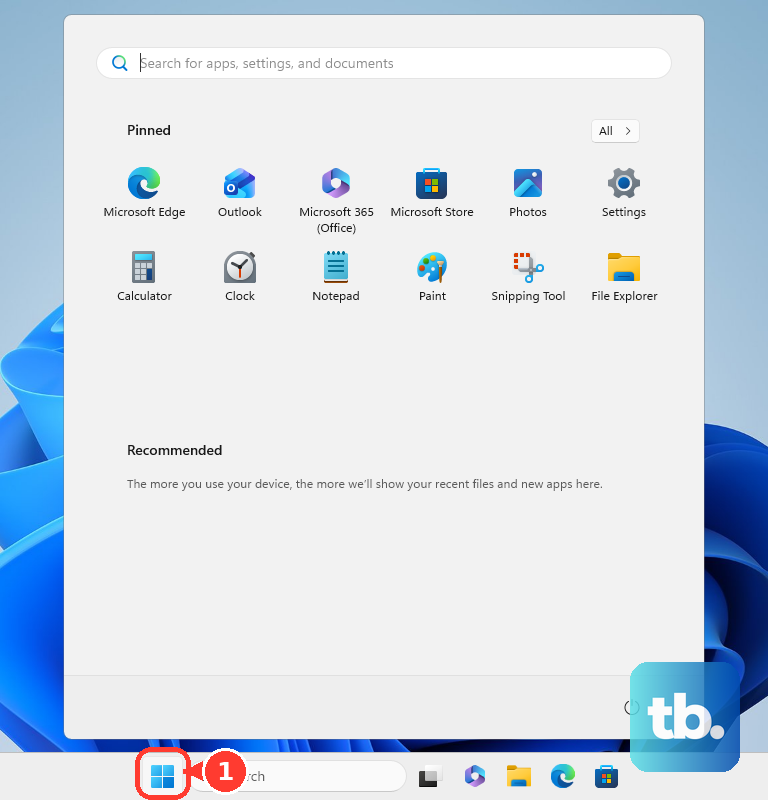
Still seeing a pointer on a black desktop? Press Ctrl + Shift + Esc to open Task Manager.
Right-click Windows Explorer and select Restart.
If Windows Explorer is absent, select Run new task instead.
Enter explorer.exe.
Press Enter.
For flickering, open Task Manager with Ctrl + Shift + Esc.
Compare it with the rest of the screen. If both flicker, investigate the display driver; if Task Manager stays steady, investigate an incompatible app. This check directs troubleshooting but does not establish whether the hardware is faulty.
For the app-related pattern, update the suspect app through Microsoft Store or its publisher.
If flickering continues, uninstall that app using its publisher's removal instructions. Test suspect apps one at a time.
Restart through Start > Power > Restart after removing the app.
For the driver-related pattern, search for and open Device Manager.
Expand Display adapters.
Right-click your graphics device and select Update driver.
Follow the driver-update wizard.
If flickering began immediately after a driver update, open Device Manager > Display adapters.
Right-click the graphics device and select Properties.
Open the Driver tab.
Select Roll Back Driver. This requires administrator privileges and a retained previous driver.
Confirm with Yes.
Restart through Start > Power > Restart.
When Windows remains unusable but recovery options are accessible, select Troubleshoot > Advanced Options > Startup Settings > Restart in Windows Recovery.
Press F5 for Safe Mode with Networking.
Update or roll back the graphics driver there using the steps above.
If these fixes fail, try the monitor's own diagnostic test in the final section.
Bring blurry text and misplaced desktops into focus
In Windows 11, select the affected monitor under Settings > System > Display. Under Scale & layout, set Scale and Display resolution to their recommended values. For a sideways picture, correct Display orientation.
For misplaced desktops, select Identify under Settings > System > Display. Drag the display rectangles to match your screens' physical positions. Select Apply.
On a Mac, open System Settings > Displays and choose Default for Resolution. Use Arrange for screen placement or Use as for mirroring. Available controls depend on the Mac and display.
If only Chrome pages look too large or small, adjust More > Zoom. For blurry Chrome text on Windows, search Start for ClearType and open Adjust ClearType Text. Enable Turn on ClearType, use Next to complete the samples, then select Finish.
Correct dimming and unusual colors
For a powered Dell monitor that looks black or too dim, open its physical Menu. The model manual gives the exact button sequence and location of the Contrast control.
Increase Brightness.
If your Windows screen switches off too soon, open Settings > System > Power & battery > Screen, sleep, & hibernate timeouts.
Adjust Turn my screen off after. Available power controls depend on the device.
For unwanted brightness changes on a supported Windows built-in display, open Settings > System > Display > Brightness.
Set Change brightness based on content to Off.
For a warm Windows color cast, open Settings > System > Display > Night light.
Turn off Night light.
For unexpected grayscale or altered colors in Windows, press Windows + U.
Open Color filters.
Turn off Color filters.
On a Mac that supports Night Shift, open System Settings > Displays > Night Shift.
Disable the active manual setting or schedule in Night Shift to remove its warming effect.
For washed-out or uneven brightness on a Windows HDR display, open Settings > System > Display.
Select the HDR monitor.
Open HDR.
Adjust SDR content brightness.
Restart affected apps if their brightness remains incorrect.
If duplicating displays prevents HDR from working, change the display mode to Extend these displays under Settings > System > Display.
Tip: External monitors commonly use their own brightness controls rather than the Windows brightness slider.
Use the monitor's own tests before seeking repair
If lines, defective pixels, or an abnormal picture remain after the connection and settings checks, test the monitor itself. The procedure depends on the model.
For Dell and Alienware monitors covered by Dell's self-test instructions, turn the monitor off.
Disconnect its video cable.
Turn the monitor back on.
Check the self-test display for the same defect.
On Samsung Smart Monitors from 2022 onward, use the remote to open Settings > All Settings > Support > Device Care > Self Diagnosis.
Run Picture Test or Video Test. Available tests vary by model.
Follow the test's prompts.
For Samsung HDMI connection problems, run HDMI Troubleshooting or HDMI Signal in the same diagnostic menu.
On a Dell monitor with an on-screen reset function, open the monitor menu using its buttons or joystick.
Run the factory-reset option specified in its model manual. This erases customized monitor settings; the submenu path and option label depend on the model.
Inspect the monitor for impact or liquid damage.
Contact the manufacturer's repair or warranty support with the model and serial number if defects remain in the monitor's own test, the expected self-test screen does not appear, or another monitor works on the same computer while this one does not.
Frequently Asked Questions
Why can't I select my monitor's advertised refresh rate?
Available rates depend on the display and connection. In Windows 11, open Settings > System > Display > Advanced display. Select the monitor, then review Choose a refresh rate. Rates marked with an asterisk also require a resolution change.
Why does a game run below the display's maximum refresh rate?
On Windows 11 systems using Dynamic Refresh Rate, Microsoft recommends disabling it when it limits a game's maximum refresh rate. Open Settings > System > Display > Advanced display. Turn off Dynamic refresh rate. This feature requires compatible hardware with variable refresh rate support and at least 120 Hz.
What should I try when only video playback has a problem?
Open Get Help in Windows. Search for Video playback troubleshooter, then follow its diagnostic prompts.
Will resetting Smart Hub fix lines on a Samsung Smart Monitor?
No. Smart Hub reset addresses smart-app and account problems, not physical panel defects. It resets Smart Hub settings, downloaded apps, and accounts.











