Your new computer is ready, but your photos, documents, desktop files, downloads, and saved work are still sitting on the old one. The right move depends on whether you are staying on Windows, moving to a Mac, switching to a Chromebook, or just copying a few folders. Start with the path that matches your devices, then confirm the files on the new computer before erasing anything from the old one.
1. Pick the route that matches your move
Choose the method by device type first. That keeps you away from old transfer tools and puts the current vendor-supported options at the top.
Windows PC to Windows PC: use Windows Backup with a personal Microsoft account, or OneDrive with the same personal, work, or school account. Mac to Mac: use Migration Assistant or a Time Machine backup. Windows PC to Mac: use Apple Windows Migration Assistant.
Any computer to Chromebook: use Google Drive or compatible external storage through the Files app. Large folders without cloud storage: use an external drive, USB flash drive, SD card, or compatible storage device. Small nearby transfers: use Nearby sharing, AirDrop, Quick Share, or local network sharing.
Skip Windows Easy Transfer on a current PC. Microsoft says the older PC-to-PC transfer feature is no longer available and directs users to Windows Backup instead.
2. Start with cloud sync for everyday files
Cloud sync is the cleanest route for documents, photos, desktop folders, and work files that you want available after the move. Storage limits still apply, so move huge video folders or archives with an external drive when your cloud account does not have enough space.
For OneDrive, open File Explorer on the old PC. Move or copy files into the OneDrive folder, then sign in to OneDrive with the same Microsoft account on the new computer. Open File Explorer > OneDrive to access them. Windows 11 already includes OneDrive, and Microsoft provides OneDrive downloads for Windows, macOS, iOS, and Android.
For iCloud Drive on a Mac, open System Settings > your name > iCloud > Drive. Turn on Sync this Mac, then select Done. To include Desktop and Documents, keep iCloud Drive on. Turn on Desktop & Documents Folders, then select Done.
On the new Mac, sign in with the same Apple Account and turn on iCloud Drive. For Google Drive in a browser, go to drive.google.com. Select New > File upload or Folder upload, or drag files into Drive. On the new computer, sign in to the same Google Account at drive.google.com, then open or download the files.
With Drive for desktop, install the app, sign in, and use the Google Drive folder on Windows or macOS. For Dropbox, install the Dropbox desktop app on both computers. Sign in, place files in the Dropbox folder on the old computer, then sync or download the files on the new one. Use the official Dropbox install page for the desktop app.
3. Restore a personal Windows PC with Windows Backup
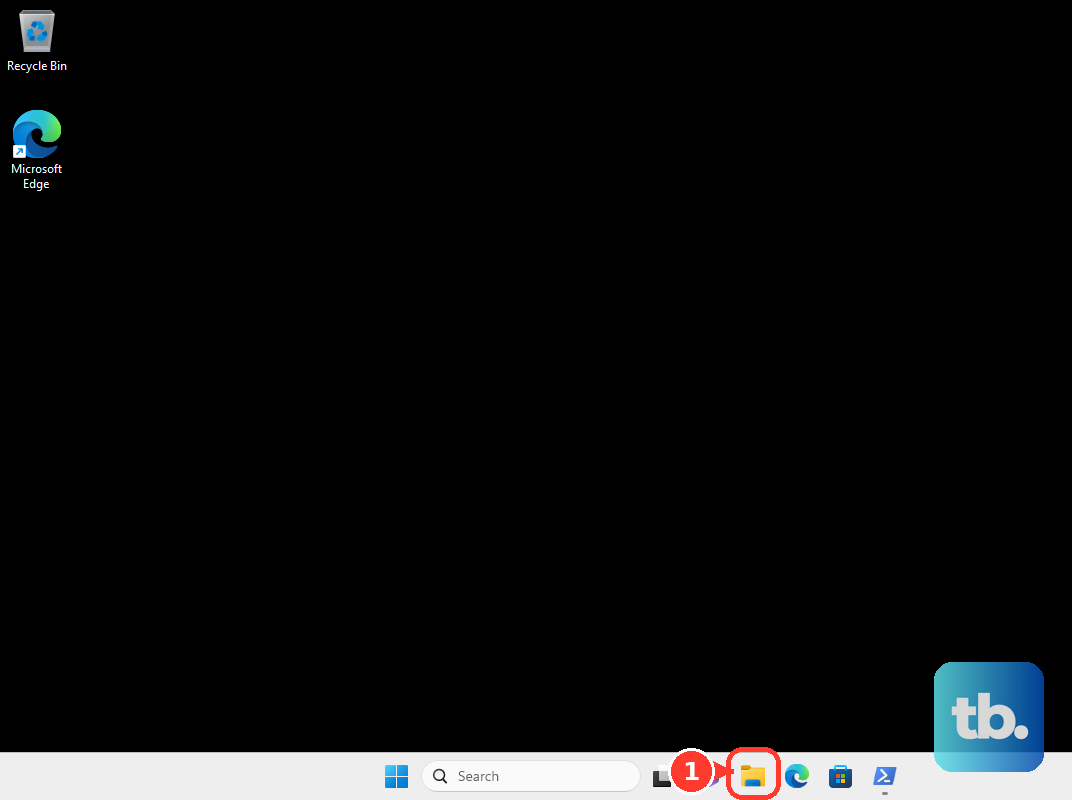
On the old PC, select Start, type backup, and open Windows Backup. Sign in with a personal Microsoft account. Expand Folders. Turn on Desktop, Documents, Pictures, Videos, and Music as needed.
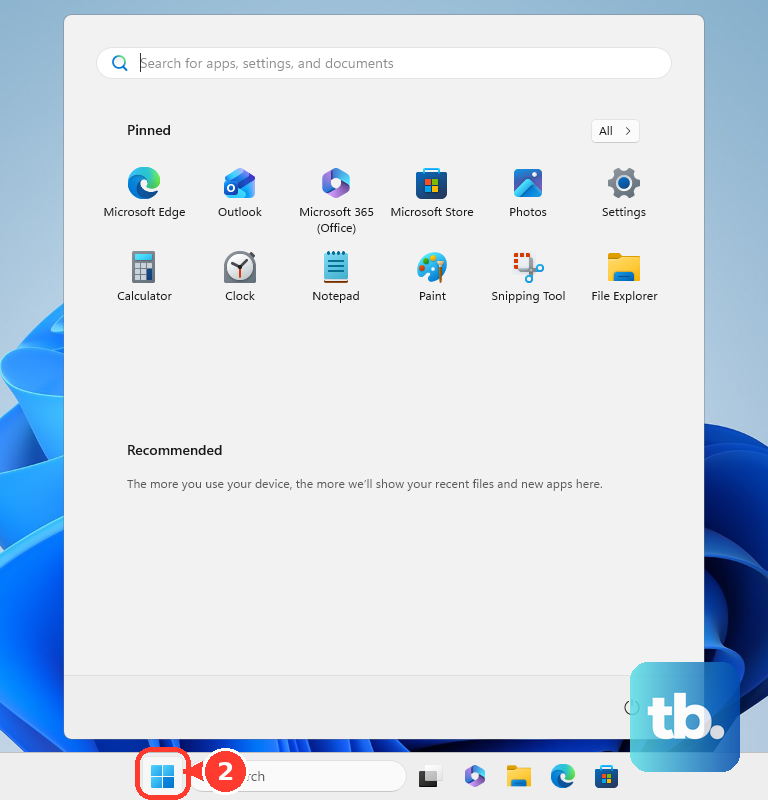
Turn on the Remember my preferences items you want to carry over. Select Back up. On the new PC, sign in with the same Microsoft account during Windows setup or after Windows starts. Open File Explorer or OneDrive from the taskbar to access the restored files.
This route is for Windows 11 and Windows 10 consumer devices with a personal Microsoft account. Work and school accounts do not work in the consumer Windows Backup app.
4. Move a Mac with Migration Assistant
Use Migration Assistant for a Mac-to-Mac move when you want documents, apps, user accounts, and settings brought over together. On the new Mac, choose migration during Setup Assistant, or open Applications > Utilities > Migration Assistant. Select transfer from a Mac, Time Machine, or startup disk, then select Continue.
On the old Mac, open Migration Assistant, select Continue, then choose the option to transfer to another Mac. On the new Mac, select the old Mac. Verify the security code. Select the data categories to transfer.
Then select Continue. If you are using a Time Machine backup instead, connect the backup disk to the new Mac. Open Migration Assistant, select the Time Machine backup disk, choose the backup, select the data categories, then continue.
To make that backup first, connect USB or Thunderbolt storage. Open Apple menu > System Settings > General > Time Machine > Add Backup Disk, select the disk, choose Set Up Disk, then use Back Up Now from the Time Machine menu.
5. Copy big folders with an external drive
An external drive gives you a direct file copy without cloud storage, account setup, or internet speed getting in the way. It moves files, not a complete installed-app setup.
Connect an external hard drive, USB flash drive, SD card, or compatible storage device to the old computer. On Windows, open File Explorer and locate the files. Hold CTRL to select multiple items. On Windows 11, right-click the selected folders and choose Show more options > Send to.
On Windows 10, make sure you are in the Home tab, then select Organize > Copy to. Select the external storage device. On a Mac, open Finder, select the files, and drag them to the storage device under Locations.
Eject the drive before unplugging it. On Windows, use Eject. On a Mac, use File > Eject or the eject button in the Finder sidebar.
Connect the storage device to the new computer. On Windows, open File Explorer > This PC, double-click the external drive, and copy files to the folders you want. On a Mac, open Finder, select the drive under Locations, and drag files to the desired Mac folder.
6. Send selected files across nearby devices
Use nearby sharing tools for selected files and quick batches. For a full move, use cloud sync, Migration Assistant, Windows Backup, or an external drive.
On Windows 11, turn on Nearby sharing on both PCs at Start > Settings > System > Nearby sharing, then choose who can share and receive. On Windows 10 version 1803 or later, the equivalent path is Start > Settings > System > Shared experiences. On the sending PC, open File Explorer, select the file, choose Share from the toolbar, select the nearby PC, and accept the transfer on the receiving PC.
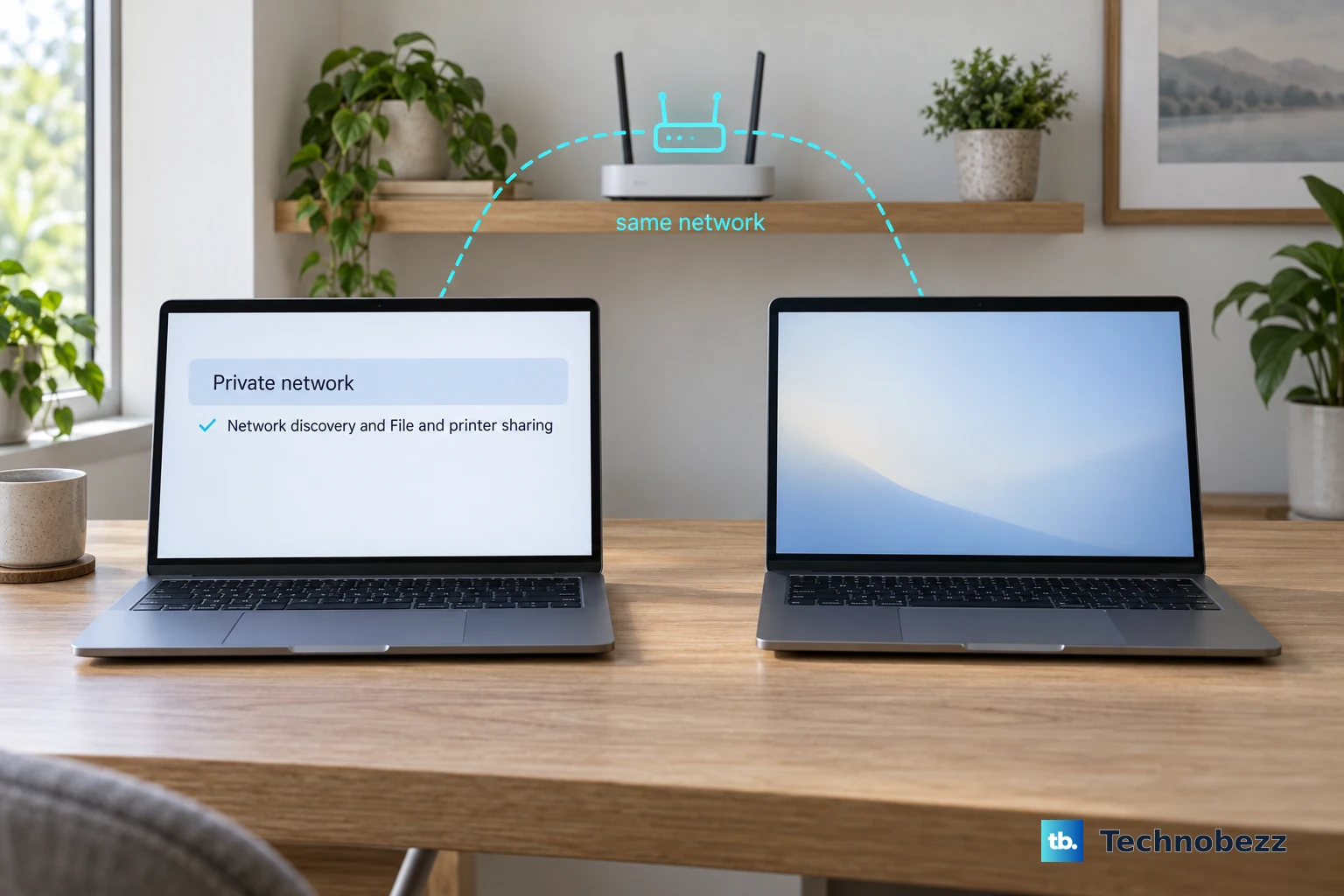
For Windows file sharing over a local network, put both PCs on the same network and set Wi-Fi to Private. Open Start > Settings, search for manage advanced sharing settings, open Manage advanced sharing settings, then under Private networks turn on Network discovery and File and printer sharing. Share a folder from File Explorer, then access it from the other PC over the network.
On a Mac, enable Wi-Fi and Bluetooth. Open Control Center > AirDrop, and choose Contacts Only or Everyone. Send an item with the Share button > AirDrop, or open Finder > AirDrop and drag the item to the recipient.
The recipient selects Accept, unless both devices use the same Apple Account and accept automatically. On iOS 26.2, iPadOS 26.2, macOS 26.2, or later, a sender who is not in the recipient's contacts has to use an AirDrop code: the recipient selects Get AirDrop Code and shares it, and the sender enters that code before the item transfers.
For Mac file sharing, open Apple menu > System Settings > General > Sharing. Select the info button next to File Sharing, turn on File Sharing, add shared folders and users, set privileges, then select Done. Copy the files from the destination Mac over the local network.
7. Switch to a Mac or Chromebook from Windows
For a Windows PC to Mac move, use Apple Windows Migration Assistant instead of manually rebuilding every folder. On the PC, download the matching Windows Migration Assistant from Apple. On the Mac, open Migration Assistant. Select From a Windows PC.
Next, select Continue. On the PC, open Windows Migration Assistant. Enter the code shown on the Mac. Select Continue.
On the Mac, choose the categories to transfer and continue. Apple's current Windows Migration Assistant v3.0.2.1 page lists Windows 10 or later and macOS Sonoma 14.4 or later requirements. Apple also lists the assistant for moves to macOS Tahoe 26, Sequoia 15, and Sonoma 14, with older assistant versions for older macOS targets.
For a Chromebook, upload files from the old computer to Google Drive. Turn on the Chromebook, sign in with the same Google Account, then open Launcher > Files > Google Drive > Computers. To use external storage instead, copy files to a compatible USB or external drive. Connect it to the Chromebook, open Launcher > Files, select the storage device in the left column, then drag files to My files.
8. Use paid migration software only when it fits
Laplink PCmover is a current Windows PC-to-Windows PC option for a guided transfer of programs, files, and settings. Install PCmover on both the old and new Windows PCs. Connect by Wi-Fi, a Laplink USB transfer cable, or a network cable, then follow the PCmover wizard to select programs, files, and settings. Check the edition limits before purchase and use Laplink's official download and help page.
For a workplace or school computer, ask IT before moving files. Managed Windows, Mac, Google Workspace, and OneDrive environments control backup, restore, cloud sync, setup screens, and migration options.
After a OneDrive move, confirm the files on the new computer before deleting anything from the old PC. To stop deletions from syncing through OneDrive, select the OneDrive cloud icon > OneDrive Help and Settings > Settings > Account > Unlink this PC > Unlink account, then remove local files from the old computer.
Frequently Asked Questions
What should I check before wiping the old computer?
Open the new computer and verify the files in the folders you moved, including Desktop, Documents, Pictures, Videos, Music, and any cloud folders such as OneDrive, iCloud Drive, Google Drive, or Dropbox.
Can I use Windows Backup with a work or school account?
No. The consumer Windows Backup app works with a personal Microsoft account. For a managed work or school PC, the organization's IT settings decide the backup and restore path.
What replaced Windows Easy Transfer?
For current Windows PCs, use Windows Backup, OneDrive, external storage, File History, network sharing, or a supported migration tool such as PCmover. Microsoft says the older PC-to-PC transfer feature is no longer available.
How do I transfer files to a Chromebook?
Upload the files to Google Drive, sign in to the Chromebook with the same Google Account, then open Launcher > Files > Google Drive > Computers. You can also use compatible USB or external storage through the Files app.