
A blurry camera on your iPhone 17 Air makes every photo look terrible. The blur might affect only one lens, show up only in certain modes, or make everything look like a foggy mess. Before assuming the hardware is broken, try these fixes.
Clean the Camera Lens
This is the most common cause of blurry photos and the easiest fix. Use a soft, lint-free microfiber cloth to gently wipe the camera lens on the back of your iPhone 17 Air. Fingerprints, smudges, and dust on the lens cause haze and blur in photos. Avoid using your shirt or paper towels, which can scratch the ceramic shield lens coating.
Remove Your Case
Some iPhone 17 Air cases, especially cheaper ones, don't align perfectly with the rear camera bump and can partially cover or fog the lens. Remove your case and take a test photo. If it's clearer, your case is the problem. Also check that no screen protector or camera protector film is covering the lens.
Tap to Focus
Open the Camera app and tap on the subject you want to focus on. A yellow square appears showing where the camera is focusing. If you're shooting something close up, the camera may be focusing on the background instead. Tap directly on your subject to force focus. Press and hold to lock the focus (AE/AF Lock).
Switch Between Lenses
If one camera lens is blurry but another is clear, the problem is specific to that lens. In the Camera app, try switching between 0.5x (ultrawide), 1x (main), and 2x or 3x (telephoto). If only one is blurry, that lens may need cleaning or repair.
Close and Reopen the Camera App
Swipe up from the bottom and swipe the Camera app away to close it. Reopen it and try again. The camera software can occasionally glitch, causing the autofocus to malfunction or the image processing to produce blurry results.
Restart Your iPhone 17 Air
If the phone is completely unresponsive, the camera app might have locked up the system. Try a force restart: quickly press and release the Volume Up button, then quickly press and release the Volume Down button, then press and hold the Side button until the Apple logo appears. This resets the camera software stack and clears any stuck processes affecting image quality.
Disable Macro Mode
On iPhones with Macro mode (iPhone 13 Pro and later), the camera automatically switches to the ultrawide lens for close-up shots. This can cause unexpected blur when shooting at certain distances. Go to Settings > Camera > Macro Control and toggle it on so you can manually control when macro activates.
Check for Moisture
Condensation inside the camera lens or on the sensor causes foggy, blurry images. This happens when moving from cold to warm environments, or in humid conditions. Let the phone acclimate to room temperature for 15-20 minutes. Don't blow on the lens as this adds more moisture.
Update iOS
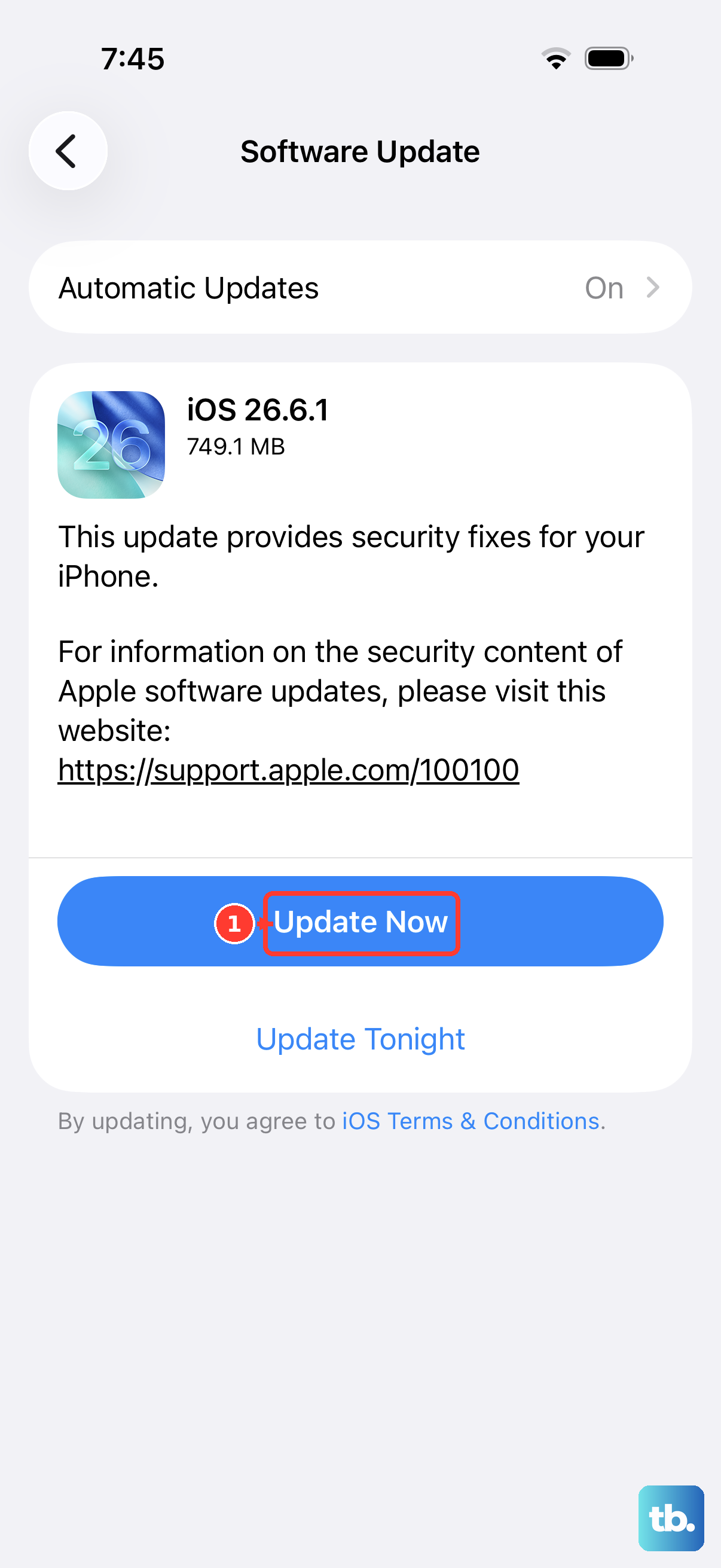
Go to Settings > General > Software Update. Camera processing and autofocus improvements are included in regular iOS updates. A known camera bug might already have a fix available.
Check for Lens Cleaning Hints
On iOS 26 and later, your iPhone 17 Air can automatically detect smudges or grime on the lens before you take a photo. If you see a lens cleaning notification, wipe the lens with a microfiber cloth and try again. This feature works in the background and saves you from capturing an entire batch of hazy photos.
Reset Camera Settings
Go to Settings > Camera > Preserve Settings and toggle everything off. This resets the camera to its default state each time you open it. If custom settings were causing the blur, this fixes it.











