
When your iPhone Air's hotspot stops working, it cuts off your laptop, tablet, or other devices from the internet. Whether the hotspot isn't showing up, won't connect, or keeps dropping, there are several reliable ways to get it working again. Let's start with the quickest fixes first.
Toggle Personal Hotspot Off and On
Go to Settings > Personal Hotspot and turn it off. Wait about 10 seconds, then turn it back on. Make sure Allow Others to Join is enabled. This simple reset clears temporary glitches in the hotspot service and often fixes the problem immediately.
Force Restart Your iPhone Air
A force restart clears stubborn software glitches that can mess with hotspot and other radios. Quickly press and release the Volume Up button, then quickly press and release the Volume Down button, then press and hold the Side button until the Apple logo appears. This is different from a normal restart, it interrupts stuck processes without affecting your data.
Check Your Cellular Data and Carrier Plan
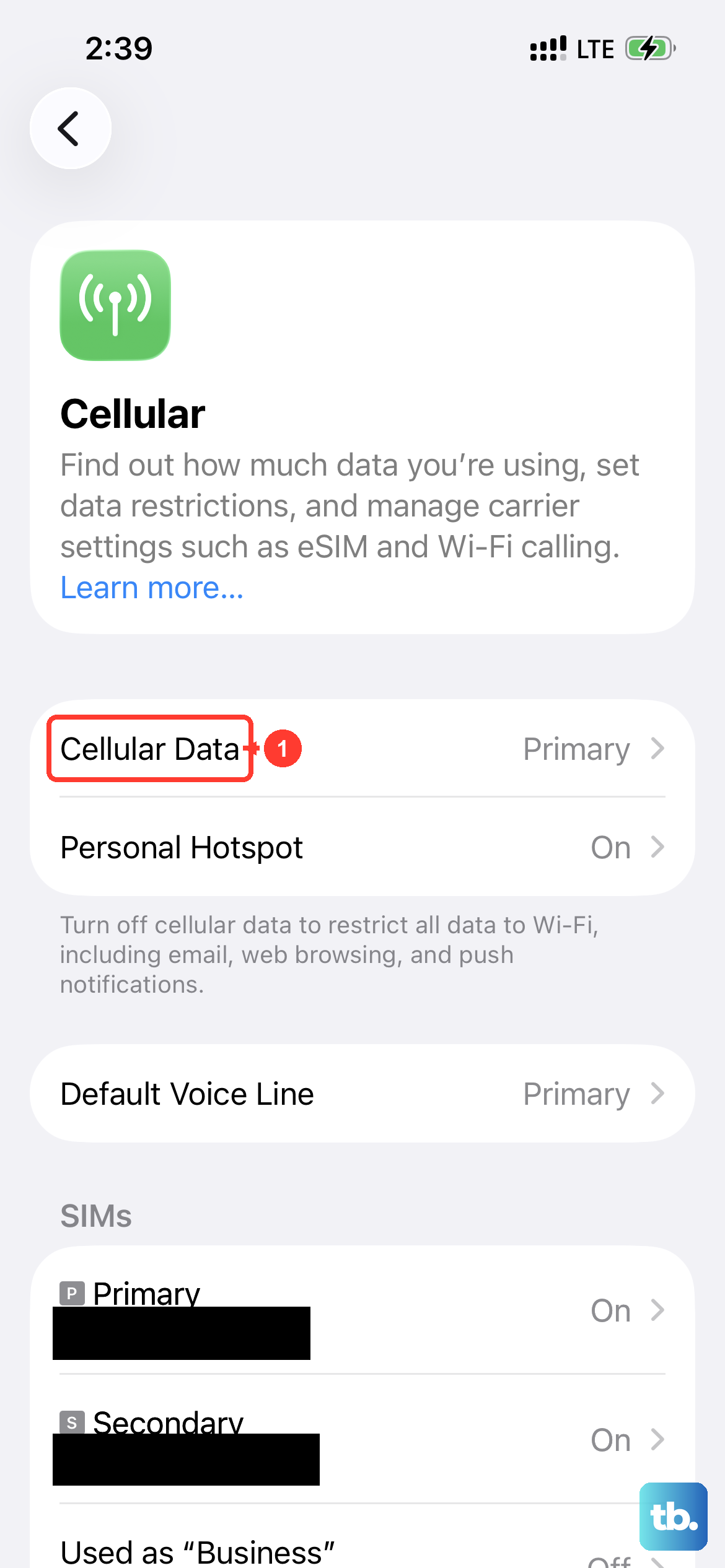
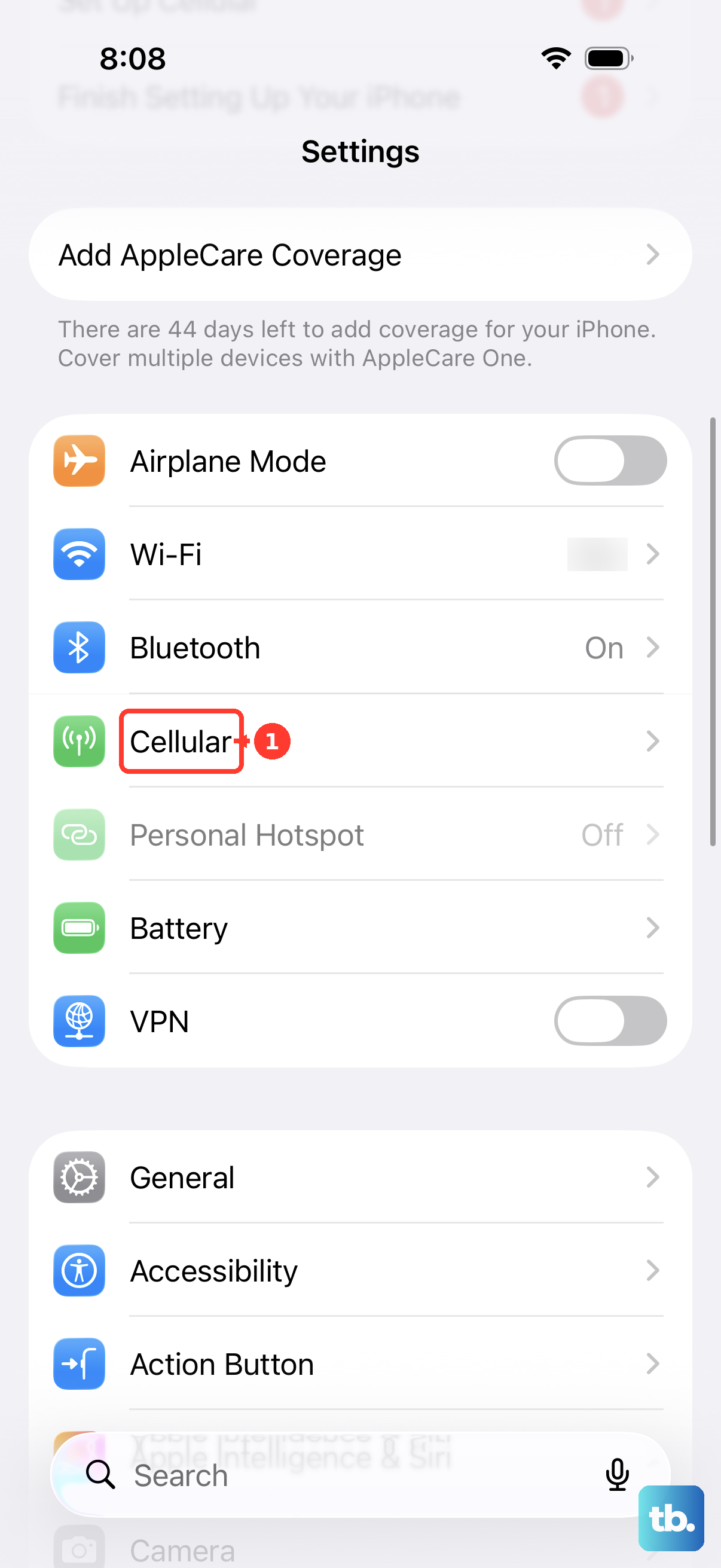
Personal Hotspot requires an active cellular data connection. Go to Settings > Cellular and make sure Cellular Data is turned on. Also confirm that your carrier plan includes hotspot access, some plans restrict tethering or have a separate toggle in your account settings. If you're in a weak signal area, the hotspot may not work reliably.
Wake Up a Dead iPhone Air with a Magnetic Battery Pack
If your iPhone Air was completely unresponsive after the battery drained, hotspot might not work until the phone fully boots. Attach a Qi2/MagSafe-compatible magnetic battery pack to the back for a few minutes. This often wakes the device when a cable doesn't. Once the phone turns on, try cable charging with an Apple-certified USB-C cable and adapter.
Update to the Latest iOS 26
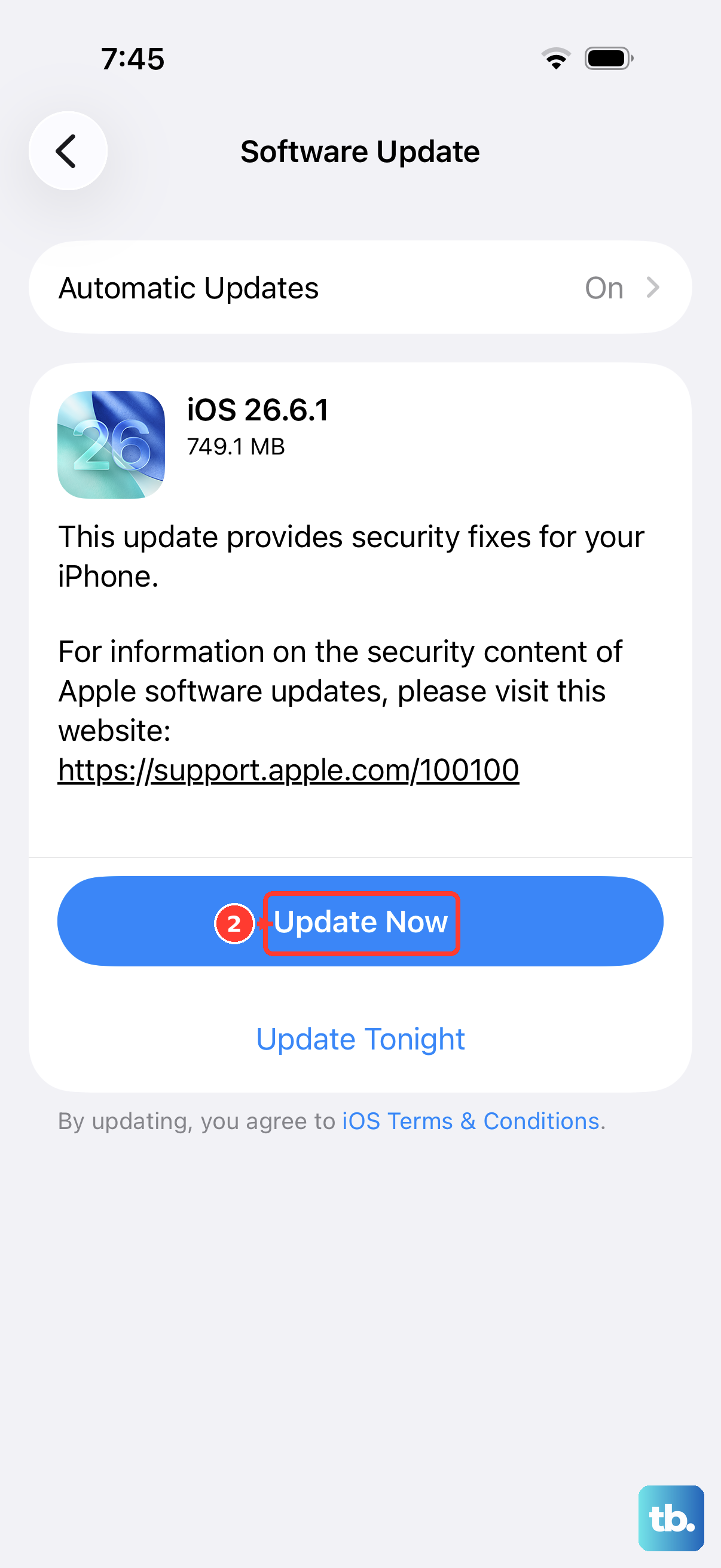
Go to Settings > General > Software Update. A reported firmware issue in iOS 26.4.2 can cause intermittent charging and connectivity problems, including hotspot failure. If an update is available, install it. Apple often patches hotspot bugs in minor releases.
Reset Network Settings
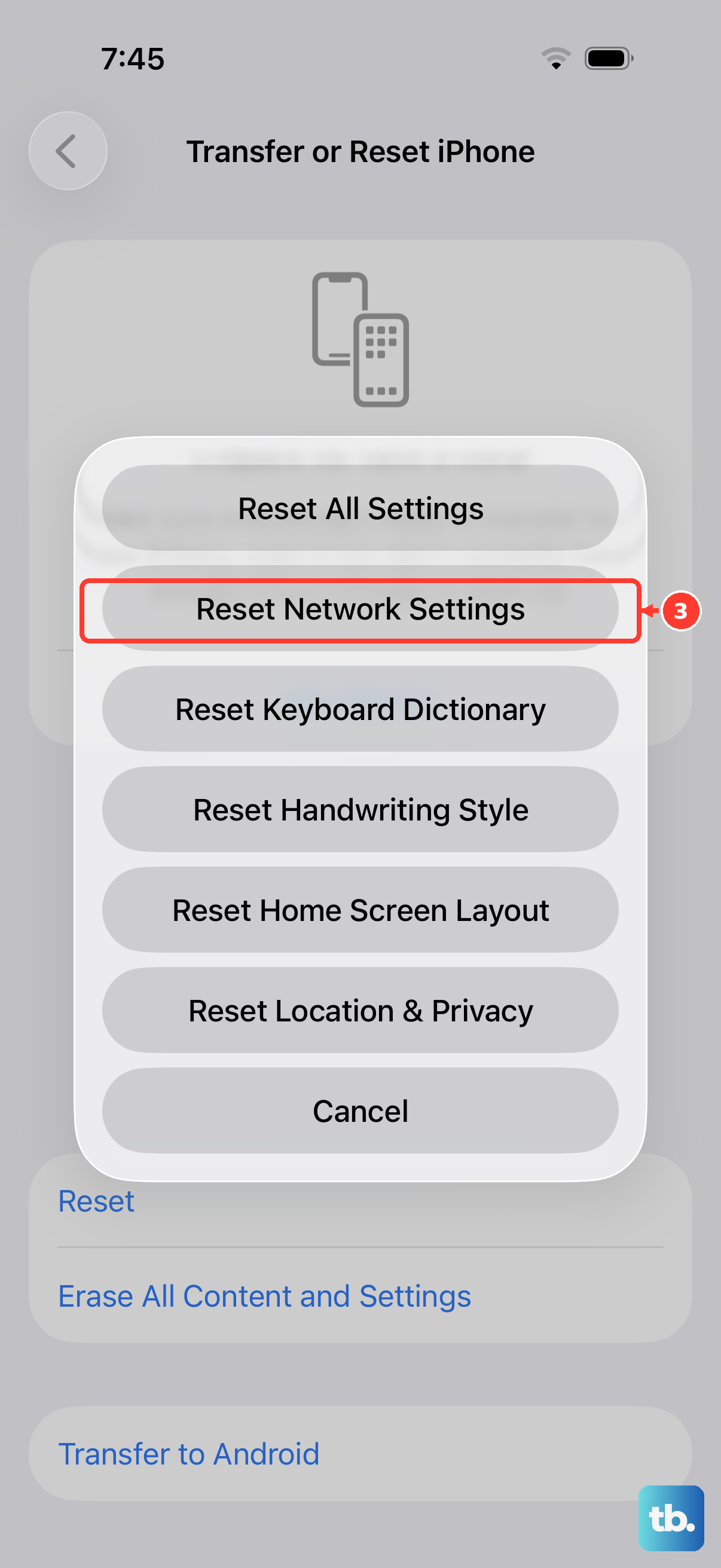
Go to Settings > General > Transfer or Reset iPhone > Reset > Reset Network Settings. This erases all saved Wi-Fi passwords, VPN configurations, and cellular settings, then rebuilds them from scratch. You'll need to re-enter Wi-Fi passwords afterward, but this fixes most stubborn hotspot problems.
Change Your Hotspot Password
Go to Settings > Personal Hotspot > Wi-Fi Password and change it to something new. Tap Done to save. Then reconnect your other devices with the new password. A fresh password forces a new authentication handshake between devices, which can clear connection issues.
Forget and Reconnect on the Other Device
On the device trying to connect to your iPhone Air hotspot, go to its Wi-Fi settings and forget the hotspot network. Then search for it again and re-enter the password. Sometimes the saved connection profile becomes corrupted and a fresh connection fixes it.
Try USB or Bluetooth Tethering
If Wi-Fi hotspot isn't working, try connecting via USB cable or Bluetooth instead. Use an Apple-certified USB-C cable to connect your iPhone Air to your laptop. Go to Settings > Personal Hotspot and make sure it's on. Your computer should detect the iPhone as a network connection. For Bluetooth, pair the devices first, then enable the hotspot.
Check for Carrier Settings Updates
Carrier updates can fix connectivity issues including hotspot problems. Go to Settings > General > About. If a carrier settings update is available, a popup will appear. Install it. These updates are small and install quickly. If none of this works, contact your carrier to confirm there are no account-level blocks on tethering.