
Nothing kills the flow of your day like looking at your iPhone Air and seeing "No Service" in the top-left corner. You can't call, text, or use mobile data, and the usual fixes don't always come to mind when you're frustrated. The good news is that most signal problems on the iPhone Air have straightforward solutions that don't require a trip to the Apple Store.
I'll walk through the most common fixes, starting with the quick ones that often clear up the issue in seconds. Some are specific to the iPhone Air and its quirks, like the firmware glitch that can affect cellular performance after an odd charge cycle.
Toggle Airplane Mode
This is the classic first step for a reason. Open Control Center by swiping down from the top-right of the screen and tap the airplane icon to turn Airplane Mode on. Wait about ten seconds, then tap it again to turn it off.
Your iPhone will re‑scan for available networks. This forces the cellular radio to reconnect fresh, clearing temporary hiccups in the process. It works surprisingly often.
Make Sure the Phone Isn't Completely Dead
The iPhone Air has a known issue where it can become unresponsive after the battery drains completely. If the screen is black and won't turn on, you obviously won't see any signal bars. Try attaching a magnetic battery pack to the back using MagSafe or Qi2 to wake it up, then plug in a charging cable.
Once the phone powers on, check if signal returns normally. If it doesn't, the battery drain isn't the cause, but it's worth ruling out before going deeper.
Perform a Force Restart
A force restart clears minor software glitches without erasing any data. On the iPhone Air, you do it like this: quickly press and release the Volume Up button, then quickly press and release the Volume Down button, then press and hold the Side button until the Apple logo appears. Keep holding even if the screen goes black.
This is different from a regular restart and it's especially useful after any charging anomalies or intermittent failures. Many users report that cellular connectivity stabilizes after this simple step.
Check Airplane Mode and Do Not Disturb
Sometimes you accidentally leave Airplane Mode on without realizing it. Swipe into Control Center and verify the airplane icon isn't highlighted orange or white. Even Do Not Disturb modes don't block cellular signal, but they can hide alerts and make you think nothing is working.
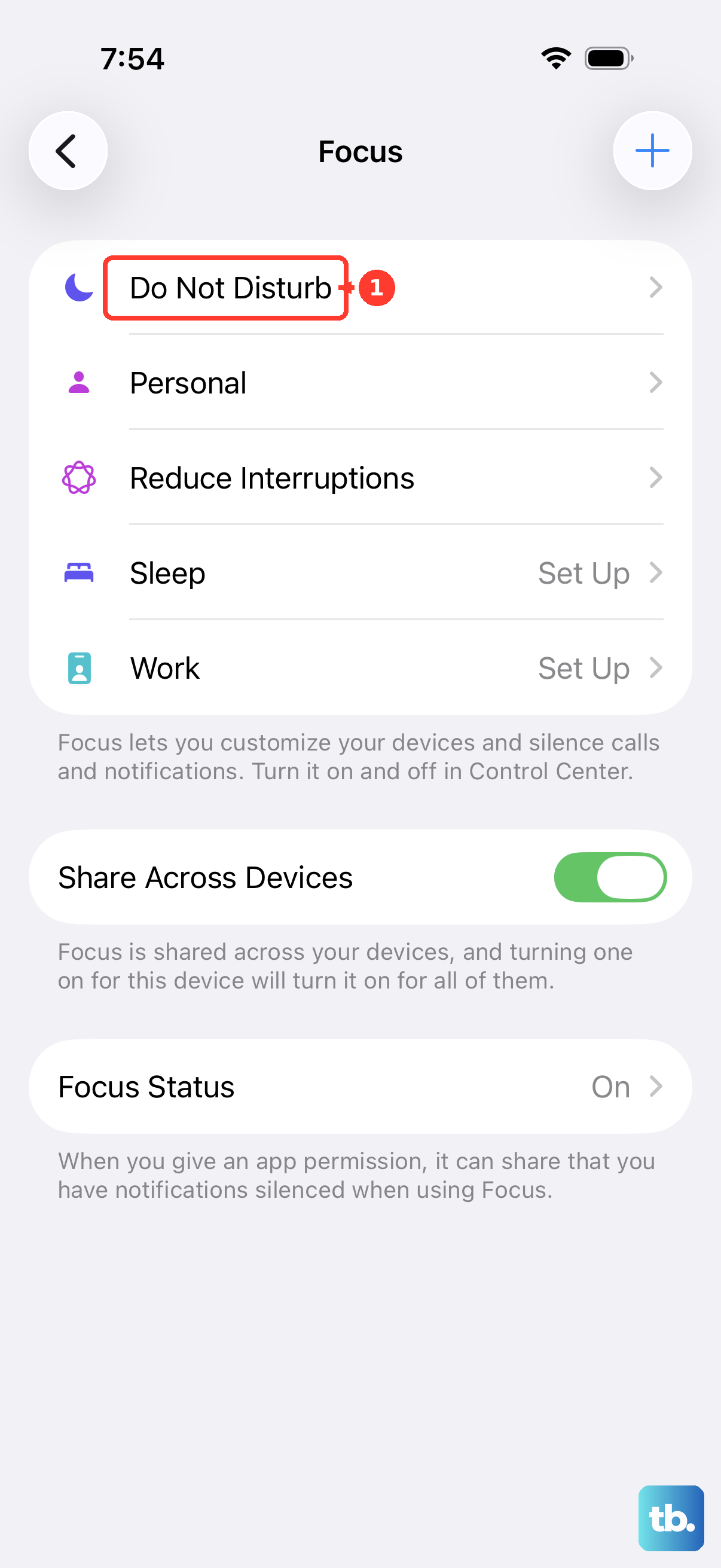
Go to Settings > Focus and make sure no schedule is blocking calls or data without your knowledge. It's a quick check that can save you time.
Reinsert the SIM Card
A loose or slightly misaligned SIM card can cause intermittent signal loss. The iPhone Air still uses a physical SIM tray on the left side. Eject it using a paperclip or SIM tool, inspect the card for any dirt or damage, then push it back in firmly until it clicks.
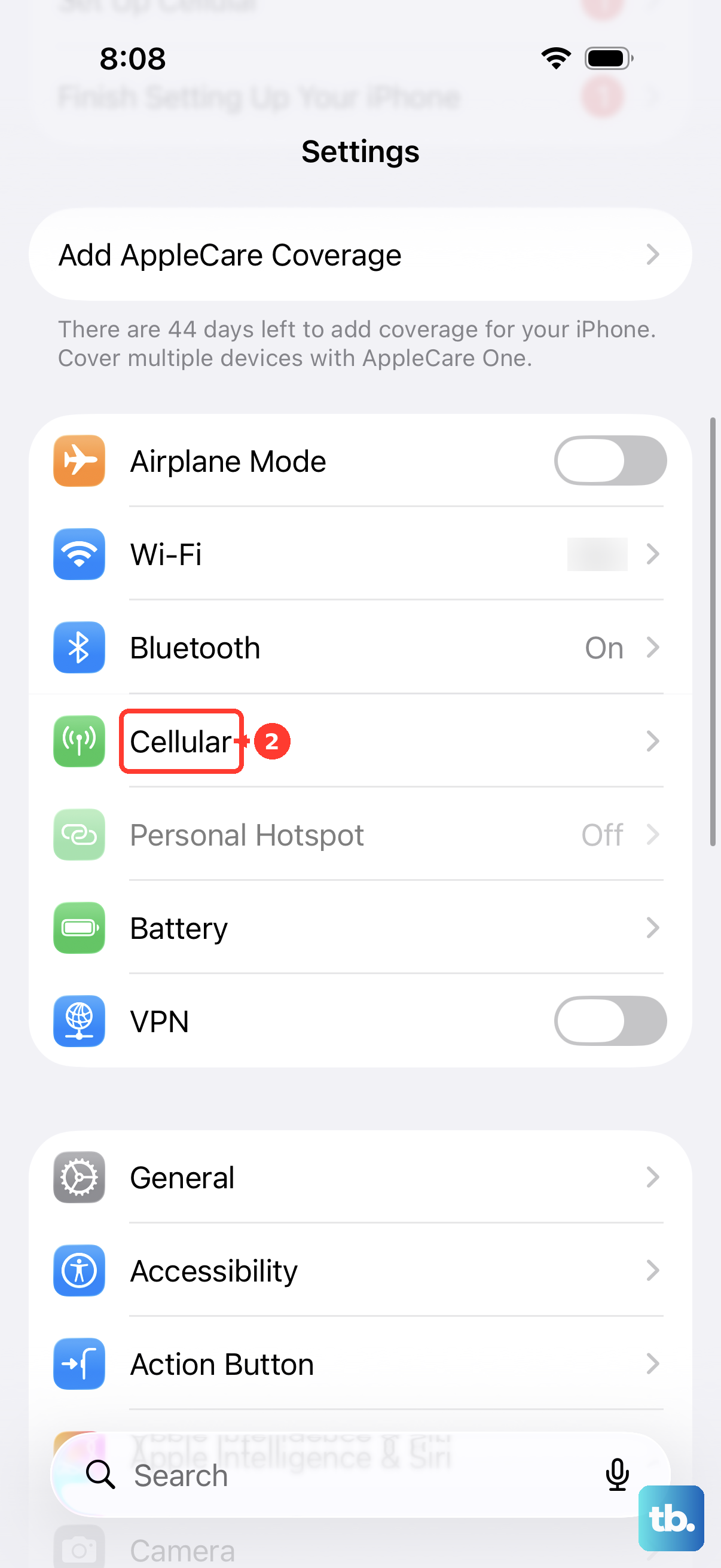
If your carrier supports eSIM, you can also check that the eSIM profile hasn't been deleted accidentally. Go to Settings > Cellular and verify that a plan is active. If you see "No SIM" even after reinserting, try a different carrier card to rule out hardware failure.
Reset Network Settings Without Losing Personal Data
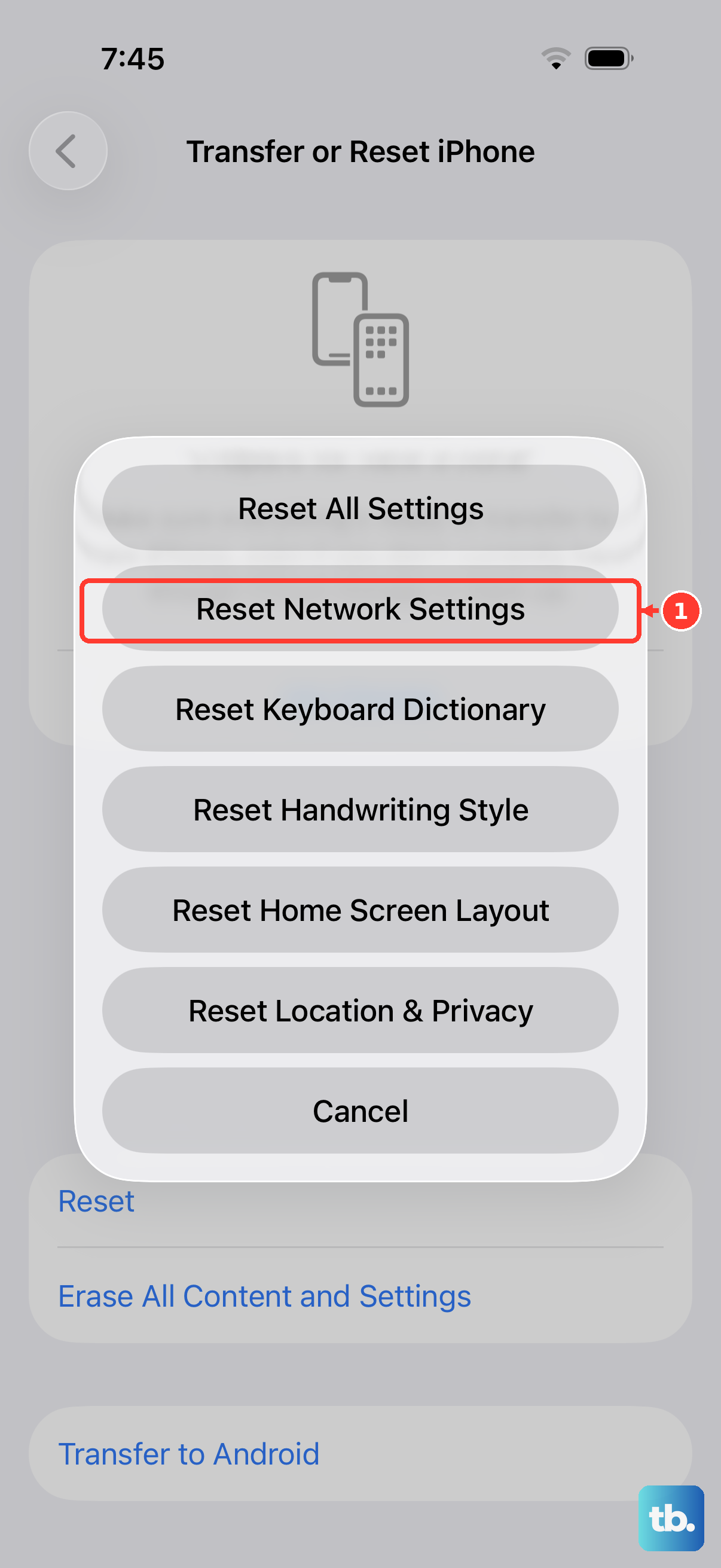
Network Settings store Wi‑Fi passwords, Bluetooth pairings, and cellular configurations. When those get corrupted, your iPhone can struggle to find any signal. Go to Settings > General > Transfer or Reset iPhone > Reset > Reset Network Settings.
You'll have to re‑enter Wi‑Fi passwords afterward, but your photos, contacts, and apps stay untouched. This fix is especially effective if the issue started after a recent iOS update or a failed carrier settings change.
Update Carrier Settings and iOS
Carriers push out small updates that improve network compatibility. Go to Settings > General > About. If an update is available, a prompt will appear within a few seconds. Tap Update and let it install.
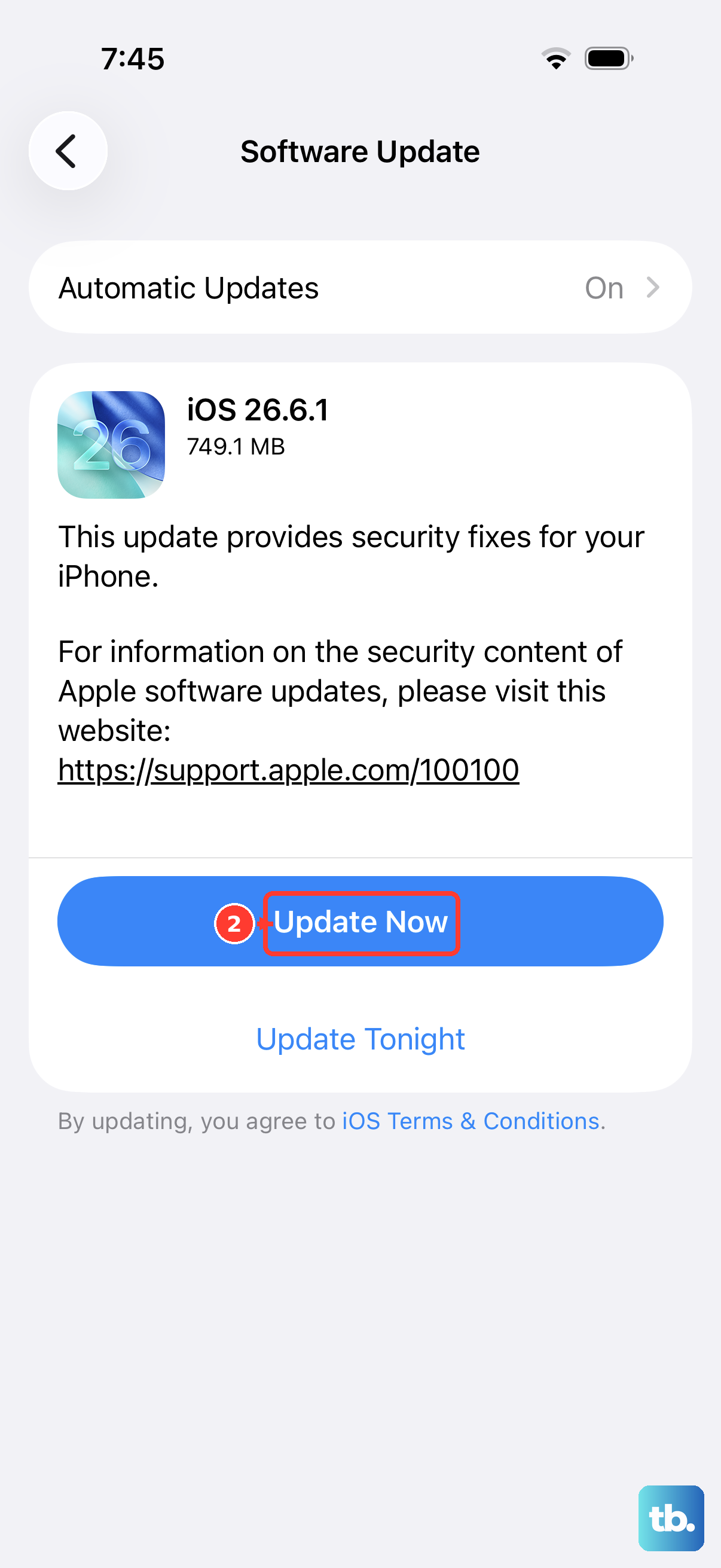
Also check for a full iOS update under Settings > General > Software Update. The iPhone Air runs iOS 26, and Apple regularly releases patches that address intermittent signal dropouts. As of early 2026, there's a known firmware issue in version 26.4.2 that can cause charging and connectivity problems. If you're on that build, installing the next update is a priority.
Manually Select a Network Operator
When your iPhone can't find the right tower, it may keep searching and fail. Go to Settings > Cellular > Network Selection and toggle off Automatic. Wait for the list of networks to populate, then tap your carrier's name.
If it shows "No Network" or fails to connect, turn Automatic back on and try again later. This manual selection forces the phone to lock onto a specific signal instead of endlessly scanning.
Disable Any VPN or Content Blockers
A misconfigured VPN can interfere with your cellular connection. Go to Settings > General > VPN & Device Management and turn off any active VPN profile. If you use a third‑party app like NordVPN or ExpressVPN, disconnect from within that app first.
Content blockers or ad‑blocking apps that filter traffic can also cause weird behavior. Try disabling them temporarily to see if your signal returns. If it does, you'll know the issue is software‑side.
Check for Carrier Outages
Sometimes the problem isn't your phone at all. A local outage from AT&T, Verizon, T‑Mobile, or your provider can leave you without service regardless of what you do. Check your carrier's status page or ask a friend on the same network if they have signal.
If there's an outage, the best move is to wait it out. You can enable Wi‑Fi Calling in Settings > Cellular > Wi‑Fi Calling to make calls over your home internet while the cellular network recovers.