
The iPhone Air is a powerhouse, but even the best hardware can hit a rough patch. If yours feels sluggish, freezing up, or showing a black screen after the battery died, the problem is almost always software-based. Here are the specific fixes that work on the iPhone Air running iOS 26.
Force restart after a dead battery
This is the most common issue with the iPhone Air. You use it until the battery dies, plug it in, and nothing happens. The screen stays black, and it ignores the charging cable entirely.
First, attach a Qi2 or MagSafe battery pack to the back of the phone. This can jump-start the power controller and give it just enough juice to respond. Leave it on for a couple of minutes.
Now perform the force restart: press and quickly release the Volume Up button, then press and quickly release the Volume Down button. Immediately press and hold the Side button until the Apple logo appears. I've seen this revive iPhone Airs that people thought were completely bricked.
Update to the latest iOS 26 version
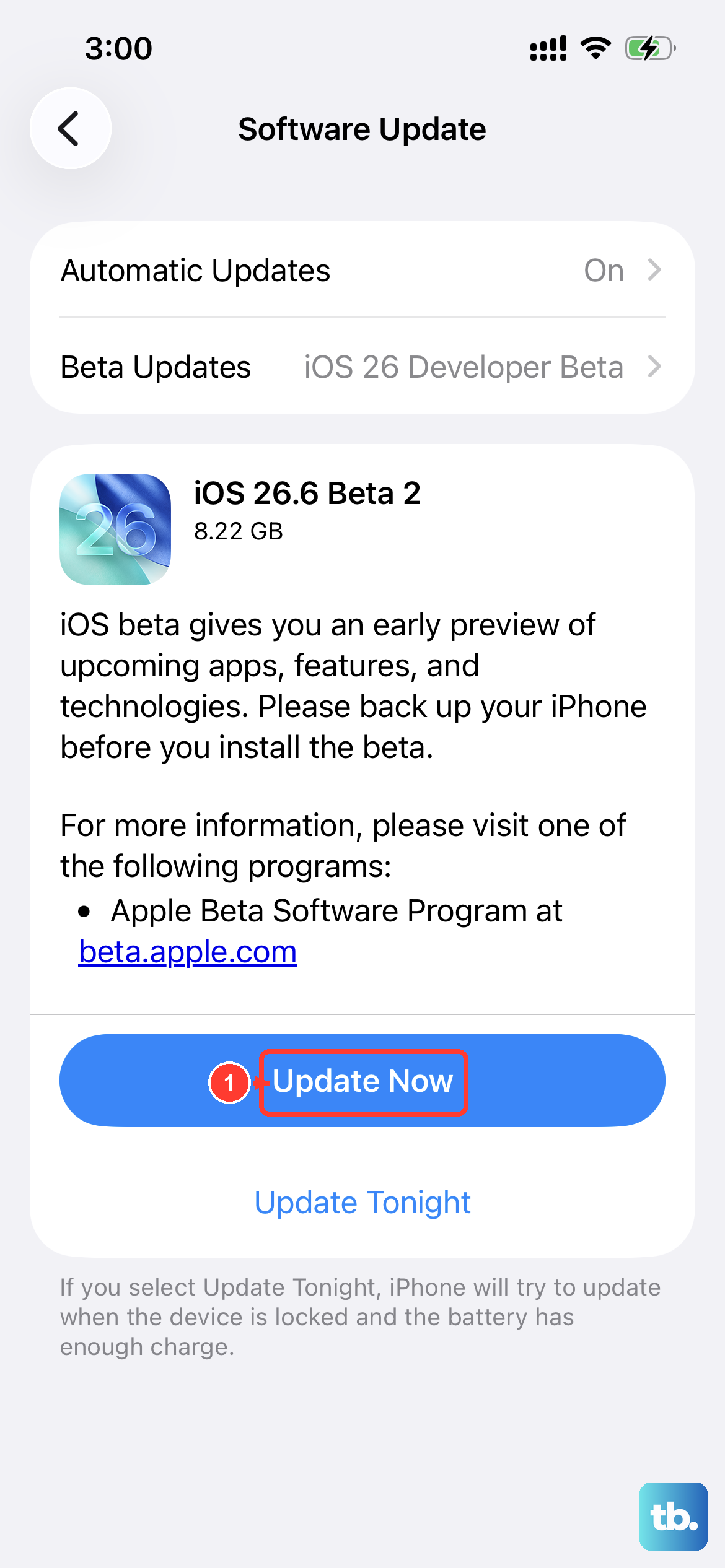
Apple shipped iOS 26.4.2 with a known bug that causes intermittent slowdowns and charging failures on the iPhone Air. If you haven't updated past that build, it's likely the culprit behind your lag.
Go to Settings > General > Software Update. Performance patches are almost always included in these point releases. Installing the newest version should smooth things out noticeably.
Free up internal storage
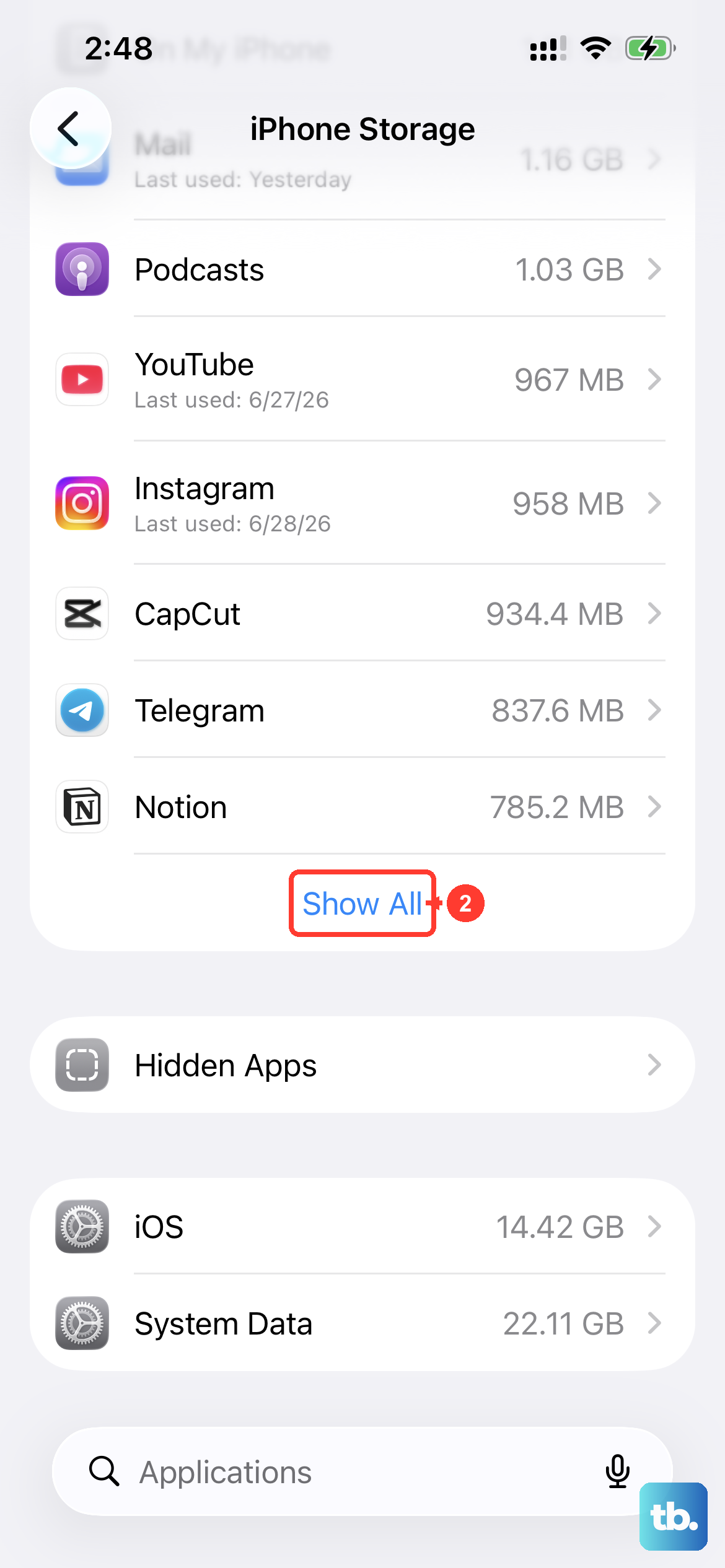
The iPhone Air records stunning 4K Dolby Vision video, but those files are massive. When the SSD is over 95% full, iOS intentionally slows down to prevent data corruption.
Check Settings > General > iPhone Storage. If you're low on space, offload large video files to an external USB-C drive or iCloud. Don't forget to empty the Recently Deleted album in Photos, which usually frees up gigabytes instantly.
Check battery health and peak performance
Even brand new phones can have calibration hiccups. Head to Settings > Battery > Battery Health to check the maximum capacity.
If the phone feels slow, look at the Peak Performance Capability section. A full discharge cycle to 0% followed by a charge to 100% using a USB-C adapter often recalibrates the battery gauge and removes any software throttling.
Disable background app refresh
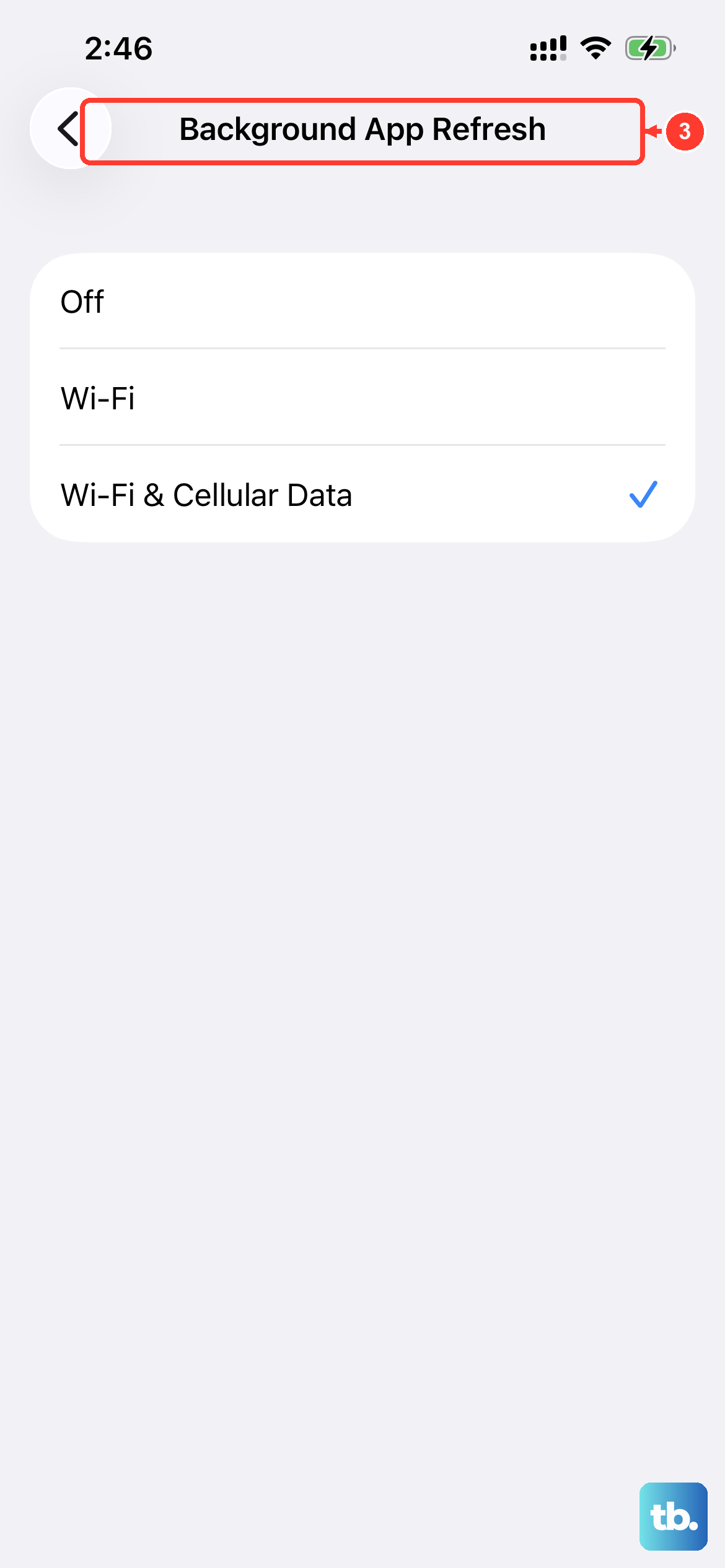
Every app with Background App Refresh enabled is using precious CPU cycles and memory. This is the number one cause of day-to-day lag on the iPhone Air that I see.
Settings > General > Background App Refresh. Turn it off for social media, shopping, and gaming apps. You'll still get push notifications, but the app won't be pre-loading content you'll never see.
Reduce motion and transparency effects
iOS 26's visual effects look fantastic on the iPhone Air's display, but they add input latency. Turning them off makes the device feel noticeably faster.
Settings > Accessibility > Motion > Reduce Motion. Then go to Display & Text Size and enable Reduce Transparency. The interface instantly feels snappier because you're removing the rendering overhead.
Remove unused widgets
Widgets on the iPhone Air are constantly refreshing in the background. Every single one on your home screen takes a tiny slice of overall performance.
Long press a widget and select Remove Widget. Keep only the ones you actually glance at daily, like Weather or Calendar. Your phone will feel less bogged down.
Check your USB-C cable and adapter
The iPhone Air charges up to 40W over USB-C, but it's picky about accessories. A damaged or uncertified USB-C cable can cause the system to run hot and throttle performance.
If you notice lag specifically while charging, unplug everything. Stick to Apple-certified USB-C cables and power adapters to avoid the problem entirely.
Monitor battery usage by app
A single rogue app can keep the CPU awake, destroying your battery life and making the phone feel slow at the same time.
Settings > Battery. Check the last 10 days. If an app shows high background activity, delete it and reinstall it. This usually fixes runaway processes without needing a full reset.
Reset all settings
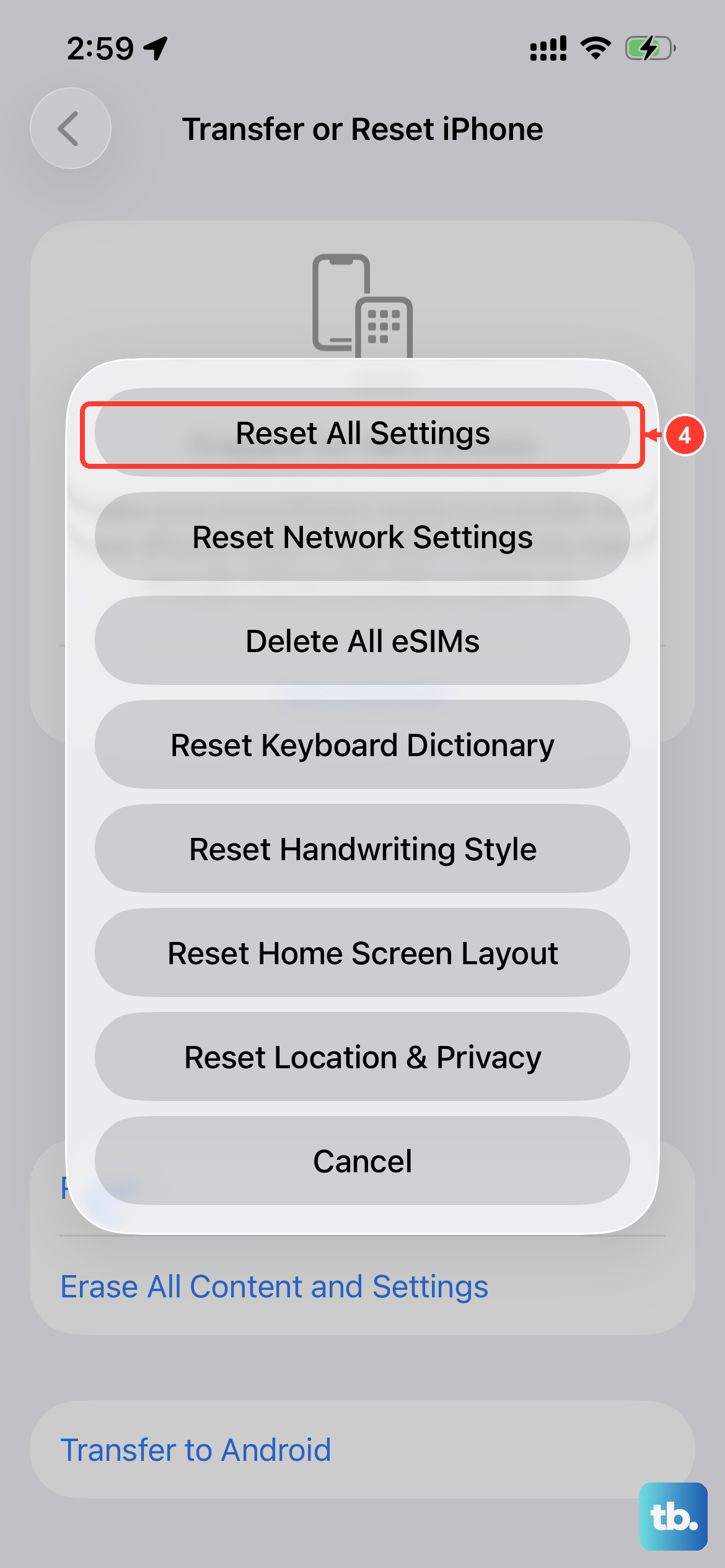
This is the nuclear option before an erase. It keeps all your data but wipes network and system preferences that might be corrupted.
Settings > General > Reset > Reset All Settings. You'll have to rejoin Wi-Fi networks and reconfigure your Apple Pay cards, but it clears out the software gunk that standard updates tend to leave behind.