

To switch user accounts in Windows 10, select Start, select your user picture or account icon, choose another account, and sign in with that account’s credentials. Your previous session stays open. You need another available user account to switch to.
The short version
- Start menu: Select your account icon, choose another account, and sign in.
- Security screen: Press Ctrl + Alt + Delete and select Switch user.
- Lock shortcut: Press Windows + L, dismiss the lock screen, and select another available account.
- Sign out instead: Save your work before signing out, because signing out ends your current session.
| Method | Where to start | What to know |
|---|---|---|
| Select another account | Start > account icon | Keeps the previous session open |
| Choose Switch user | Start > account icon > Switch user | Availability depends on configuration |
| Use the security screen | Ctrl + Alt + Delete > Switch user | Requires switching entry points to be available |
| Lock with the keyboard | Windows + L | Requires another account and unrestricted account selection |
| Lock through Start | Start > account icon > Lock | Choose another account after dismissing the lock screen |
| Sign out through Start | Start > account icon > Sign out | Save your work before ending the session |
| Sign out through the security screen | Ctrl + Alt + Delete > Sign out | Save your work before ending the session |
| Sign out with a command | Command Prompt or PowerShell | Immediately signs out the current user |
| Restore switching through Group Policy | Local Group Policy Editor | Administrator fix on supported Windows 10 editions |
| Restore switching through device management | WindowsLogon policy | Administrator fix for managed switching controls |
| Change to a local account | On Windows 10, Settings > Accounts > Your info | Changes the current profile’s sign-in identity |
| Change to a Microsoft account | On Windows 10, Settings > Accounts > Your info | Changes the current profile’s sign-in identity |
Switch accounts from the Start menu
Open Start and select your user picture or account icon. Select the account you want to use, then sign in with that account’s credentials. This route leaves your previous session open.
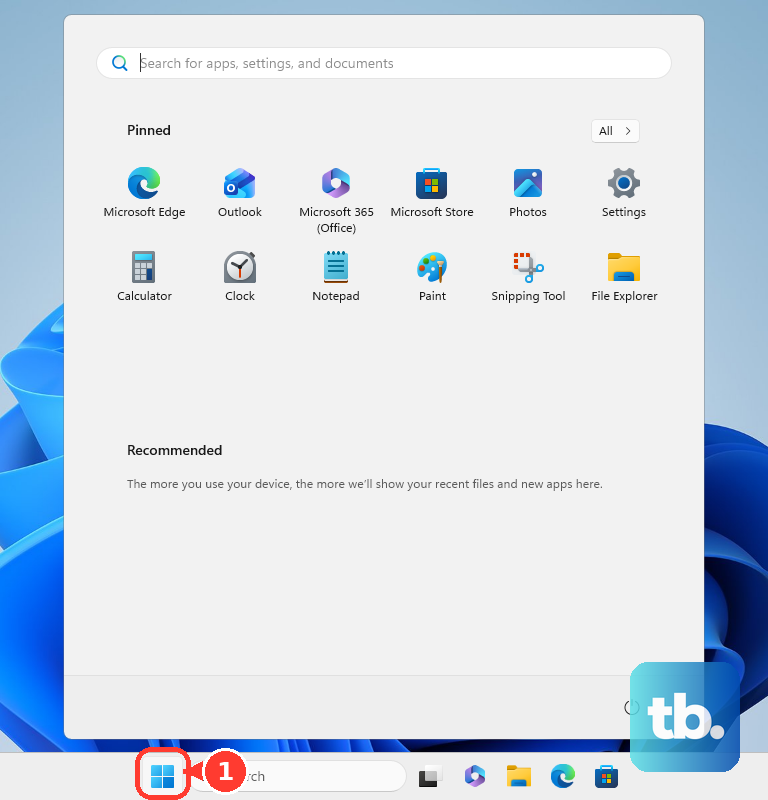
The account menu also provides a Switch user route on Windows 10 configurations that enable it. Select Start, select your user picture or Accounts, then choose Switch user. At the sign-in screen, select Other user and enter the other account’s credentials.
Use the Windows security screen
Press Ctrl + Alt + Delete to open the Windows security screen. Select Switch user, choose the destination account, and sign in. This route requires account-switching entry points to be available under your device’s policies.
If Switch user is missing and you do not need to keep your current session open, use a sign-out method below. If you need switching controls restored on a managed PC, coordinate the policy changes below with your administrator.
Lock the PC and choose another account
Press Windows + L to lock your Windows 10 PC, then dismiss the lock screen. Select another available account on the sign-in screen and sign in. This route requires another available account and unrestricted account selection.
For the mouse-based route, select Start, select your user picture or Accounts, and choose Lock. Dismiss the lock screen, select the other account, and sign in. In Windows 10, the Lock command is in this account menu.
Sign out when you are finished with your session
Signing out ends your current session rather than keeping its applications open, so save your work first. Select Start, select your user picture or Accounts, then choose Sign out. At the sign-in screen, select the other account and sign in.
You can also sign out through the Windows security screen. Signing out ends your current session, so save your work before proceeding. Press Ctrl + Alt + Delete, select Sign out, then select the other account at the sign-in screen and sign in.
Use a command to sign out
The command immediately signs out the current user, so save your work first. In Command Prompt or PowerShell, enter the following command:
shutdown /lSelect the other account when the sign-in screen appears, then authenticate with that account’s credentials. This ends your previous session; use a switching method above when you want to keep that session open.
Restore missing account switching controls
If policy hides the switching entry points, an administrator can restore them through Group Policy on Windows 10 Pro, Enterprise, and Education with Group Policy management. On a managed device, coordinate changes with your administrator. These controls restore access to account switching; they do not switch accounts themselves.
Open gpedit.msc, then go to Computer Configuration > Administrative Templates > System > Logon > Hide entry points for Fast User Switching. Select Disabled, then select OK.
For device management, Microsoft documents the corresponding policy for Windows 10 version 1703 and later on Pro, Enterprise, Education, and IoT Enterprise/LTSC. Through device management, an administrator can set ./Device/Vendor/MSFT/Policy/Config/WindowsLogon/HideFastUserSwitching to integer 0 to expose the switching interface.
Change your current profile to a local account
If you mean changing how your current Windows profile signs in, you can convert a profile that uses a Microsoft account to a local account. This changes that profile’s sign-in identity rather than opening another existing user’s desktop.
On Windows 10, open Settings > Accounts > Your info and select Sign in with a local account instead. Enter the local username, password, and password hint. The username must be different from any others on the device. Select Next.
The final step signs you out and ends your session, so save your work before proceeding. Select Sign out and finish, then sign back in.
Change your current profile to a Microsoft account
If your current Windows profile uses a local account, you can change its sign-in identity to a Microsoft account. Sign in only through Microsoft’s own app or website, and never share a code, password, or remote access with someone who contacts you.
On Windows 10, open Settings > Accounts > Your info and select Sign in with a Microsoft account instead. Follow the prompts to authenticate your Microsoft account.
Frequently Asked Questions
Does the Start menu method apply to Windows 10 22H2?
Yes, selecting another account through the Start menu applies to Windows 10 22H2. You need another available user account and that account’s credentials.
Does Windows 10 Home include Local Group Policy Editor?
Windows 10 Home does not include Local Group Policy Editor. The Group Policy steps apply to Windows 10 Pro, Enterprise, and Education with Group Policy management.
Can an administrator leave the switching policy unconfigured?
Yes, an administrator can leave Hide entry points for Fast User Switching at Not Configured. Selecting Disabled is the other documented choice for restoring switching entry points.
What does a HideFastUserSwitching value of 1 mean?
A HideFastUserSwitching value of 1 hides the switching interface, while 0 exposes it. This policy controls the availability of switching entry points rather than selecting another account.