

Windows virtual desktops keep separate apps and projects on different workspaces, but switching between them should not slow you down. The fastest options are keyboard shortcuts, Task View, and four-finger gestures. Use these current Windows 11 ways to move between desktops, plus the settings to check when a shortcut or gesture is missing.
1. Jump left or right with a keyboard shortcut
Press Windows key + Ctrl + Right arrow to switch to the desktop on the right.
Press Windows key + Ctrl + Left arrow to switch to the desktop on the left.
This is the quickest way to switch desktops in Windows when you already know where the next desktop is. The desktop changes immediately, without opening Task View first.
2. Pick a desktop from Task View
Use Task View when you want to see your open desktops before choosing one.
Press Windows key + Tab.
In Task View, select the desktop thumbnail you want.
This is the better move when you have several desktops open and do not want to guess left or right.
3. Select a taskbar desktop thumbnail
Mouse users can use the Task View surface on the taskbar: hover over the Task View icon on the taskbar, or select the Task View button, then select the desktop thumbnail you want to switch to.
You get the same desktop thumbnails without needing to remember a shortcut.
4. Swipe across a touchpad or screen
Four-finger swipes are the direct gesture route on supported Windows 11 devices.
On a Windows 11 device with a precision touchpad, swipe left or right with four fingers on the touchpad to switch desktops.
On a touch-capable Windows 11 device, swipe left or right with four fingers on the screen.
If the touchpad gesture does nothing, use the settings in the next section to put the four-finger action back on desktop switching.
5. Restore the four-finger gesture setting
Right-click Start.
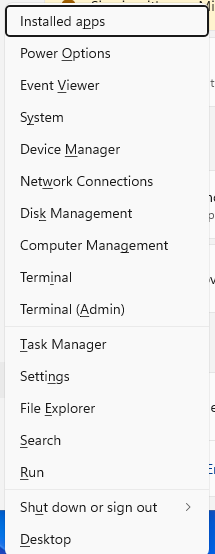
Select Settings.
Go to Bluetooth & devices > Touchpad.
Expand Three-finger gestures or Four-finger gestures.
Use the drop-down menus to set the relevant four-finger swipe action back to switching desktops.
Four-finger swiping stops switching desktops when the gesture has been assigned to another action. After that, swipe left or right with four fingers on the touchpad again.
6. Turn the Task View button on again
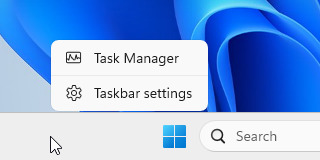
If the Task View button disappeared from the taskbar, bring it back from Windows 11 taskbar settings: right-click the taskbar, select Taskbar settings, under Taskbar items, turn Task view on, then select the Task View button and choose the desktop thumbnail you want.
7. Navigate Task View without a mouse
This keeps the whole move inside Task View and requires no pointer input.
Press Windows logo key + Tab.
Use Tab to move through the available options.
Use the arrow keys to explore the desktops.
Press Enter to switch.
You can switch desktops using only the keyboard, which is useful when a mouse or touchpad is not available.
8. Control desktop switching with voice access
Go to Start > Settings > Accessibility > Speech.
Turn on Voice access.
Say Voice access wake up or Unmute.
Say a key-combination command using the pattern Press <key1> <key2> for Windows key + Ctrl + Left arrow or Windows key + Ctrl + Right arrow.
Windows 11 version 22H2 and later includes voice access for spoken keyboard commands. You can also create a saved voice shortcut for either direction, though voice shortcuts are currently available only in English (US, UK, India, New Zealand, Canada, and Australia).
With voice access active, say Open voice shortcuts.
Say Click create new shortcut.
Set When I say to your chosen phrase.
Under Perform action(s), choose Press keyboard keys.
Assign Windows key + Ctrl + Left arrow or Windows key + Ctrl + Right arrow.
Say Click apply to confirm the action.
Say Click save.
9. Skip outdated Windows 10 desktop tricks
Older Windows 10 instructions point to controls that are not the current Windows 11 method. Do not use the old Show Task View button taskbar menu path for Windows 11. Use Taskbar settings > Taskbar items > Task view instead.
Windows 10 touch instructions also used a one-finger swipe from the left edge to open Task View. In Windows 11, current desktop switching uses a four-finger swipe left or right on a supported touchpad or touch screen.
On work or school PCs, an organization can block users from creating virtual desktops. If desktop switching is restricted on a managed PC, the setting belongs to your IT administrator.
Frequently Asked Questions
What is the fastest way to switch desktops in Windows 11?
Press Windows key + Ctrl + Right arrow to move to the desktop on the right, or Windows key + Ctrl + Left arrow to move to the desktop on the left.
How do I switch desktops when I cannot see the Task View button?
Right-click the taskbar, select Taskbar settings, turn on Task view under Taskbar items, then use the Task View button to choose a desktop thumbnail.
Can I switch Windows desktops with a touchscreen?
Yes. On a touch-capable Windows 11 device, swipe left or right with four fingers on the screen.
Why did an older Windows 10 desktop shortcut tip stop matching my PC?
Windows 11 uses the current Taskbar settings path for Task View and four-finger swipe gestures for desktop switching. Windows 10 Home and Pro reached end of support on October 14, 2025.