

To switch accounts in Windows 11, open Start, select your user picture or the Accounts icon, open the … menu, choose another account, and authenticate at the sign-in screen. These steps use Windows 11 menus and require another account to select. If you need to create that account first, use Settings > Accounts > Other users.
The short version
- Start menu: Open your account menu and choose another account through the … menu.
- Keyboard shortcut: Press Ctrl + Alt + Delete and select Switch user.
- Lock first: Press Windows + L, dismiss the lock-screen background, and select another account.
- Sign out carefully: Signing out closes your current applications, so save your work first.
- Add a user: Create another account under Settings > Accounts > Other users when you need one.
| Method or option | Where to start | When it applies |
|---|---|---|
| Choose an account through Start | Start > Accounts > … | Current account-manager menu with multiple accounts |
| Switch through the managed account menu | Start > Accounts > Switch user | Managed devices where this option appears |
| Switch through the security screen | Ctrl + Alt + Delete | Fast User Switching is available |
| Lock with the keyboard | Windows + L | Multiple eligible accounts with switching permitted |
| Lock through Start | Start > power icon > Lock | Current Start power-menu layout |
| Select an account at sign-in | Startup or the existing sign-in screen | Available accounts depend on configuration |
| Sign out through Start | Start > Accounts > Sign out | Ends your current session |
| Sign out through the security screen | Ctrl + Alt + Delete | Ends your current session |
| Sign out with a command | shutdown /l | Signs out immediately |
| Use voice access | Accessibility on the lock screen | Supported installations with voice access configured |
| Create another user | Settings > Accounts > Other users | Account creation is permitted |
| Restore switching through Group Policy | Hide entry points for Fast User Switching | Administrator on Pro, Enterprise or Education |
| Restore switching through MDM | WindowsLogon/HideFastUserSwitching | Administrator on Pro, Enterprise, Education or IoT Enterprise |
| Restore the Start switching option | Start/HideSwitchAccount | Administrator on managed Pro, Enterprise, Education or IoT Enterprise |
Switch accounts through the Start menu
Open Start, then select your user picture or the Accounts icon. Open the … menu and select the destination account. When the sign-in screen opens, authenticate for that account.
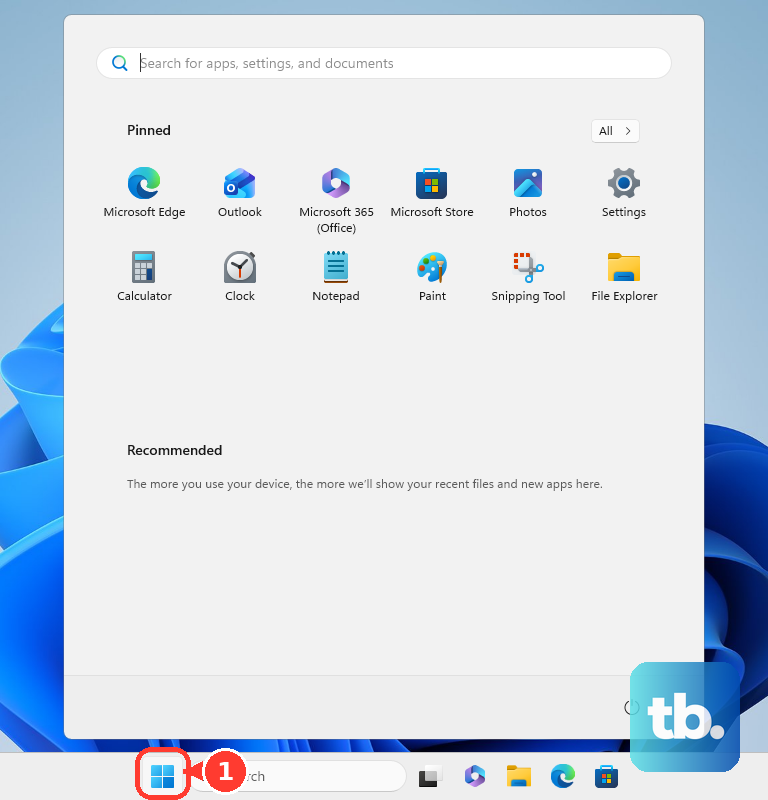
This route applies to the current account-manager menu on Windows 11 Home, Pro, Enterprise and Education with multiple accounts. Menu availability depends on your configuration. If the account menu does not offer the account you need, try the security-screen route below when Fast User Switching is available.
On an organization-managed device, you may instead see Switch user after selecting your user picture or the Accounts icon. Select Switch user, choose the destination account, and authenticate. If organizational policy hides switching, use the policy fixes below with your administrator.
Use a keyboard shortcut to change users
Press Ctrl + Alt + Delete, then select Switch user. Choose the destination account on the sign-in screen and authenticate. This route requires Fast User Switching to be available, and organizational policies can hide the option.
Another option is to press Windows + L to lock the PC. Dismiss the lock-screen background, select another account, and authenticate. This works on Windows 11 Home, Pro, Enterprise and Education when you have multiple eligible accounts and switching is permitted.
If Switch user is missing, signing out provides a way to end the current session before signing in to another account. Follow the sign-out steps below after saving your work, since signing out closes your applications. If you have not created another user yet, add one through Other users first.
Choose another account from the sign-in screen
When you are already at the sign-in screen, including at startup, select the account you want to enter. Authenticate for that account to complete sign-in. Available accounts depend on your device configuration.
To reach account selection with the mouse from your desktop, open Start, select the power icon, then choose Lock. At the sign-in screen, select another account and authenticate. This path uses the current Start power-menu layout.
Add another account when you need one
Where account creation is permitted, open Settings > Accounts > Other users, then select Add account. Enter the person’s Microsoft account details and complete account creation. This path applies to Windows 11 Home, Pro, Enterprise and Education.
For a local account, select I don't have this person's sign-in information during account creation. Select Add a user without a Microsoft account, then complete account creation. Use the Start menu or a keyboard switching method to select the new account.
Adding a user creates the destination account without switching your current session. Sign in only through Microsoft’s own app or website, and never share a code, password, or remote access with someone who contacts you.
Sign out to end the current session
Signing out closes the current session’s applications, so save your work before continuing. Open Start, select your user picture or the Accounts icon, and select Sign out. Choose another account on the sign-in screen and authenticate.
Signing out through the security screen also ends your current session, so save your work before using it. Press Ctrl + Alt + Delete and select Sign out. Select another account at the sign-in screen and authenticate.
You can also sign out using the Run dialog. The command signs you out immediately and ends your current session, so save your work before running it. Press Windows + R to open Run, then type this command:
shutdown /lPress Enter to run it. Once the sign-in screen appears, select another account and authenticate.
These sign-out routes apply to Windows 11 and close your current session instead of preserving it. Signing out is also useful when simultaneous signed-in sessions are restricted.
Use voice access at the lock screen
Voice access can operate account selection on updated Windows 11 installations that support it on the lock screen. It must already be configured, and you need a supported speech language and a microphone. Begin at the lock screen, open Accessibility, and turn on Voice access.
To select the destination account, say Show numbers and then the number shown on it, or say Click followed by the item's name. If the account has no numbered label, use the grid overlay to move the pointer to it, then say Click. Say show keyboard and use the numbered keyboard to enter your credentials. Activate the sign-in control to enter the selected account.
This method uses the existing sign-in interface. You select its numbered controls rather than issuing a dedicated spoken account-switch command.
Restore switching through Group Policy
If switching options are hidden, an administrator can check the Fast User Switching policy on Windows 11 Pro, Enterprise or Education. If you administer the PC, open gpedit.msc. Navigate to Computer Configuration > Administrative Templates > System > Logon > Hide entry points for Fast User Switching.
Select Disabled, then select OK. Apply your organization’s normal policy refresh. On a managed device, organizational policy can override the local configuration, so your administrator may need to change the controlling policy.
Restore switching through device management
If you administer Windows 11 Pro, Enterprise, Education or IoT Enterprise through MDM, you can expose the switching interfaces using ./Device/Vendor/MSFT/Policy/Config/WindowsLogon/HideFastUserSwitching. Set its value to 0 to expose those interfaces. A value of 1 hides them.
This policy changes whether switching controls appear. After the controls are available, use a switching method to select another account; changing the policy does not switch the active account itself.
Restore the account option in Start
On managed Windows 11 Pro, Enterprise, Education and IoT Enterprise devices, a separate policy can hide account switching in Start. If you administer the device, disable the Start/HideSwitchAccount policy at ./Device/Vendor/MSFT/Policy/Config/Start/HideSwitchAccount.
Disabling this policy restores the Start user-tile switching option unless another policy hides it. Check this separately from HideFastUserSwitching, since the policies control different switching restrictions. Microsoft lists no corresponding Group Policy setting for Start/HideSwitchAccount.
Frequently Asked Questions
Do I have to enter a password when I select another account?
You can enter the selected account’s password or PIN, or use its configured Windows Hello authentication. The available authentication methods depend on your device configuration.
Can I run the sign-out command from Windows Terminal?
The command signs you out immediately and ends your current session, so save your work before running it. You can run shutdown /l from Windows Terminal, Command Prompt or PowerShell.
Can I use Local Group Policy Editor on Windows 11 Home?
Microsoft does not provide Local Group Policy Editor with Windows 11 Home. You can still use the account-switching routes that apply to Home when multiple eligible accounts are present and switching is permitted.
What if the Fast User Switching policy is Not Configured?
Not Configured also permits switching unless another applicable policy overrides it. On a managed PC, your administrator may need to check the policy that controls the device.