

To sign out of Roblox in a desktop browser, open the upper-right gear menu and select Log Out. On Android, iPhone, iPad, and consoles, use the device-specific controls below. You can also end listed sessions remotely through your account’s security settings.
Choose the steps for the browser, app, or console you want to disconnect. Sign in only through Roblox’s own app or website, and never share a code, password, or remote access with someone who contacts you.
The short version
- Website: Open the upper-right gear menu and select Log Out.
- Android: Tap More, tap the icon showing an arrow leaving a doorway, then tap Log Out.
- iPhone and iPad: Tap More, tap Settings, then tap Log Out and confirm with Log Out.
- Other devices: Open Settings > Security to review your listed sessions.
- Everywhere: The Log Out of All Other Sessions option ends your other sessions while leaving your current session signed in.
| Device or method | Control location | What it affects |
|---|---|---|
| Desktop website | Gear menu > Log Out | That browser session |
| Android app | More > sign-out icon | That app session |
| iPhone or iPad app | More > Settings | That app session |
| One remote session | Security > Where you’re logged in | The selected session |
| All other sessions | Log Out of All Other Sessions | Every session except the current one |
| PlayStation local logout | Menu (...) > Log Out | Roblox on PS4 or PS5 |
| PlayStation remote disconnect | Disconnect PlayStation | The PlayStation connection |
| Xbox One local unlinking | Settings > Account | The linked Xbox account |
| Xbox remote disconnect | Security > Xbox | The Xbox connection |
| Desktop Chrome cookies | See all site data and permissions or Delete browsing data | Selected site data or all cookies |
| Desktop Edge cookies | Clear browsing data | Cookies within the selected period |
| Desktop Firefox cookies | Clear Recent History… | Cookies and site data for all websites |
| Safari on Mac website data | Manage Website Data | Selected Roblox website entries |
| Safari on iPhone website data | Website Data | Website login data for all sites |
| Safari on iPhone cookie blocking | Block All Cookies | Existing cookies and future cookie use |
| Automatic Chrome data removal | On-device site data | Local site data when all windows close |
| Chrome Incognito | All Incognito windows | That private session’s local cookies |
| Managed Edge cookie policy | CookiesSessionOnlyForUrls | Matching site cookies at session end |
Sign out of Roblox in a desktop browser
Open Roblox.com in the desktop browser where you are signed in. Select the gear icon in the upper-right corner, then select Log Out. This signs you out of that browser session.
To end a session in another browser or on another device, use your account’s remote session controls. If the website’s logout process fails, you can remove its local sign-in cookies using the browser steps below.
Log out on Android or iPhone
In the Roblox Android app, tap More on the bottom navigation bar. Tap the sign-out icon in the upper-right corner, shown as an arrow leaving a doorway. In the pop-up, tap Log Out.
On iPhone or iPad, tap More on the Roblox app’s bottom navigation bar, then tap Settings. Tap Log Out, then tap Log Out again in the pop-up to confirm. The Android route uses the sign-out icon directly after More, while the iPhone and iPad route goes through Settings.
End Roblox sessions on other devices
Sign into the same Roblox account in another browser or the mobile app. On the website, open the upper-right gear menu and select Settings; in the mobile app, open More, then Settings. Select Security and find Where you’re logged in.
Select the session you want to end, then review its device, location, and activity details. Selecting Log out of session ends access through that session. Once you have identified the correct entry, select Log out of session.
Ending all other sessions signs your account out of those sessions while keeping the session you are using signed in. Open Settings > Security, find Where you’re logged in, and select Log Out of All Other Sessions. To finish signing out everywhere, sign out of your current session separately using its normal logout controls.
If a device’s local controls differ from the ones here, look for its session in this list. Review the matching entry’s details before ending it. You can use these controls for a listed device even when you no longer have physical access to it.
Log out of Roblox on PlayStation
On PlayStation 4 or PlayStation 5, open the Roblox app and highlight Menu (...). Open it, then highlight and select Log Out.
Disconnecting remotely removes your Roblox account’s PlayStation connection. To disconnect without operating the console, open Roblox Settings > Security > Where You’re Logged In. Find Roblox PlayStation App, select the arrow beside it, then select Disconnect PlayStation.
Disconnect your Roblox account on Xbox
Unlinking disconnects your Roblox account from the Xbox account. On the Roblox Home screen on Xbox One, press the controller’s X button to open Settings. Select Account, then select UNLINK [YOUR GAMERTAG], with your own gamertag appearing in the label.
The website option also disconnects your linked Xbox account. Sign into Roblox on the website and open Settings > Security. Under Xbox, select Disconnect to disconnect without operating the console.
Clear browser cookies if website logout fails
Roblox recommends clearing browser cookies for website problems. Use this fallback when the usual website logout process fails and you need to remove local browser sign-in data. Cookie removal does not replace ending sessions on other devices through Roblox’s security settings.
In desktop Chrome, deleting Roblox’s site data removes its saved sign-in data from that browser. Open More > Settings > Privacy and security > Third-party cookies > See all site data and permissions. Search for roblox, select Delete beside the matching site, then select Delete again to confirm.
Chrome’s broader alternative removes cookies and other site data for all websites, including their local sign-in information. Open More > Delete browsing data, choose All time, and select Cookies and other site data. Select Delete data.
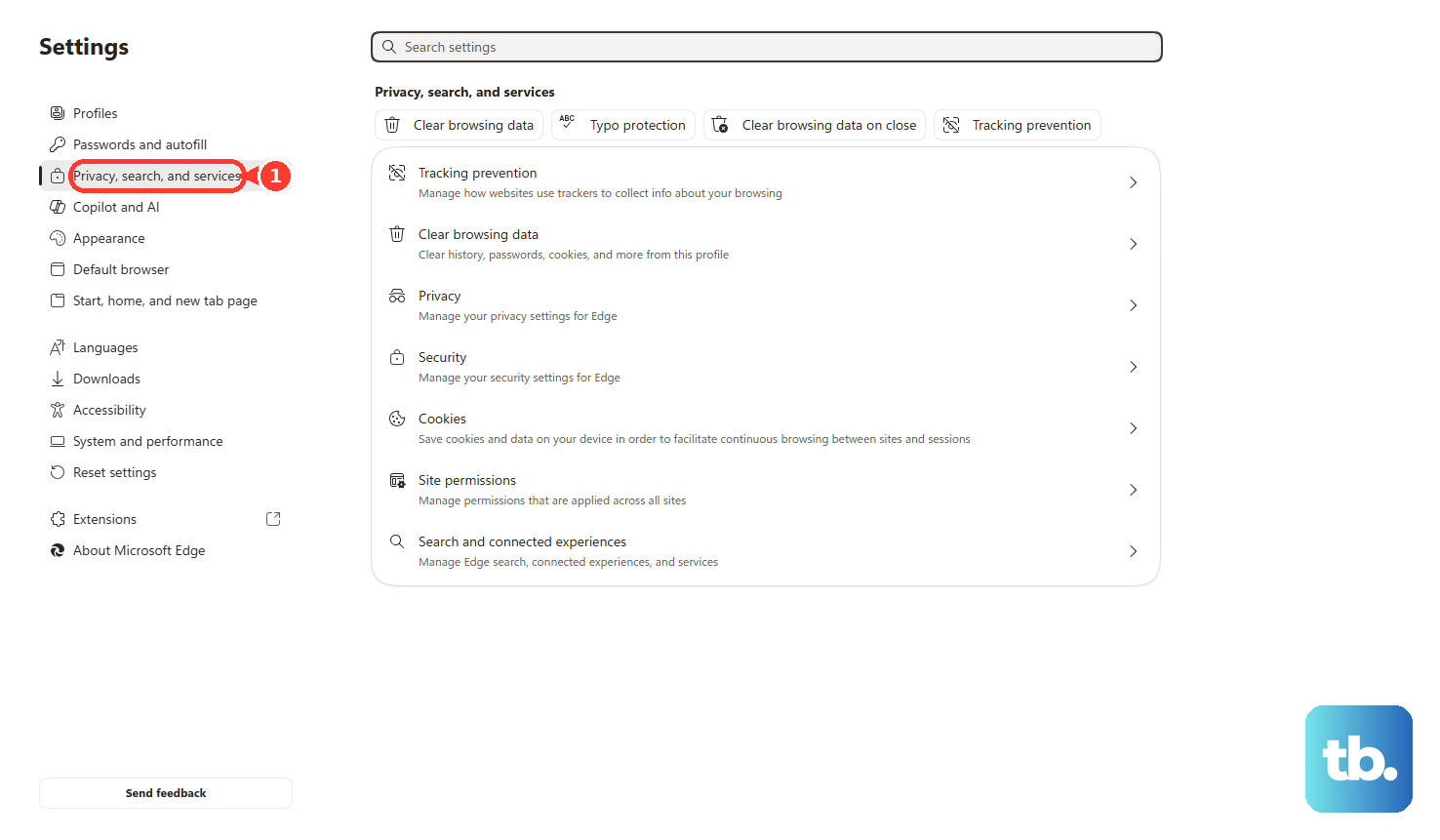
In desktop Microsoft Edge, clearing cookies removes website sign-in information, including other sites within the selected period. Open Settings and more > Settings > Privacy, search, and services > Clear browsing data, then select Choose what to clear beside Clear browsing data now. Choose a Time range covering your Roblox login, select Cookies and other site data, then select Clear now.
In desktop Firefox, this process clears cookies and site data for all websites. Open the menu, select History > Clear Recent History…, and choose Everything for When:. Select Cookies and site data, leave other data you want to preserve unselected, then select Clear.
In Safari on Mac, removing the Roblox website entries deletes their saved website data, including cookies. Open Safari > Settings > Privacy > Manage Website Data. Select the Roblox entries, then select Remove.
Remove Safari login data on iPhone
Clearing Safari website data on iPhone removes website login data for all sites. Open the iPhone’s Settings > Apps > Safari > Advanced > Website Data. Tap Remove All Website Data, then tap Remove Now.
Turning on cookie blocking also removes Safari’s existing cookies and website data, and it can prevent later website sign-ins until you disable blocking. For this broader alternative, open Settings > Apps > Safari > Advanced. Turn on Block All Cookies, then tap Block All. For routine logout from the Roblox app, use its More > Settings route instead.
Remove Chrome login data when you close it
Chrome’s automatic removal setting deletes local data saved by websites when you close all its windows, affecting other websites too. In desktop Chrome, open More > Settings > Privacy and security > Site settings > Additional content settings > On-device site data. Choose the option that deletes data sites have saved when you close all windows, then close all Chrome windows. Google notes that with this setting, sites are less likely to remember you from one visit to the next.
Closing every Chrome Incognito window removes that private session’s local cookies, including a Roblox login started there. If you signed into Roblox in desktop Chrome Incognito, close every Incognito window to end that private session.
Set session cookie removal in managed Edge
If you administer Microsoft Edge on managed Windows PCs, you can configure a policy that removes Roblox cookies when the browser session ends. This removes the matching local browser login data; it does not revoke Roblox sessions on other devices.
Open Administrative Templates > Microsoft Edge > Content settings > Limit cookies from specific websites to the current session. Configure the policy named CookiesSessionOnlyForUrls with [*.]roblox.com, then end the browser session. Microsoft says this policy is ignored when RestoreOnStartup restores URLs from previous sessions, so use Roblox’s logout or remote session controls in that case.
Frequently Asked Questions
Can you use the Chrome cookie steps on a Chromebook?
Yes, the desktop Chrome cookie-removal steps also apply to ChromeOS. You can remove the Roblox site data using Chrome’s site-data settings.
Does closing only the Roblox Incognito tab end the private session?
No, closing only that tab does not end the entire Chrome Incognito session. You need to close every Incognito window. Ending that private session does not sign you out of ordinary browser windows or native apps.
Which Edge versions support the session cookie policy?
Microsoft supports CookiesSessionOnlyForUrls in managed Edge on Windows and macOS version 77 or later, and Android version 30 or later. The policy is unsupported on iOS.
Should you use Account Switching when you want to log out?
Use Log Out or the remote session controls when your goal is to end a session. Roblox’s Account Switching feature is a convenience for moving between accounts, so keep that separate from the logout steps.