

To share your location on iOS 26, open Messages, select an iMessage conversation, tap Add (+) > Location > Share, choose a duration, then tap the Send arrow. This shares your ongoing position with the conversation’s recipient or participants. For a location that stays fixed, send a map pin instead.
The short version
- Ongoing sharing: In an iMessage conversation, tap Add (+) > Location > Share, choose a duration, and send.
- One-time location: Choose the Map Pin icon under Location to send a position that does not update.
- Android recipients: WhatsApp live location works in individual and group chats with Android recipients.
- Stop sharing: Open Find My, select Me, then turn off Share My Location to stop Apple location sharing with everyone.
| Option | Best for | What the recipient gets |
|---|---|---|
| Messages ongoing sharing | An individual or group iMessage conversation | Your updating position for the chosen duration |
| Apple People sharing | Sharing with a selected person | Your position for an hour, the day, or indefinitely |
| Messages map pin | A single location, including over SMS | A fixed point that does not follow you |
| Maps place or pin | A meeting point | A selected location without live tracking |
| Maps Home Screen shortcut | Quickly sending your current position | A location snapshot |
| Google Maps live link | Someone without a Google account | Live location for up to 24 hours |
| WhatsApp live location | An individual or group chat | Your updating position for the selected duration |
| Maps ETA sharing | A trip in progress | Maps progress or SMS arrival information |
| Messages destination Check In | A journey to a destination | Conditional location sharing if the journey fails and you do not respond |
| Messages timer Check In | A timed activity | Conditional information sharing if the Check In fails |
Prepare your location settings
Open Settings > Privacy & Security > Location Services, then turn on Location Services. Select the app you plan to share through and choose the permission it needs. Depending on the app’s available choices, that can be While Using the App or Always.
Turn on Precise Location when you want that app to receive your exact position. Giving an app location permission does not select anyone to share with. You still need to choose your recipients inside the sharing app.
For Apple ongoing sharing, open Find My, select Me, and turn on Share My Location. Check Sharing From to see which device supplies your position. If you need to switch the source to this phone, tap Use This iPhone as My Location.
Share your ongoing location in Messages
Open Messages and select the individual or group iMessage conversation. Tap Add (+) > Location > Share, then select a duration. Tap the Send arrow to send the location share.
Choose Indefinitely when you want sharing to continue until you manually stop it. In a group conversation, sharing gives the participants access to your location. If you later add participants who also need access, share your location again.
For an SMS conversation, send a pinned location using the steps below.
Share with a person through Apple location sharing
Open Find My and select People. Tap Add (+), then tap Share My Location. Enter or select the recipient in With, then tap Send. Choose to share for one hour, the remainder of the day, or indefinitely.
Your shared position comes from the device selected as your location source, so check that setting if the position does not match the phone you are carrying. Apple says both iPhones need iOS 15 or later for Live Location.
Send a location pin that stays fixed
In Messages, open the conversation and tap Add (+) > Location. Tap the Map Pin icon and position the pin at your location. Tap Send Pin, then tap the Send arrow.
The pin does not move when you do, making it suitable for sending a single position. This method also works in SMS conversations.
To share a meeting point through Maps, select the place, tap the Share icon on its place card, and choose a delivery method. Alternatively, touch and hold the place, then tap Share Location. Both send a selected position without live tracking.
A Home Screen shortcut provides another way to send your position. Touch and hold the Maps app icon, tap Send My Location, then choose a sharing destination.
Share through Google Maps or WhatsApp
Google Maps provides a live link that the recipient can use without a Google account. Open Google Maps, tap your profile picture, then select Location sharing > New share. Tap Message for iMessage, or tap More options to choose another delivery app. Send the generated link.
Link sharing lasts up to 24 hours. To stop sharing with someone who has a Google Account, open Location sharing, tap that person’s profile, and tap Stop.
For WhatsApp live sharing, first open Settings > Privacy & Security > Location Services > WhatsApp and choose Always to allow background location access. Open a WhatsApp individual or group conversation, then tap Attach (+) > Location > Share live location. If prompted, tap OK, select a duration, and tap the Send icon.
WhatsApp live sharing includes recipients on Android. To end it in that chat, tap Stop sharing, then tap Stop sharing again to confirm.
Share your arrival time during a trip
In Maps, start your route by tapping Go. Open the route card, tap Share ETA, and select a contact or tap Open Contacts. This works during driving, cycling, and walking navigation.
Compatible Apple recipients can follow your progress in Maps, while other phones receive SMS arrival information. If Share ETA is unavailable, open Settings > Apps > Maps and turn on Share ETA. To stop sharing, open the route card, select Sharing with, then tap Stop Sharing ETA beneath the recipient.
Use Check In for a journey or timer
Check In releases your location if your journey does not finish as expected and you fail to respond. It does not keep your location continuously visible. Both you and the recipient need iOS 17 or later.
Open Messages, select the recipient, then tap Add (+) > More > Check In > Edit. Choose When I Arrive, then configure the destination, travel mode, and any extra time. Tap the Send arrow to start the Check In.
For a timed activity, open the conversation and tap Add (+) > More > Check In > Edit. Choose After a timer, set the duration, then tap the Send arrow.
To control the information released if the Check In fails, open Settings > Apps > Messages > Check In Data. Choose Limited or Full. The Full option adds your route and information about the last iPhone unlock and Apple Watch removal.
Stop sharing with one person or everyone
To end Apple location sharing with one person, open Find My, select People, and select the recipient. Tap Stop Sharing My Location, then tap Stop Sharing Location. You can also open the person’s card in Contacts and tap Stop Sharing My Location.
For everyone at once, open Find My, select Me, then turn off Share My Location. Turning global sharing back on restores visibility to existing recipients. To end a particular person’s access, use the individual control.
Fix permissions and restrictions that block sharing
Open Settings > Privacy & Security > Location Services. Confirm that location access is on and that the sharing app has the permission it needs. For WhatsApp live location, choose Always; for an exact position, turn on Precise Location.
If Apple sharing shows another device’s position, open Find My, select Me, and check Sharing From. Tap Use This iPhone as My Location to use this phone. Also turn on Share My Location if sharing is off.
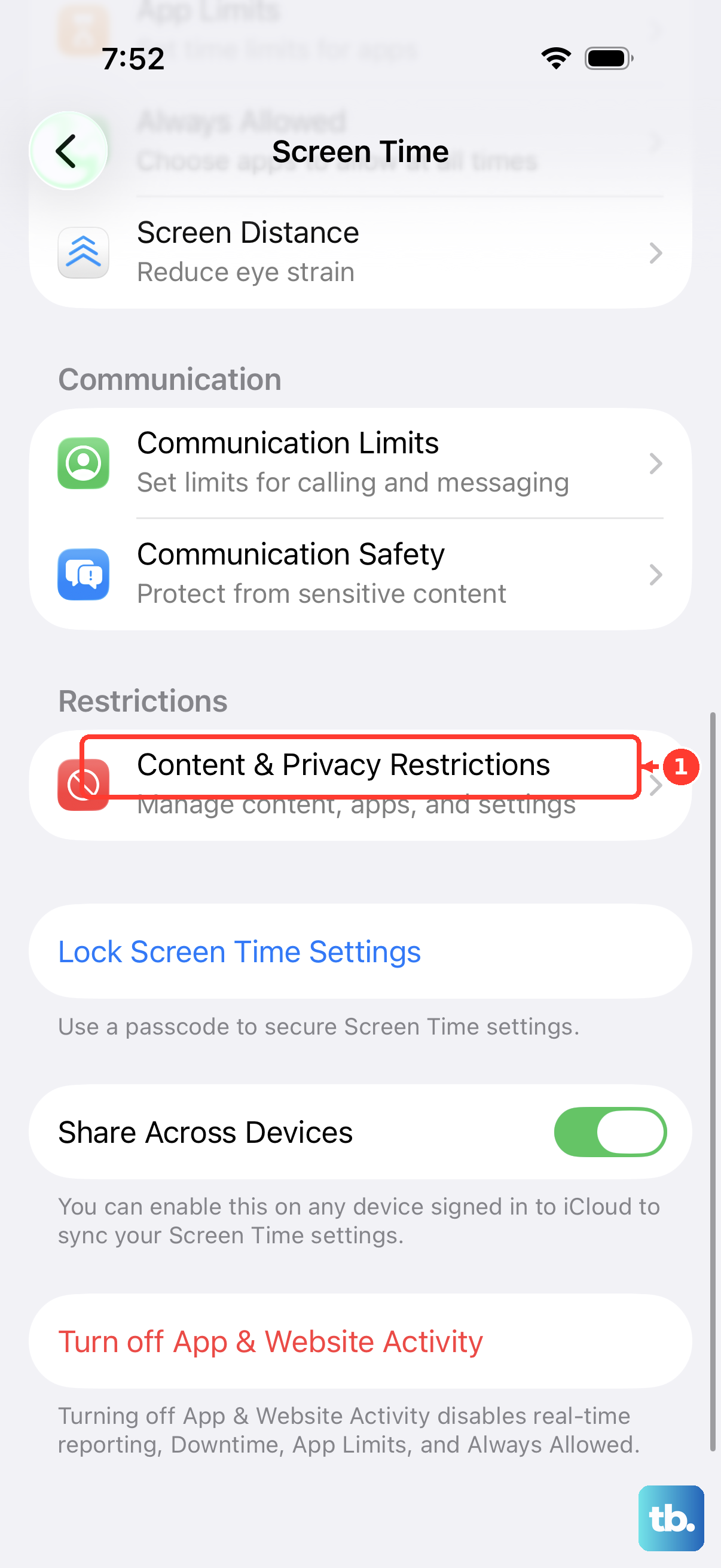
Parental controls can lock location-sharing settings on a child’s iPhone. On the managing parent’s iPhone, open Settings > Screen Time, select the child under Family, and open Content & Privacy Restrictions. Under Privacy, select Location Services or select Share My Location to review the restrictions, entering the Screen Time passcode if requested.
On a supervised work or school iPhone, device management restrictions can prevent Apple location sharing. Ask the administrator to review the controls named Allow Find My Friends and Allow Find My Device in the management service.
Frequently Asked Questions
Can location sharing include new family members automatically?
Yes, with a family group already configured, open Settings > Family > Location Sharing and select family members under Share Your Location With. Turn on Automatically Share Location to include family members who join later. Family members control whether they share their own location.
Can an Apple Watch supply my location when I leave my iPhone behind?
Yes, a paired Apple Watch GPS + Cellular model can supply your location automatically when the iPhone is out of range. Configure location sharing from the paired iPhone and wear the watch on your wrist.
Can someone get an alert when I arrive or leave?
Yes, open Find My, select People, and select the recipient. Under Notifications, tap Add, then tap Notify [your friend’s name]. Configure arrival or departure, the location and radius, and one-time or repeated delivery, then tap Add.
Is there a quick way to answer a message asking where I am?
When someone asks where you are in Messages, a contextual location suggestion can appear above the keyboard. When that suggestion appears, tap Current Location.