


To set up McAfee on your computer, sign in to your McAfee account, download the app for your subscription and run the installer. Redeem an unused retail key before downloading, or activate the app already supplied with your new Windows PC. After installation, check that your protection is enabled.
The Windows installation steps cover compatible Windows 10 and Windows 11 computers; Mac installation uses a separate serial number. Sign in only through McAfee’s own app or website, and never share a code, password or remote access with someone who contacts you.
The short version
- Existing subscription: Sign in to McAfee’s protection portal and download the app on the computer you want to protect.
- Retail purchase: Redeem your unused 25-character product key before installing.
- Preinstalled app: Activate the McAfee copy on your new Windows PC and verify its subscription.
- Protection checks: Check real-time scanning, scheduled scans and the firewall after Windows installation.
| Task or starting point | Route to use |
|---|---|
| New Total Protection trial | Enroll through McAfee’s official trial download page |
| Existing Windows subscription | Download from the protection portal |
| Missing Windows installer download | Select download it manually, then open Downloads |
| Another computer to protect | Email an installation link within your device allowance |
| Subscription supplied by another company | Start at the supplier entry point listed by McAfee |
| Unused retail or emailed key | Redeem the 25-character key before installing |
| Previously redeemed key | Open My Account and download again |
| McAfee preinstalled on a Windows PC | Activate the app and verify its subscription |
| Trial offered during new-PC registration | Complete the welcome screen and account setup |
| Optional preinstalled trial features | Complete onboarding or select the relevant Set up tile later |
| McAfee+ family invitation | Follow the invitation to create your own account |
| Mac installation | Download through your account and record the 15-character serial number |
| Windows real-time protection | Enable Real-Time Scanning with an administrator account |
| Windows updates and scheduled scans | Check available update controls and enable Scheduled Scans |
| McAfee firewall on Windows | Check that Advanced Firewall is on |
| Windows system firewall | Keep Microsoft Defender Firewall on alongside McAfee |
| Mac firewall | Use the McAfee console where your product provides it |
| Standalone WebAdvisor | Confirm browser compatibility before downloading |
| Reinstalling an existing Windows copy | Uninstall the app and restart before reinstalling |
| Installation Incomplete | Run McAfee’s Pre-Install Tool first |
| Pre-Install Tool does not resolve the error | Retry through the built-in Windows administrator account |
| Earlier installation repairs fail | Download a fresh MCPR copy, remove remnants and reinstall |
| Business Protection on an eligible Dell device | Complete administrator setup and invite employees |
Check your computer and subscription
For an x64 computer, you need Windows 10 RS5 or newer to install the current McAfee Windows app. For an ARM64 computer, you need Windows 11 or newer. McAfee excludes Windows S mode, and its current Mac requirements list McAfee build 4.23 or later on macOS 13 or later.
Start with the subscription you already have: an account purchase, an unused retail key or protection included with your computer. If you redeemed a retail key previously, sign in to the account associated with it to download again. Each retail key can be redeemed only once.
To start a new Total Protection trial, open McAfee’s official trial download page and select 30-day free trial. Complete enrollment, then download and install the app on your compatible computer. This is a subscription trial; McAfee says to cancel at least seven days before it ends to avoid a charge.
Download and install McAfee on Windows
On the computer you want to protect, open the McAfee protection portal, select Get started and sign in. Under Device, select Download to more devices > Download on this device. If the download does not begin, select download it manually.
Open the browser’s Downloads, or press Ctrl + J, and open McAfee.exe. Select Yes when prompted, then select Install. Once installation finishes, select Close.
To send the installer to another computer, return to Device > Download to more devices and select Email. Enter an email address you can access on that computer, then select Send link. Open the link on the destination computer and complete installation within your subscription’s device allowance.
Redeem an unused product key
Open McAfee’s activation and download page and select Enter product key. Enter the 25-character product key from your retail card or purchase email, along with your email address. McAfee requires auto-renewal enrollment with a valid payment method for this activation flow.
Select Next and continue into installation. For a key you have already redeemed, open My Account from the activation page, sign in and download the product on the intended computer. Keep the retail key separate from the shorter serial number used during Mac installation.
Activate McAfee supplied with your PC
On a new Windows computer with McAfee preinstalled, open McAfee and select Account. Select My Subscription, then select Go to My Account. Sign in and complete activation.
Next, select Show hidden icons on the Windows taskbar and right-click the McAfee icon. Select Verify subscription and wait for the synchronization notification.
Some participating manufacturers show a welcome screen for a free McAfee trial during new-PC registration. Select Get Started, supply your email when requested and select Continue. Complete email verification and account creation or sign-in; you can link an existing paid account instead of starting a trial. The welcome flow also lets you select Buy a subscription.
Download McAfee for your Mac
Sign in to your McAfee account and download the Mac app. Record the 15-character serial number displayed when the download starts, then enter it during installation. This installation serial number is different from a 25-character retail activation key.
Continue through the Mac installer’s prompts to complete setup. If you cannot complete a permission request or another installation step, use McAfee’s official support through its website.
Check antivirus updates and firewall protection
After Windows installation, open McAfee and select My Protection. Under Device, select Real-Time Scanning and turn its switch on. You need a Windows administrator account to use these controls.
Current McAfee Windows apps update automatically. If your Windows version of McAfee+, LiveSafe or Total Protection includes the manual-update control, open Account > Update app, select Check now, then select Done. Select Close app if prompted. Next, select My Protection, check Scheduled Scans and enable it if it is disabled.
For a current Windows app with Advanced Firewall, select My Protection, then open Device > Advanced Firewall. Turn on Advanced Firewall if it is off; it is enabled by default. McAfee says Windows Defender Firewall must also remain enabled for complete protection.
On Windows 10 or Windows 11, open Windows Security > Firewall & network protection. Select a network profile and turn on Microsoft Defender Firewall. McAfee’s Advanced Firewall works alongside the Windows firewall.
For Mac products that provide McAfee’s menu-bar console, open the McAfee M icon in the menu bar and select the product’s console, such as LiveSafe Console. Open Mac Security or the gear icon, choose Firewall and select Turn on. If the controls are locked, unlock them with your password, enable Firewall and lock the controls again.
Finish optional trial features
During preinstalled trial onboarding, you can select Turn on VPN to enable the offered VPN or select Scan dark web for identity monitoring. For personal-data cleanup, select Continue and provide the requested name, birth year and address. These features depend on your subscription and region.
To defer an offered feature, select I'll do this later. When you are ready to resume, open McAfee from Start or its desktop icon and select the relevant Set up tile.
Remove an existing copy when reinstalling
If you are reinstalling McAfee on Windows, remove the existing copy first. If you intend to retain a subscription included with a preinstalled copy, activate that subscription before removing the app. Removal is a repair or reinstallation step, rather than a routine requirement for initial setup.
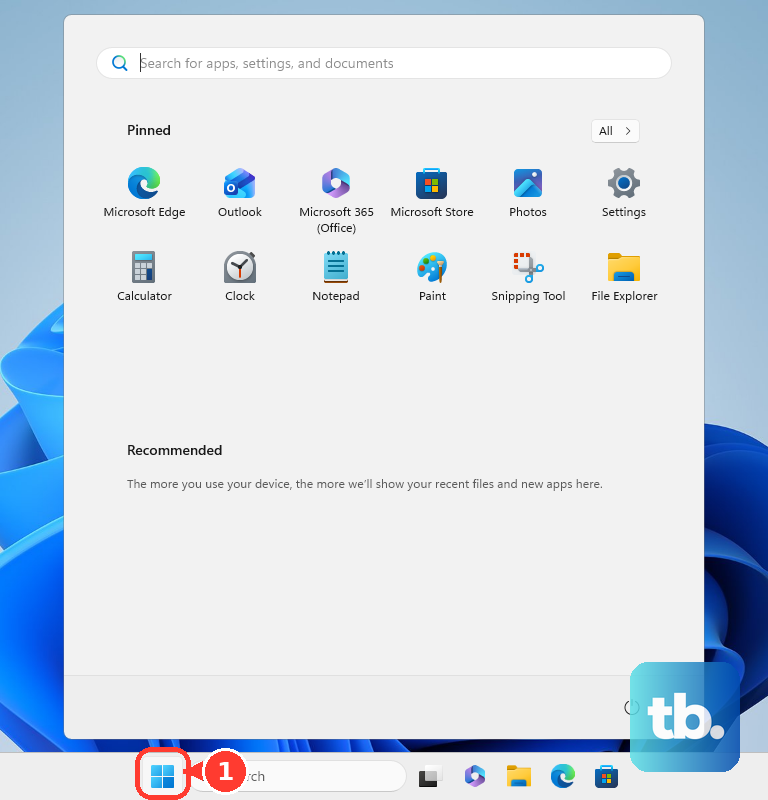
On Windows 11, open Start > All apps and locate McAfee; on Windows 10, locate it through Start. Right-click McAfee and select Uninstall. Complete the removal prompts, restart Windows and install McAfee again through your account.
Resolve an incomplete Windows installation
If Windows installation reports Installation Incomplete, get the McAfee Pre-Install Tool from McAfee’s installation repair instructions. Run the tool, complete its prompts, restart Windows and retry installation.
If the Pre-Install Tool does not resolve the error, use McAfee’s built-in administrator-account fallback. Find Command Prompt, select Run as Administrator and select Yes. Enter this command to enable the account:
net user administrator /active:yesPress Ctrl + Alt + Delete and select Sign out. Sign into Administrator and retry installation.
Afterward, return to your normal account, find Command Prompt and select Run as Administrator again. Run this command to disable the built-in administrator account:
net user administrator /active:noIf earlier fixes fail, get the McAfee Consumer Product Removal tool, called MCPR, from the same official repair instructions. Download a fresh copy for each attempt, run it, complete its prompts and enter the displayed security-validation characters. Allow removal to finish, restart Windows and reinstall McAfee. For a failure these steps cannot resolve, contact McAfee through its official support website.
Frequently Asked Questions
Does starting a preinstalled McAfee trial require a payment card?
McAfee says the trial offered during registration on participating manufacturers’ Windows PCs does not require payment-card details. That is a separate enrollment flow from the subscription trial on its download page or retail product-key activation.
How do you join a McAfee family subscription?
For a McAfee+ family plan, the subscription owner must open My Account, sign in, select Manage users and devices and send a family invitation. Follow that invitation to establish your own McAfee account and complete protection setup. Family plans cover up to two adults and four children, and joining one differs from adding another computer under one person’s account.
Where do you start if another company supplied your subscription?
For an eligible subscription supplied through Dell, AT&T, MSN or AOL, begin at the supplier-specific entry point McAfee lists in its official download and installation instructions. Use the entry for the company that supplied your subscription. If you cannot complete the supplier’s setup, use its official account help or McAfee’s official support.
How do you add standalone McAfee WebAdvisor?
First, confirm compatibility for your browser with McAfee’s official support. Open McAfee’s official WebAdvisor product page, select Free download, then save and open the installer and complete its prompts. McAfee says restarting the browser may offer McAfee Secure Search as your default search provider.
How do you set up McAfee Business Protection?
On an eligible Dell device, open Business Protection, select Get started, then select Buy a subscription. On the website, select Get started, sign in, select a subscription and select Continue to complete purchase and administrator setup. Administrators invite employees, who install through emailed links, and manage device policies through the security console. This offering supports up to five users and is separate from consumer subscriptions.
Does uninstalling McAfee cancel your subscription?
No, uninstalling the Windows app does not cancel billing. Handle subscription or billing changes through McAfee’s official account or support website.