

Dual boot gives one PC a startup choice between Windows and another operating system, such as Ubuntu. The part that trips people up is the order: disk space, encryption, USB installer, then the boot menu. Follow the current Windows 11 and Ubuntu 26.04 LTS path and you get a clean setup without old Wubi or Windows To Go tricks.
Start with the right prep
Do these first so the installer has a clean place to work.
- 1.Back up your personal files before changing partitions or installing another operating system.
- 2.Confirm the PC has enough free storage for Windows and Ubuntu, or use a separate internal drive for Ubuntu.
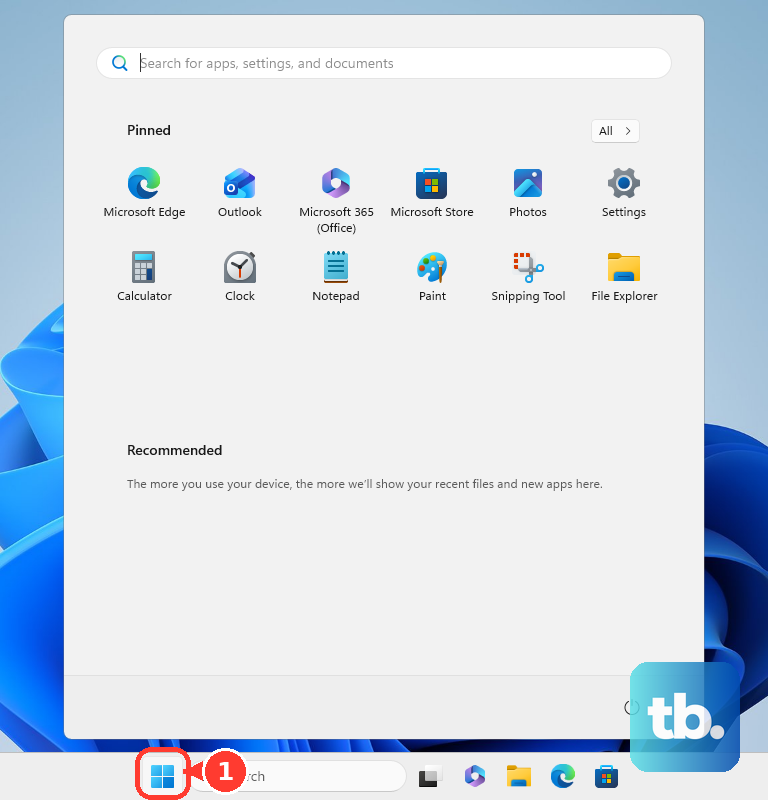
- 3.On Windows Pro, Enterprise, or Education, open Start, search for BitLocker, and select Manage BitLocker to check encryption before resizing disks. On other editions, check Device encryption in Settings instead.
- 4.Set aside a USB stick for the Ubuntu installer and treat every file on it as erased.
- 5.Keep another device ready for https://aka.ms/myrecoverykey in case Windows asks for a BitLocker recovery key.
Get the Windows and Ubuntu files
For Windows 11, use Microsoft's Windows 11 download page. Choose Download Windows 11 Disk Image (ISO) for x64 devices, or use Create Windows 11 Installation Media and then Download Now.
For Ubuntu, use Canonical's Ubuntu Desktop download page. Under Ubuntu 26.04 LTS, select Download for Intel or AMD 64-bit architecture, or choose ARM 64-bit architecture for an ARM64 PC.
Windows 10 installation media remains available from Microsoft, but Windows 10 support ended on October 14, 2025. Treat Windows 7, Windows 8, and Windows 8.1 dual-boot tutorials as legacy because support for those releases has ended.
Make room from Windows
This fixes the usual blocker: no unallocated space for Ubuntu.
Right-click or long-press Start, then open Disk Management.
Right-click the Windows volume you want to shrink and select Shrink Volume.
Follow the on-screen instructions to leave unallocated space for Ubuntu.
For the Settings route, open Settings > System > Storage > Advanced storage settings > Disks & volumes.
Select Properties for the volume with the drive letter, such as C: or D:, and use the resize controls shown there.
Create the Ubuntu USB installer
On Windows, Rufus creates the Ubuntu USB installer.
- 1.Download and install Rufus, launch Rufus, and insert the USB stick.
- 2.In Device, select the USB stick, then click SELECT next to Boot selection and choose the Ubuntu ISO.
- 3.Set Partitioning scheme to GPT and Target system to UEFI (non CSM) when those settings are needed.
- 4.Click START, choose Write in ISO Image mode, and select Yes when prompted.
- 5.Confirm the USB erase warning with OK, wait for READY, then click CLOSE.
Boot your PC from the USB
Insert the Ubuntu USB stick and restart the computer. When Ubuntu launches, continue into the installer.
When it does not launch automatically, restart again and hold the boot-menu key during startup. Ubuntu lists F12 as the most common key on PC and Windows computers, with Escape, F2, and F10 as common alternatives.
In the boot menu, select the USB device. The exact key and firmware screen name vary by PC maker and model.
If this method fails, open Settings > System > Recovery, select Restart now under Advanced startup, then go to Troubleshoot > Advanced options > UEFI Firmware Settings > Restart.
Install Ubuntu alongside Windows
Choose your language, accessibility settings, and keyboard layout in the Ubuntu installer.
Connect to a network when you want internet access during setup.
On Try or install Ubuntu, click Install Ubuntu.
On Type of installation, choose interactive installation.
Choose Default selection or Extended selection.
Enable third-party software when you want that option.
On Disk setup, choose the option to install Ubuntu alongside the existing operating system. If Windows uses BitLocker, the installer can't install Ubuntu alongside Windows without data loss, so turn BitLocker off in Windows first, then reboot and launch the Ubuntu installer again.
Select the drive and allocate disk space.
Review Ready to install, then click Install.
When prompted, click Restart Now.
Remove the USB stick and press Enter.
Tip: with two internal drives, select the separate Ubuntu drive before choosing Erase disk and install Ubuntu.
Handle BitLocker before Ubuntu blocks the install
Ubuntu cannot safely install alongside Windows while BitLocker is enabled, unless Ubuntu is going onto a separate unencrypted disk. On Windows Pro, Enterprise, and Education, sign in with an administrator account, open Start, type BitLocker, and select Manage BitLocker. Select Turn off BitLocker and wait for Windows to finish decrypting the drive. Some Windows versions do not let you turn BitLocker back on afterward.
On devices that use Device Encryption, open Settings > Privacy security > Device encryption and use the Device encryption toggle. Before changing encryption settings, confirm that you have the recovery key linked to your Microsoft account, or to your work or school account.
If this method fails because Windows asks for a recovery key, go to https://aka.ms/myrecoverykey on another device, sign in with your Microsoft account, and match the recovery key ID shown on the PC. If the PC was ever signed into a work or school account, the key could be stored in that organization's account, and you might need its IT support to get it.
Fix a missing Windows boot option
After a Windows-based dual boot, Windows Boot Manager lists the installed Windows systems. When one is missing, open an administrator command line in Windows, boot Windows installation media and press Shift+F10, or boot Windows PE.
Run bcdboot D:\Windows, replacing D: with the drive letter of the missing Windows installation. Reboot and check Windows Boot Manager again.
For basic Windows boot settings, Microsoft recommends MSConfig instead of manual BCDEdit changes. Incorrect BCDEdit changes can make a PC unbootable.
Remove a dual boot entry later
Back up any files you still need from the operating system you plan to remove.
Open Disk Management in Windows.
Right-click the old OS volume and choose Format to reuse it. Formatting a volume destroys any data on it.
If the old OS space shows as unallocated instead, right-click that space, choose New Simple Volume, and follow the wizard.
For a stale Windows boot entry, open Command Prompt as administrator.
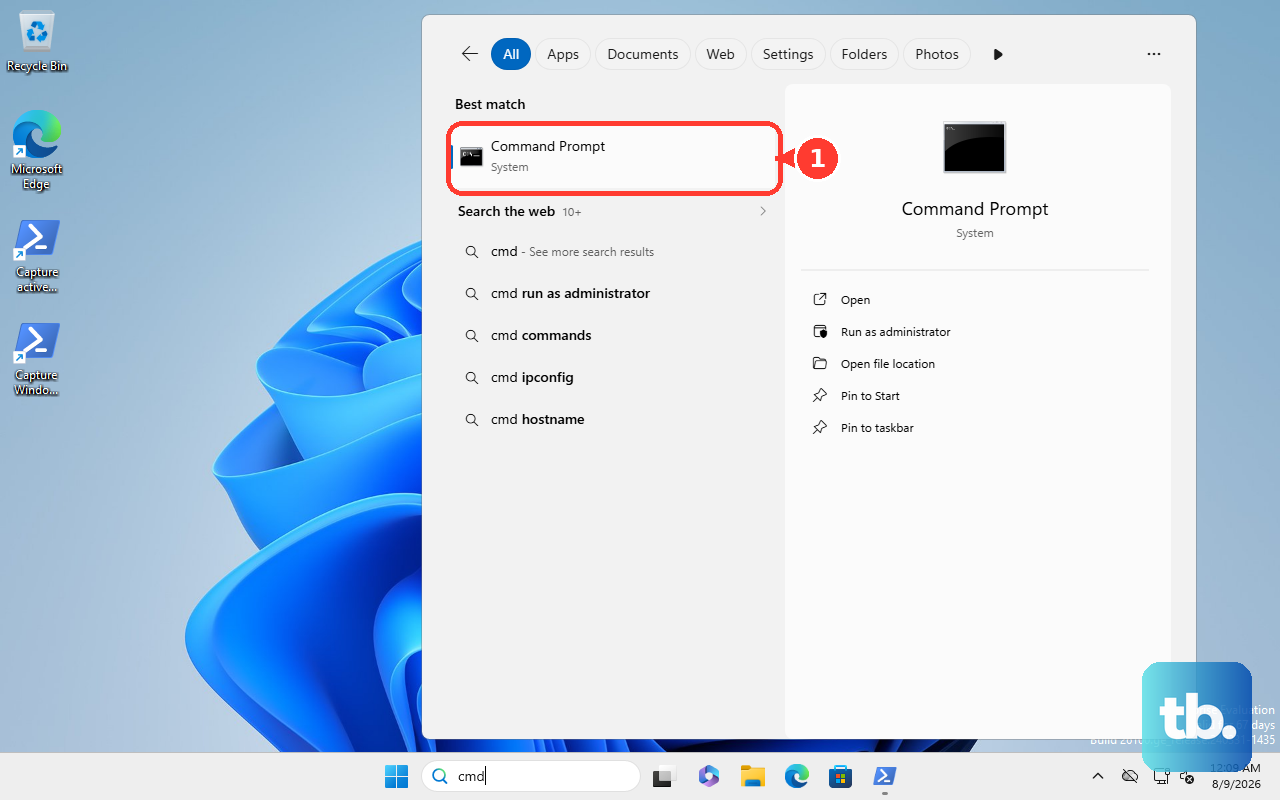
Run bcdedit to identify the entries.
Use bcdedit /displayorder {ID} /remove to remove it from the visible boot menu, or use bcdedit /delete {ID} to delete the boot loader entry.
Run bcdedit again to verify the boot menu.
Tip: Windows cannot format the partition currently in use, including the Windows partition you are running from.
Frequently Asked Questions
Can I dual boot Windows and Ubuntu on one drive?
Yes. The Ubuntu installer includes an alongside-operating-system option when it detects the existing OS and enough disk space is available.
Is a separate drive safer for dual boot?
A separate drive keeps each operating system on its own physical disk. Select the Ubuntu target drive carefully before using Erase disk and install Ubuntu.
Can I use Windows To Go for dual boot now?
No. Microsoft deprecated Windows To Go in Windows 10 version 1903 and removed it in Windows 10 version 2004.
What replaced Wubi for Ubuntu dual boot?
Use the current Ubuntu USB installer flow: download Ubuntu, create a bootable USB, boot from it, and use the alongside-operating-system option.