


To use an external hard drive, connect its power supply if required, plug it into your computer, then open it in File Explorer on Windows or Finder on Mac to copy files. A compatible, preformatted drive can work immediately without formatting or companion software. The Windows steps below use Windows 11 menus.
Start by checking whether you can open the drive and save files to it. If you need to format it to prepare unused storage or change its file system, copy any existing files you want to keep elsewhere first. Formatting deletes the drive’s existing contents.
The short version
- Connect first: Attach the required power supply and USB cable, then open the drive in your computer’s file manager.
- Format only when needed: Keep a compatible existing format rather than erasing a drive that already works.
- Copy before deleting: Verify the files on the external drive before removing their originals.
- Set up backups: Use File History on Windows or Time Machine on Mac for automatic backups.
- Disconnect safely: Finish transfers, close files, and eject the drive before unplugging it.
| Drive format option | When to choose it | Main consideration |
|---|---|---|
| Existing compatible format | The drive already opens and accepts files | No reformatting needed |
| ExFAT | Windows-compatible storage larger than 32 GB prepared on Mac | Formatting erases existing files |
| MS-DOS (FAT) | Windows-compatible storage up to 32 GB prepared on Mac | Formatting erases existing files |
| APFS | A modern Mac volume | Supports external hard drives and SSDs |
| APFS (Encrypted) | A password-protected modern Mac volume | Keep the password safe |
Connect the drive and open it
Attach the supplied power adapter if your drive requires one, then connect its USB cable to the computer. Use a compatible cable or adapter for your computer’s port. On a Mac laptop with Apple silicon, unlock the Mac and click Allow when asked to approve the connection.
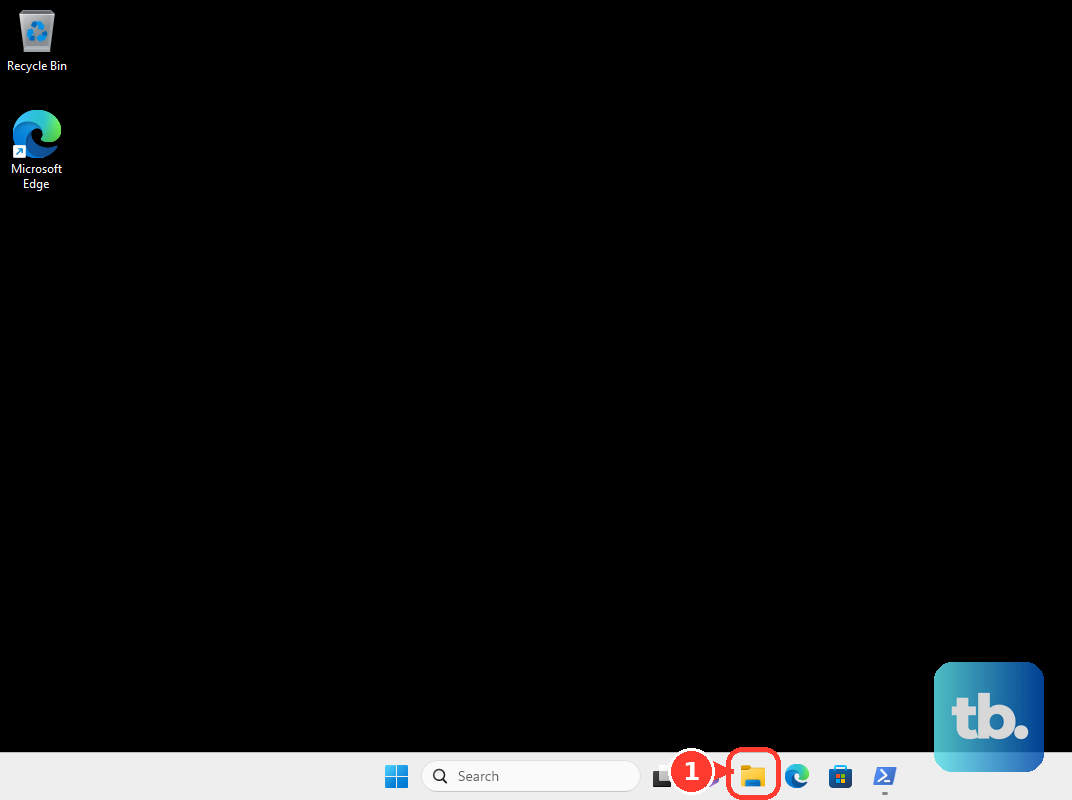
On Windows, open File Explorer > This PC and open the external drive. On Mac, open Finder and select the drive under Locations. If its existing format is compatible and you can copy files to it, you can begin using it without installing companion software.
To show connected drives on your Mac’s desktop, open Finder > Settings > General and select External disks. Open the Sidebar tab and select External disks there to display them in the sidebar too.
Copy files and check the results
In Windows File Explorer, open the folder containing your files and select what you want to copy. Choose Copy, open a destination folder on the external drive, then choose Paste. Open the copied files on the drive to verify them before deleting any originals.
On Mac, select your files in Finder and press Command + C. Open the destination folder on the external drive and press Command + V. You can also drag files between your Mac and the drive.
Keep the originals when the external drive is meant to hold a backup. If you delete the originals and leave the external drive holding your only copy, those files are no longer backed up.
Format only when the drive needs it
Leave a working, compatible drive in its existing format unless you need to change it. Before formatting, copy any files you want to keep elsewhere and confirm that you have selected the intended external drive. Formatting deletes its existing contents.
For a modern Mac volume, choose APFS, or APFS (Encrypted) for password protection. Apple supports APFS on external mechanical hard drives as well as SSDs. When preparing Windows-compatible storage on Mac, Apple specifies MS-DOS (FAT) for volumes up to 32 GB and ExFAT for larger volumes.
On Windows, open File Explorer > This PC, right-click the external drive, then select Format. Choose the file system, enter a volume name, and select Start, followed by OK. When formatting finishes, select OK if prompted.
On Mac, open Disk Utility and choose View > Show All Devices. Select the physical external device at the top of its hierarchy, click Erase, and set Scheme to GUID Partition Map. Choose the Format, enter a name, then click Erase > Done.
Set up automatic backups
On Windows, connect the drive and open Control Panel > System and Security > Save backup copies of your files with File History. Select Turn on to enable File History. To choose a different destination, select Select drive, choose your external drive, then select OK.
To include another folder, right-click it in File Explorer, select Show more options, then choose Include in library. Once File History is configured, start a backup by opening Control Panel > System and Security > File History and selecting Run now.
To recover a backed-up file, reconnect the drive and right-click the folder that contained the file in File Explorer. Select Restore previous versions, choose a version, then use Open > Open in File History to inspect it. Select Restore, or expand Restore and choose Restore to... for another destination.
On Mac, connect the drive and open the Apple menu > System Settings > General > Time Machine > Add Backup Disk. Select the external drive and click Set Up Disk. To protect the backups, turn on Encrypt Backup and create a password. If setup requires erasure, save needed files elsewhere before proceeding.
Apple recommends a backup drive with at least twice your Mac’s storage capacity. After setup, choose Back Up Now from the Time Machine menu to start immediately. Reconnecting a previously configured backup disk automatically resumes its backup schedule.
Save new files directly to the drive
On Windows 11, connect the drive and open Start > Settings > System > Storage > Advanced storage settings > Where new content is saved. For each content type you want to change, select the external drive from its drop-down menu. Available categories and drive eligibility vary.
For downloads in desktop Chrome, open More > Settings > Downloads > Change and choose a folder on the connected drive. Turn on Ask where to save each file before downloading to choose a destination each time instead. The external storage must be mounted and writable.
In Safari on Mac, open Safari > Settings > General > File download location. Choose the external-drive destination, or choose the option to ask for a destination for each download.
Protect private files with encryption
On Windows 11 Pro, Enterprise, or Education, sign in as an administrator, open Start, search for BitLocker, and select Manage BitLocker. Find the external drive and select Turn on BitLocker, then choose an unlock option and back up the recovery key. BitLocker management is unavailable in Windows 11 Home.
On Mac, the encrypted formatting option erases existing files, so save anything you need elsewhere first. In Disk Utility, choose View > Show All Devices, select the physical external device, and click Erase. Enter a name, set Scheme to GUID Partition Map, and choose APFS (Encrypted) under Format. Enter and verify the password, then select Choose > Erase > Done.
For an existing disk eligible for Finder encryption, hold Control and click the disk in the sidebar, then select Encrypt [item name]. Create a password and click Encrypt Disk. Apple warns that this converts the format to APFS, and not every existing format offers the command. Keep the password safe.
Eject the drive before unplugging it
Finish transfers and close files stored on the drive before disconnecting it. On Windows, open Show hidden icons in the system tray if necessary, right-click Safely Remove Hardware and Eject Media, then choose Eject for your device. Wait for Safe To Remove Hardware before unplugging it.
On Mac, select the drive in Finder and choose File > Eject, or click its sidebar eject icon. You can also select the drive and press Command + E. Disconnect it after ejection completes.
Fix a drive that does not appear or open
Check that you have connected the required power supply and a compatible cable. On an Apple silicon Mac laptop, unlock the computer and click Allow if prompted. For a recognized but unmounted Mac volume, disconnect and reconnect the device, or open Disk Utility, select the volume, and click Mount.
On Windows, right-click Start and select Disk Management with administrator permissions. If an initialized, accessible external volume has no drive letter, right-click it and choose Change Drive Letter and Paths > Add. Select Assign the following drive letter, choose a letter, then select OK and Yes.
For a new, unused disk marked as uninitialized, right-click the intended disk in Disk Management and select Online if necessary, then Initialize Disk. Choose GPT or MBR and select OK. Some USB disks cannot be initialized this way; use this procedure only for a new, unused disk.
To prepare its unallocated space, right-click that space and select New Simple Volume > Next. Set the size, select Next, choose a drive letter, and select Next again. In Format Partition, retain the default formatting settings, select Next, then select Finish.
For file-system problems on Mac, open Disk Utility > View > Show All Devices. Select a volume and choose First Aid > Run > Done, repeating for each volume, then each container, then the physical device. First Aid can repair some file-system problems, but it cannot fix physical hardware failure.
Frequently Asked Questions
Can you use an external hard drive with an iPhone or iPad?
Yes, connect it with a compatible cable or adapter and provide additional power when required. Open Files, select Browse, then choose the drive under Locations. Each disk must have one data partition in a supported format. Disconnect it only after transfers finish.
How do you use an external drive on a Chromebook?
Connect supported external storage, open Launcher, then open Files and select the drive in the left column. To save a file directly, press Ctrl + S, choose the drive, enter a name, and select Save. Select Eject before disconnecting it.
Can you keep Steam games on an external drive?
Yes, the current Steam desktop client supports an external library on a compatible, writable file system. Open Steam > Settings > Storage, select +, and create a library on the external drive that you can choose for subsequent installations. To relocate existing games, select their current drive and the games in Storage, then select Move. Valve does not recommend external hard drives for Steam or Steam games because of possible performance issues and unexpected disconnections; if games on an external drive appear uninstalled, it advises installing Steam and your games to an internal drive instead.
Can you move a Mac Photos library to an external drive?
Yes, use an APFS or Mac OS Extended (Journaled) drive that is not a Time Machine destination. Quit Photos, open Finder > Go > Home > Pictures, and drag Photos Library to the external drive. Double-click the copied library to open it. Apple excludes network or cloud storage, SD cards, and USB flash drives from this workflow.
Is mirroring the same as keeping a backup history?
No, Seagate Toolkit Mirror synchronizes its Mirror folders, and deletions propagate between them. If you delete a file in one Mirror folder, you cannot treat the other folder as an independent historical backup. Use a backup workflow when you need earlier copies of your files.