Your second screen is plugged in, but Windows can still mirror the wrong display, miss the monitor completely, or send only a browser tab when you wanted a full desktop. Start with the Windows 11 display controls, then use the wireless, dock, adapter, or graphics settings that match your setup. The steps below keep legacy Windows 10, Windows 8.1, Cortana, and old Connect app instructions out of the working fixes.
1. Connect a wired screen first
Connect the monitor, TV, projector, or dock to the PC with the display cable.
Open Start > Settings > System > Display.
Select Identify to match each numbered box with the physical screen.
Drag the display boxes until they match the way the screens sit on the desk.
Select Apply to save the arrangement.
Tip: match the boxes to the real left-to-right screen order so the pointer moves in the expected direction.
2. Switch the display mode with Win P
This fixes a connected second screen that shows the wrong view.
Press Windows logo key + P.
Choose PC screen only to use only the main PC display.
Choose Duplicate to show the same image on both screens.
Choose Extend to turn the second screen into extra desktop space.
Choose Second screen only to use only the external display.
3. Detect a missing display
Open Start > Settings > System > Display.
Open Multiple displays.
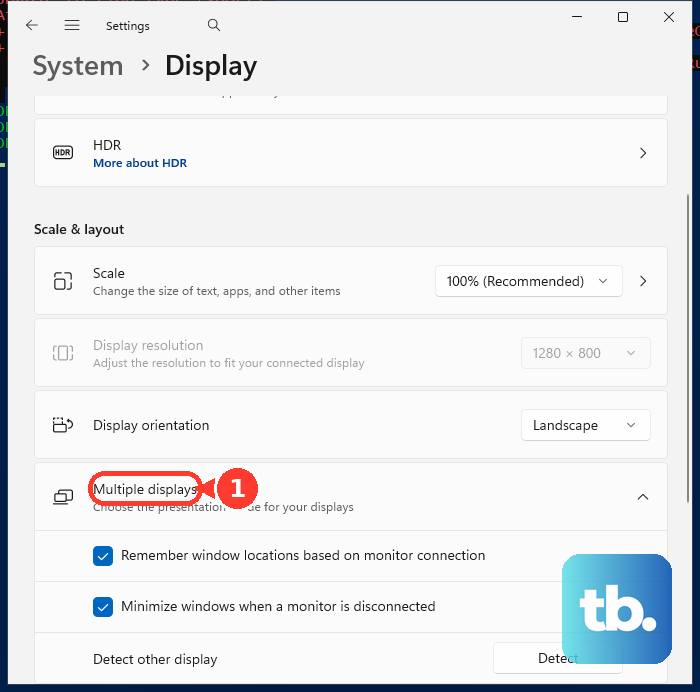
Select Detect.
After the screen appears, drag it into position in Display.
Select Apply.
Tip: run Detect after the monitor, TV, projector, or dock is connected and powered on.
4. Pair a wireless display or TV
Turn on the TV, projector, or wireless display.
For a Miracast dongle or adapter, plug it into the display.
On the Windows PC, press Windows logo key + K.
Select the display from the list.
Follow the on-screen prompts.
To connect from Settings instead, open Start > Settings > System > Display > Multiple displays > Connect.
5. Turn another Windows PC into the screen
On the receiving PC, open Start > Settings > System > Projecting to this PC.
Under Add the Wireless Display optional feature to project to this PC, select Optional features.
Next to Add an optional feature, select View features.
Enter wireless display, select Wireless Display, then select Next > Install.
Select Back, set the projection preferences, then open Wireless Display from taskbar search.
On the sending PC, press Windows logo key + K.
Select the receiving PC.
Tip: Windows 11 version 22H2 and later uses the Wireless Display app on the receiving PC.
6. Attach a Microsoft Wireless Display Adapter
This fixes a screen that needs Microsoft's wireless HDMI adapter.
Plug the HDMI end of the adapter into the HDMI port on the HDTV, monitor, or projector.
Plug the USB end into a USB charging port on the second display, or into a standard USB Type-A 5W charger.
Set the second display input to HDMI.
On the PC, press Windows logo key + K.
Select the adapter name.
To install the companion app, open Start > All Apps > Microsoft Store.
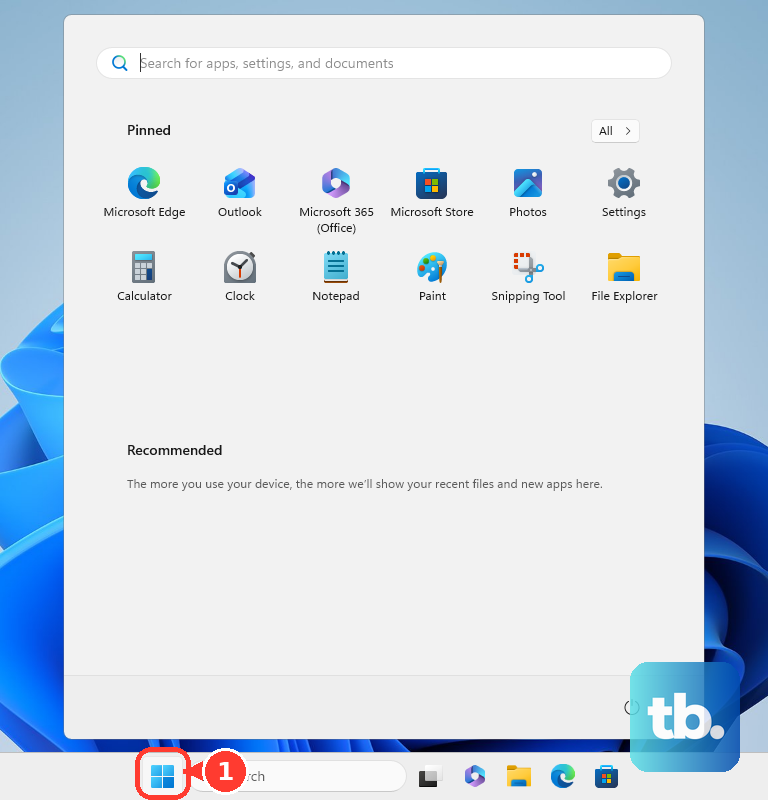
Search for Microsoft Wireless Display Adapter.
Select the app, then select Get.
7. Route docks and USB graphics correctly
For a laptop docking station, connect the monitors to the dock.
Connect the dock to the laptop.
Then configure the layout at Start > Settings > System > Display.
Thunderbolt, USB-C, and USB DisplayLink docks vary by model, so display count and resolution depend on the dock type.
DisplayLink USB graphics docks, adapters, and monitors need DisplayLink USB Graphics Software for Windows.
Windows Update can install it for you.
If the screens still do not come up, download the current package from Synaptics and run it.
Then choose the display mode in Windows Display settings.
8. Correct layout problems in graphics settings
For Intel graphics, open Intel Graphics Command Center from the Windows Start Menu.
Go to Display, use Connected Displays, choose Extend, arrange the displays, and select Apply.
For NVIDIA graphics, right-click the desktop, open NVIDIA Control Panel, select Set up Multiple Displays, check the inactive display, and select Apply.
When an NVIDIA display is missing, select My display is not shown... to force detection.
For AMD Radeon systems, right-click an empty area on the desktop, select Display Settings, select box 2, open Multiple Displays, and choose Extend Desktop to this display.
Tip: use the graphics utility when Windows sees the hardware but the screen is inactive, reversed, or not set as the primary display.
9. Separate casting from a real desktop
For Microsoft Edge casting, open the page or video, select the three dots menu, then choose More Tools > Cast Media to Device.
Choose the available device, then select Cast.
Use Edge casting for media or a webpage on a compatible device on the same Wi-Fi network, not for extending the Windows desktop.
For Chromecast receiver setup, open Google's Chromecast setup page and use the Google Home app on a mobile phone or tablet before casting from a compatible browser or app.
On a work or school PC, wireless display features can be restricted by organization policy, so ask IT when Cast or projection options are blocked.
Treat Cortana display commands, Windows 8.1 Charms, and the old Connect app as outdated instructions, not Windows 11 fixes.
Frequently Asked Questions
What is the fastest way to make Windows use my second screen?
After the display is connected, press Windows logo key + P and choose Extend, Duplicate, PC screen only, or Second screen only.
Where is Detect for a second monitor in Windows 11?
Open Start > Settings > System > Display > Multiple displays, then select Detect after the monitor, TV, projector, or dock is connected and powered on.
Can a Windows 11 PC receive projection from another PC?
Yes. Install the Wireless Display optional feature under Projecting to this PC, open the Wireless Display app on the receiving PC, then connect from the sending PC with Windows logo key + K.
Do DisplayLink docks need separate software?
Yes. DisplayLink USB graphics docks, adapters, and monitors need DisplayLink USB Graphics Software for Windows. Windows Update can install it for you; if it does not, download the current package from Synaptics. Then configure the display mode in Windows Display settings.
Is casting from Microsoft Edge the same as extending my desktop?
No. Edge casting sends a webpage or media to a compatible device. Extend mode turns the second screen into extra Windows desktop space.











