A home theater setup falls apart when the speakers, TV output, and streaming device are each sending a different kind of audio. Start with the room layout, make HDMI ARC or eARC the main path when your gear supports it, then set the TV and apps to formats the system can play. Follow the order below and you will avoid the usual dead ends: TV speakers only, missing surround, no dialogue, and Atmos that never turns on.
Start with the speaker layout
Pick the speaker layout before you run cables.
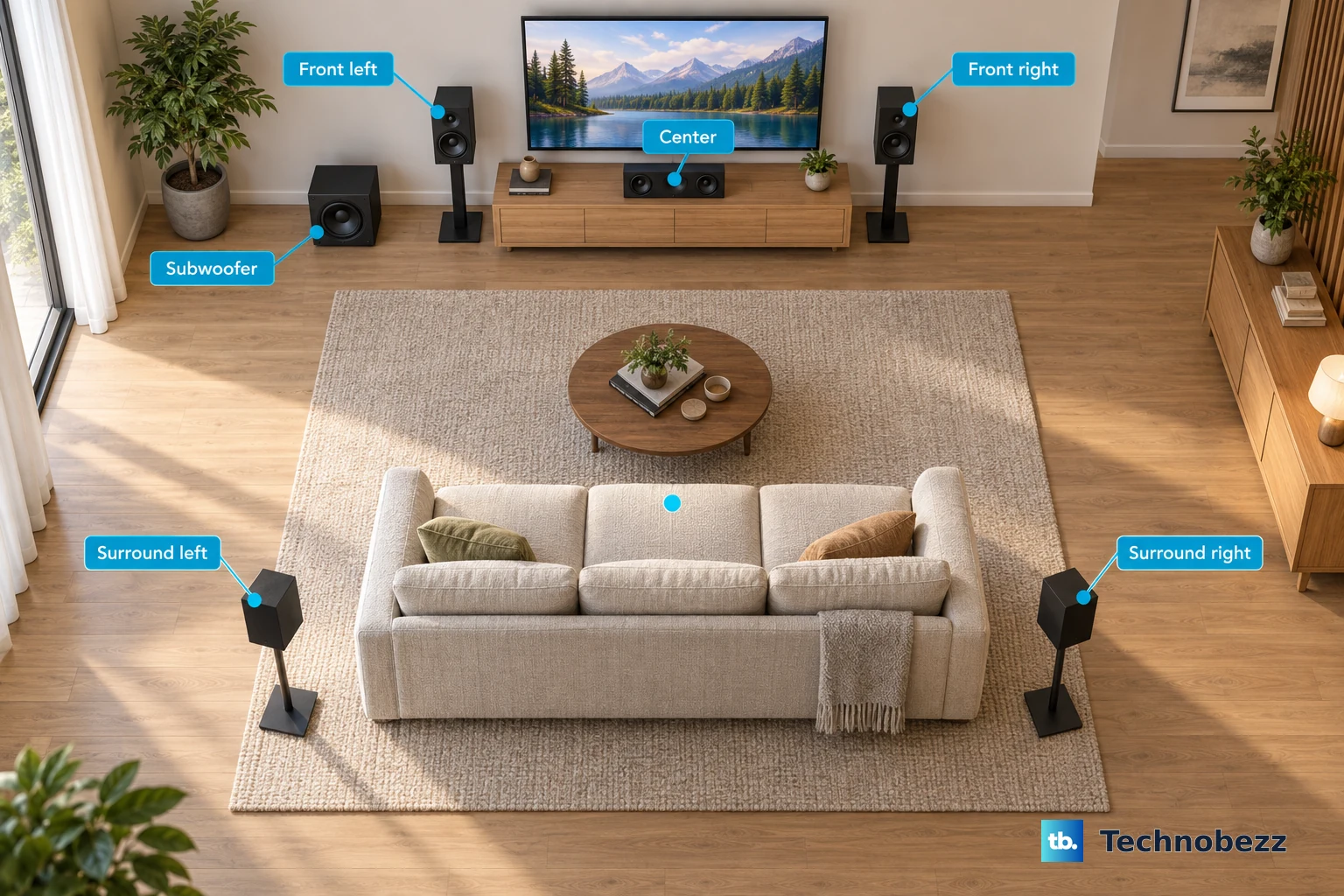
- 1.Choose the layout your gear supports, such as 2.1, 5.1, 7.1, 5.1.2, 5.1.4, 7.1.2, or 7.1.4.
- 2.Place the left and right speakers at the front, with the center speaker just below or above the TV.
- 3.Put the surround speakers to the side of the seats or behind them.
- 4.Use in-ceiling speakers or upward-firing speakers for Dolby Atmos height channels.
- 5.Place the subwoofer where bass performs best in the room.
Use HDMI ARC or eARC as the main connection
This method applies when both the TV and the soundbar or AV receiver have an HDMI port labeled ARC or eARC. Use it before optical, Bluetooth, or Wi-Fi for the main TV audio path.
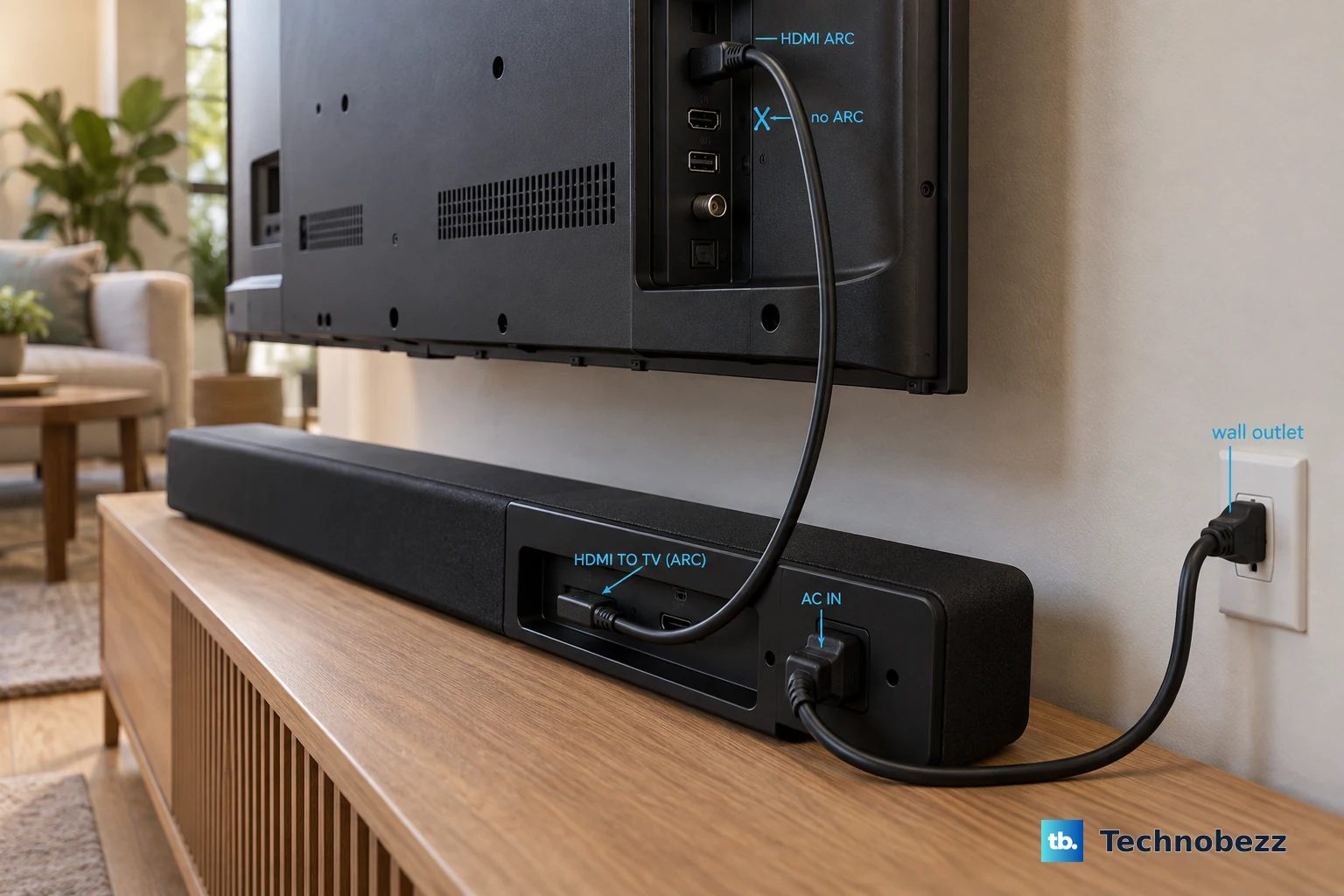
On a Samsung setup, connect the TV port labeled HDMI IN (ARC) or HDMI (ARC/eARC) to the soundbar port labeled HDMI OUT (TV-ARC) or HDMI TO TV (eARC/ARC).
Change the Samsung soundbar source to D.IN until TV ARC appears.
On a Sony or BRAVIA Google TV, connect the audio system to the TV HDMI input labeled ARC or eARC/ARC. For eARC, press HOME, then open Settings, Display & Sound, Audio output, and eARC mode, then choose Auto.
Set Speakers to Audio system.
On an LG TV, connect HDMI from the soundbar HDMI output to the TV port labeled HDMI ARC. Open All Settings, Sound, Sound Out, and Audio Out (Optical / HDMI ARC), then turn SIMPLINK (HDMI-CEC) on and confirm ARC appears on the soundbar.
Connect Sonos or Bose through the app
Sonos Arc and Arc SL use the included HDMI cable from the soundbar HDMI port to the TV HDMI ARC or HDMI eARC port. Disconnect existing home theater or surround sound equipment from the TV first, then connect external devices directly to the TV.
Set up Sonos products in the current Sonos mobile app for iOS or Android. The Sonos web app and desktop apps handle basic control such as playback, grouping rooms, and choosing content; they do not set up a new system or add new products.
For a Bose Smart Soundbar or Smart Ultra Soundbar, install the Bose app on an Apple or Android device and follow setup. When prompted, connect the soundbar HDMI ARC jack to the TV HDMI ARC or eARC jack, tap Next, and continue in the app.
If the Bose Smart Ultra Soundbar is not detected, press and hold Mute and Bose Music on the remote for five seconds until the light bar shows setup mode.
Turn on the TV audio output
On Samsung TVs, turn on HDMI control at Settings, All Settings, Connection, External Device Manager, and Anynet+ (HDMI-CEC). Set the sound path at Home, Settings, Sound, and Sound Output, then choose Receiver (HDMI).
On Sony or BRAVIA Google TV, press HOME, then open Settings, Display & Sound, Audio output, and Speakers, then select Audio system.
For Sony ARC or optical compatibility problems, open Digital audio out and choose PCM when the audio system does not support Dolby Digital or DTS. On Roku TV models with ARC or S/PDIF, press Home, open Settings, System, Audio, and S/PDIF and ARC, then choose Auto detect.
Fix sound that only comes from the TV
The most common cause is that the TV is still using its own speakers instead of the connected soundbar or receiver.
Return to the TV sound output menu and select the audio system.
On Samsung, choose Receiver (HDMI) for HDMI ARC/eARC or Receiver (Optical) for optical.
For optical on a Samsung soundbar, connect OPTICAL OUT on the TV to DIGITAL AUDIO IN (OPTICAL) on the soundbar.
Set the soundbar source to D.IN, then use the TV sound output menu to choose Receiver (Optical).
For a Samsung soundbar that still does not respond after ARC/eARC is wired and selected correctly, put the TV and soundbar in standby. Press and hold Volume Up (+) and Volume Down (-) on the remote for more than five seconds until INIT appears, then power everything back on and set Sound Output to the soundbar.
Calibrate the room after sound plays
On Denon AVRs with Setup Assistant, turn on the AVR and TV, select the language when prompted, and follow the on-screen instructions for speakers, network, and connections. To run Audyssey, open Setup, Speakers, and Audyssey Setup, attach the calibration microphone to the supplied stand or tripod at seated ear height, connect it to SETUP MIC, and select Start.
Move the Denon microphone to each requested position and select Continue as prompted. Denon supports measuring up to eight positions.
On Yamaha AV receivers with YPAO, switch the TV input to the receiver HDMI output, turn on the subwoofer, set its volume to half, and set crossover to maximum when adjustable. Put the YPAO microphone at your listening position at ear height and connect it to the YPAO jack. On Yamaha's RX-V6A and receivers with the same screens, start the measurement from the on-screen guidance, press ENTER after you have reviewed the measurement results, then select Save to apply them.
For Bose systems with ADAPTiQ, open the Bose app, tap Audio, select ADAPTiQ, choose Run ADAPTiQ Now, and follow the app instructions.
Set each streamer to a supported format
Apple TV 4K should stay on automatic best-quality audio unless your home entertainment system cannot play the selected format. To change it manually, open Settings, Video and Audio, Audio Format, and Change Format, then choose the format your system supports.
For Dolby Atmos on Apple TV 4K, connect Apple TV 4K directly to the HDMI input on the soundbar or AV receiver, then connect that device's HDMI output to the TV HDMI input. On Apple TV, open Settings, Video and Audio, and Audio Format, then make sure Dolby Atmos is on under Immersive Audio.
On Roku players, use HDMI to the TV when the TV supports surround, HDMI into the soundbar or receiver and then HDMI out to the TV, or HDMI to the TV plus TV HDMI-ARC back to the soundbar or receiver. If surround is stuck, open Settings, Audio, and Digital output format, switch from Auto to Custom, choose a supported format such as Dolby Digital or DTS, and turn Roku Volume Modes off if audio stays in stereo.
On Chromecast with Google TV, Chromecast with Google TV 4K, or Google TV Streamer 4K, open All Settings, Display & Sound, Advanced sound settings, Surround sound format selection, and Manual, then select the supported formats.
If the streamer still will not pass surround correctly, choose a simpler supported format such as PCM stereo or Dolby Digital, then restart the streaming device.
Check the app or console audio menu
This fixes a system that is wired correctly but still gets stereo, missing dialogue, or the wrong format from one source.
In Netflix, start a Netflix original TV show or movie and open Audio & Subtitles.
Choose an audio option labeled 5.1 when it is offered.
If Netflix audio is wrong or missing while 5.1 is selected, switch that title to Stereo.
On Fire TV, open Settings, Display & Sounds, Audio, and Dolby Digital Output, then choose the Dolby setting your TV, soundbar, or receiver supports.
On Xbox, install or open Dolby Access and follow setup.
Press the Xbox button to open the guide, then open Profile & system, Settings, General, and Volume & audio output. Under Speaker audio, set HDMI audio to Bitstream out, then set Bitstream format to Dolby Atmos for home theatre (HDMI Only). Xbox support documents the current console path as General, Volume & audio output; Dolby's own Xbox setup article still describes the same screen as Settings, Display & Sound, Audio Output, so use whichever route your dashboard shows.
On Nintendo Switch and Switch OLED, put the console in TV mode, open System Settings, TV Settings, and TV Sound, then choose Surround Sound. On Nintendo Switch 2 the setting moved: open System Settings, Audio, and TV Sound, then choose Linear PCM 5.1 Surround.
Frequently Asked Questions
Is HDMI eARC required for a home theater system?
No. HDMI ARC, optical, Bluetooth, Wi-Fi, and direct HDMI through a soundbar or AV receiver can all work, depending on the devices. eARC is the stronger TV-to-audio-system option when both devices support it.
Why do I see 5.1 in Netflix on some titles but not others?
Netflix shows 5.1 only when the device, audio system, title, and streaming quality support it. If the option is missing, surround sound is not available for that playback path.
Should I use Bluetooth for TV sound?
Use Bluetooth for convenience, not as the main home theater connection. Samsung notes that Bluetooth audio does not match HDMI quality and can be less stable.
Can I set up a new Sonos home theater from a computer?
No. Sonos web and desktop apps are for basic control. New product setup and system settings require the Sonos mobile app for iOS or Android.











