A USB Bluetooth adapter adds Bluetooth to a Windows 11 PC that does not have it built in. The job is simple: plug in the adapter, switch Bluetooth on, pair your device, and install the right driver when Windows does not detect the hardware cleanly. Start with the basic setup, then use the driver and reset steps if pairing still fails.
1. Plug in the Bluetooth adapter and turn Bluetooth on
Insert the USB Bluetooth adapter directly into a USB port on your Windows PC.
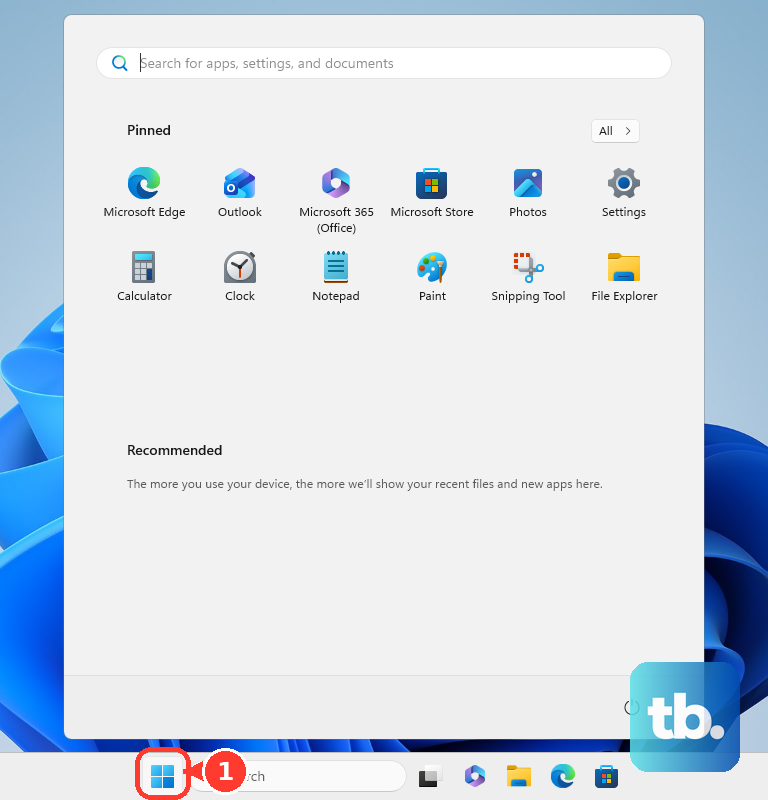
Select Start > Settings > Bluetooth & devices.
Switch Bluetooth on.
Keep Bluetooth & devices open and confirm the adapter is active before pairing anything.
2. Pair your first Bluetooth device from Settings
This fixes a device that is ready to connect but is not paired with Windows yet.
- 1.Put the Bluetooth device in discoverable mode.
- 2.Open Start > Settings > Bluetooth & devices.
- 3.Select Add device.
- 4.Choose Bluetooth.
- 5.Select your device from the list.
- 6.Follow the prompts, then select Done.
3. Use Quick Settings when you want a faster connection
For daily use, open Network, Sound, or Battery icon next to the time and date > Bluetooth tile to turn Bluetooth on or off.
To pair from there, put the device in discoverable mode, select the Bluetooth quick setting's manage-devices chevron, choose the device under New devices, follow the prompts, and select Done.
When the Bluetooth tile is missing, add the Bluetooth action from quick settings customization.
4. Make missing Bluetooth devices appear
Turn on the device you want to connect and put it in discoverable mode.
Open Start > Settings > Bluetooth & devices > Devices.
Under Device settings, open Bluetooth devices discovery.
Choose Advanced.
Pair the device again from Add device > Bluetooth.
Keep the Bluetooth device close to the PC while you pair it.
5. Install or update the Bluetooth adapter driver
This fixes a Bluetooth adapter that Windows does not detect correctly, a missing Bluetooth switch, or pairing failures after setup.
Open Start > Settings > Windows Update.
Select Check for updates, install available updates, and restart the PC.
Open Start, type Device Manager, and select Device Manager.
Expand Bluetooth.
Right-click the Bluetooth adapter, select Update driver, then choose Search automatically for drivers.
Follow the prompts and restart the PC.
Download the latest Windows 11 Bluetooth driver from the PC manufacturer's support website or the adapter maker's official support page when Windows does not provide the needed driver.
6. Use the official adapter maker download when needed
For an Intel Wireless Bluetooth adapter, open Intel's official Wireless Bluetooth download page and choose the supported package for your installed Intel Wireless Adapter.
For a TP-Link UB500, first find the hardware version printed on the adapter or its packaging, then open the official TP-Link UB500 Download page, pick that version under Please choose hardware version, select Driver, and download the package for your Windows release. The packages are not interchangeable: V3.6 lists a separate Win10_Win11 driver, while V1 ships one Windows package covering Windows 7 through Windows 11.
For supported TP-Link USB Bluetooth adapters, connect the adapter while the PC is online and let automatic driver installation start.
When automatic installation fails, download the driver manually from TP-Link's official website, extract the file, run setup.exe or Autorun.exe, follow the instructions, and restart.
7. Confirm Windows sees the adapter
Right-click Start and select Device Manager.
Expand Bluetooth.
Look for the Bluetooth radio name, such as Intel(R) Wireless Bluetooth(R) or Realtek Bluetooth Adapter.
Right-click the adapter and select Properties.
Open the Advanced tab.
Check Bluetooth Radio Information and the Firmware Version LMP value to identify the Bluetooth version.
The adapter name in Device Manager confirms Windows has detected the Bluetooth hardware.
8. Reset Bluetooth when setup still fails
Select the Network, Sound, or Battery icon on the right side of the taskbar and turn Airplane mode off.
On Windows 11, start with the automated Bluetooth troubleshooter in the Get Help app: open Get Help, enter Bluetooth troubleshooter in the search bar, and follow the steps provided.
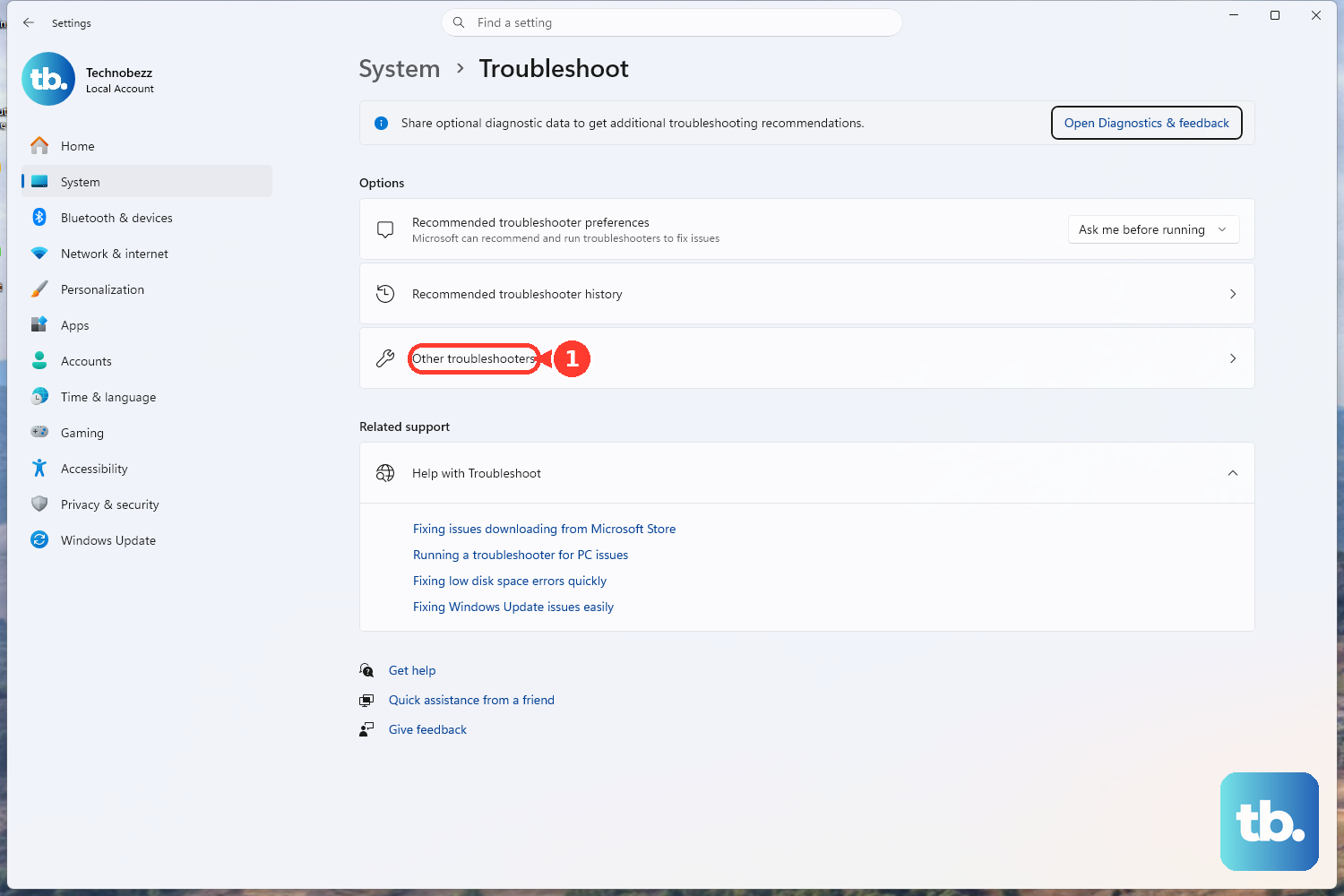
You can also run the Bluetooth troubleshooter from Start > Settings > System > Troubleshoot > Other troubleshooters, then next to Bluetooth select Run and follow the instructions.
Remove a bad pairing from Start > Settings > Bluetooth & devices > Devices, select More options for the device, choose Remove device, select Yes, and pair it again.
If Bluetooth broke after a driver or Windows update, open Device Manager, expand Bluetooth, right-click the adapter, open Properties > Driver, and select Roll Back Driver.
To reinstall the adapter driver, open Device Manager > Bluetooth, right-click the adapter, select Uninstall device, select Uninstall, then restart from Start > Power > Restart.
If Windows does not reinstall the adapter automatically, open Device Manager and select Action > Scan for hardware changes. Use the Action menu rather than the device’s right-click menu, because after the uninstall the adapter may no longer be listed under Bluetooth at all.
9. Know the Windows 10 and work PC limits
Older Windows 10 instructions use Start > Settings > Devices > Bluetooth & other devices, but Windows 10 general support ended on October 14, 2025. The current consumer path is Windows 11's Start > Settings > Bluetooth & devices. On a work or school PC, management policy can block Bluetooth pairing, file transfer, local Bluetooth device naming, or browser-based Bluetooth access, so contact your organization when those controls are locked.
Frequently Asked Questions
Do I need a Bluetooth adapter if my PC already has Bluetooth?
No. Use a USB Bluetooth adapter for a PC without built-in Bluetooth or for an existing Bluetooth adapter that is not working correctly.
Why does my Bluetooth adapter show up but my device does not?
Put the device in discoverable mode, then set Bluetooth devices discovery to Advanced under Settings > Bluetooth & devices > Devices. After that, use Add device > Bluetooth again.
Where should I get a Bluetooth adapter driver?
Use Windows Update first, then Device Manager. When Windows does not provide the driver, use the PC manufacturer's support site or the adapter maker's official download page, such as Intel or TP-Link for supported adapters.
Can a website connect to my Bluetooth device after setup?
Yes. Microsoft Edge and Chrome connect to supported Bluetooth devices from a web page after Bluetooth is on, the device is discoverable, and you select Pair or Connect.